
Reusable Checklist Templates
Create and save named templates for different services or procedures. Edit templates as your process changes, duplicate them for similar work, and reuse them across jobs.
Turn service procedures into checklists your technicians complete while they work. Collect answers, photos, and signatures within each job, and make essential items required before checkout. FieldTask helps your team follow a defined process and record the details each service visit needs.

Build checklists around your inspections, installations, maintenance visits, and other services. Choose how technicians respond, organize related checks into sections, and attach the appropriate template to each job.
Create and save named templates for different services or procedures. Edit templates as your process changes, duplicate them for similar work, and reuse them across jobs.
Organize items into named sections. Choose checkboxes, text fields, Pass / Flag / Fail, single-select, or multi-select responses. Add your own answer options to selection fields.
Mark essential items as Required. With Checklists on jobs enabled, technicians must answer or resolve these items before finishing the job. Other items can remain optional.
Add fields for visual documentation and signatures. Checklist photos stay with the checklist and appear in its PDF. Configure signature fields for a customer, technician, or another signer, with an optional acknowledgment statement.
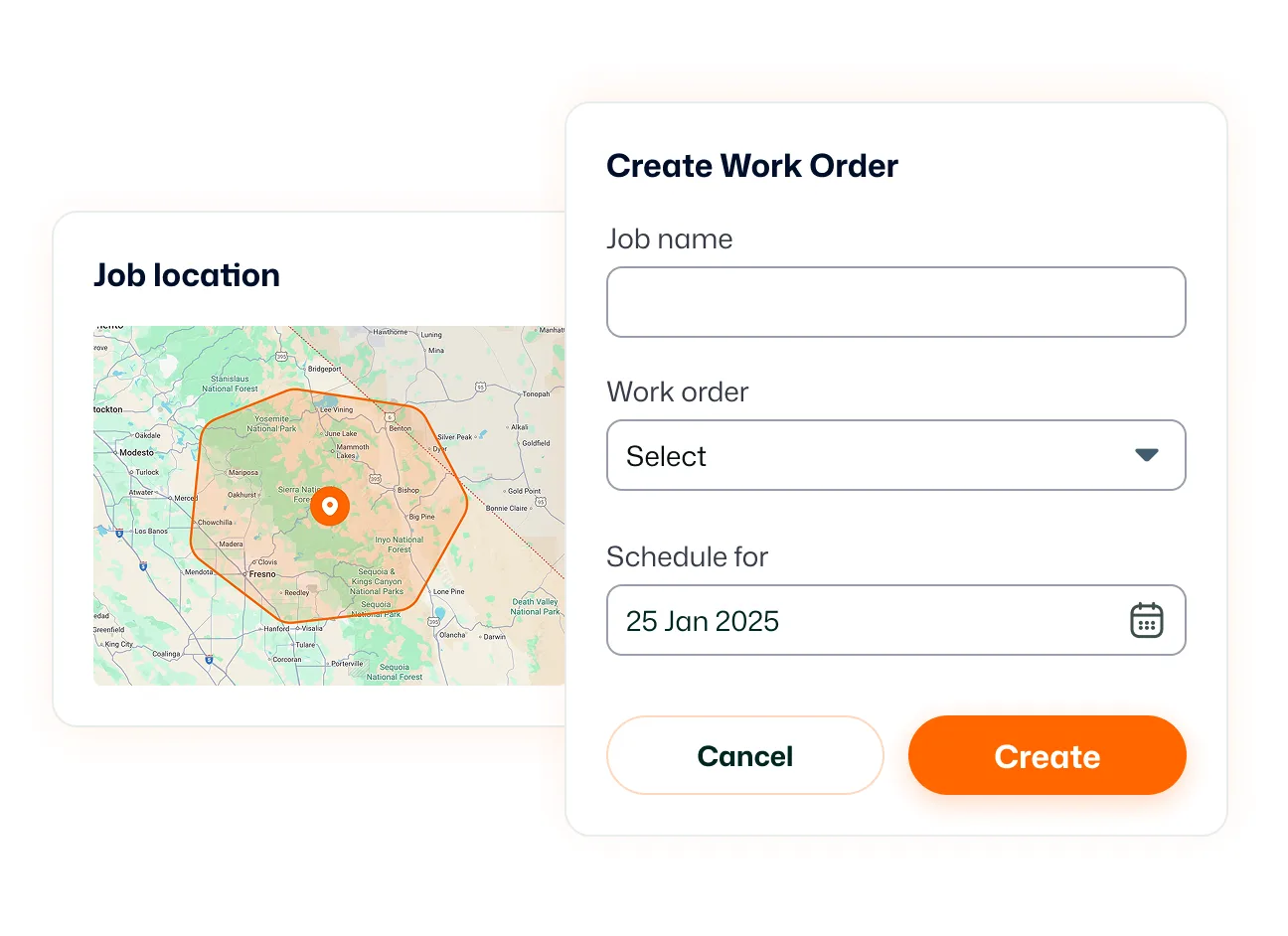
Attach checklists while creating or editing a job. Enable Auto-add to new jobs for templates that should apply to every new job and all occurrences of a recurring job.
Choose the organization’s default checklist PDF layout or another available layout for each template. Your selection applies to checklists added to jobs afterward, while existing job checklists retain their previous layout.
Give your technicians a clear process and your office the job records it needs. With reusable templates, required responses, photos, and signatures, FieldTask Checklists helps turn your service standards into steps your crew can follow and document.
Checklist lets you create reusable job forms for tasks, inspections, and service procedures. Attach a checklist to a job so the assigned technician can record responses, upload photos, and collect signatures while completing the work.
Go to Settings → Checklists and select New checklist. Give the template a name, add sections and items, choose response types, and mark essential items as required. Select Save template when it is ready.
FieldTask supports seven item types: Checkbox, Text, Pass / Flag / Fail, Single-select, Multi-select, Photo upload, and Signature. You can combine different field types within the same checklist.
Yes. Enable Checklists on jobs and mark the relevant items as Required. Those items must be answered or resolved before the technician can finish the job.
Yes. Add photo-upload and signature fields to your template. Photos are stored within the checklist and included in its PDF, rather than automatically appearing in general job attachments. For signatures, configure the signer type and optionally include an acknowledgment statement.
Both options are available. Select saved checklists during job creation or while editing an existing job. Alternatively, enable Auto-add to new jobs on a template to apply it to every new job and all occurrences of recurring jobs.
Later template edits do not change checklists already copied onto existing jobs. Deleting a template prevents future use, while checklists already attached to jobs remain intact and editable.
Yes. Each template can use the organization’s default checklist PDF layout or another available layout. Changing the selection affects checklists attached to jobs afterward. Checklists already on jobs keep their existing layout. Signature acknowledgment statements also appear beside the signature in the PDF.
Yes. When appointment syncing is enabled, HighLevel appointments can become FieldTask jobs. You can attach a checklist to the job in FieldTask so the assigned technician has the required steps and information to complete.
Create them in FieldTask under Settings → Checklist → New Checklist. Add the fields your team needs, organize them into sections, and attach the checklist during job creation or while editing an existing job.
Yes. Once a checklist is attached to the FieldTask job, the assigned technician can access it while working in the mobile app. Depending on the checklist you create, they can enter information, complete checks, upload photos, and capture signatures.
Yes. After the appointment becomes a FieldTask job, you can attach a checklist with required items. Those items must be completed or resolved before the technician can check out of the job in FieldTask.
