
Customer Job List
View the jobs associated with the selected customer directly from Customer Details. Each row keeps the job name and related information together in a customer-specific table.
Open a customer’s record to review the jobs associated with them. See previous work and planned service alongside schedules, assigned technicians, job values, progress, and notes, so you have the relevant context before responding.

Review a customer’s work without searching through the organization’s entire job list. Customer Job History brings their jobs into one table with the details needed to follow service activity.
View the jobs associated with the selected customer directly from Customer Details. Each row keeps the job name and related information together in a customer-specific table.
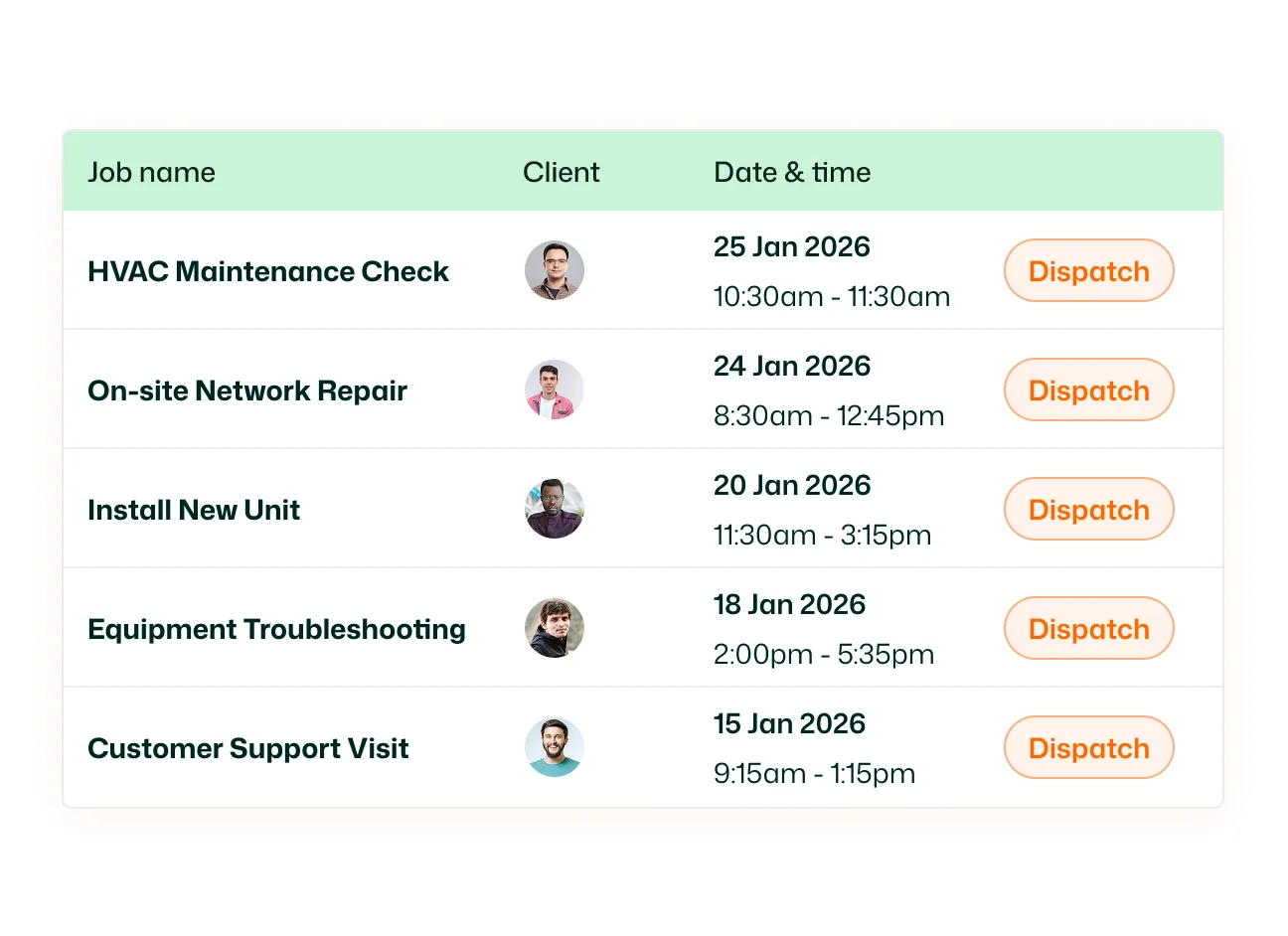
Switch between scheduled and unscheduled jobs for the customer. Review work with an assigned schedule or focus on jobs that still need one.
Filter the list by Scheduled, In Progress, or Completed, or view all statuses. Review the displayed progress percentage and status alongside each job.
See job dates, scheduled times, and assigned members in the table. Review which technician or crew is associated with each service visit.
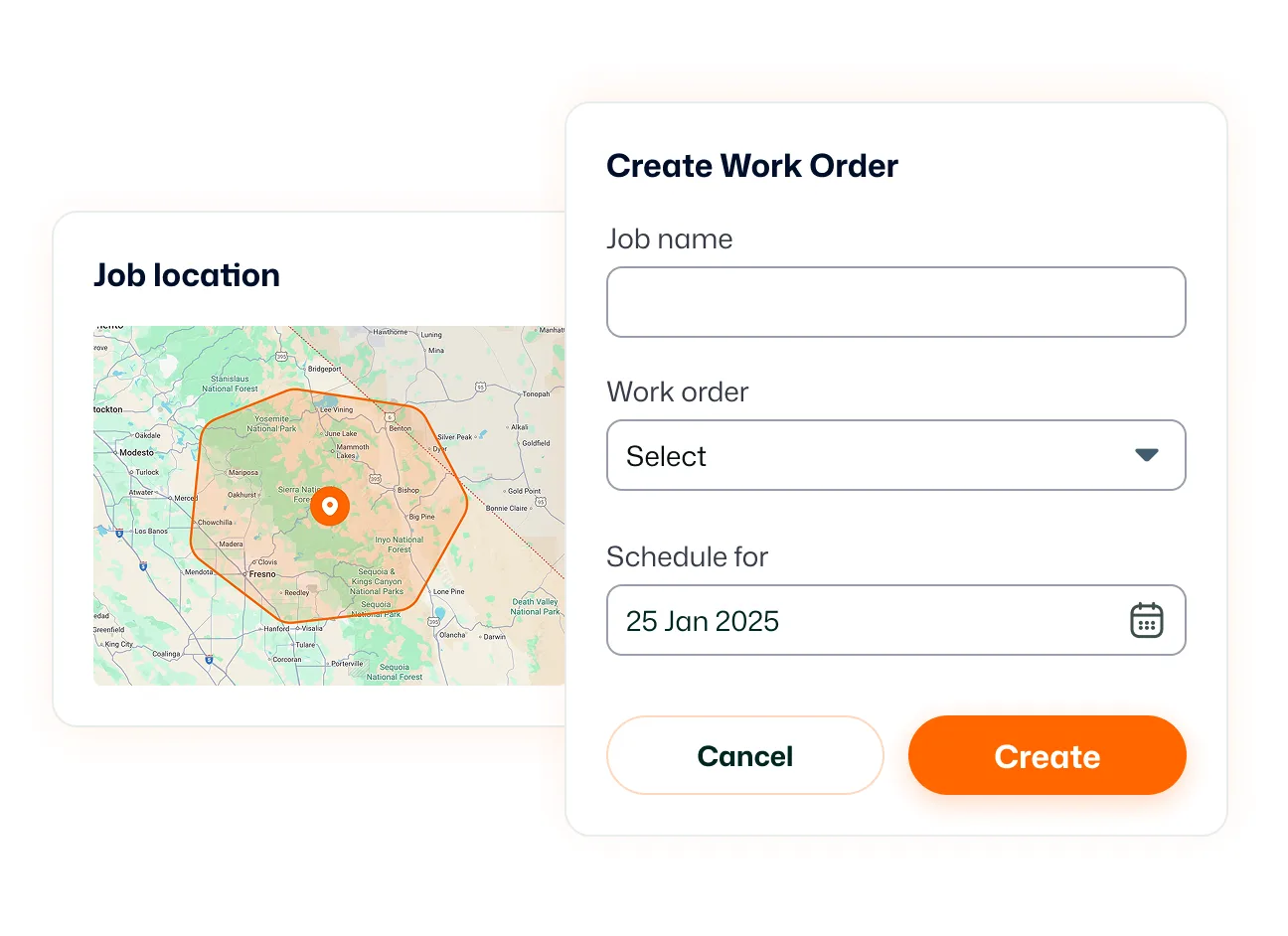
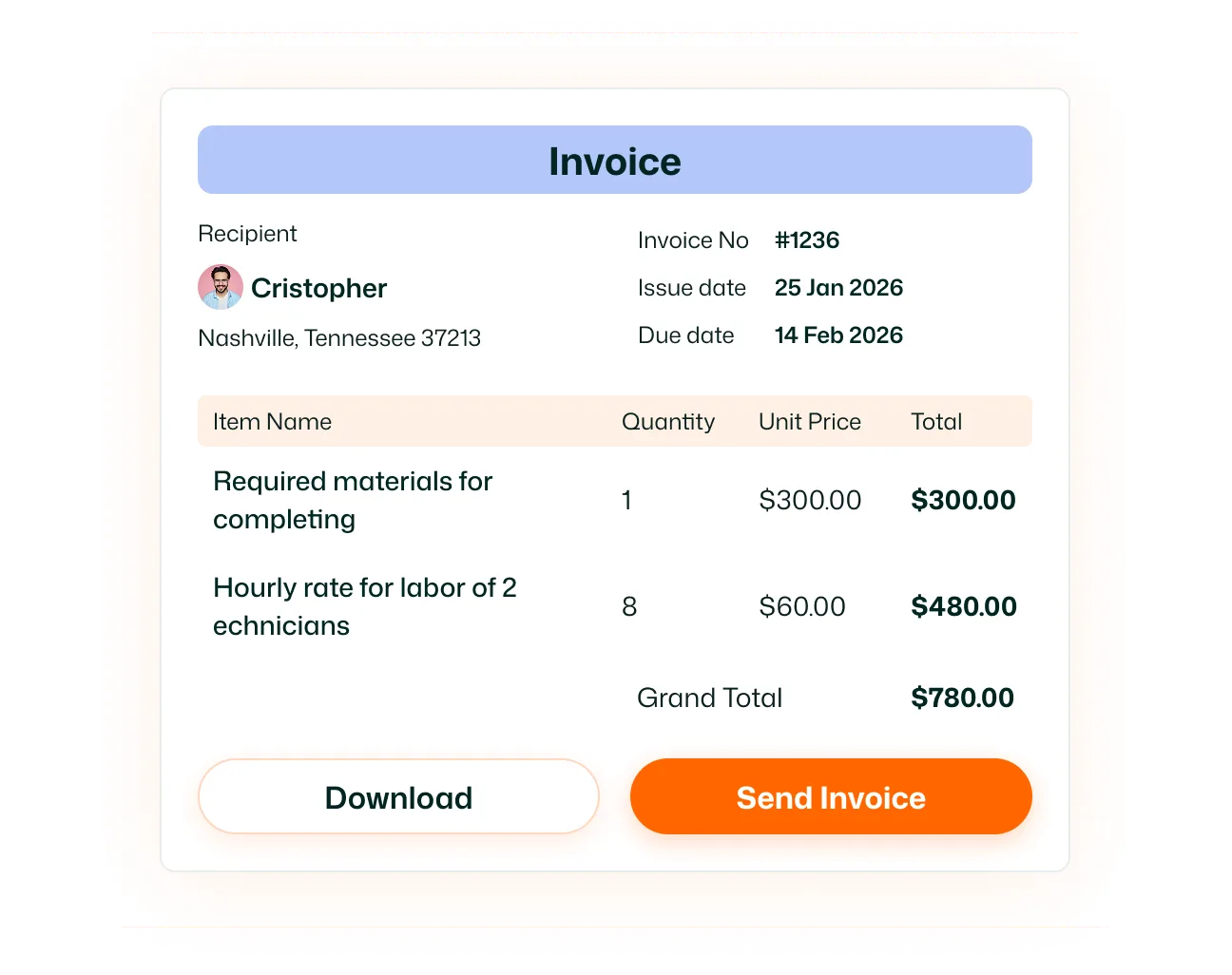
View the recorded value of each job. Where displayed, an Invoiced indicator identifies jobs marked as invoiced alongside their value.
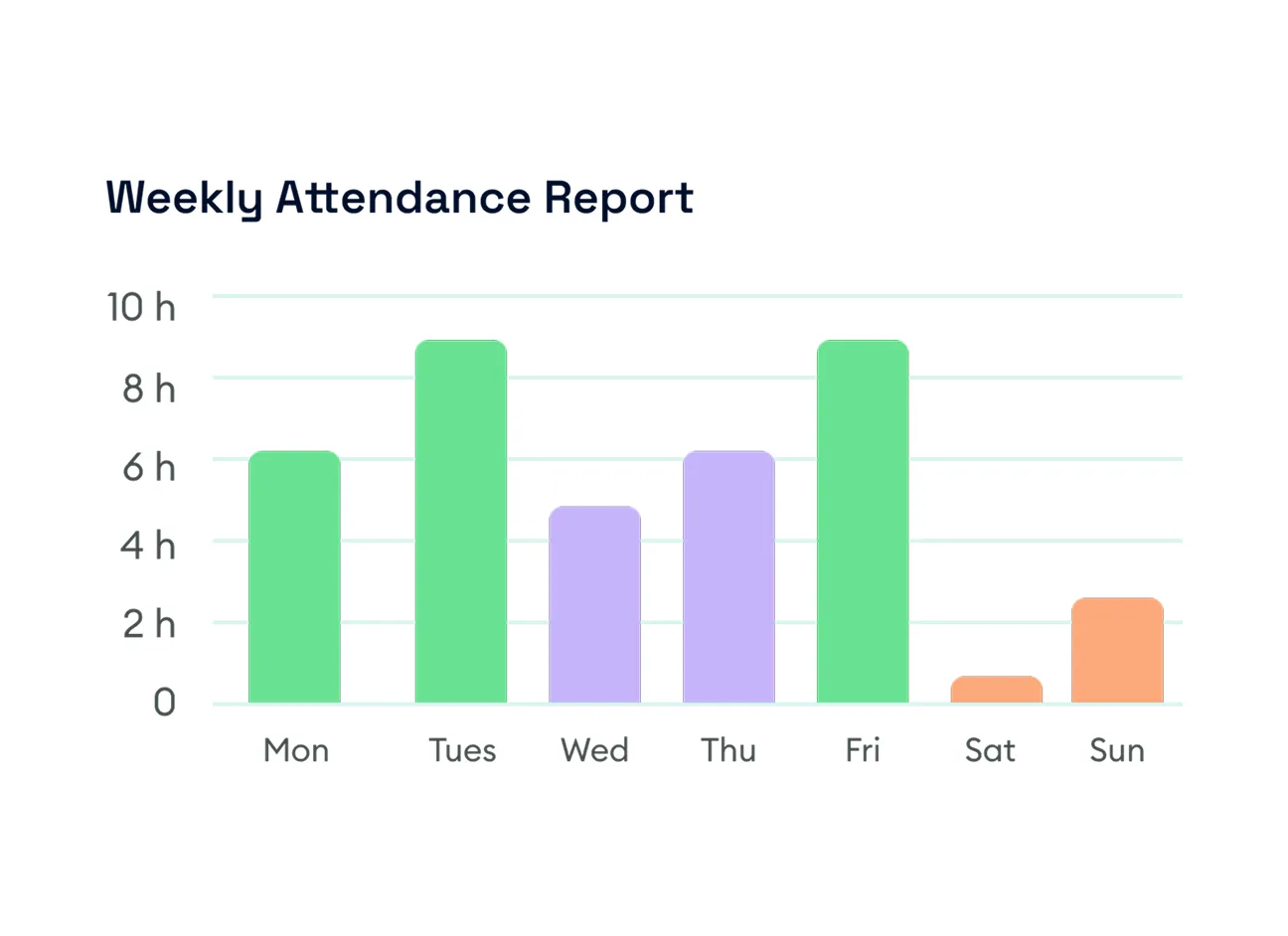
Open the notes panel for a job to review recorded information. Add a note or upload an image, keeping the additional context attached to that job.
Bring the customer’s previous work, planned jobs, and recorded notes into the conversation. With their service records in view, your office can answer questions and follow up with clearer context.
Customer Job History is the customer-specific job list available from Customer Details. It lets you review jobs associated with that customer alongside schedules, assignments, values, progress, and notes.
Open Customers, select the customer, and review the Customer’s Jobs section on their details page.
The table includes the job name, customer, schedule, assignee, value, progress, status, notes, and available job actions. Some records also display an invoice indicator.
Yes. Choose Completed from the status filter to focus on jobs recorded as completed for the selected customer.
Yes. The customer’s job list includes a scheduled view and an unscheduled view. Scheduled jobs can also be filtered by their current status.
Yes. The Assignee column displays the members associated with the job, including multiple assignees where applicable.
Yes. Open the job’s notes panel to read existing notes. The panel also provides a text field and an Upload Image option for adding job information.
Customer Job History focuses on the jobs associated with one selected customer. All Jobs provides the broader organization job list. The customer-specific view keeps service activity beside that customer’s contact details and locations.
