
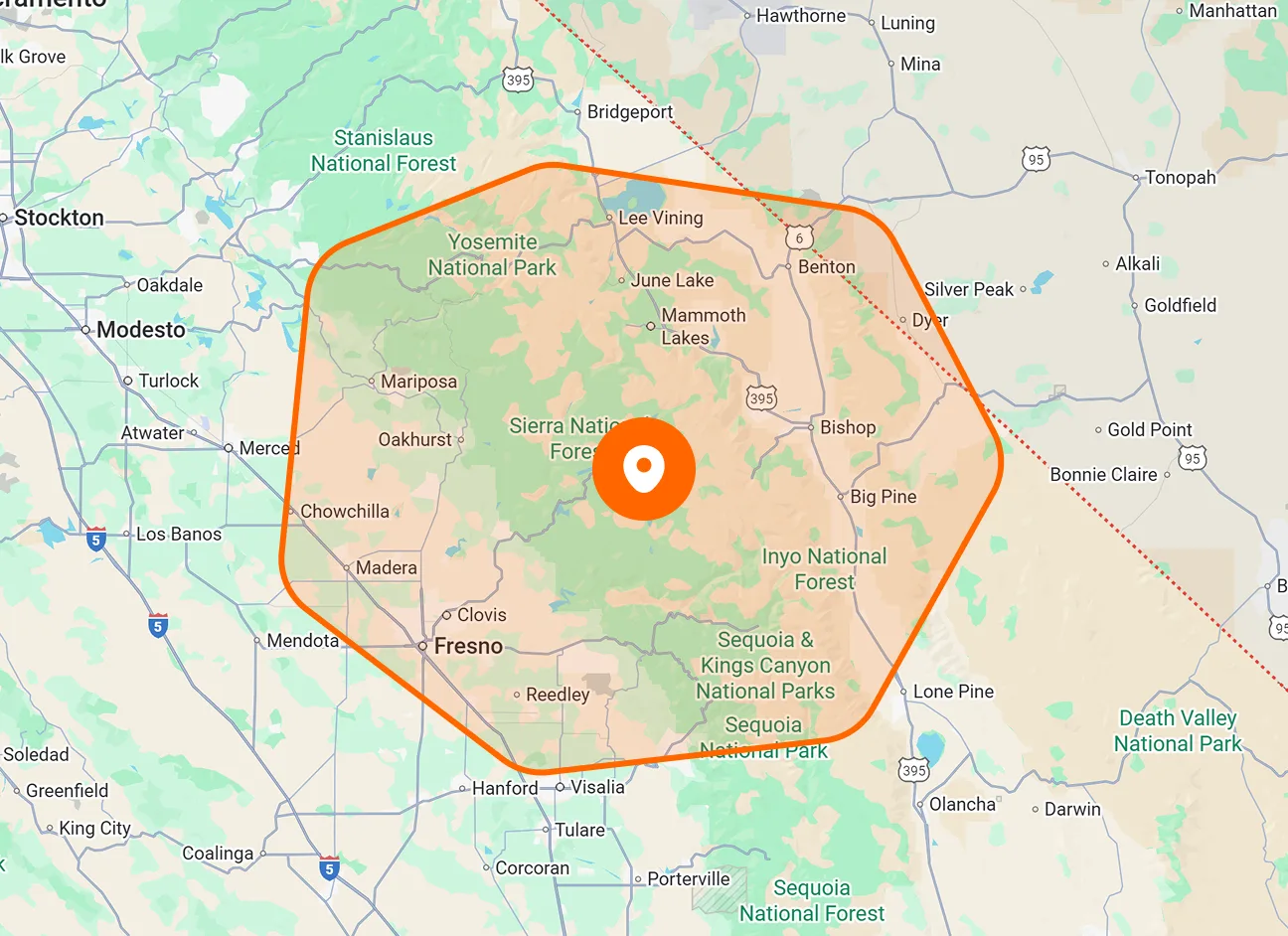
HighLevel Contact Sync
Bring HighLevel contacts into FieldTask as customers. Select individual contacts or sync all available contacts, and use Sync from CRM to refresh the contacts available for import.
Keep customer names, contact information, and service locations together in FieldTask. Bring in HighLevel contacts, import an existing customer list, or add customers manually, then use search and tags to find the records you need.

Bring your customer information into one directory, update details when they change, and organize records around the customers your team serves.
Bring HighLevel contacts into FieldTask as customers. Select individual contacts or sync all available contacts, and use Sync from CRM to refresh the contacts available for import.
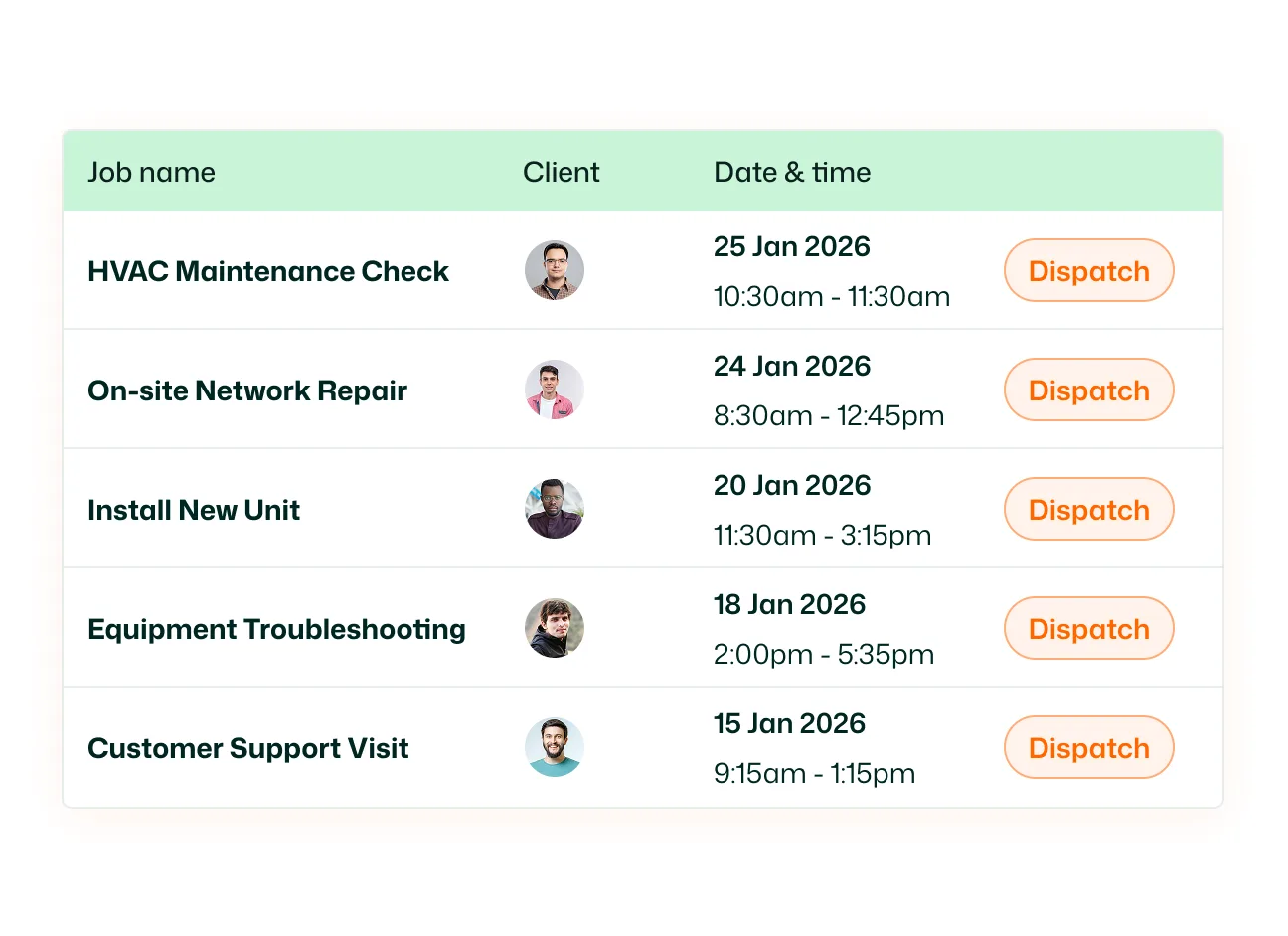
Import customer profiles from a CSV or XLSX file. Download the supplied template, prepare your customer information, and select or drag your file into the import window.
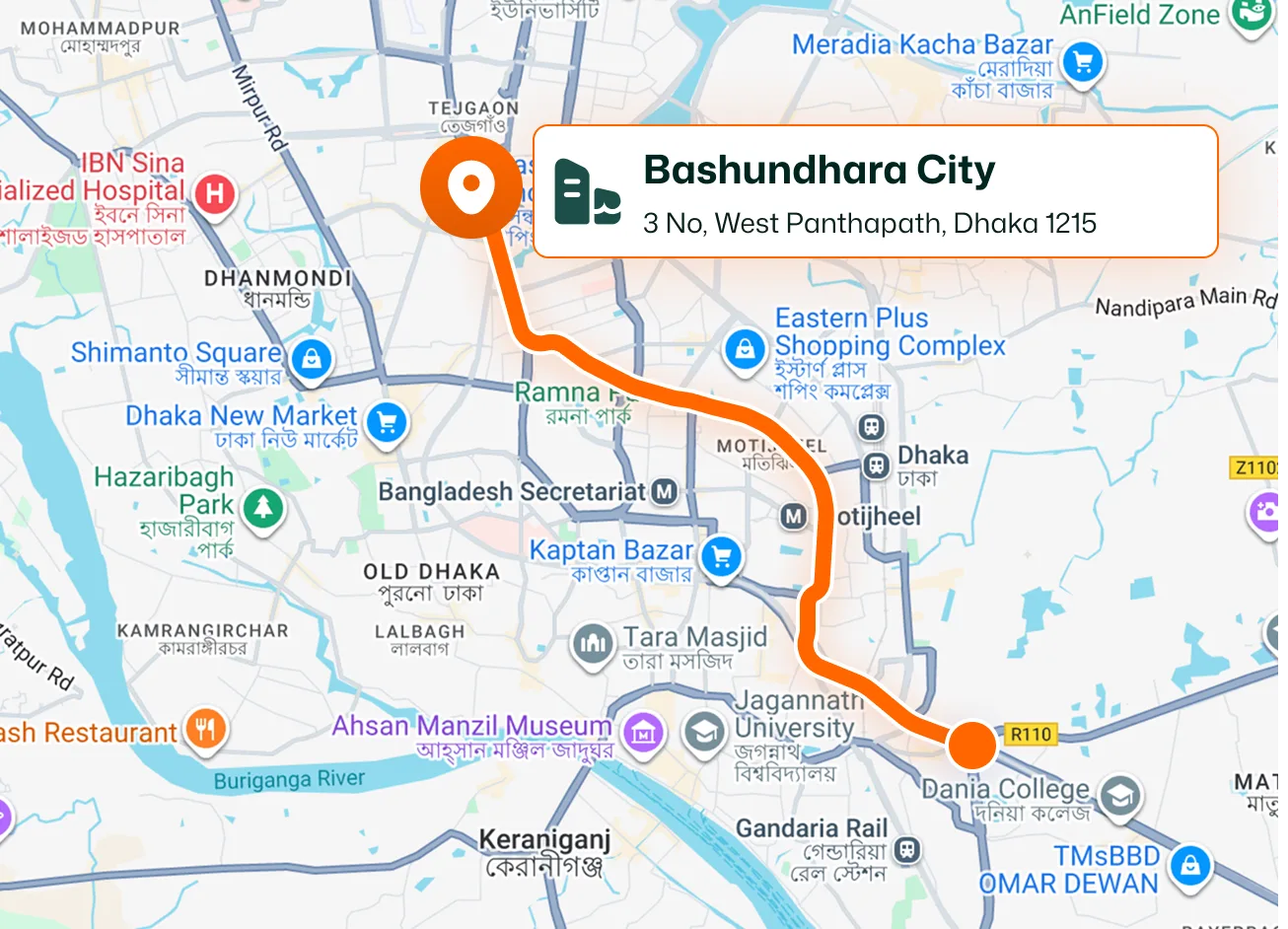
Create a customer with their name, email address, and contact number. Open an existing record to update those details and manage the service locations associated with the customer.
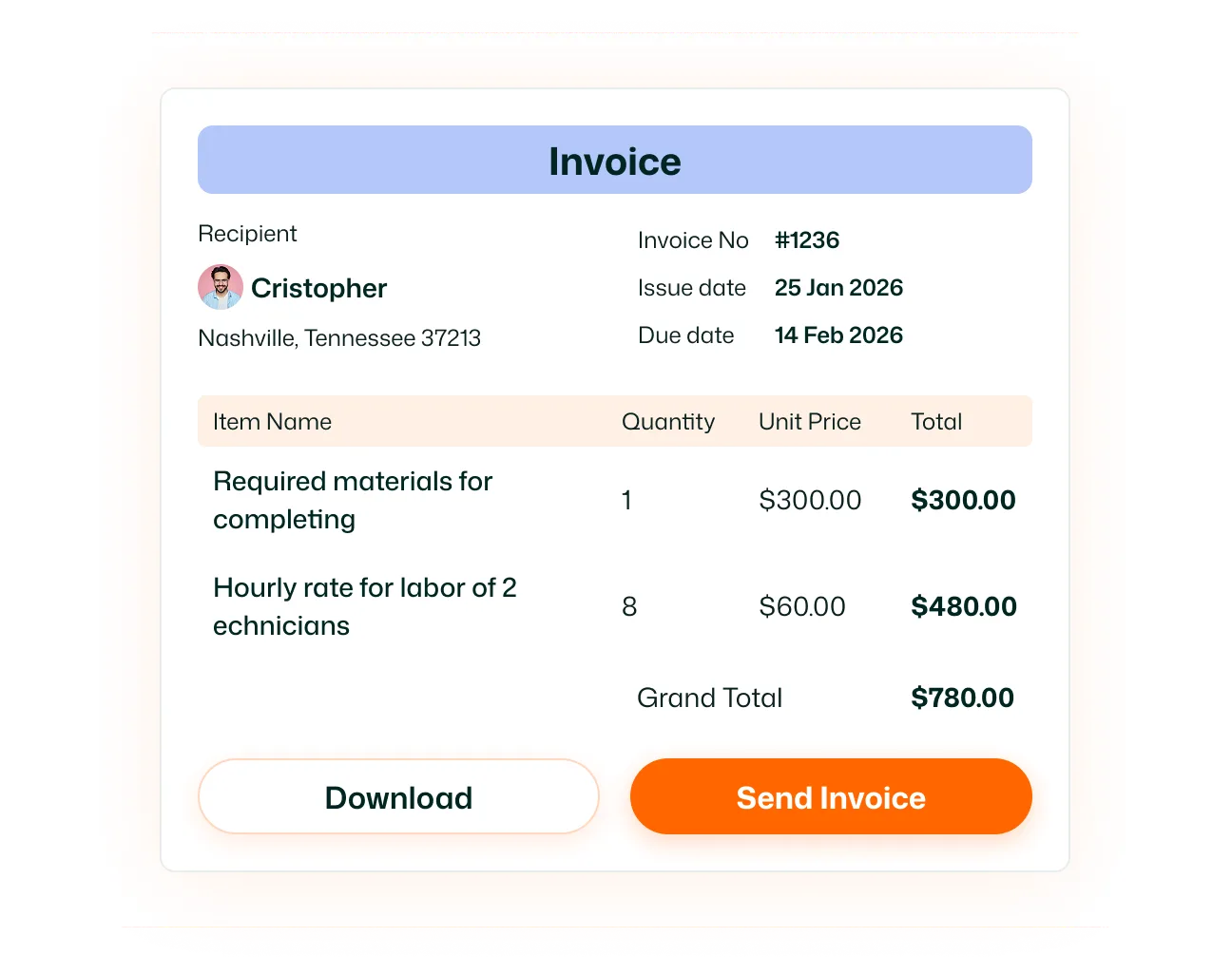
Use Search By Customer to locate a customer in the directory. The list displays contact information and saved locations alongside each record.
Attach tags to customer records and filter the directory by selected tags. Use the matching option to find customers associated with any or all of your selected tags.
Switch between Active and Archive to view customers in each group. Keep the active customer list accessible while using a separate view for archived records.
Keep your customer directory ready for the next service request. With contact syncing, imports, search, and tags, your office can find the right record and access its details more easily.
Customers is your directory of customer records in FieldTask. It brings together contact details, tags, service locations, and access to the jobs associated with each customer.
Yes. Open the sync panel from Customers, select the HighLevel contacts you want to bring in, and sync them into FieldTask.
Yes. The sync panel lets you select individual contacts or use the option to sync all available contacts.
Yes. Use Import Customers to upload a customer list. The import window supports CSV and XLSX files and provides a downloadable template. The help guide explains the CSV import process.
\Yes. Select Add Customer from the Customers page, or open the customer form through Quick Actions. Enter the customer details and save the record.
Yes. Open the customer’s edit form, change their name, email address, or phone number, and select Update to save your changes.
Tags let you label customers using categories relevant to your business, such as residential, commercial, or recurring customers. Select tags from the filter to narrow the directory.
Yes. Organization Owners and Admins can add customers through the mobile app’s + menu or Customers page.
