
Job Document Upload
Add files through the Documents section while creating a job on the web. Attach PDFs and images alongside the customer, schedule, and job description.
Attach service instructions, reference images, and PDF documents directly to a job. FieldTask keeps these files alongside job details, so your team can find the information connected to the work and open documents whenever they need a closer look.

Keep the documents needed for a service visit connected to the job itself. Upload multiple files, check their previews, and open attachments directly from the job record.
Add files through the Documents section while creating a job on the web. Attach PDFs and images alongside the customer, schedule, and job description.
Attach more than one document to the same job. Each file appears as a separate card, allowing you to keep instructions, reference images, and supporting documents together.
View image thumbnails and PDF previews within the Documents section. File names appear beneath the attachments, helping you identify the document you want to review.
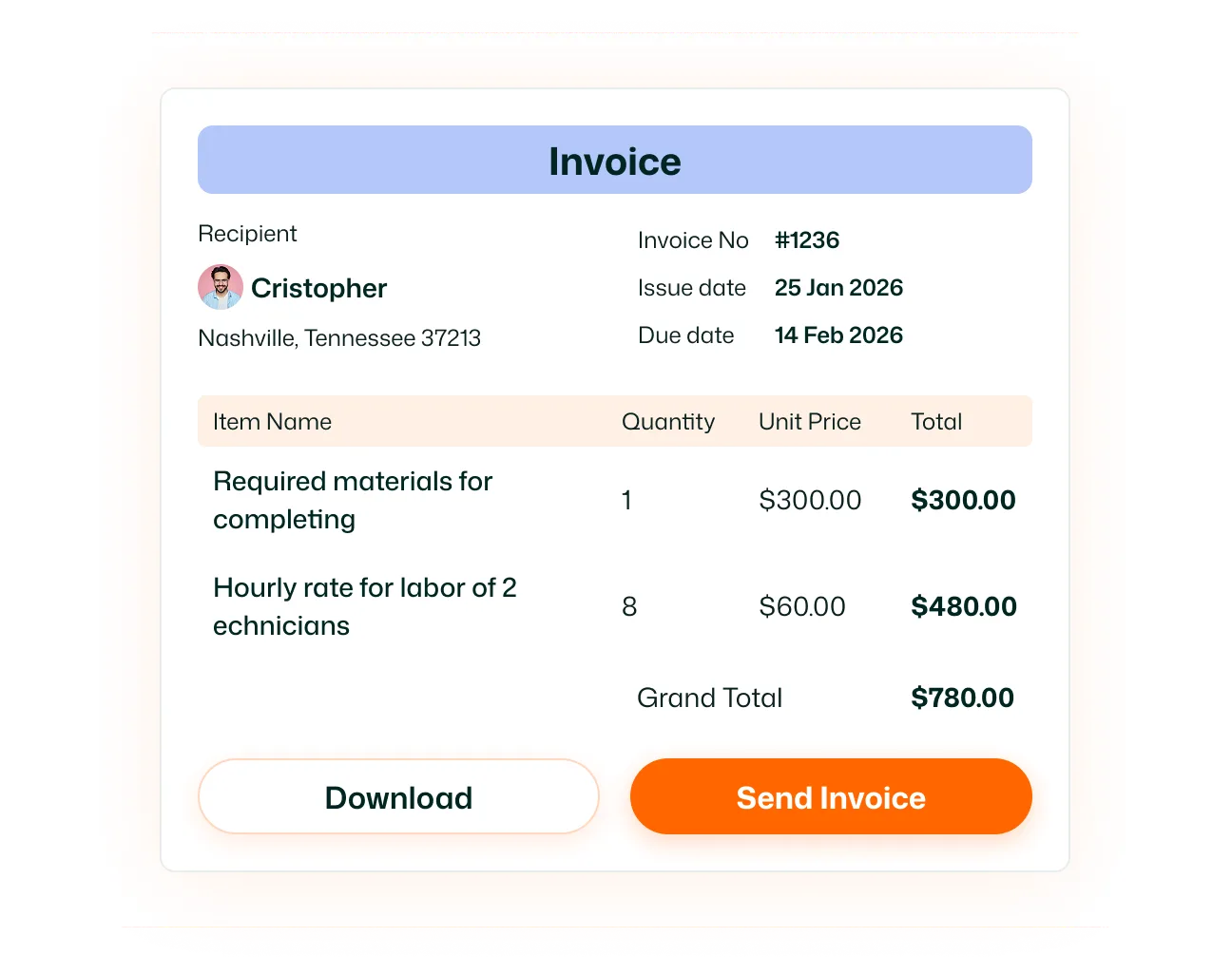
Open an attached document for a closer look. From the job details page, select Open document to view the file in your browser.
Add documents while creating a job in the FieldTask mobile app. In the Items & Documents section, tap Add to attach a PDF or image file.
Remove an unwanted attachment before creating the job. On mobile, tap the X on the document card to remove it from the job you are preparing.
Keep service instructions and supporting files with the work they explain. With FieldTask Documents, your team has a clear place to find job attachments, review reference material, and understand the details behind the task.
Documents lets you attach files directly to a job. You can keep PDF documents and reference images alongside the job’s details, then preview or open those attachments from the job record.
While creating a job on the web, go to the Documents section, click Add File, and select a file from your device. Repeat the process to add additional attachments before creating the job.
The feature supports PDF documents and image attachments. In the FieldTask mobile app, only PDF and image files can be added as job documents.
Yes. You can add multiple files to the same job. Each attachment appears separately in the Documents section with its file name and preview.
Yes. The Documents section displays image thumbnails and PDF previews, allowing you to check an attachment before opening the full file.
Open the job details and scroll to Documents. Select Open document beneath the attachment to view the file in your browser.
Yes. During mobile job creation, continue to Items & Documents and tap Add. Choose a PDF or image file to attach it to the job.
Yes. You can remove an attachment while preparing the job. In the mobile app, tap the X in the top-right corner of the document card. Mobile document removal is available during job creation.
