
Send From the Job Details
Open the job you’re heading to and select On My Way. The notification screen displays the job’s primary contact and their contact details, helping you review who will receive the update before you send it.
Let customers know you’re heading to their service appointment. Send a text or email, choose your estimated arrival time, and personalize your message directly from the FieldTask mobile app.

Give customers a clear update between booking and arrival. On My Way brings the recipient, delivery options, arrival estimate, and message together so technicians can review everything before sending.
Open the job you’re heading to and select On My Way. The notification screen displays the job’s primary contact and their contact details, helping you review who will receive the update before you send it.
Select an arrival estimate of 5, 10, 15, 30, 45, or 60 minutes. The message updates to reflect your selection, giving customers a practical timeframe to prepare for your visit.
Choose SMS, email, or both from the same screen. Review the displayed phone number and email address, select your delivery channels, and send your arrival update without composing separate messages.
Edit the message before sending to include information relevant to the visit. Introduce yourself, add a short service update, or include a callback number so customers know who’s coming and how to reach you.
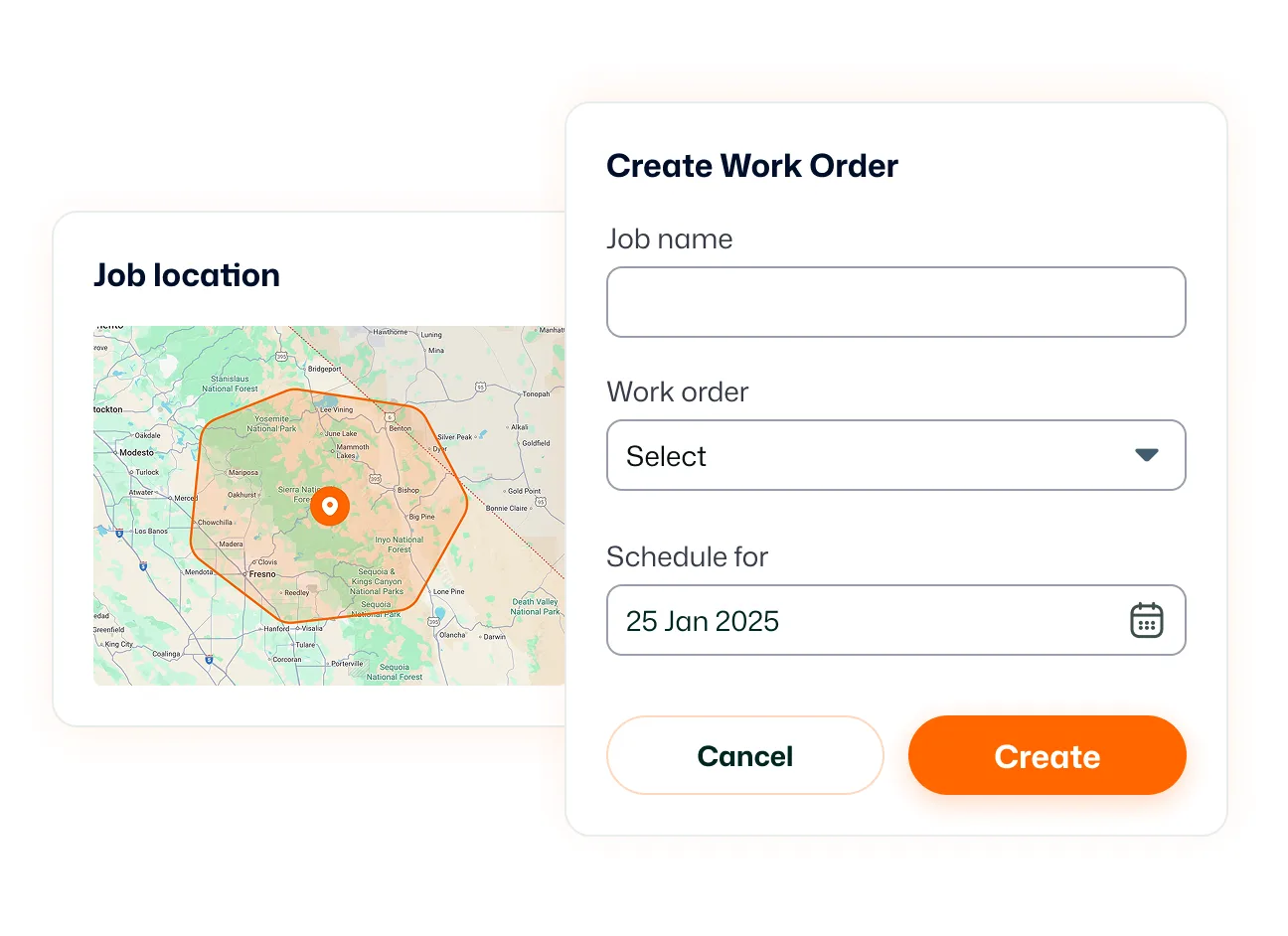
Use Save as default to keep your preferred message wording for future notifications. Start with a familiar introduction and adjust the details for each visit, reducing the need to rewrite the same information.
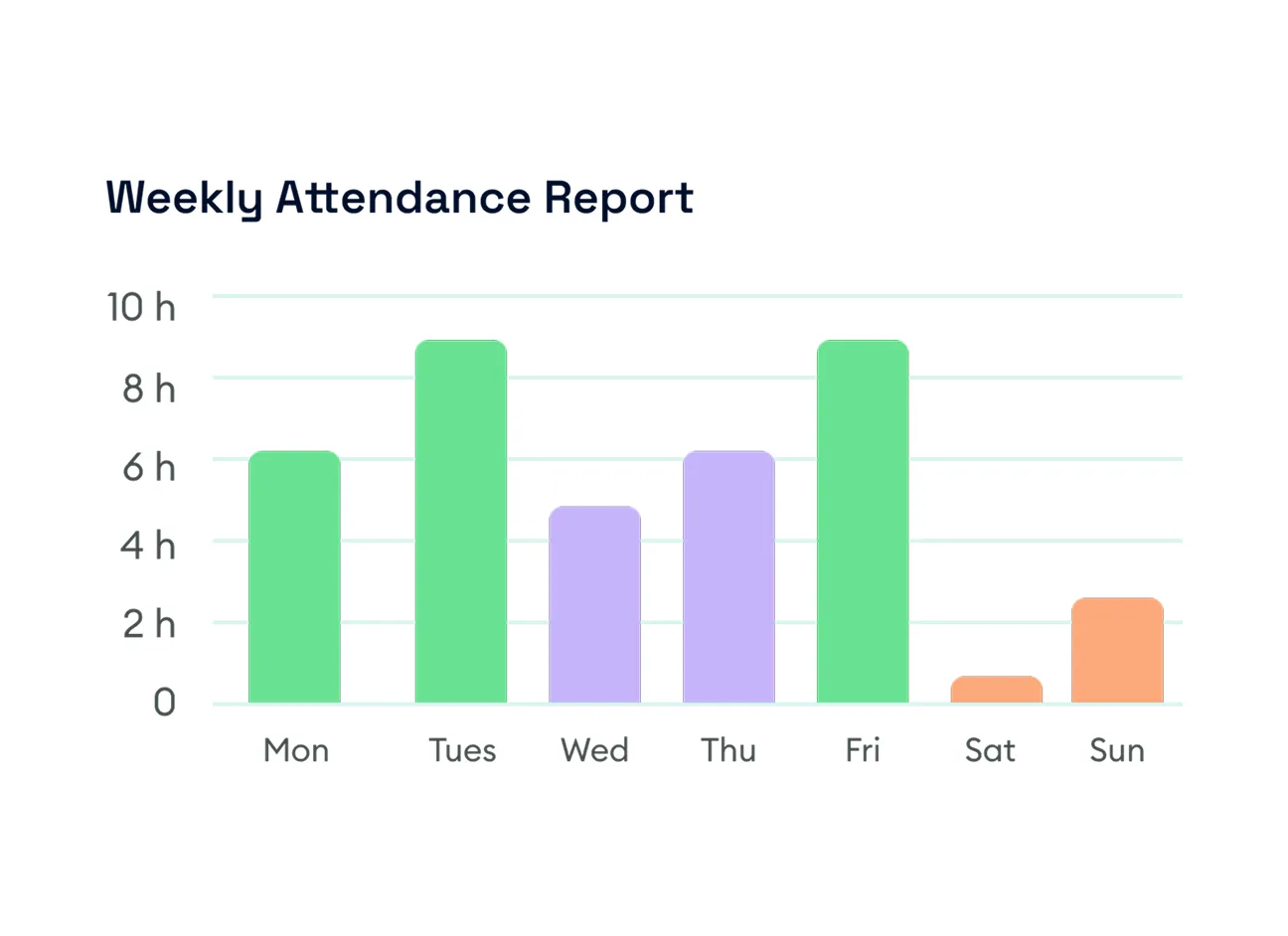
Include a location pin to give customers more context about where you are before arrival. Review the location information and edit it when needed before sending your update.
Keep customers informed with a clear arrival estimate so they can plan around your visit.
On My Way lets technicians send customers an arrival notification from the FieldTask mobile app. You can choose SMS, email, or both, select an estimated arrival time, and edit the message before sending.
Open the relevant job in the mobile app and select On My Way. Review the recipient, choose your delivery channels and arrival estimate, then check the message and tap Send.
Yes. Select both Text message and Email on the notification screen to send the update through both channels. Review the customer’s displayed contact details before sending.
The technician selects an estimate before sending the notification. Available options are 5, 10, 15, 30, 45, and 60 minutes. The message reflects the selected timeframe as an approximate arrival time.
Yes. Tap the message’s edit option to change the wording or add visit details. Use Save as default to keep your preferred wording for future On My Way messages.
Yes. An On My Way alert can include a pin showing your current location. You can review and edit the location information before sending it.
Arrival updates are useful for businesses visiting customer homes or job sites, including HVAC, electrical, appliance repair, lawn care, pool service, pressure washing, and property maintenance. Customers can use the notice to prepare access or be available for the visit.
Yes. On My Way is part of the FieldTask mobile app. FieldTask is built for service businesses using HighLevel, bringing mobile field operations into their existing customer and job workflow.
Yes. Once the appointment is synced into FieldTask as a job, open its details and select On My Way. Choose Email or both Email and SMS, customize the message, and optionally include a location pin before sending.
