
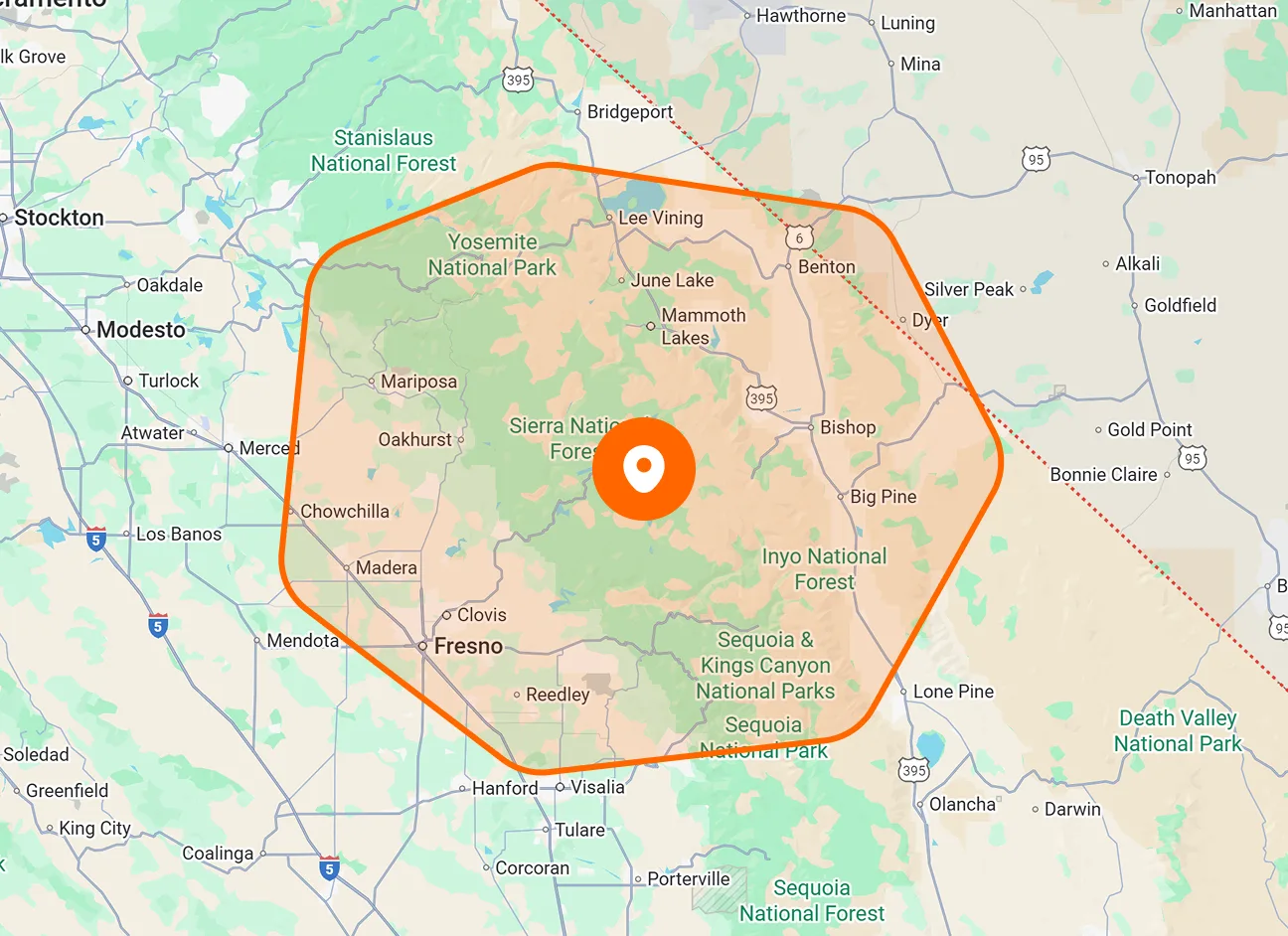
GPS Route Tracking
View the route recorded while a team member is checked into a job. Tracking begins at check-in and stops automatically at check-out, capturing movement during that active job period.
Review your team’s recorded movements with FieldTask Route Map. Choose a member and date to view their tracked route, locate job check-in and check-out points, and review the activity behind the map.

Connect your crew’s recorded movements with their job activity. Route Map brings tracked routes, check-in and check-out markers, and daily work details into one view.
View the route recorded while a team member is checked into a job. Tracking begins at check-in and stops automatically at check-out, capturing movement during that active job period.
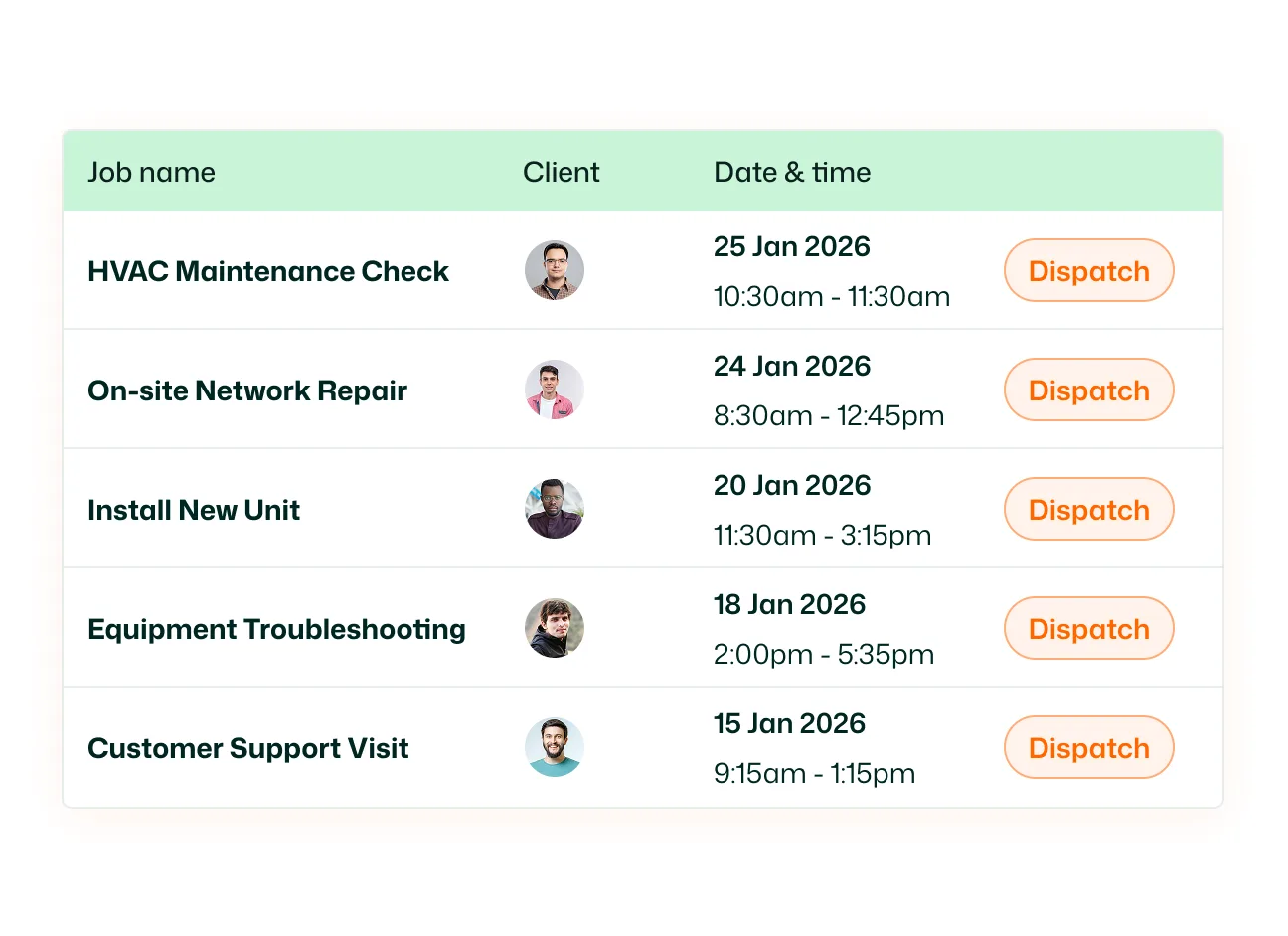
Choose whose route you want to review from the member selector. Use the search field to find a team member, then switch between available members to view their recorded activity.
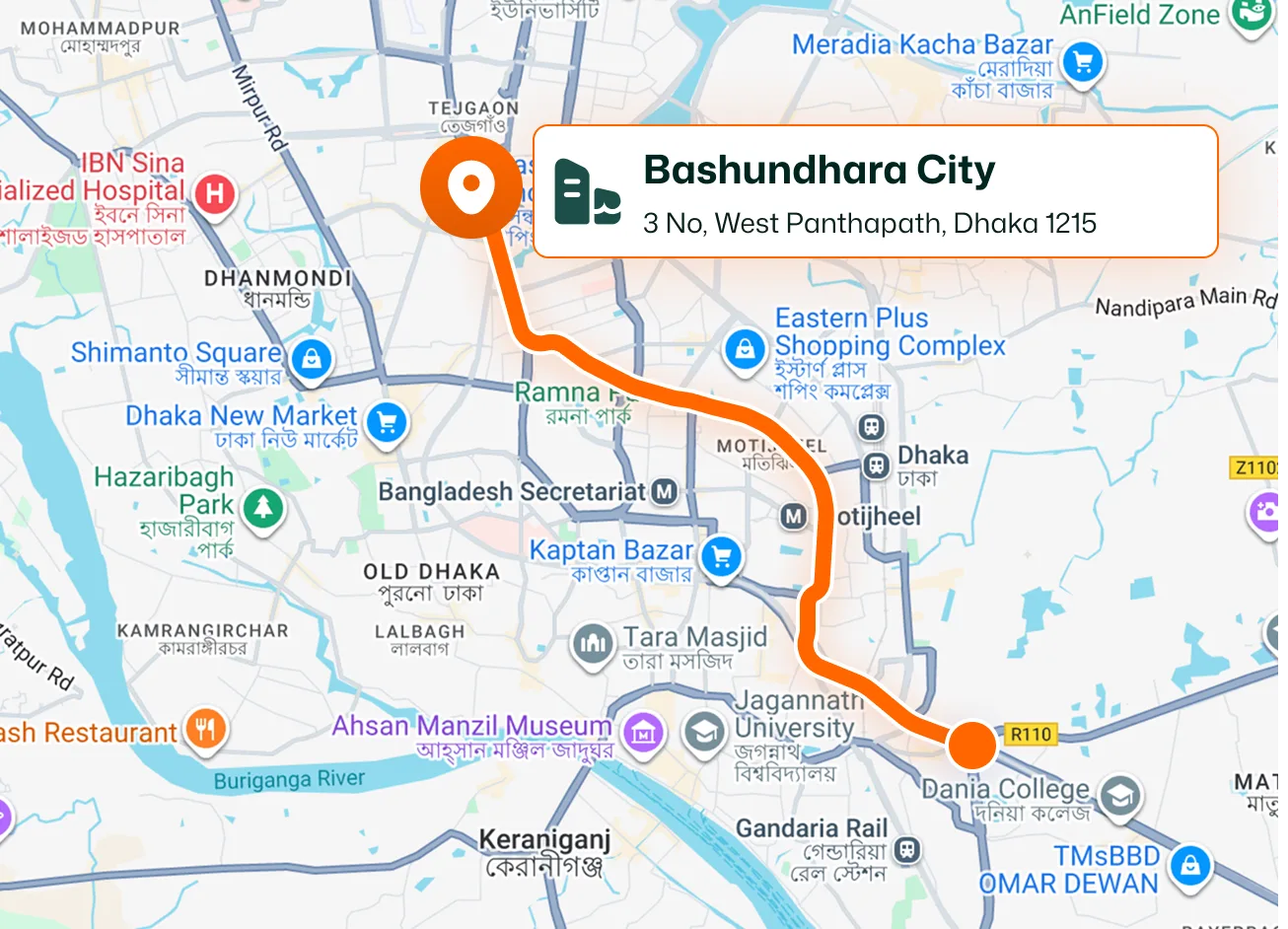
Select a date to load the member’s recorded route for that day. Move between dates using the previous and next arrows, or select Today to return to the current day.
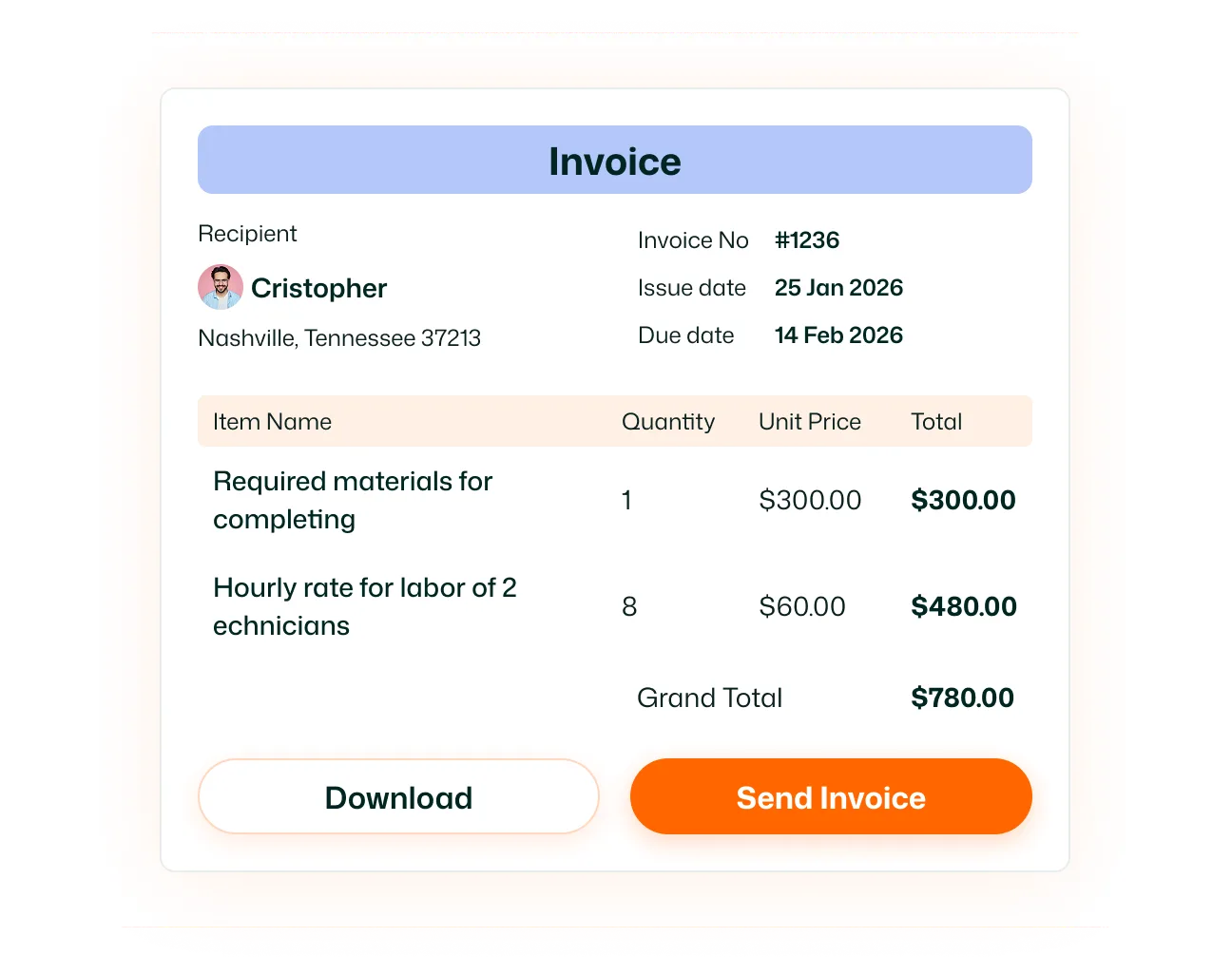
Locate recorded job check-ins and check-outs directly on the map. Green IN and red OUT markers distinguish the two events alongside the displayed route.
Open See Details to review the selected member’s clock-in and clock-out entries, associated job names, and total worked time for the chosen date.
Pan across the map and zoom in to examine recorded locations more closely. Zoom out to see the wider route and how its recorded points connect.
Give your team clearer context for conversations about the workday.
Route Map displays a team member’s recorded route during active job tracking. Select a member and date to review their movements alongside job check-in and check-out markers.
Route tracking starts when a member checks into a job and stops automatically when they check out. It records movement during that active job period.
Open Routes → Route Map in FieldTask. Select the member you want to review, using the search field if needed, then choose a date. The map updates to display the available route data for that selection.
Yes. Choose an earlier date using the date field or move backward with the navigation arrow. Route Map displays the recorded data available for the selected member and day.
Green IN markers represent recorded job check-ins. Red OUT markers represent recorded job check-outs. They show where those events were recorded on the map.
The See Details panel displays the selected member’s daily clock-in and clock-out activity, including recorded times, associated job names, and total worked time for the chosen date.
Route Map helps you review recorded movements over a selected day. Live Location shows a member’s current position while they are online, with a Last Detected Position option for members who have gone offline.
Yes. Open the mobile app’s left-side menu and select Route Map. Organization Owners and Admins can view all organization members’ routes, while Members can view their own route.
