
Mobile Job Check-In
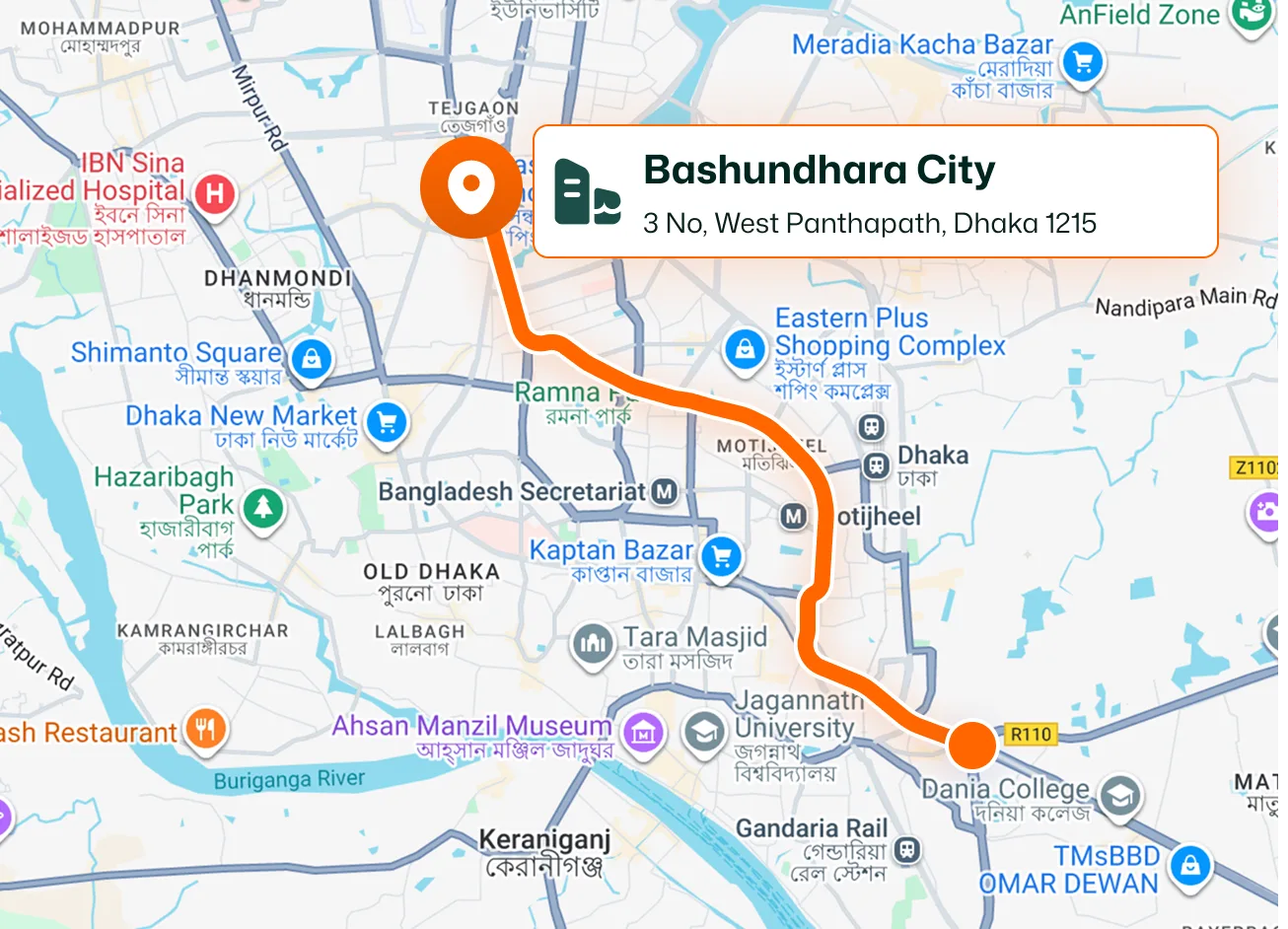
Technicians open an assigned job in the FieldTask mobile app and check in when they begin working. Checking in also clocks them into the system and starts recording time for that job.
Give technicians a simple way to track time throughout the day. Job check-in starts the clock, pause and resume controls handle interruptions, and general task timers capture activities such as driving. Recorded time stays available in FieldTask Timesheets.
Keep work hours connected to the activity being performed. From customer jobs to everyday tasks, FieldTask records time through controls technicians can use directly from their phones.
Technicians open an assigned job in the FieldTask mobile app and check in when they begin working. Checking in also clocks them into the system and starts recording time for that job.
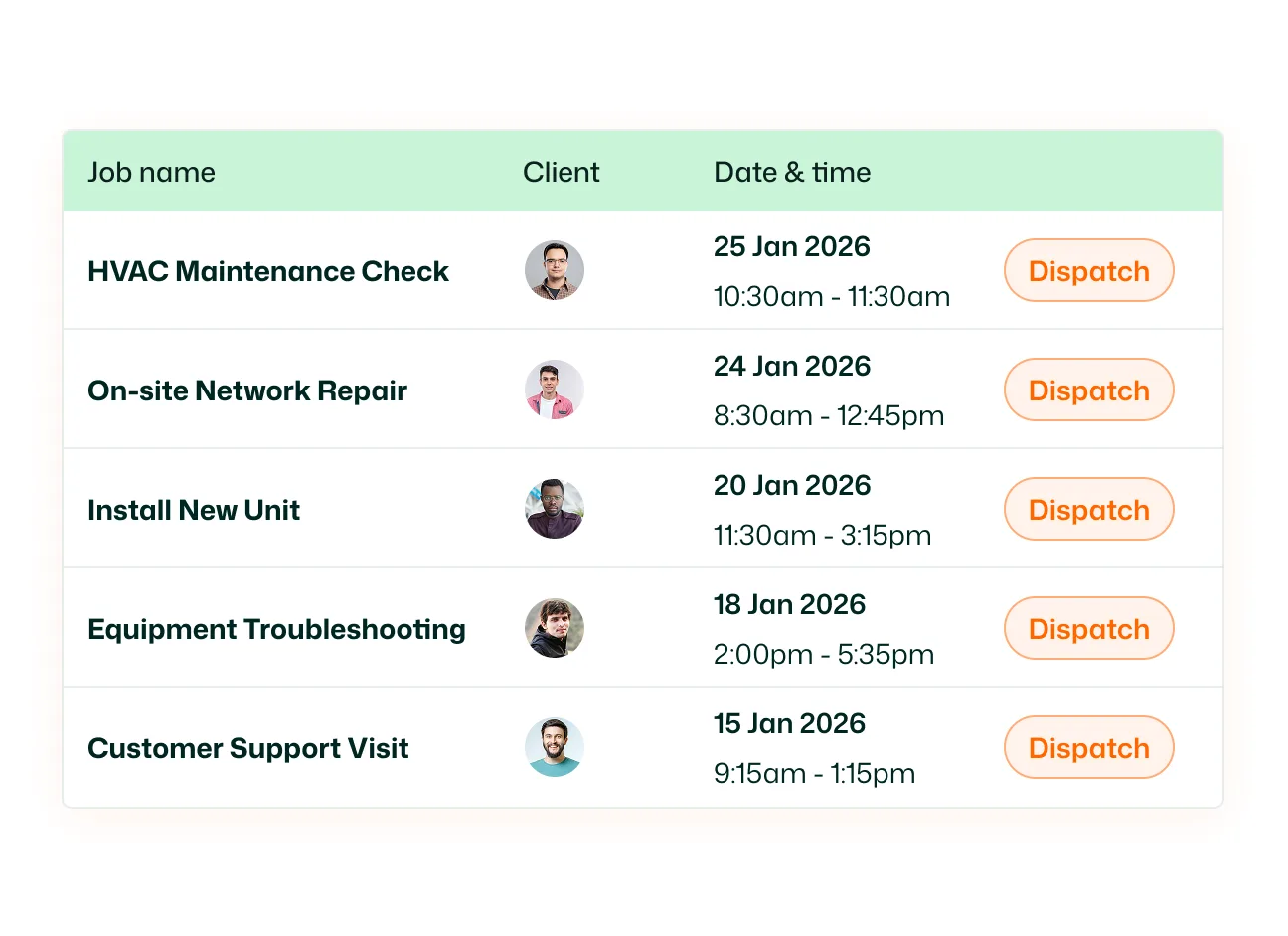
An active timer on the job screen shows elapsed work time after check-in. Technicians can see how long they have been working while accessing the job’s details, line items, notes, and proof requirements.
Pause the job timer when work is interrupted, or the technician takes a break. When work begins again, tap Resume to continue tracking the same job.
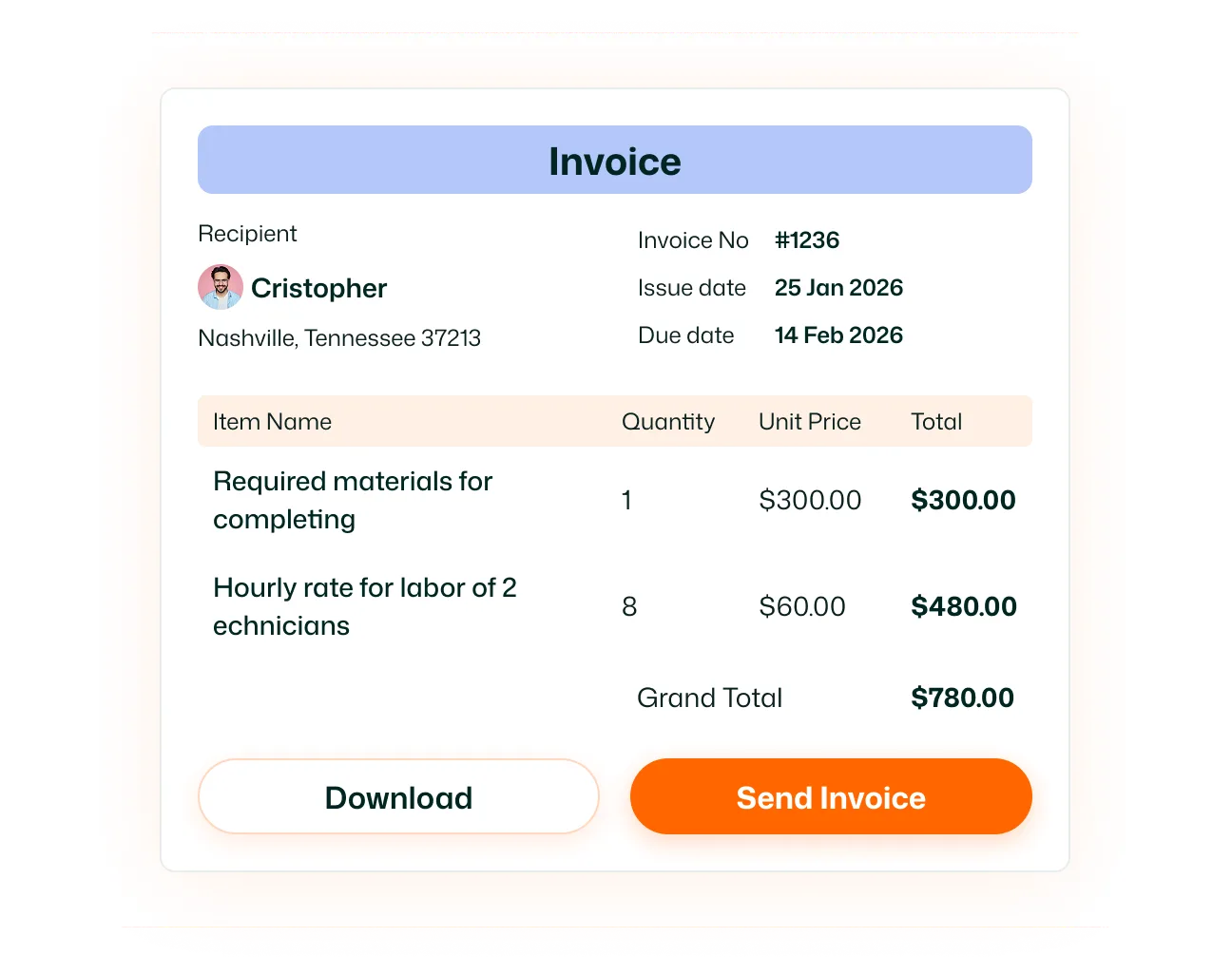
Check out when work is finished to end the active job session. FieldTask records the check-out time, and the technician proceeds through any required job proof submission to complete the job.
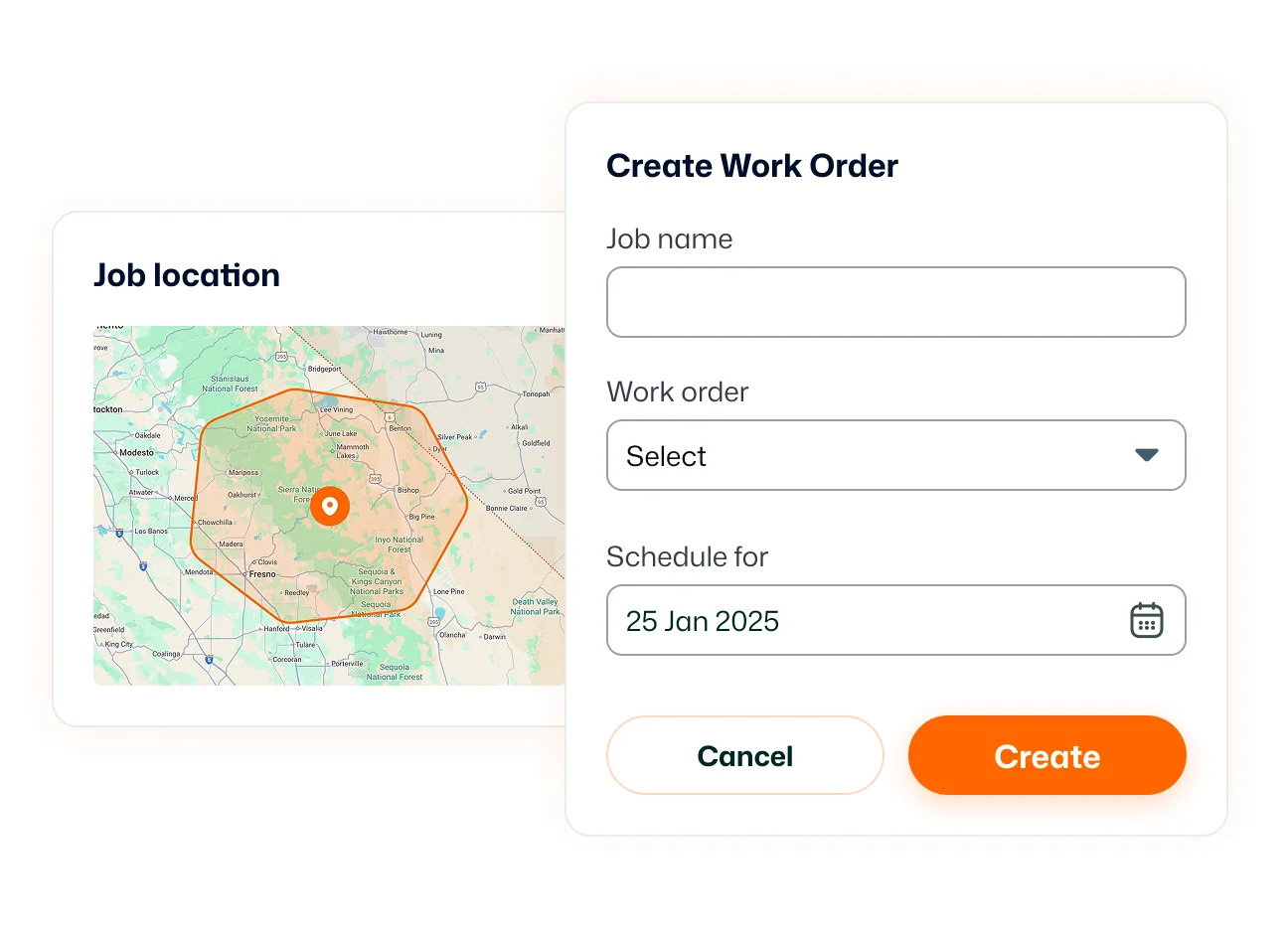
Track activities that happen outside customer jobs. From Timesheets, tap Start and select an available general task, such as Driving, Break, Team Meeting, or Supplies & Materials. These timers help record everyday activities without creating a separate customer job for each one.
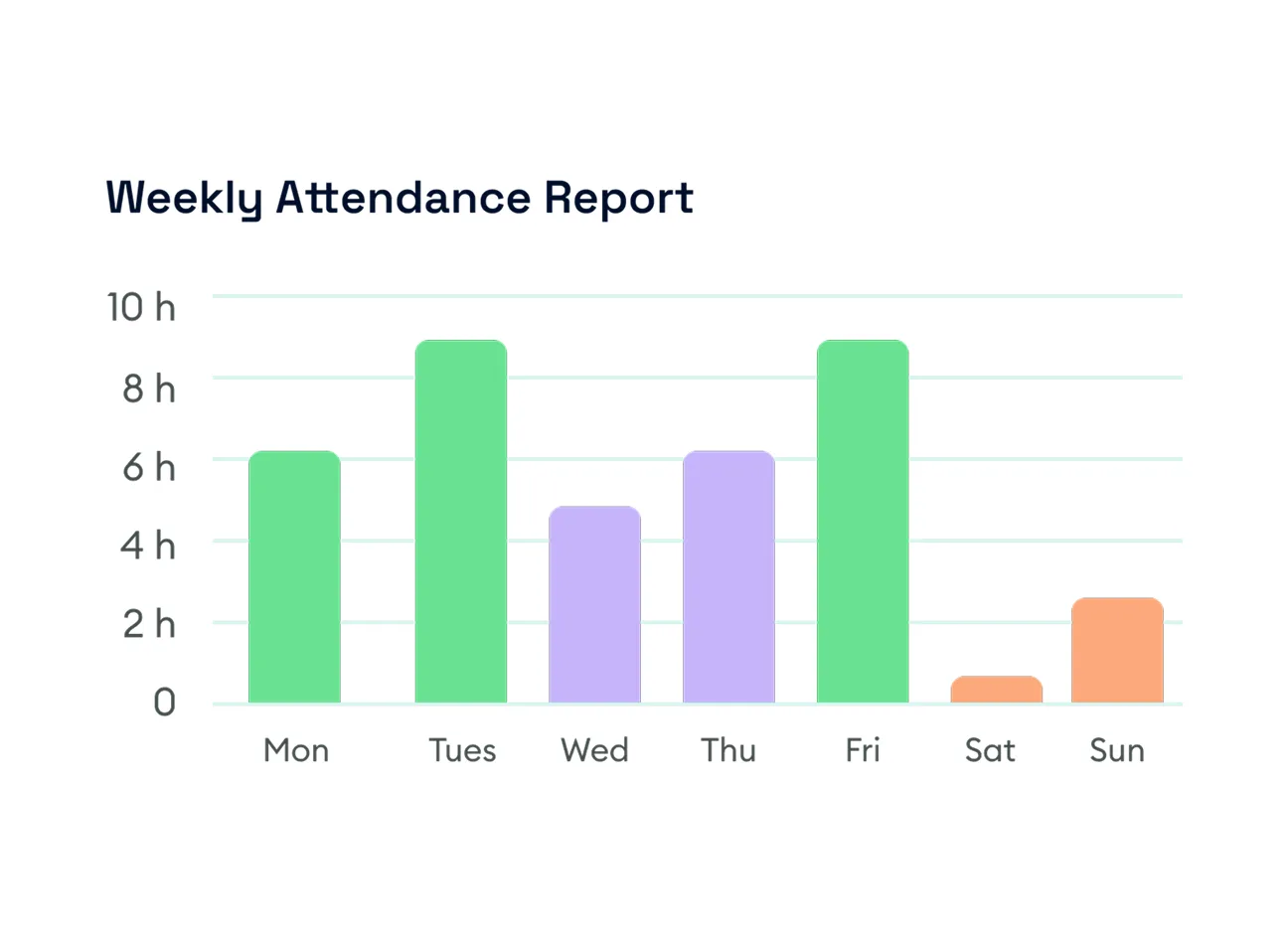
Recorded work time appears in Timesheets, keeping time entries connected to the jobs or activities performed. Review entries and durations through daily, weekly, biweekly, monthly, or custom views.
Give technicians an easier way to record hours while giving the office a clearer view of time spent on jobs and everyday activities. With mobile timers and recorded timesheets, your team has work records to review instead of reconstructing the day from memory.
Time Clock lets technicians record work time from the FieldTask mobile app. It includes job check-in and check-out, an active job timer, pause and resume controls, and timers for available general tasks.
Technicians clock in by checking into a job in the mobile app. When they finish working, they check out to end the session. FieldTask records these actions as the start and end of the job’s work period.
Yes. Tap Pause on the active job to stop its timer temporarily. Tap Resume when work continues. For organizations that track breaks separately, Break can also be available as a general task.
Yes. Technicians can start an available general task from Timesheets to track activities such as driving, collecting supplies, or attending a team meeting. This lets the organization record those activities without creating individual customer jobs.
Open Timesheets to review recorded entries and durations. FieldTask provides daily, weekly, biweekly, monthly, and custom views, with filters depending on the selected view.
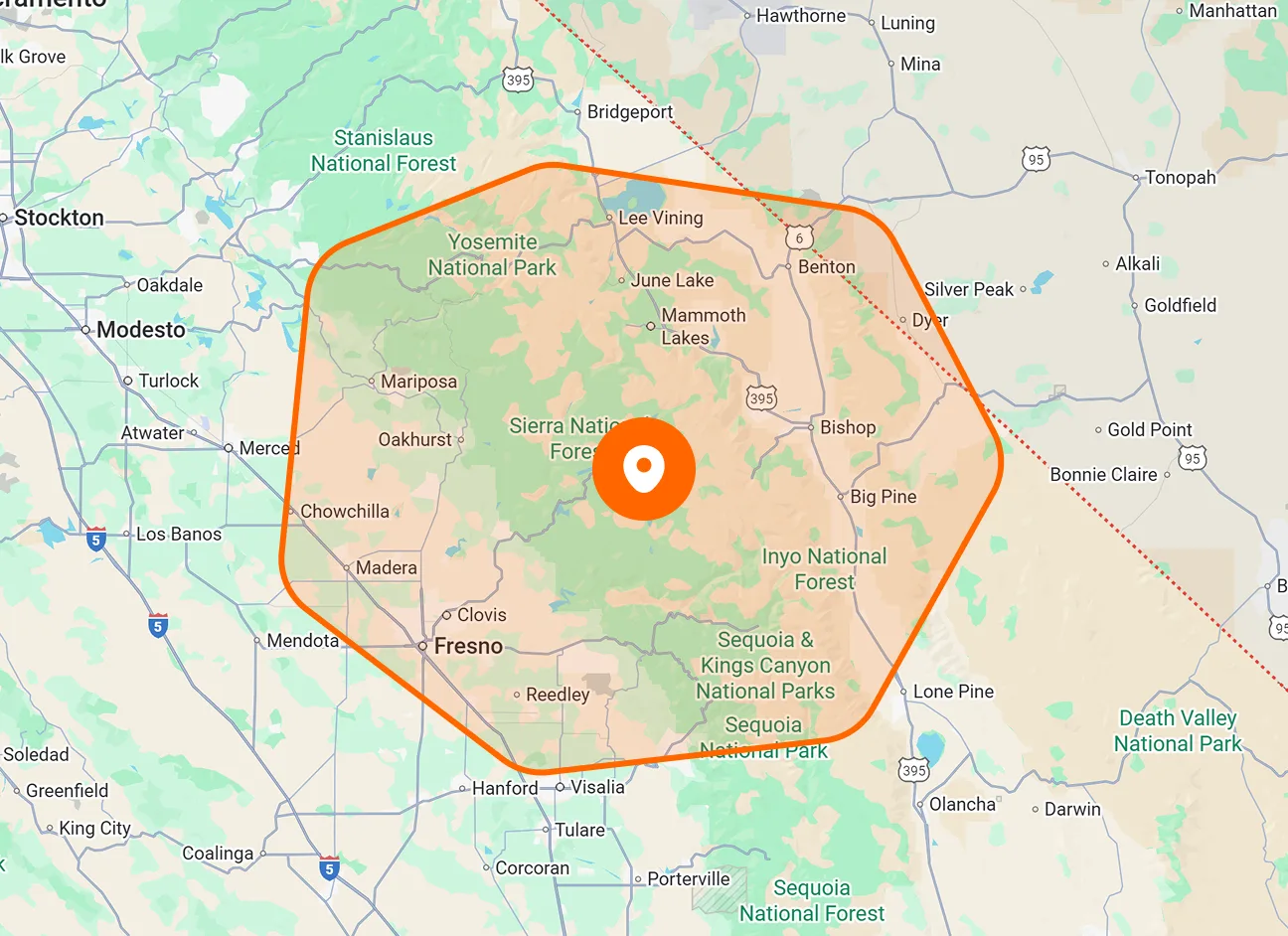
Yes. When geofenced check-in is enabled for a technician, they must be within the job’s designated location before checking in. This requirement depends on that technician’s configured permissions.
Time Clock captures the technician’s time-tracking actions. Attendance records clock-in and clock-out information, while Timesheets provide a more detailed breakdown of the jobs worked and time spent.
Yes. Businesses can install FieldTask through the HighLevel App Marketplace, and technicians can record work time through the FieldTask mobile app. The organization can then review those work records in FieldTask.
