The HighLevel Home Service Business Management Software
Manage dispatch, route plan, techs, quotes, invoices, and more in GHL, the only dedicated field service app for HighLevel home service businesses and contractors.
Jump to
Learn how to submit Job Proof from a line item or directly from the main job in the FieldTask Mobile App.
You can submit Job Proof in two places:
When adding Line Items during job creation, you can mark a line item as requiring Job Proof before the job can be closed.
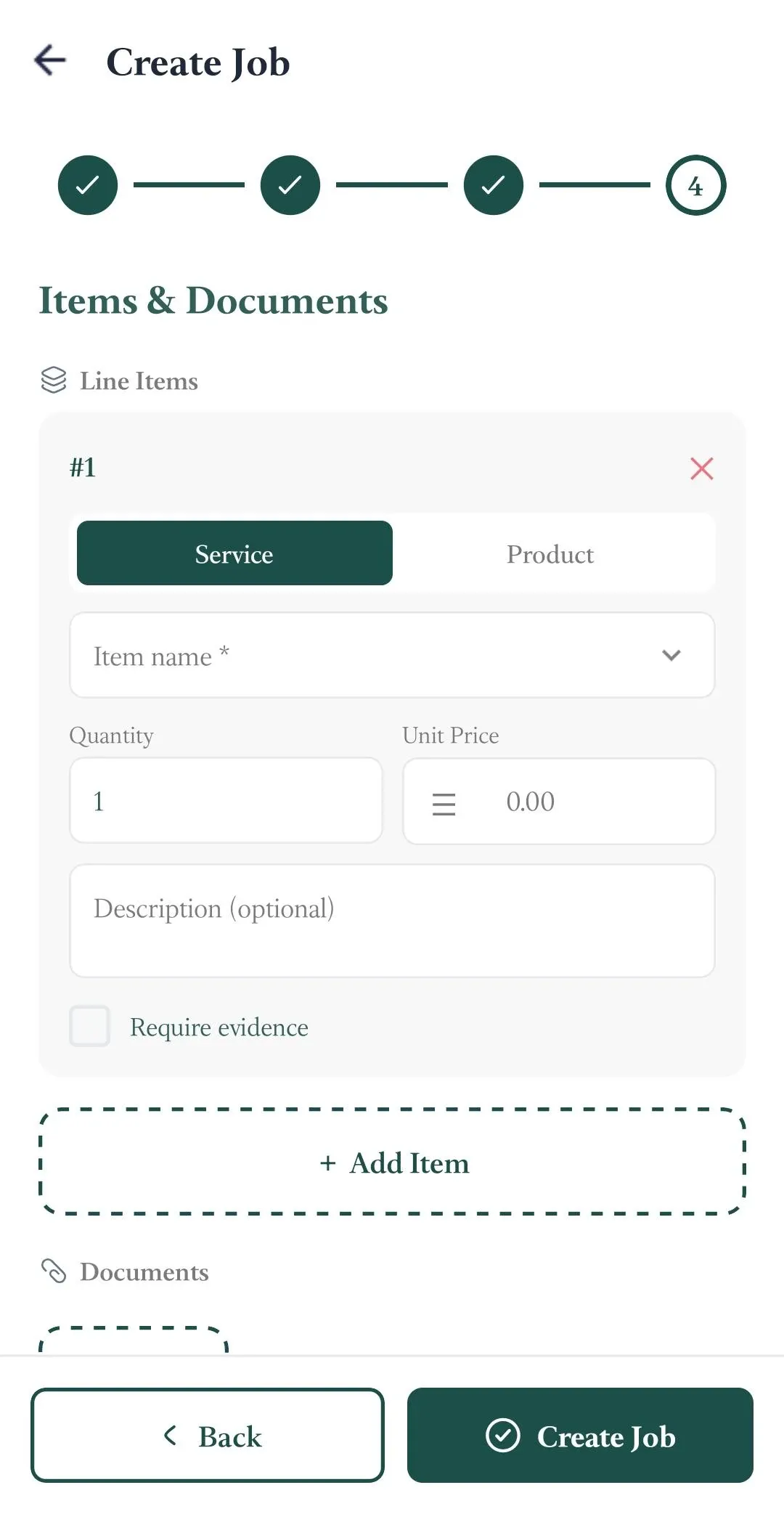
To submit Job Proof for a line item:
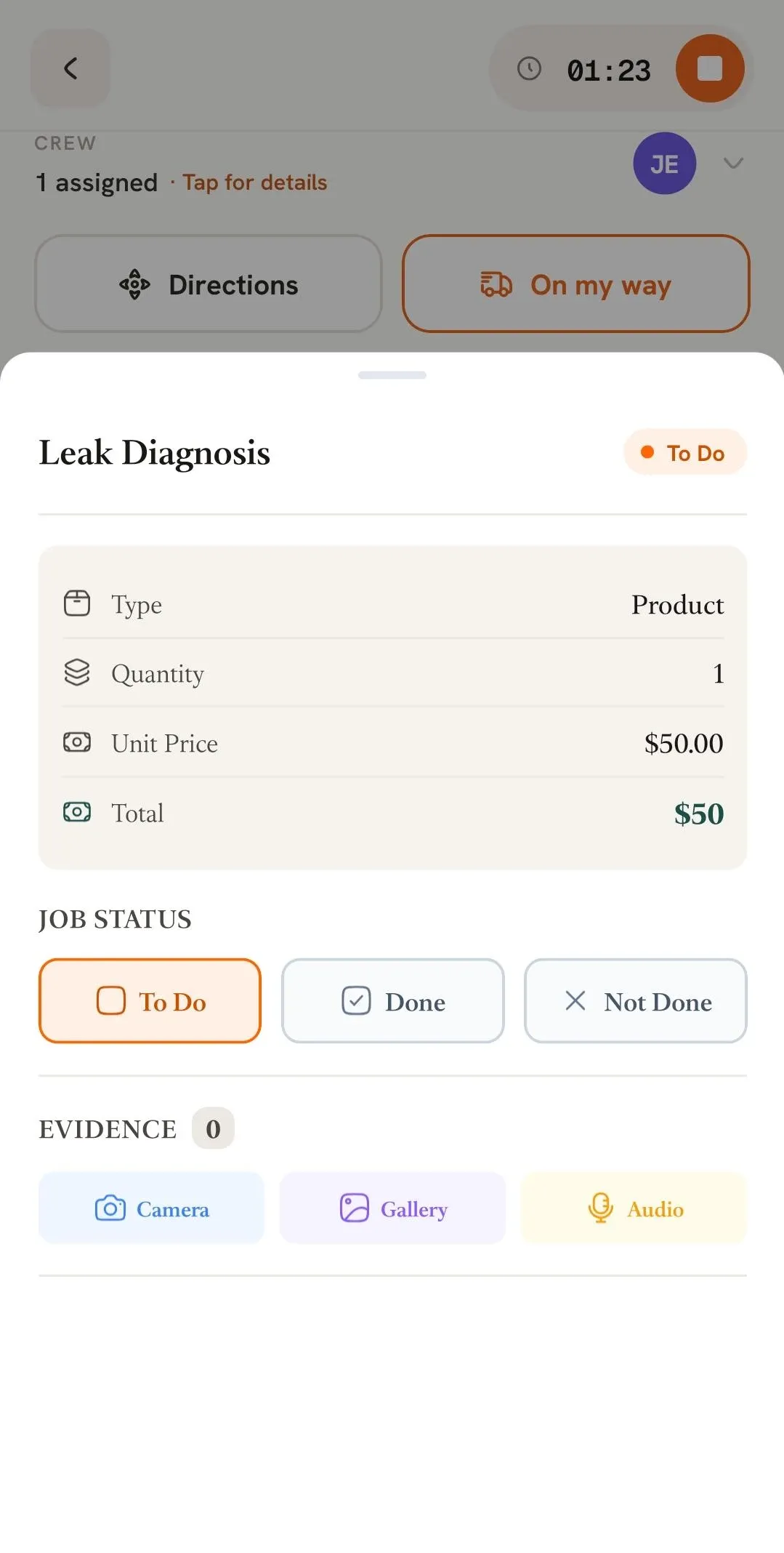
You can also add Job Proof directly to the main job.
Job Proof can be added at different stages of the job. For example, you can add proof while working to capture a before image, or submit proof when checking out after the work has been completed.
When Job Proof is required, the Job Proof pop-up will prompt you to submit it.
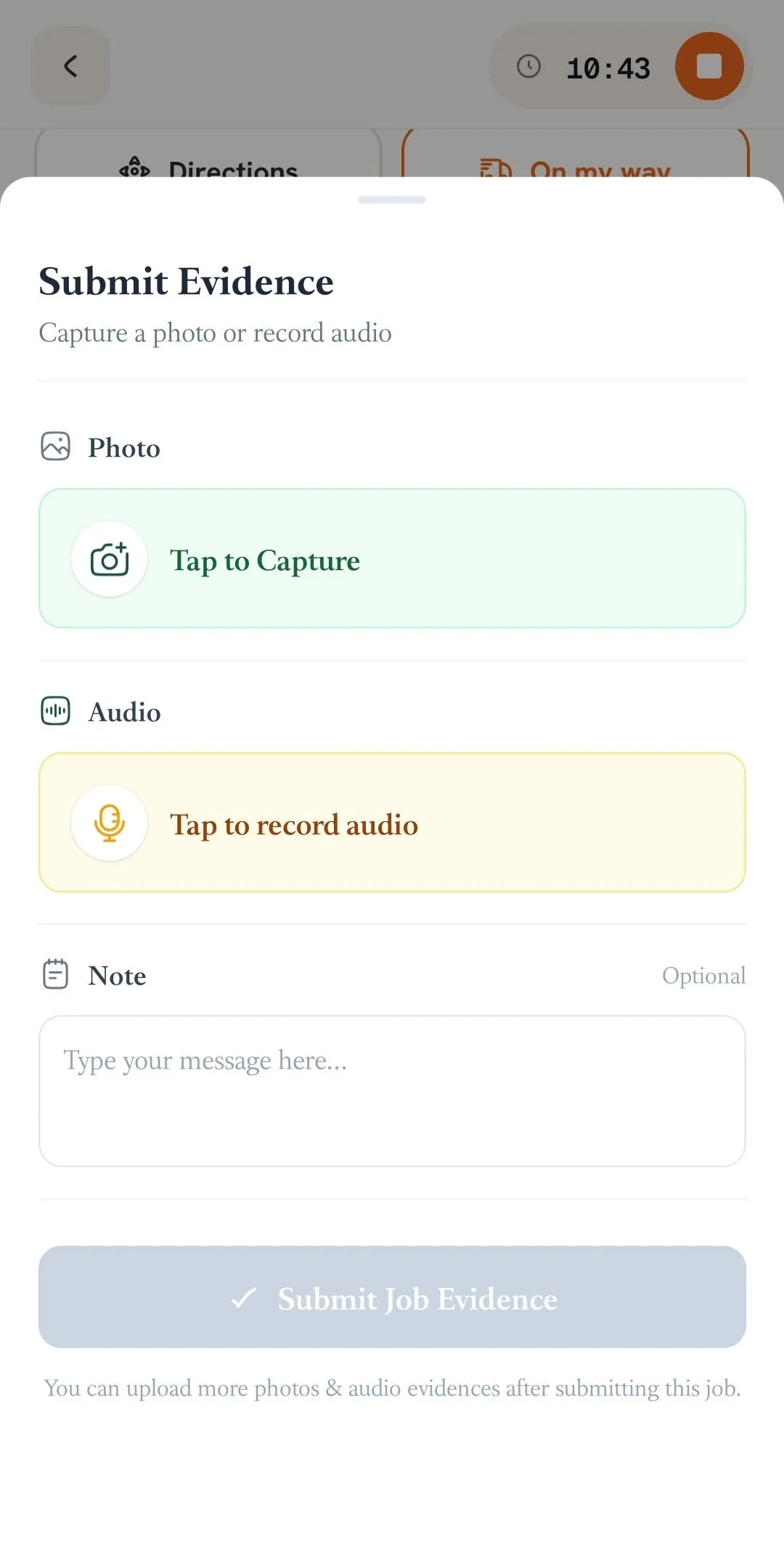
You can add multiple Job Proofs to a single job.
📌 Note: If you want to learn where you can view the Job Proof images you have submitted, follow this article.
Manage dispatch, route plan, techs, quotes, invoices, and more in GHL, the only dedicated field service app for HighLevel home service businesses and contractors.
The complete FieldTask sitemap: quick links to all pages.
Learn how FieldTask supports HIPAA compliance for home health and field service teams—encryption, BAAs, access controls, and audit logging.