The HighLevel Home Service Business Management Software
Manage dispatch, route plan, techs, quotes, invoices, and more in GHL, the only dedicated field service app for HighLevel home service businesses and contractors.
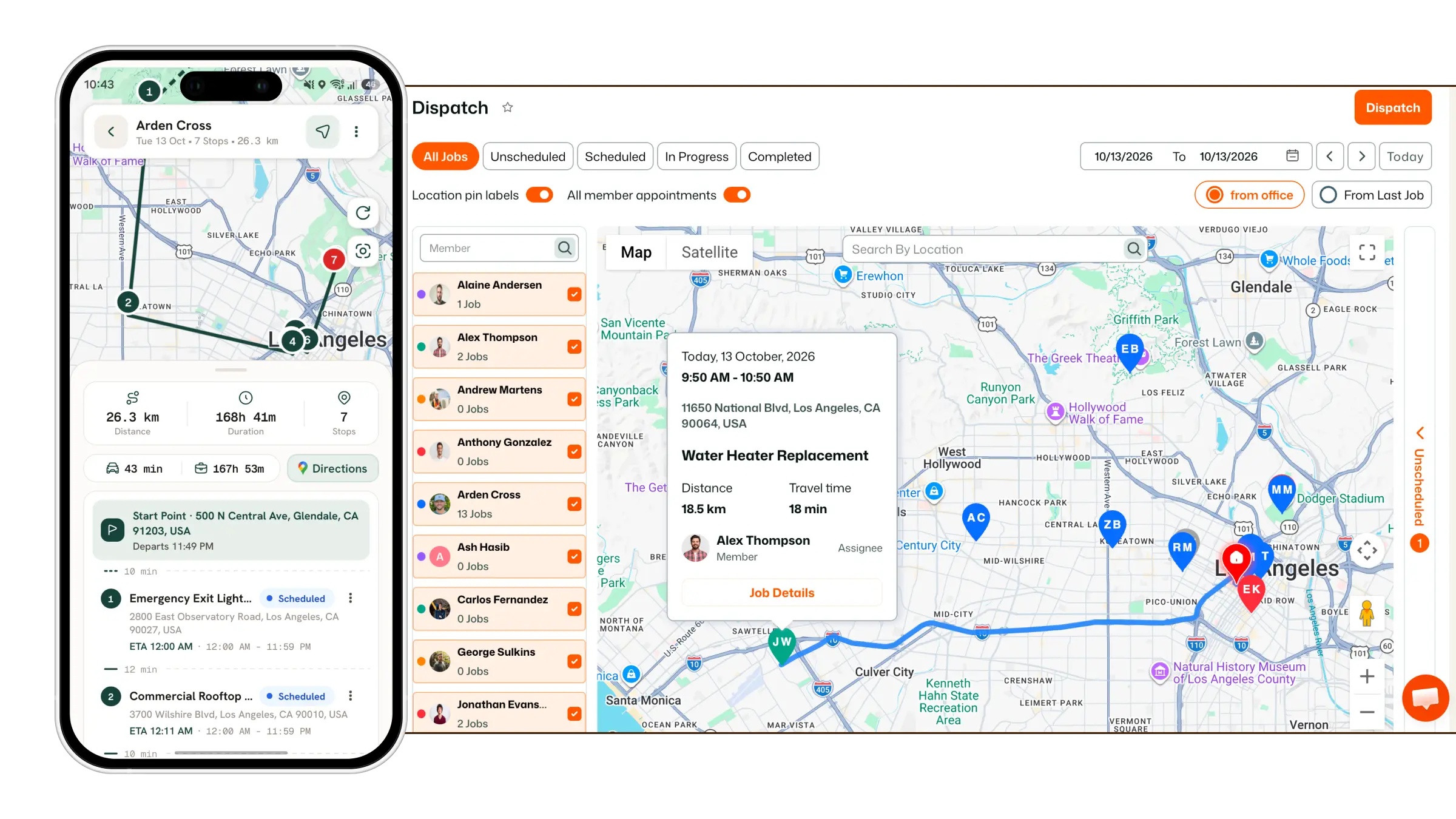
Learn how to create, manage, and send Quotes directly from FieldTask.
FieldTask allows you to create and send Quotes directly from the platform. Before creating a Quote, make sure the Quote sync between your CRM and FieldTask is enabled.
Before creating Quotes, enable the Quote Sync option between your CRM and FieldTask.
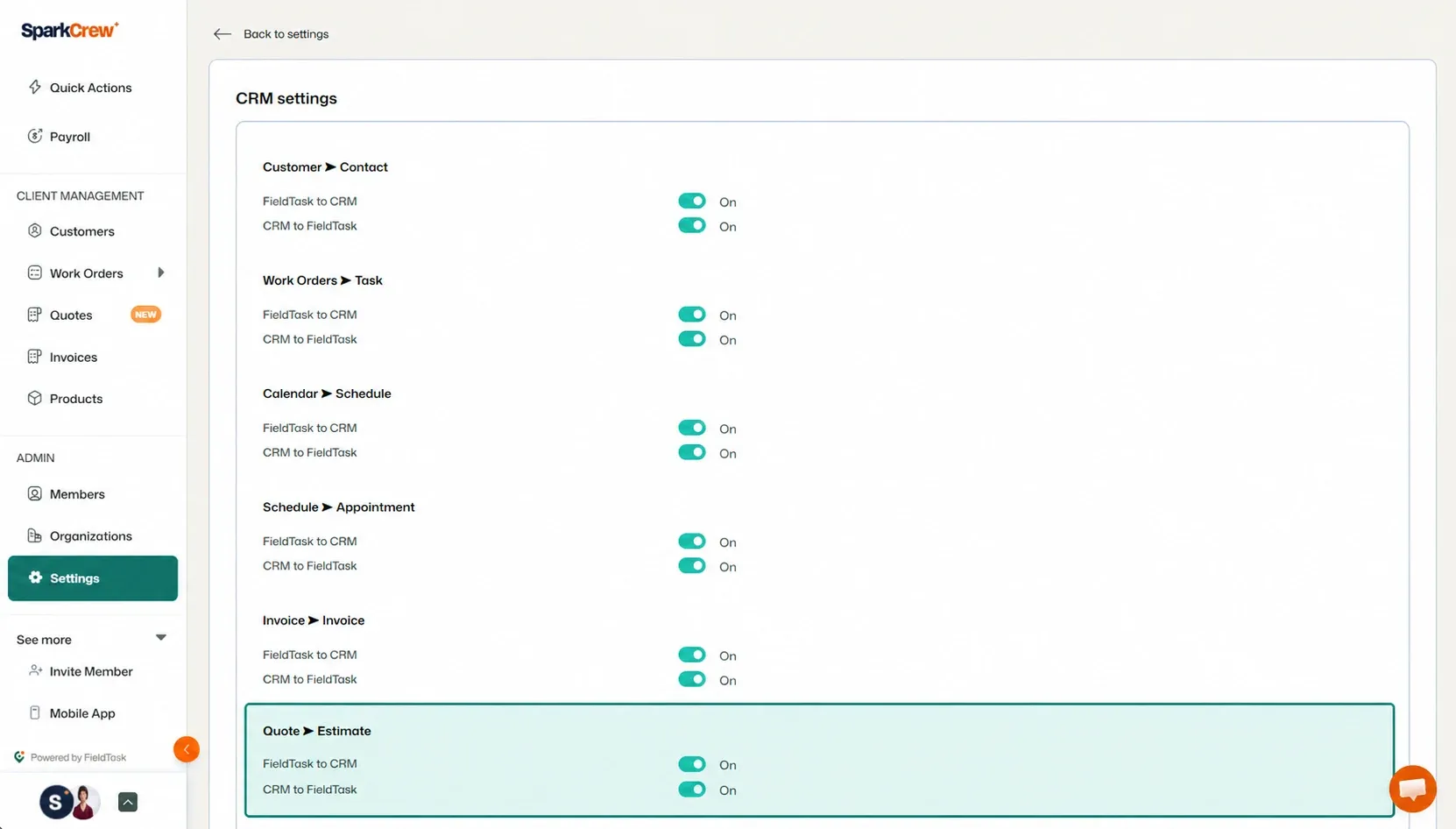
When Quote Sync is enabled:
To create a Quote:
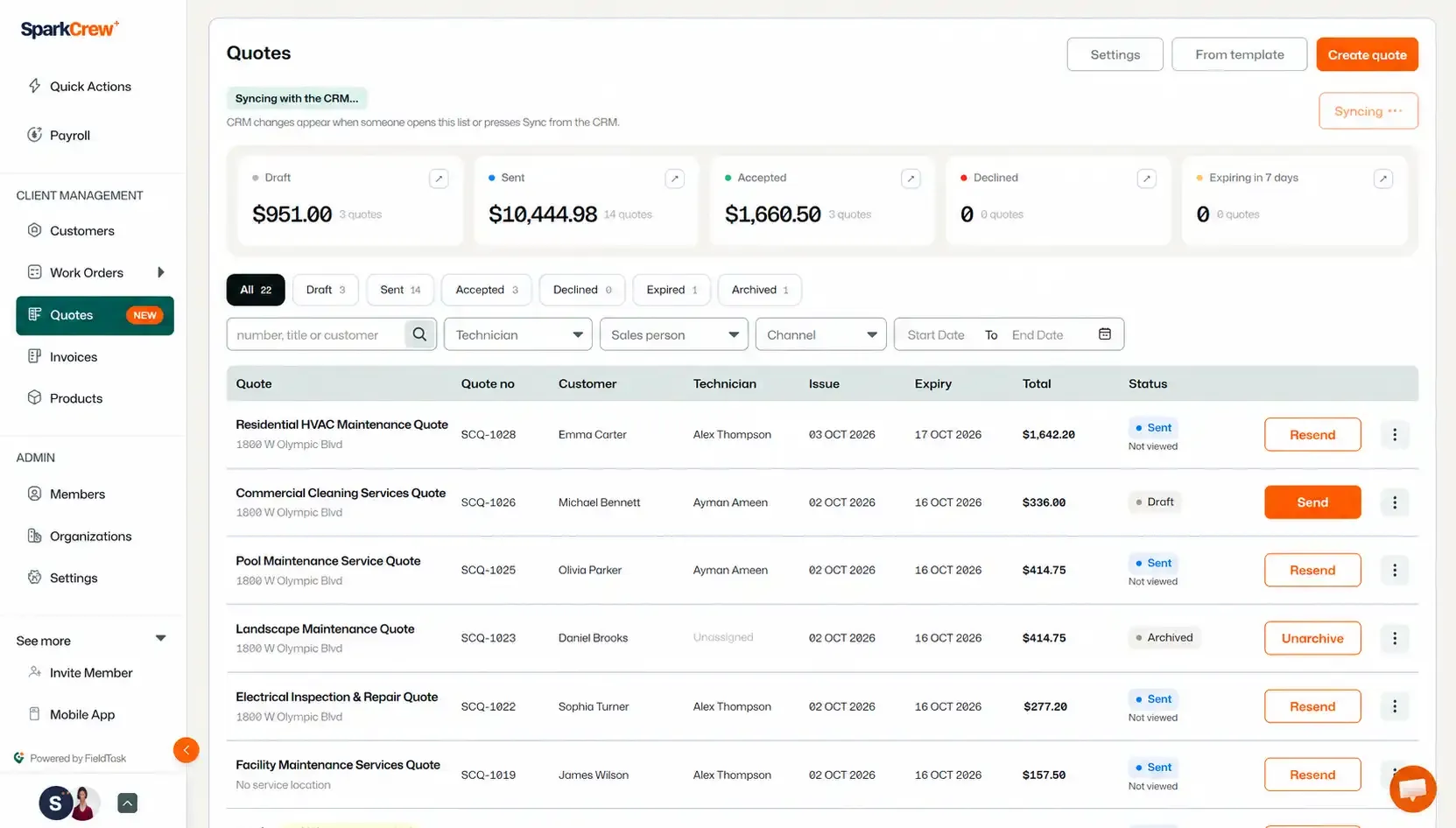
The Quotes page displays all Quotes created in FieldTask along with their current status.
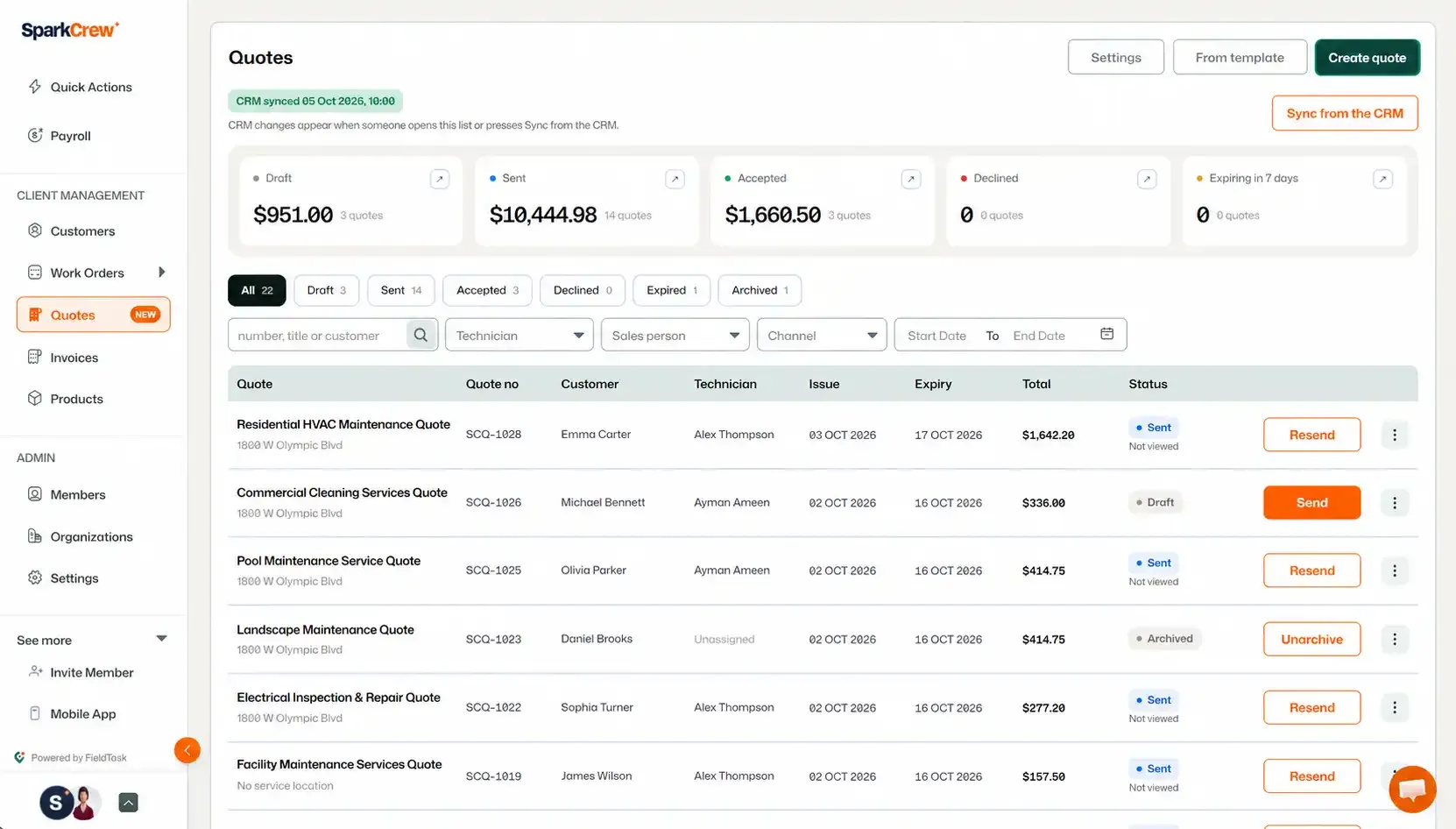
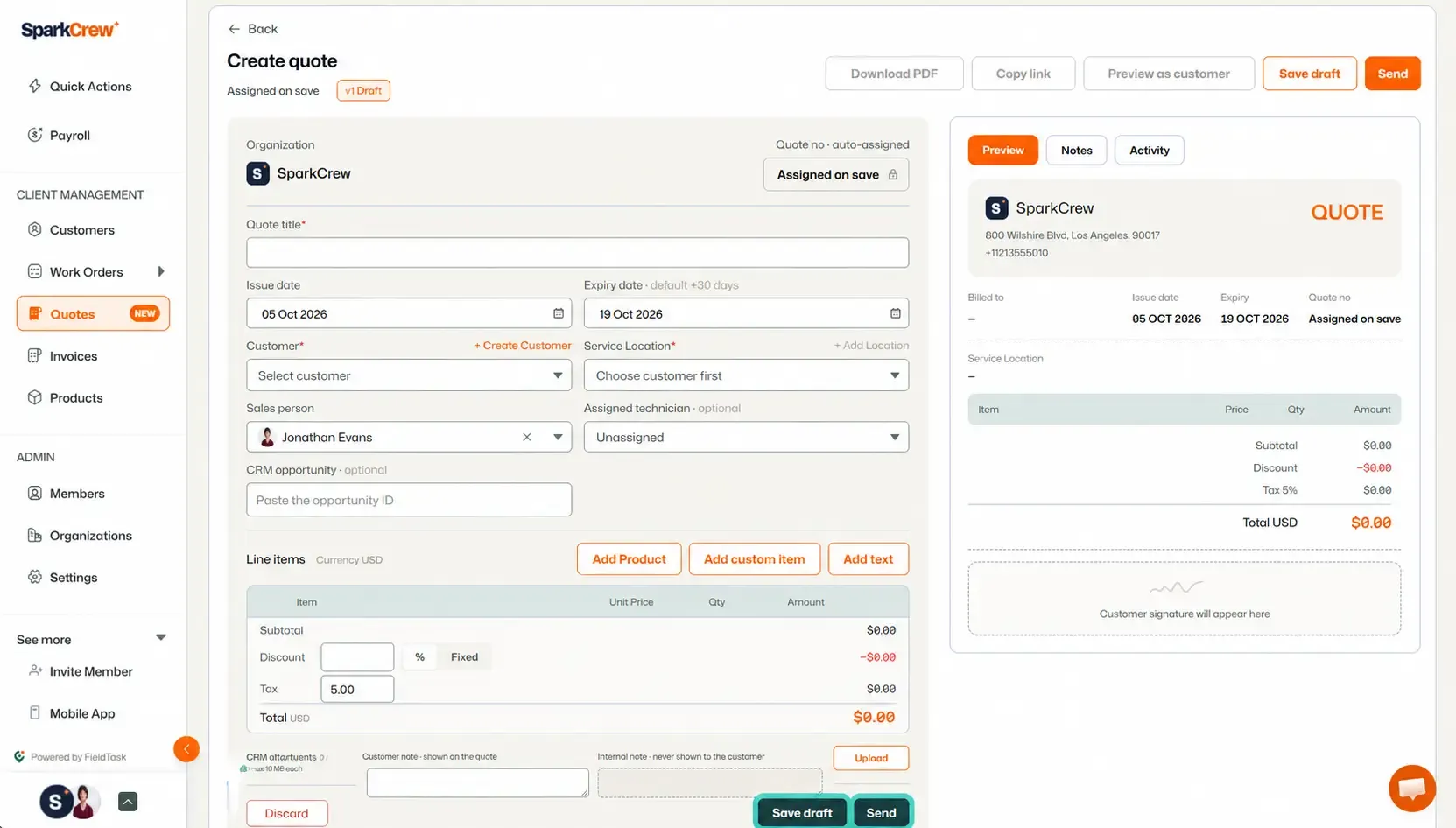
The Quote Creation page will open.
Provide the following information:
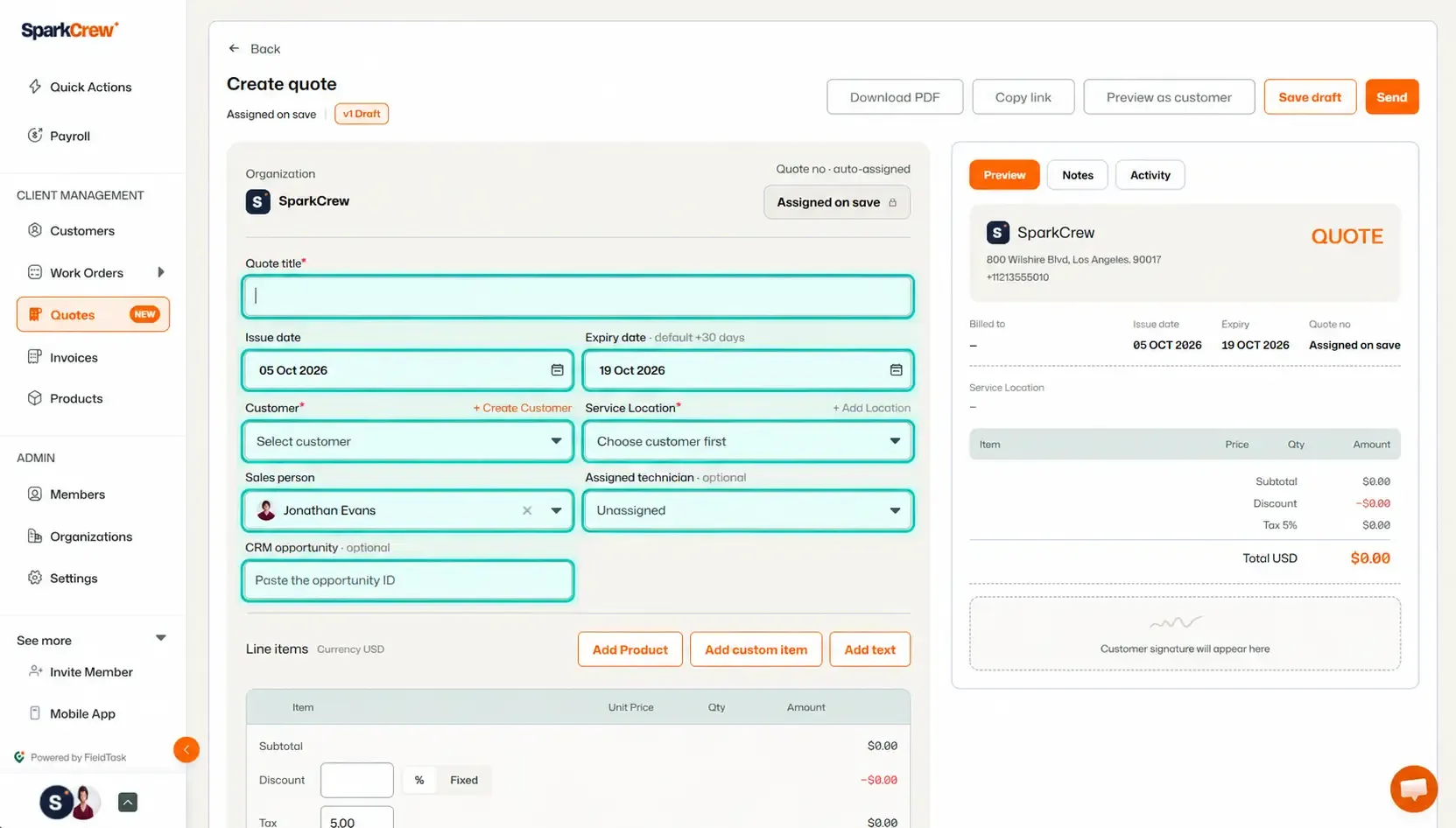
You can add different types of items to your Quote:
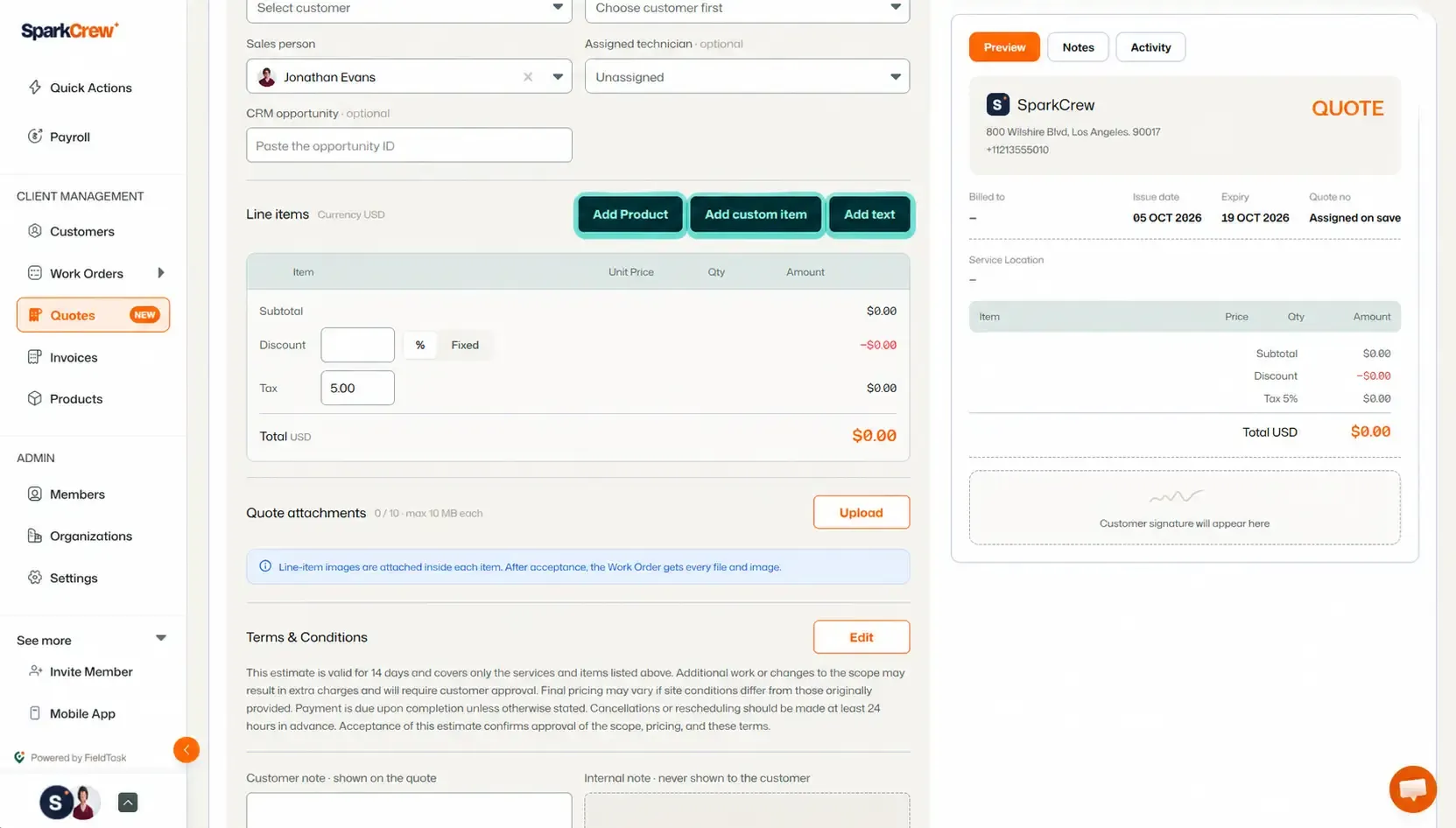
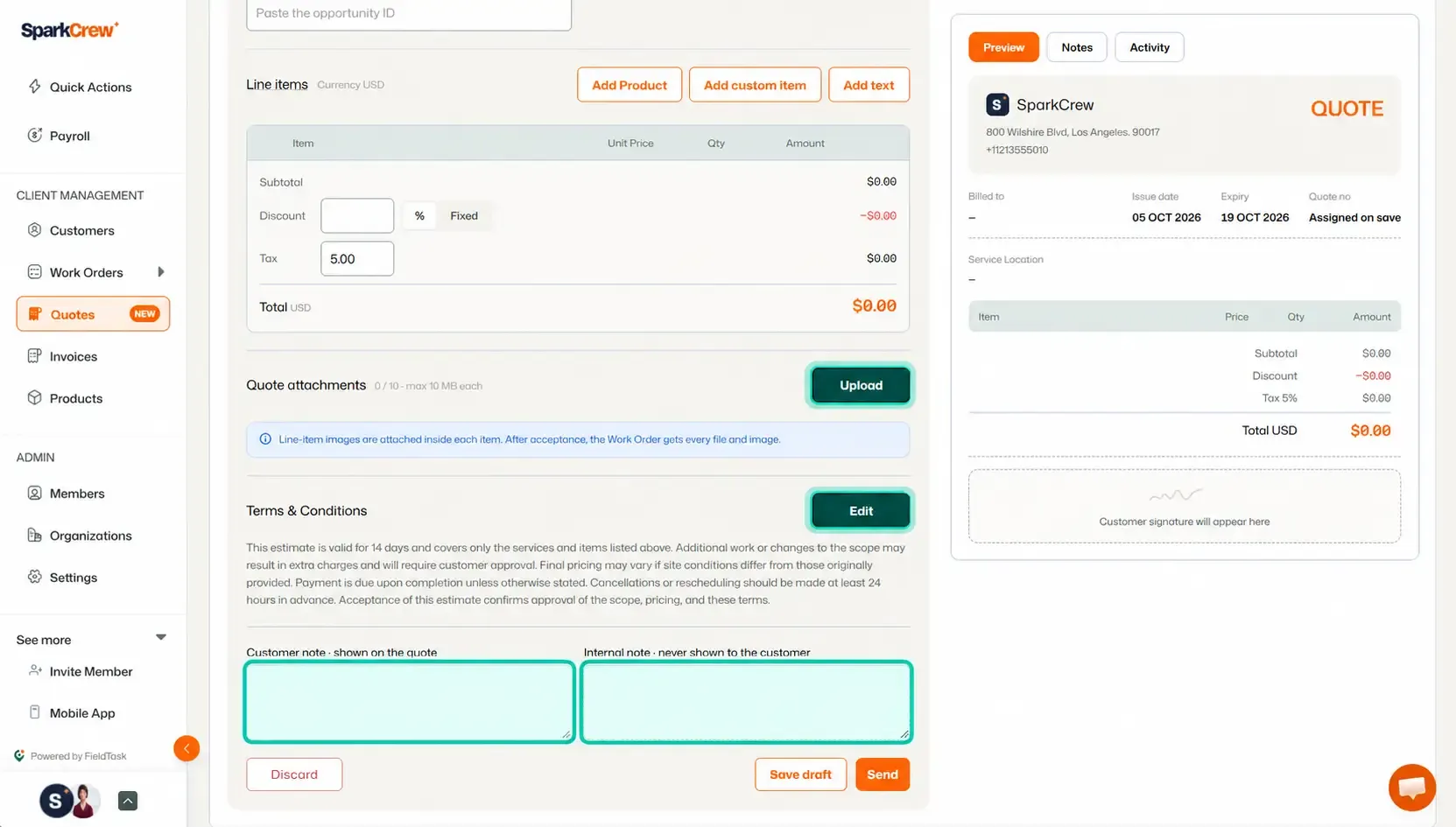
You can also:
On the right side of the Quote Creation page, you can see a preview of how the Quote will appear.
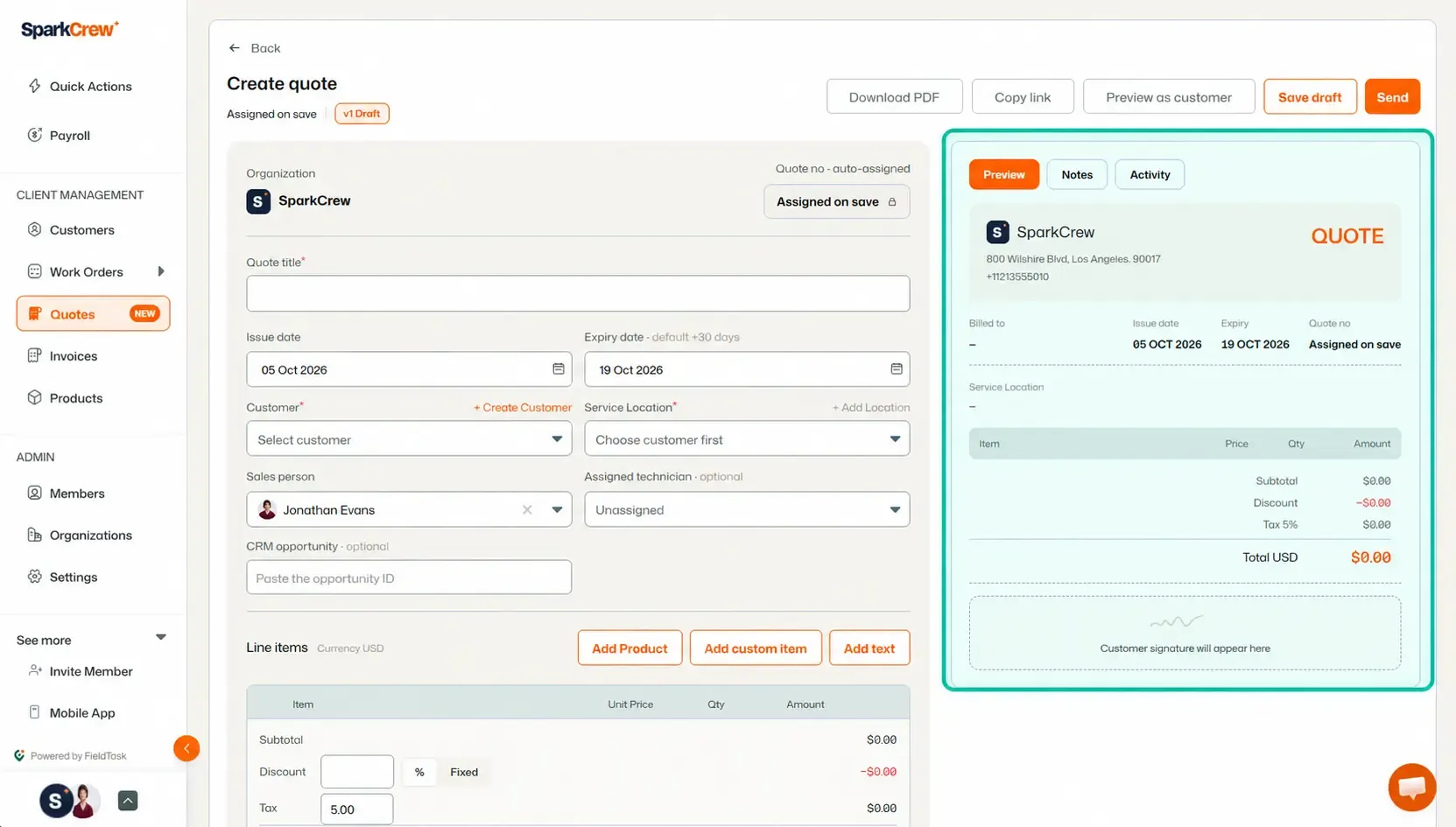
You can also switch the preview to view:
Once you have completed the Quote, you have several options.
You can:
If you no longer need the Quote, you can also Discard it from the Quote Creation page.
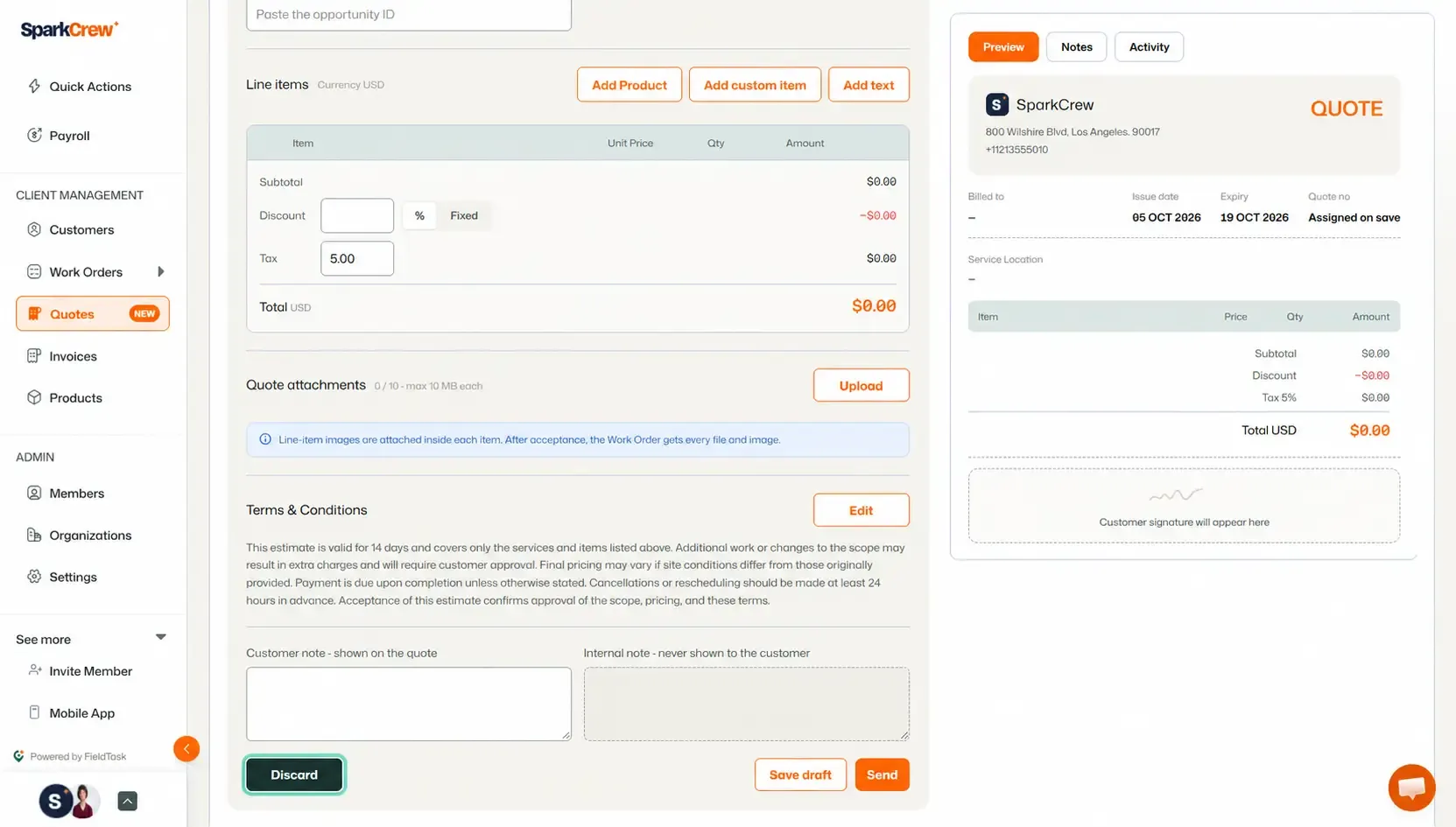
Once sent, the Quote will sync with your CRM when Quote synchronization is enabled.
To learn how to create a template for your quotes, use this help guide. And if you want to learn how to archive or delete a quote, you can do so through this help guide.
Manage dispatch, route plan, techs, quotes, invoices, and more in GHL, the only dedicated field service app for HighLevel home service businesses and contractors.
The complete FieldTask sitemap: quick links to all pages.
Learn how FieldTask supports HIPAA compliance for home health and field service teams—encryption, BAAs, access controls, and audit logging.