The HighLevel Home Service Business Management Software
Manage dispatch, route plan, techs, quotes, invoices, and more in GHL, the only dedicated field service app for HighLevel home service businesses and contractors.
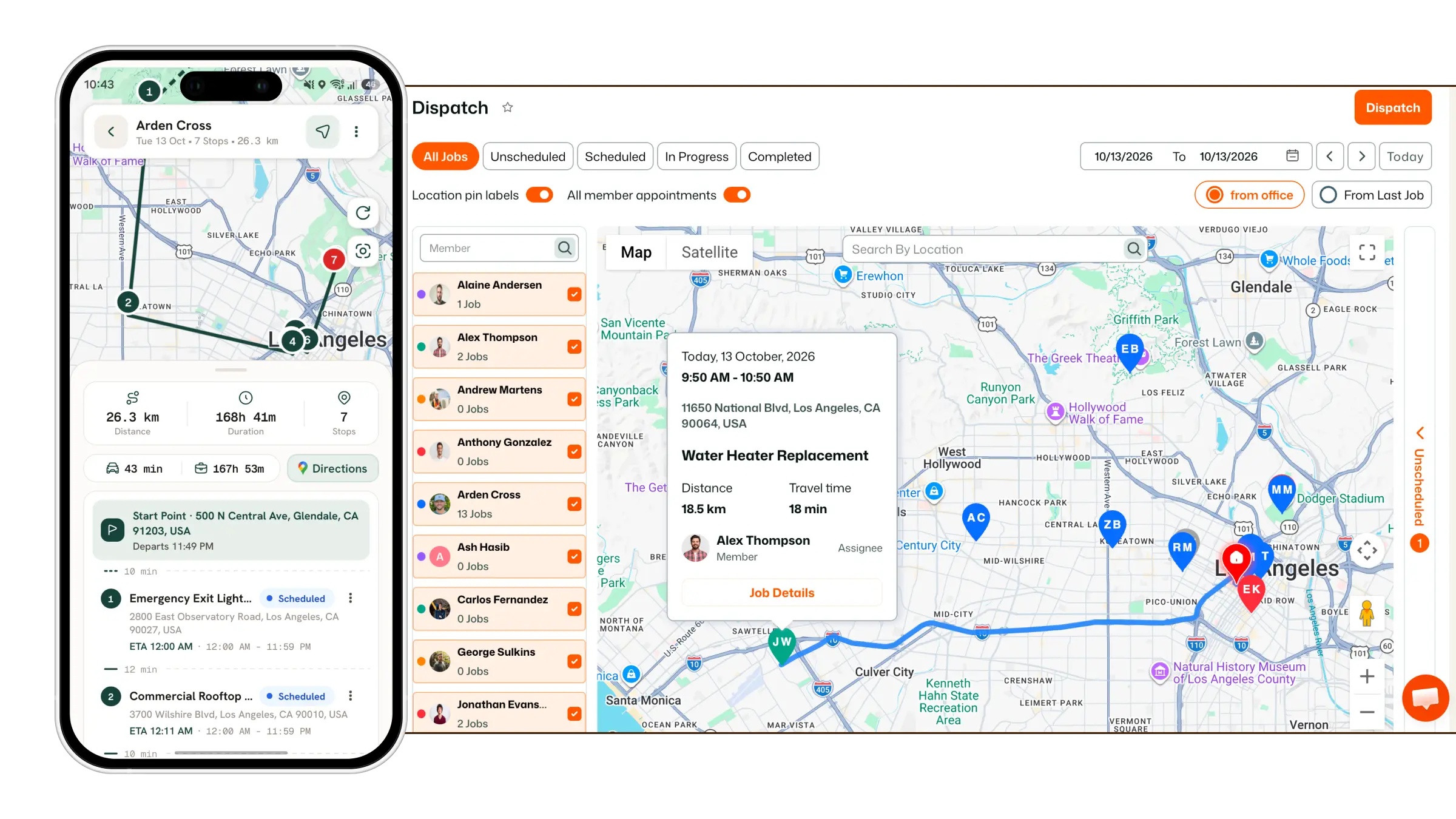
Learn how to control which opportunities from your GHL pipelines are brought into FieldTask as jobs to be scheduled.
The CRM Pipeline Settings in FieldTask give you control over which opportunities are synced into FieldTask and which pipeline stage should trigger an opportunity to become a job.
To access CRM Pipeline Settings:
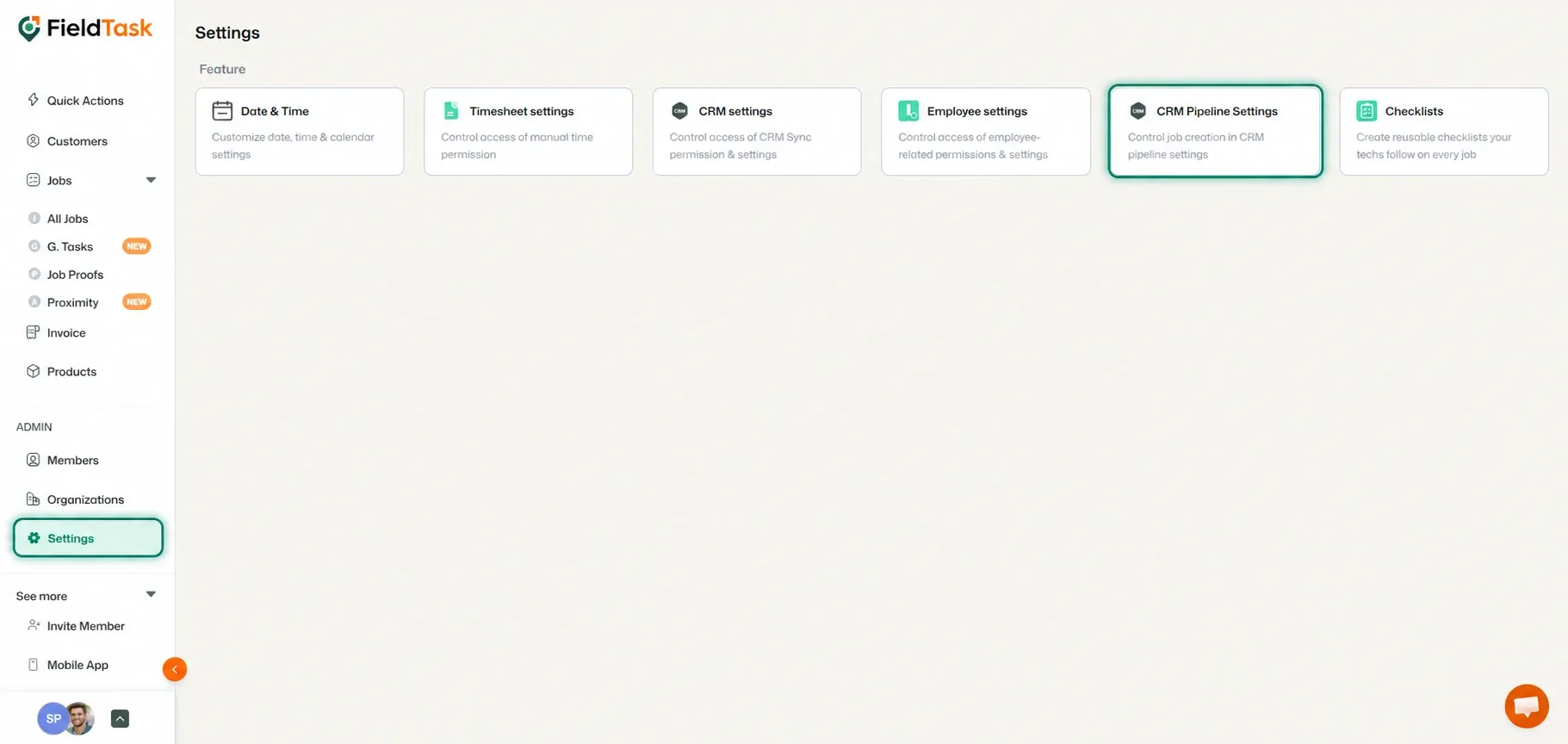
On this page, you will see two main sections:
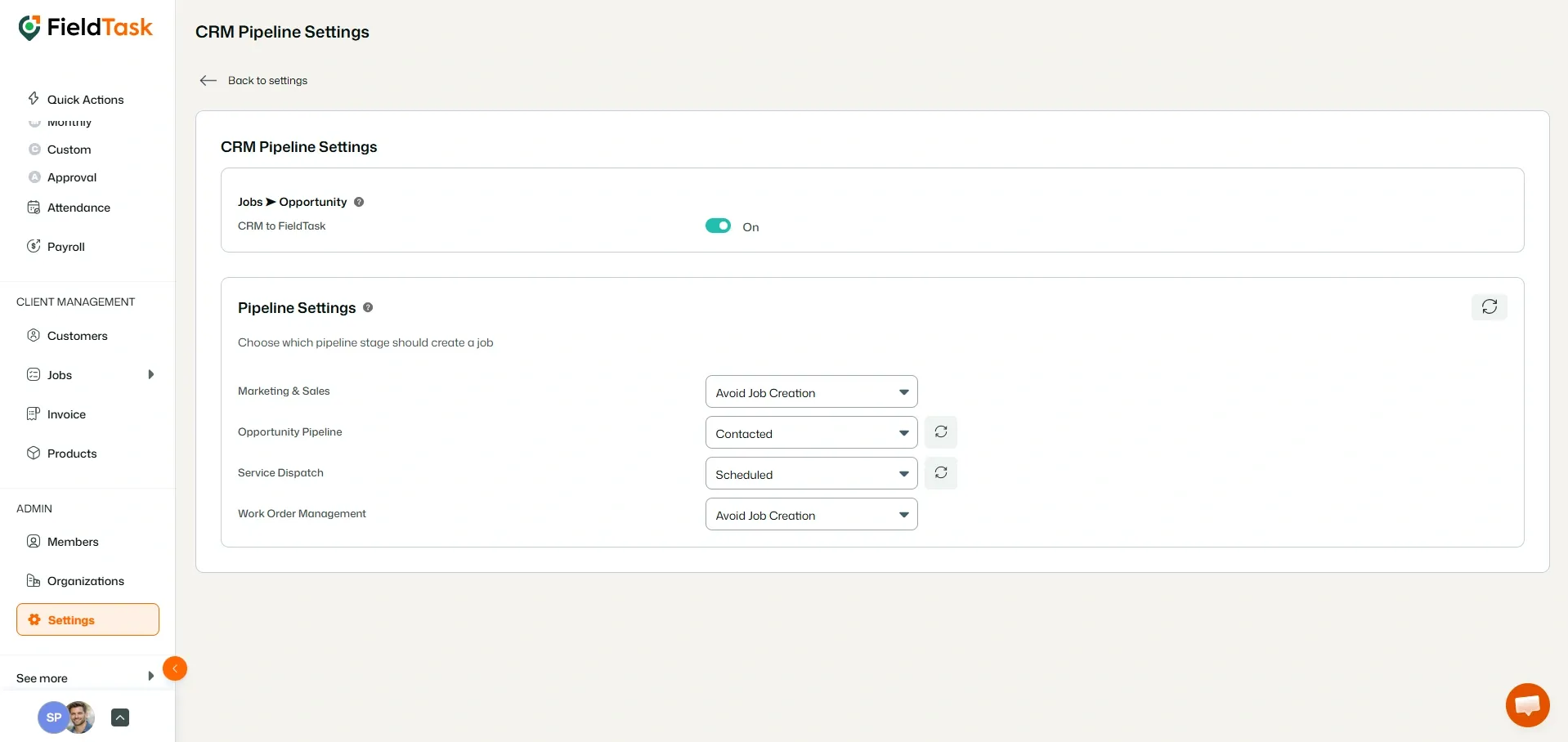
The Sync section allows you to choose whether opportunities from your CRM should be synced into FieldTask.
Use the toggle to turn opportunity syncing on or off depending on whether you want CRM opportunities to be brought into FieldTask.
The Pipeline Settings section allows you to decide how opportunities from each pipeline are brought into FieldTask.
This section will display a list of the pipelines currently available in your GHL CRM.
📌 Note: If a pipeline is missing from the list, click the Sync button in the top right corner. FieldTask will run a sync and update the available pipeline list.
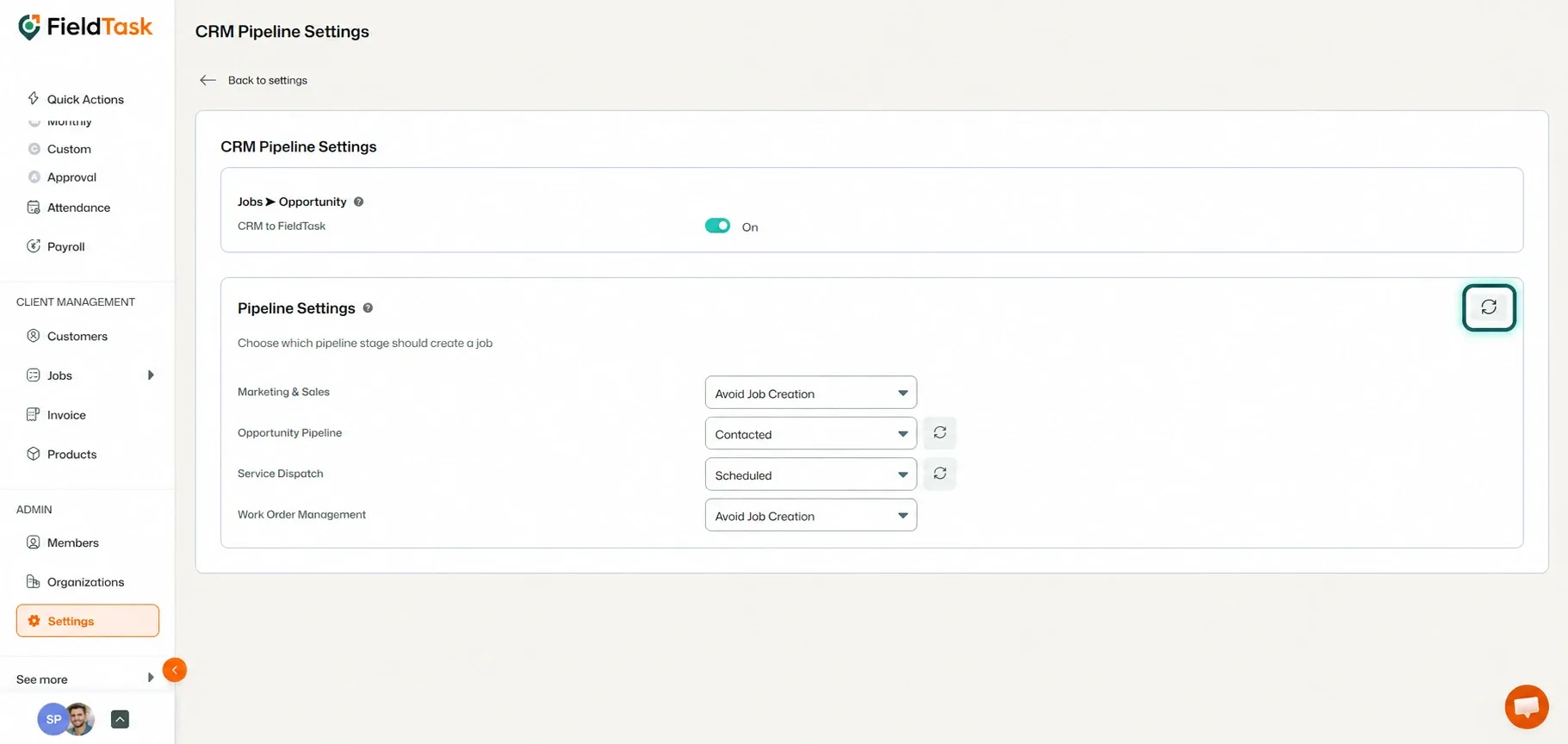
Beside each pipeline name, you will see a drop-down menu.
Choosing a stage tells FieldTask that when an opportunity reaches that stage, it should be brought into FieldTask as a job to be scheduled.
Selecting a Pipeline Stage applies to opportunities that reach that stage going forward.
If you also want to bring in opportunities that were already present in the selected stage before you configured it:
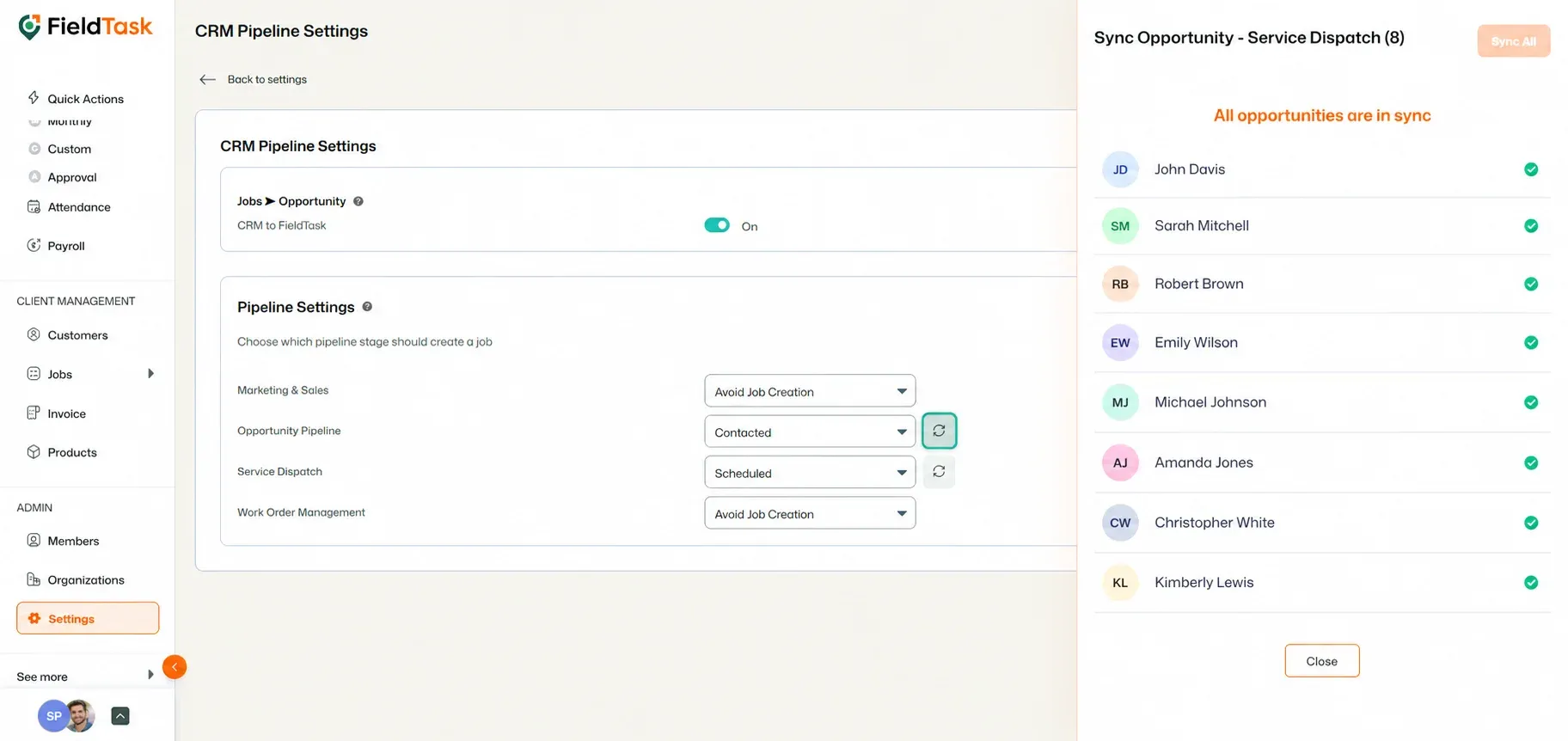
This allows you to configure future opportunity syncing while also bringing existing opportunities from the selected stage into FieldTask when needed.
Manage dispatch, route plan, techs, quotes, invoices, and more in GHL, the only dedicated field service app for HighLevel home service businesses and contractors.
The complete FieldTask sitemap: quick links to all pages.
Learn how FieldTask supports HIPAA compliance for home health and field service teams—encryption, BAAs, access controls, and audit logging.