The HighLevel Home Service Business Management Software
Manage dispatch, route plan, techs, quotes, invoices, and more in GHL, the only dedicated field service app for HighLevel home service businesses and contractors.
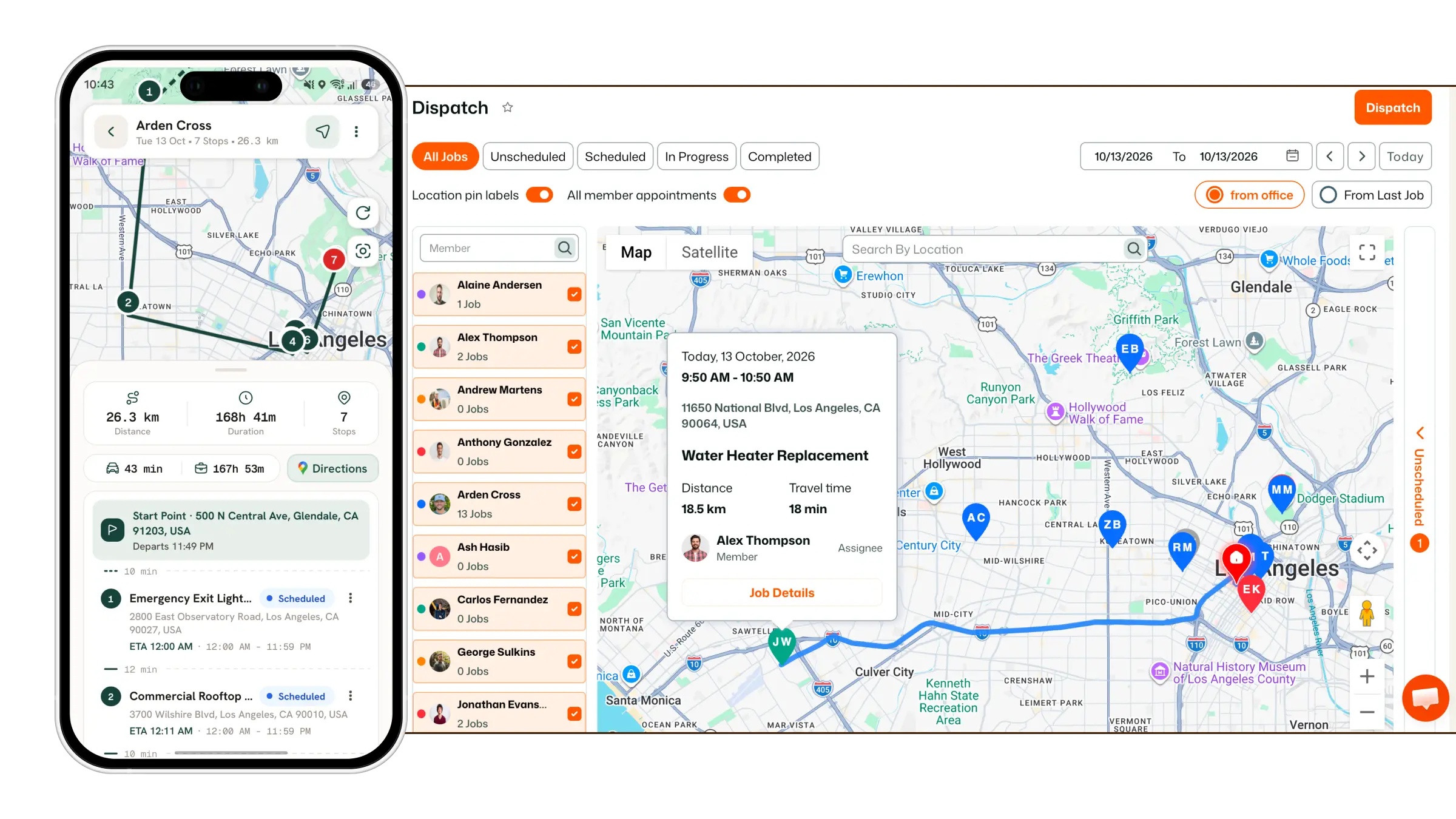
Learn how to customize FieldTask’s navigation, Quick Actions, and Organization branding from one place.
FieldTask allows you to customize several parts of the interface, including the side navigation bar, Quick Actions menu, and Organization branding.
To access these customization options:
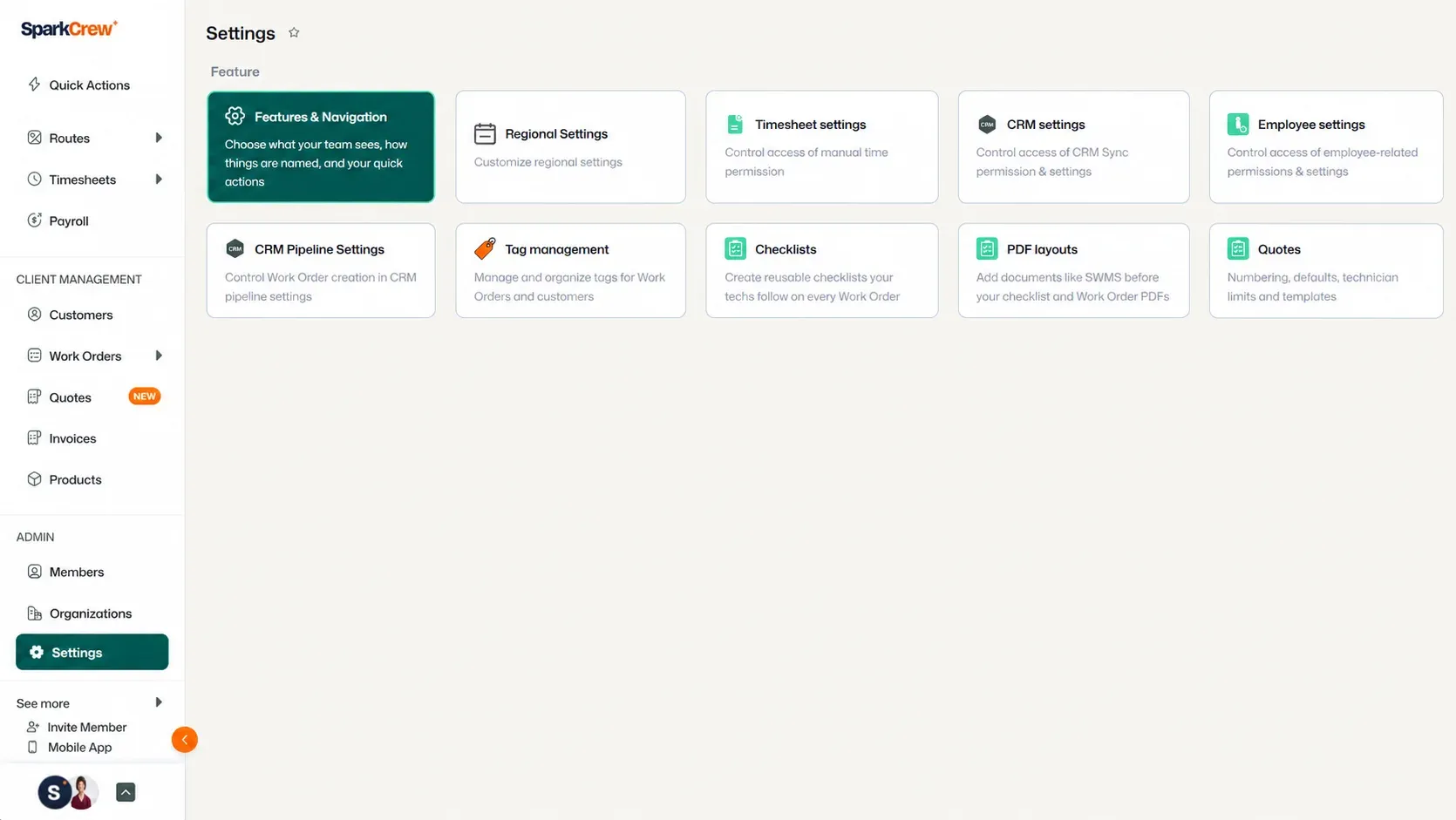
The Feature and Navigation page contains four sections:
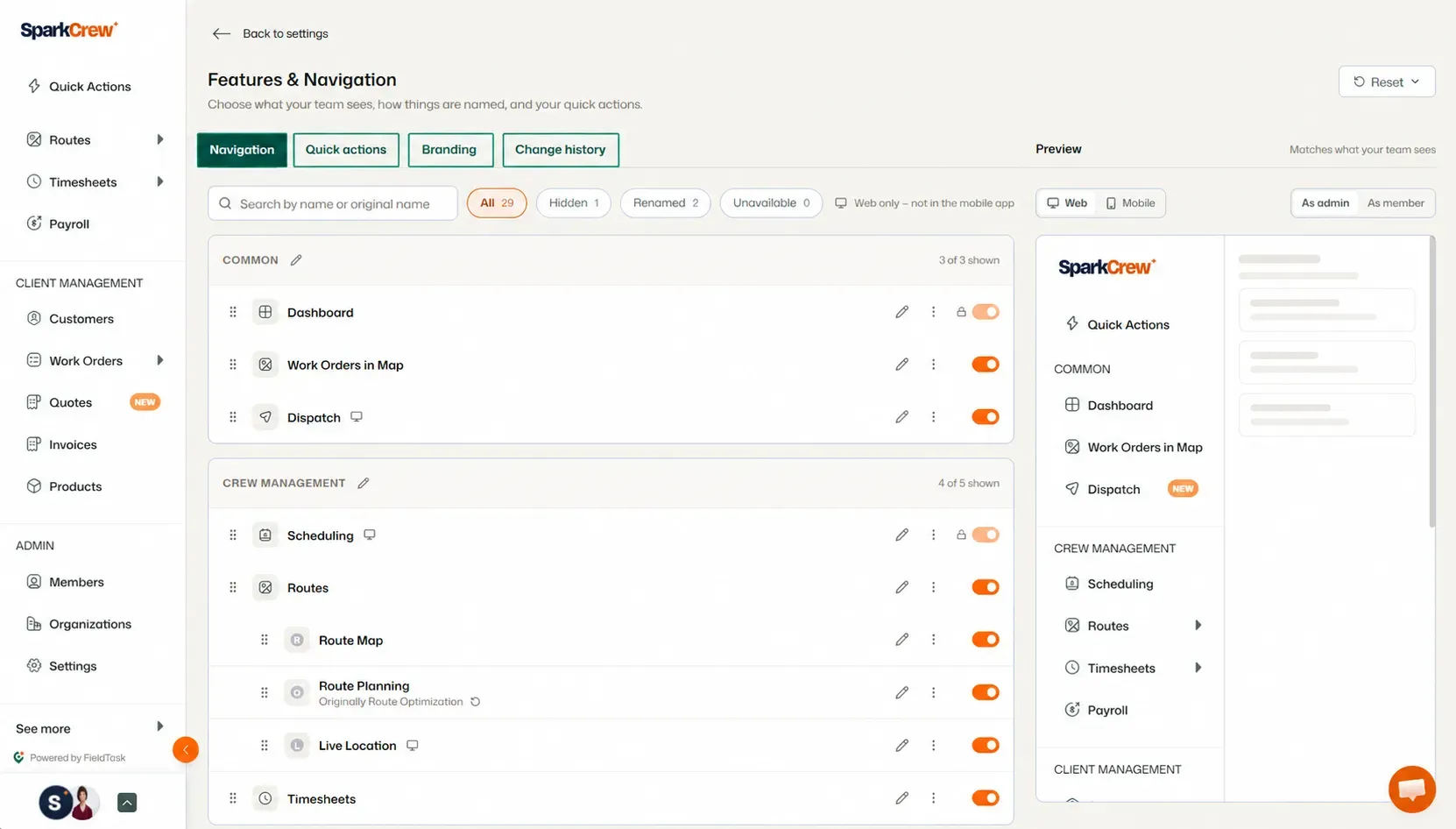
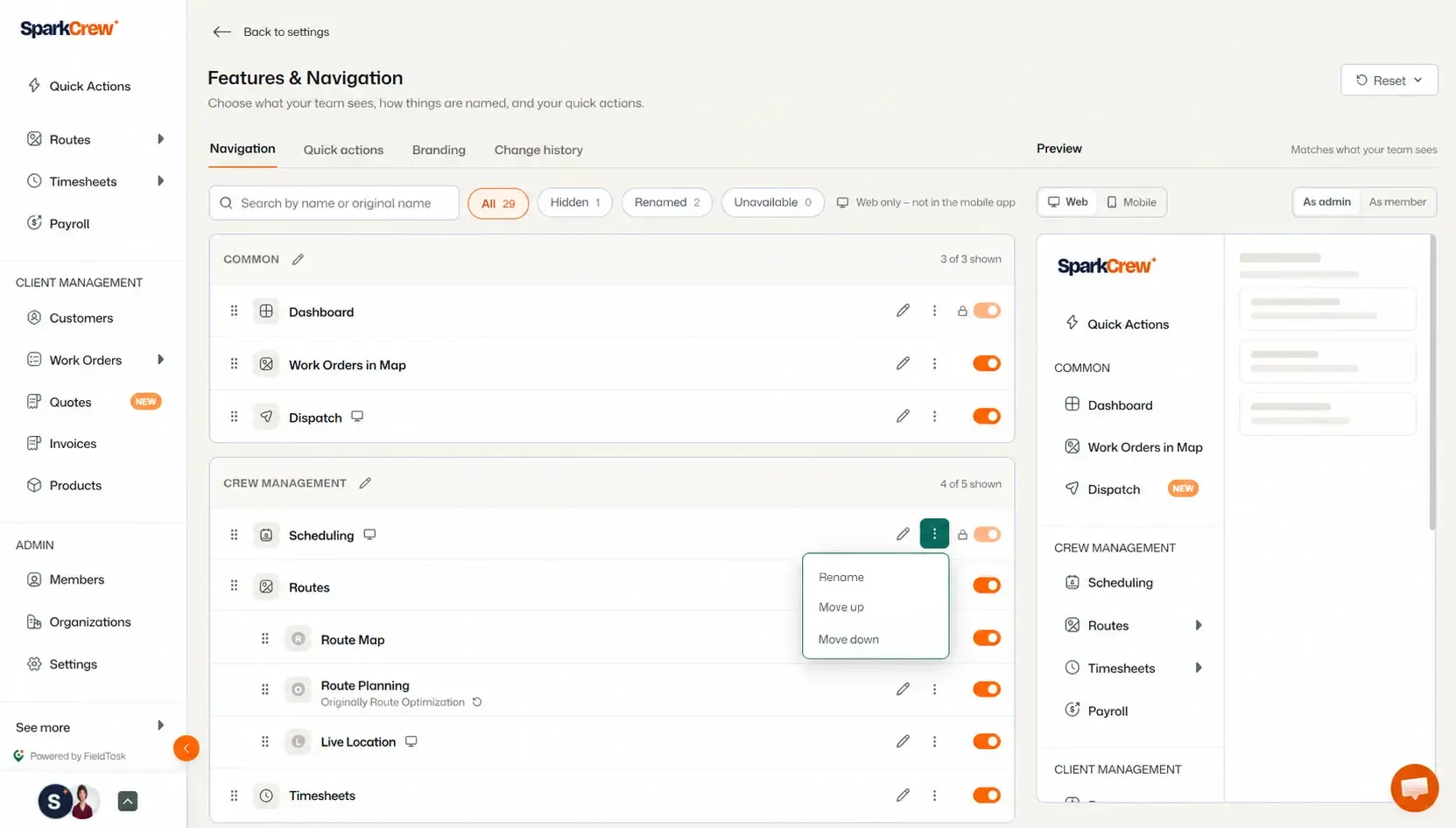
The Navigation section allows you to customize the components displayed in the left sidebar.
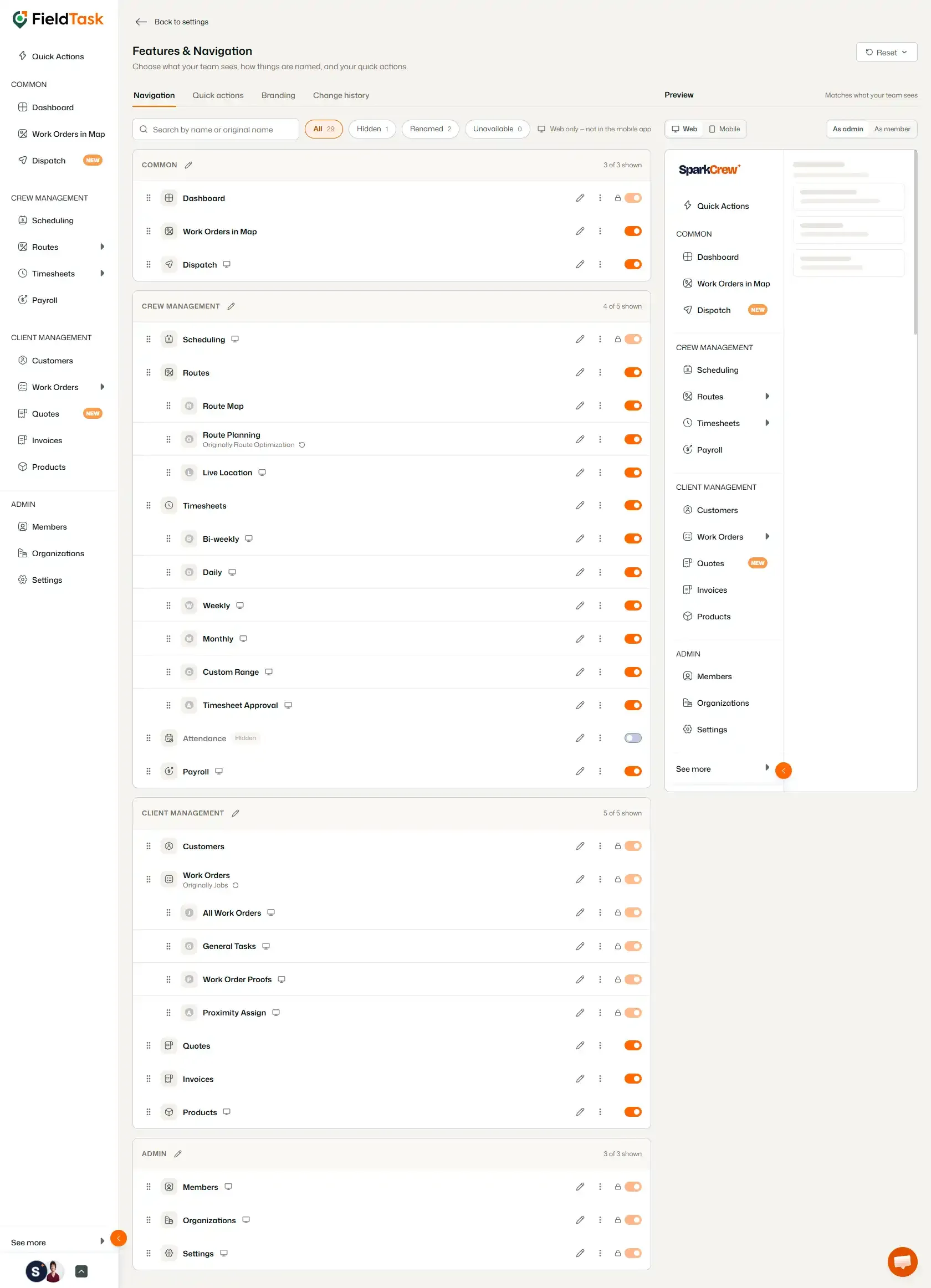
You can:
You can move components by dragging them to a different position.
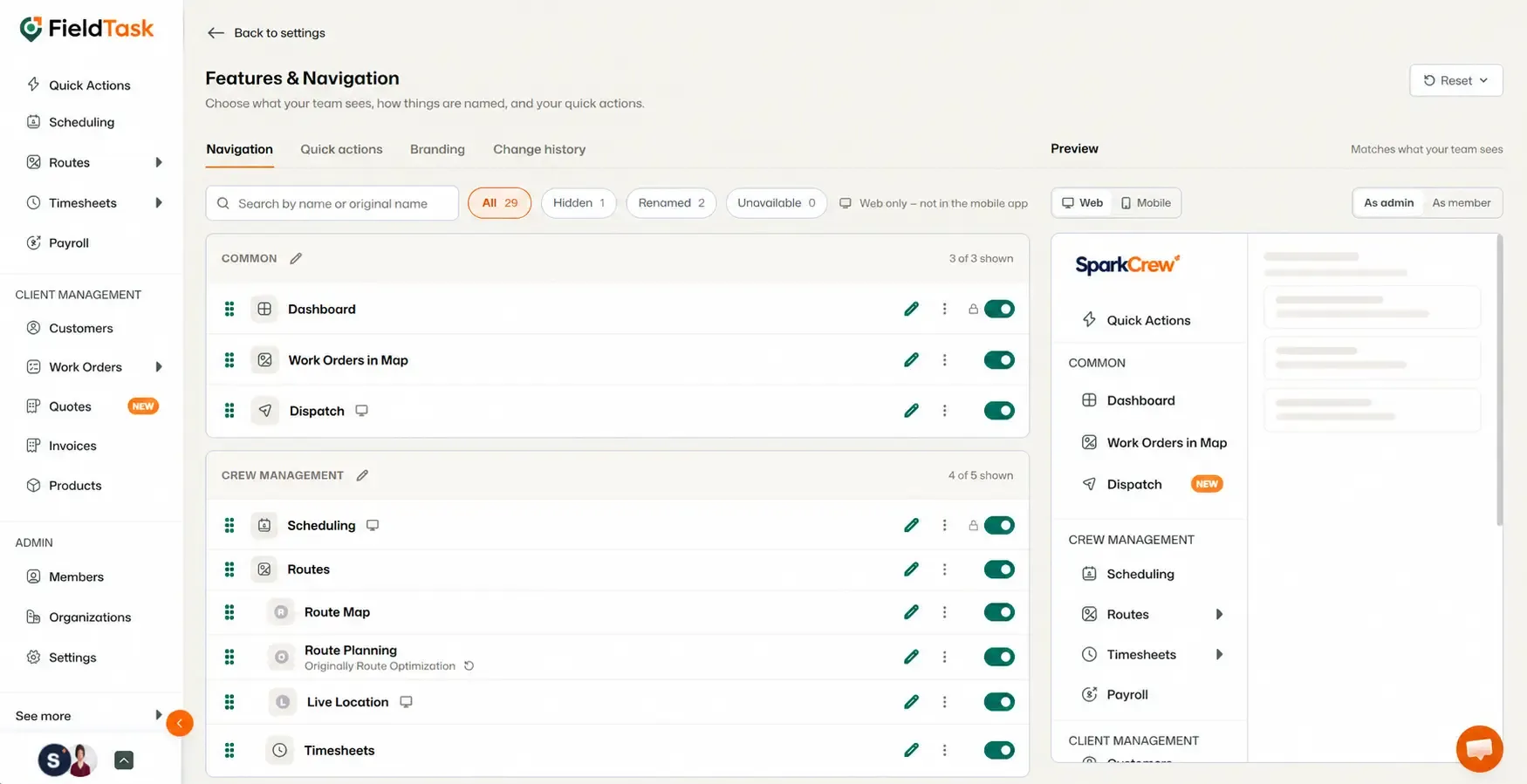
You can also click the three-dot menu beside a component to:
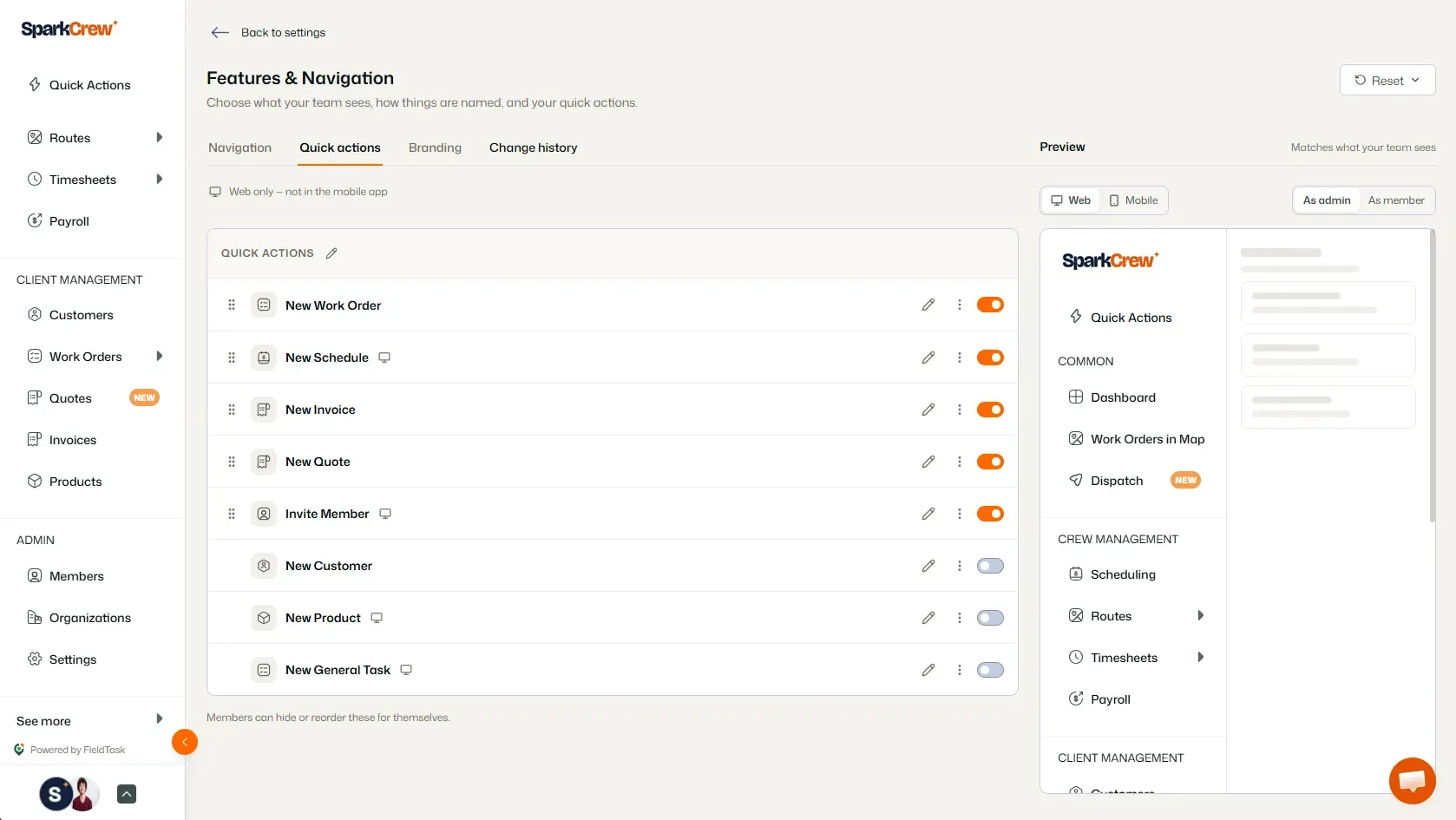
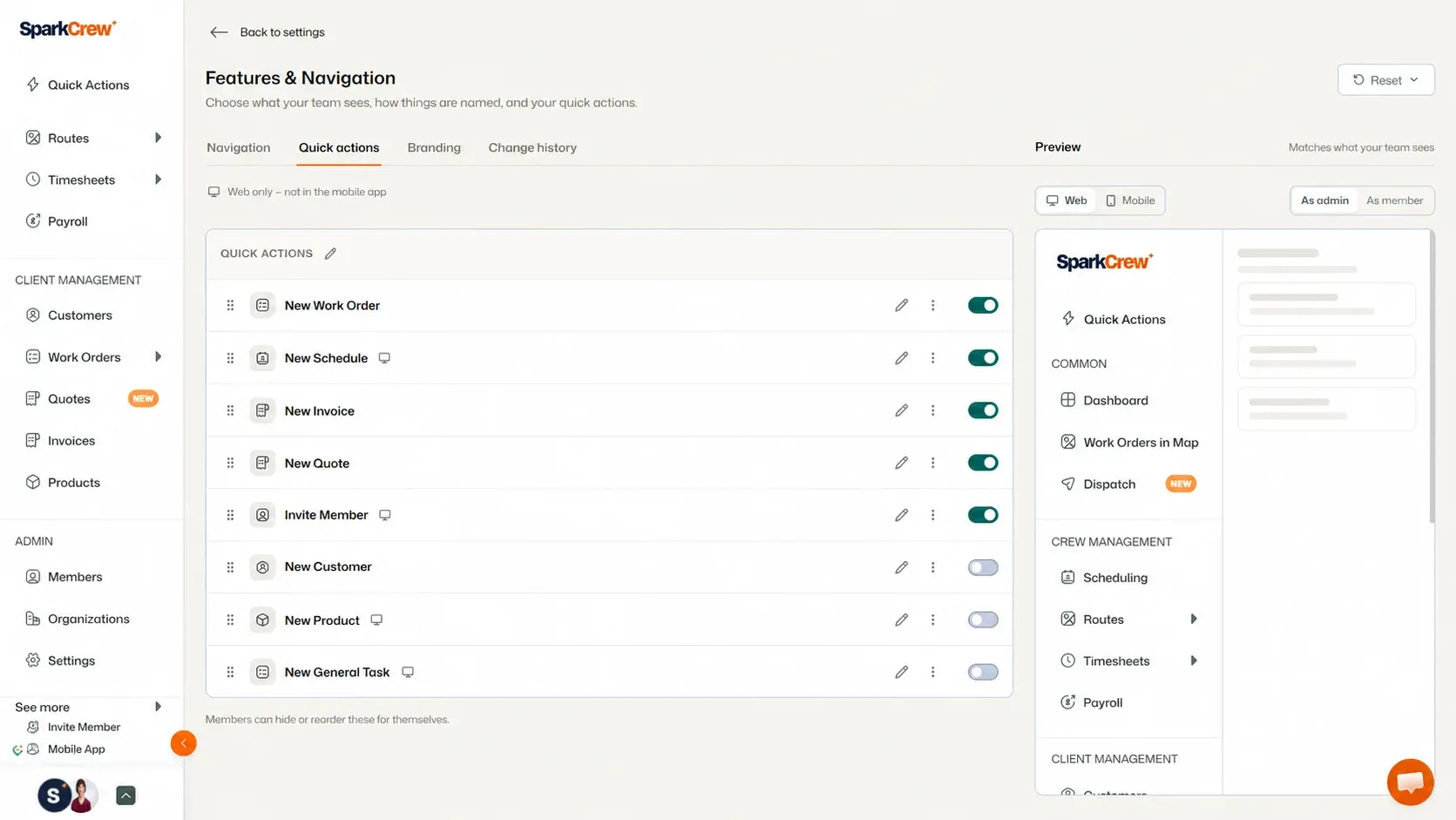
The Quick Actions section allows you to customize the options available in the Quick Actions menu.
You can use the three-dot menu beside a component to:
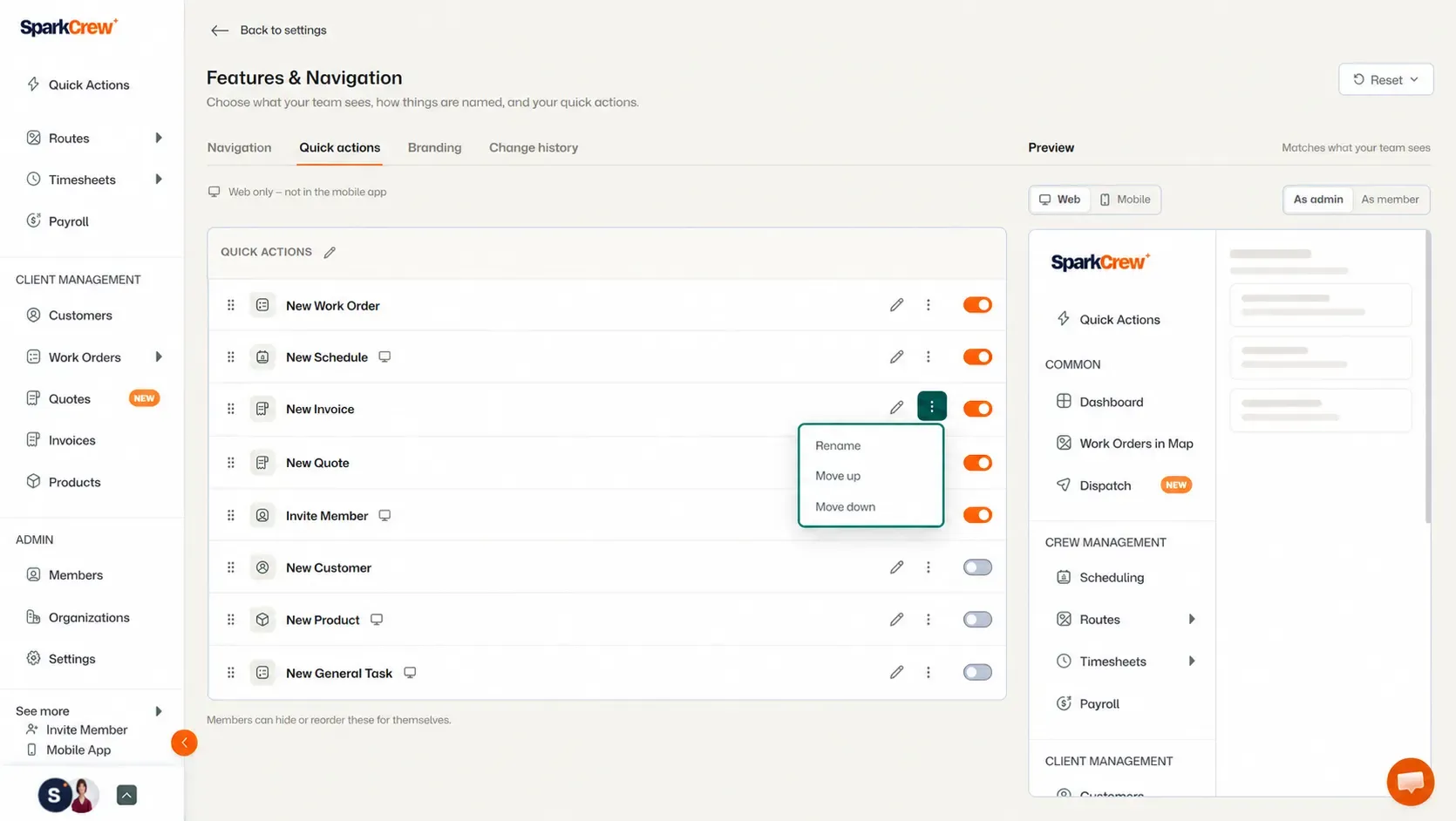
You can also drag components to change their order.
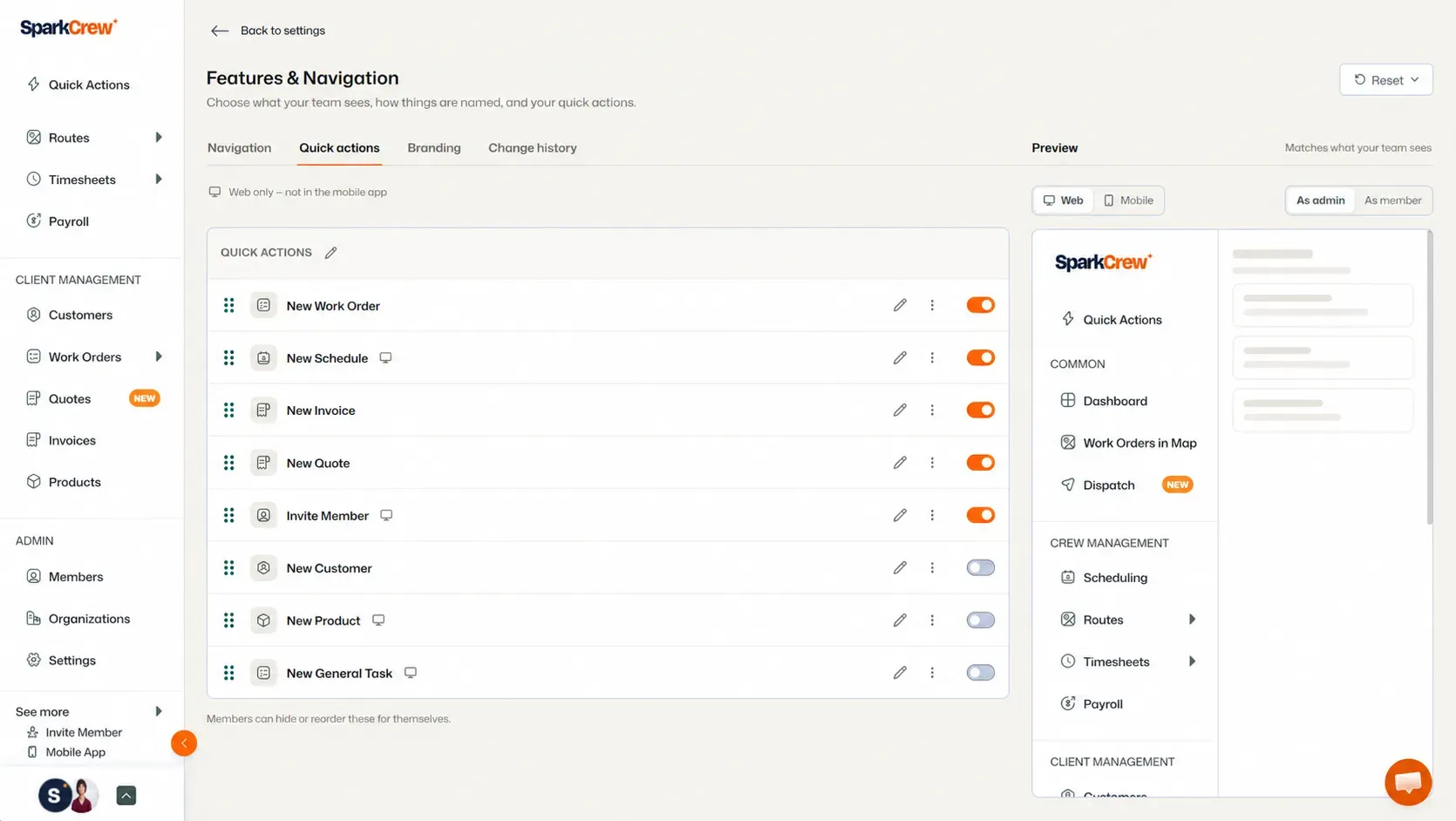
If you do not want an option to appear in the Quick Actions menu, you can also hide it.
The Branding section allows you to customize the visual branding used in FieldTask.
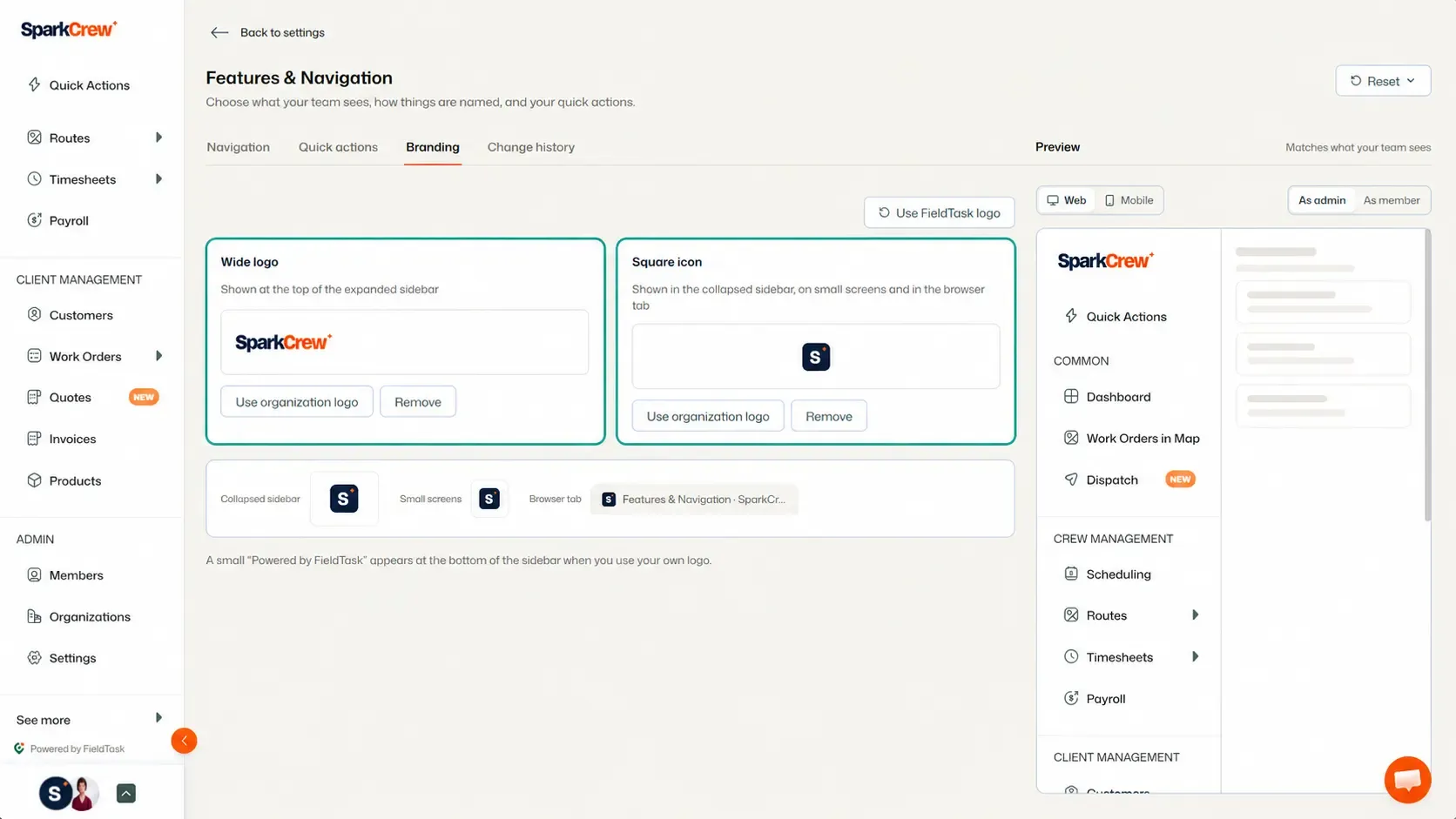
You can change:
The Change History section keeps a record of the changes made to your Feature and Navigation settings.
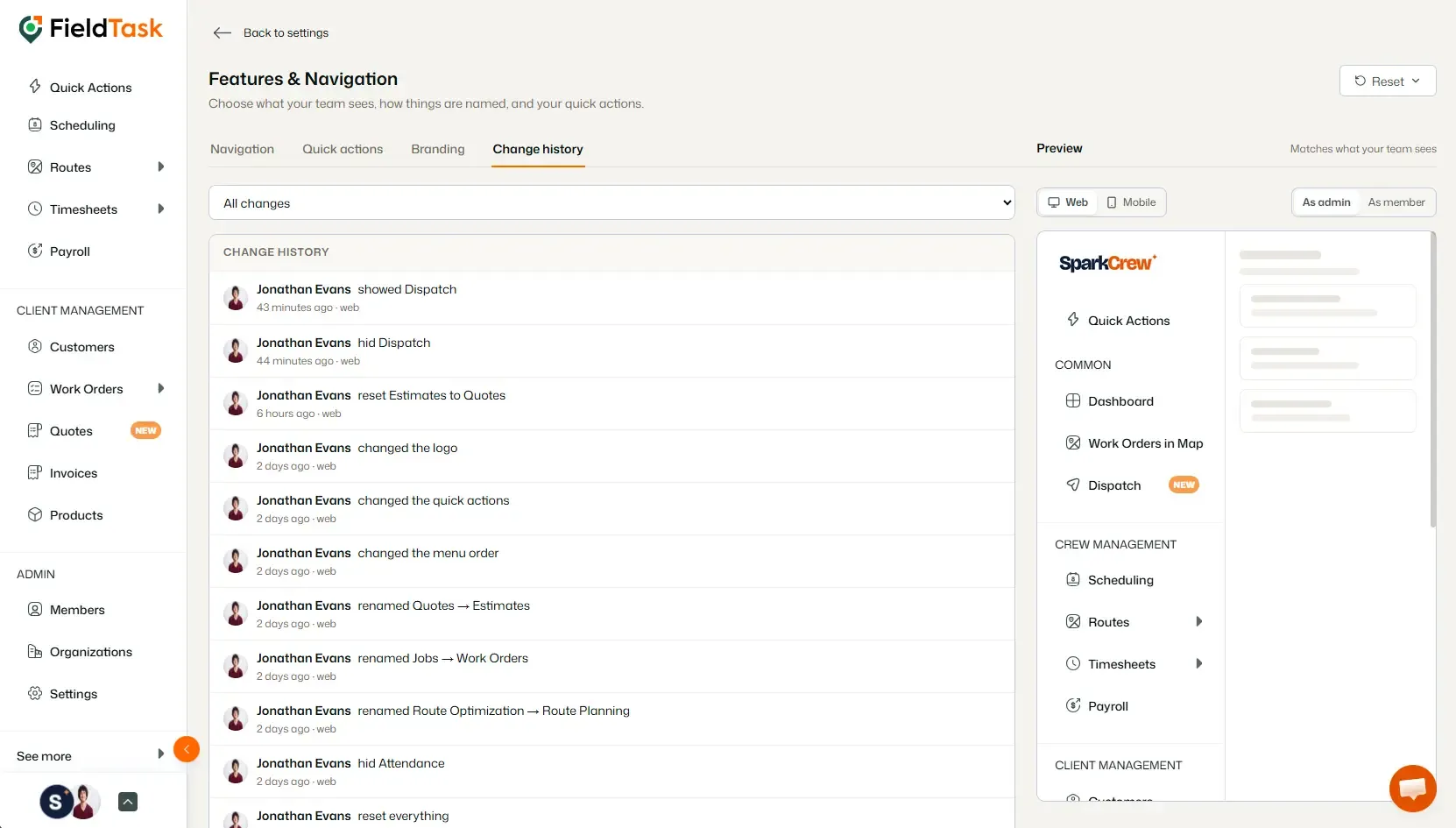
This allows you to review the history of your navigation, Quick Actions, and branding changes.
Manage dispatch, route plan, techs, quotes, invoices, and more in GHL, the only dedicated field service app for HighLevel home service businesses and contractors.
The complete FieldTask sitemap: quick links to all pages.
Learn how FieldTask supports HIPAA compliance for home health and field service teams—encryption, BAAs, access controls, and audit logging.