The HighLevel Home Service Business Management Software
Manage dispatch, route plan, techs, quotes, invoices, and more in GHL, the only dedicated field service app for HighLevel home service businesses and contractors.
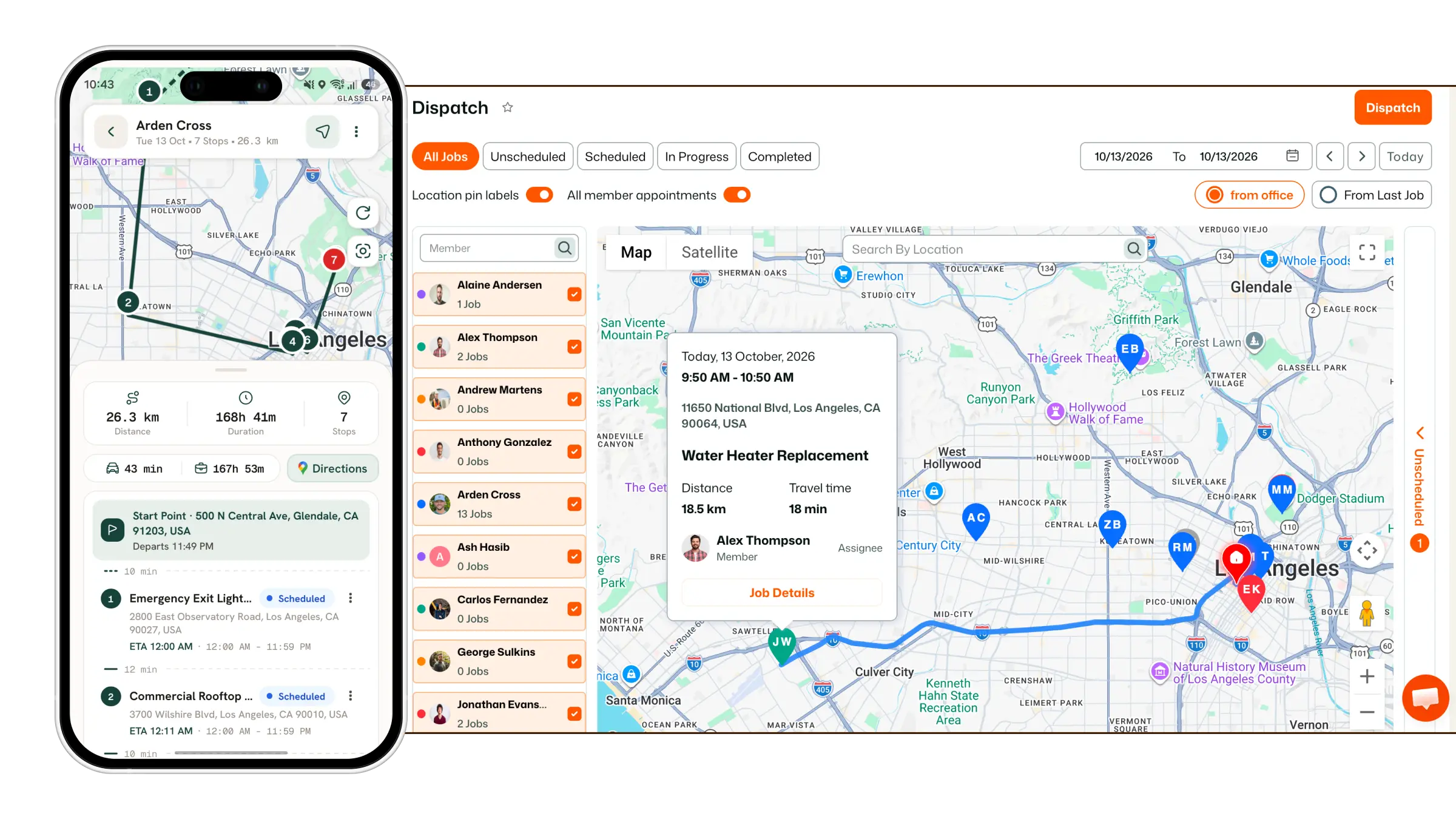
Learn how to use General Tasks to track time spent on work that takes place between or outside regular jobs.
General Tasks in FieldTask make it easier to track time spent on activities that are not part of a specific job, such as:
To use General Tasks, you must first create one from the FieldTask Web App.
To create a General Task:
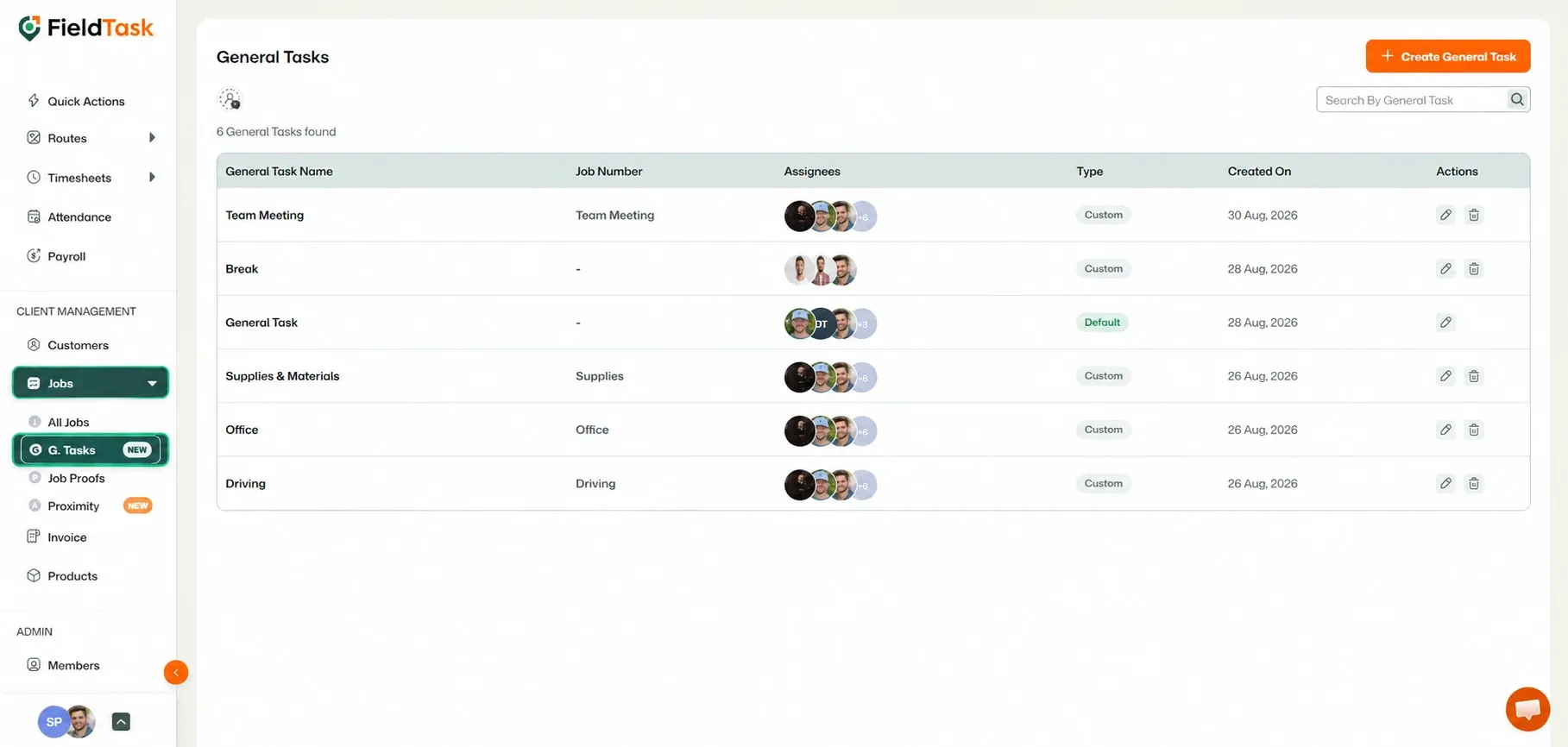
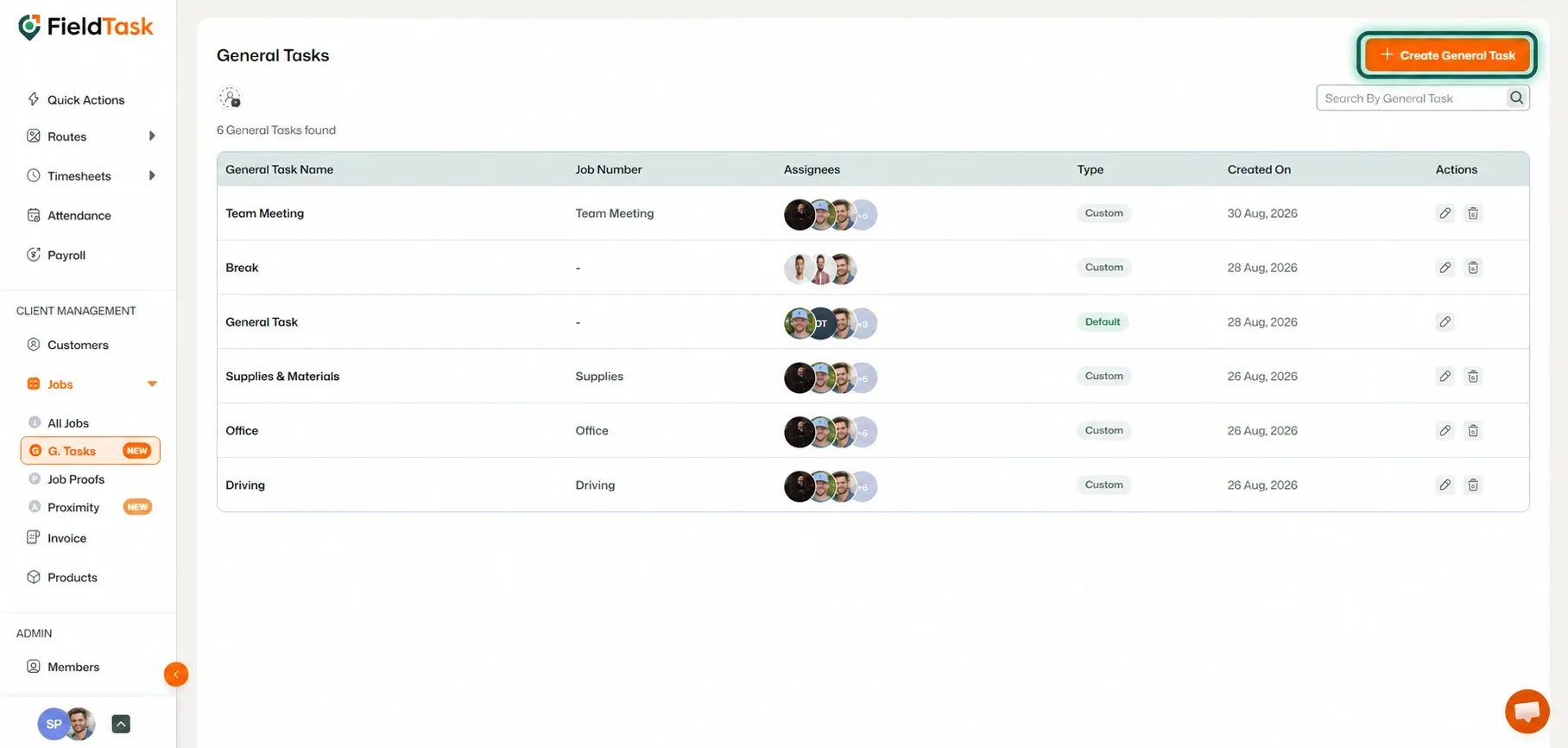
The General Task creation form will appear.
Enter the following information:
The Job Number is generated automatically, but you can edit it if needed.
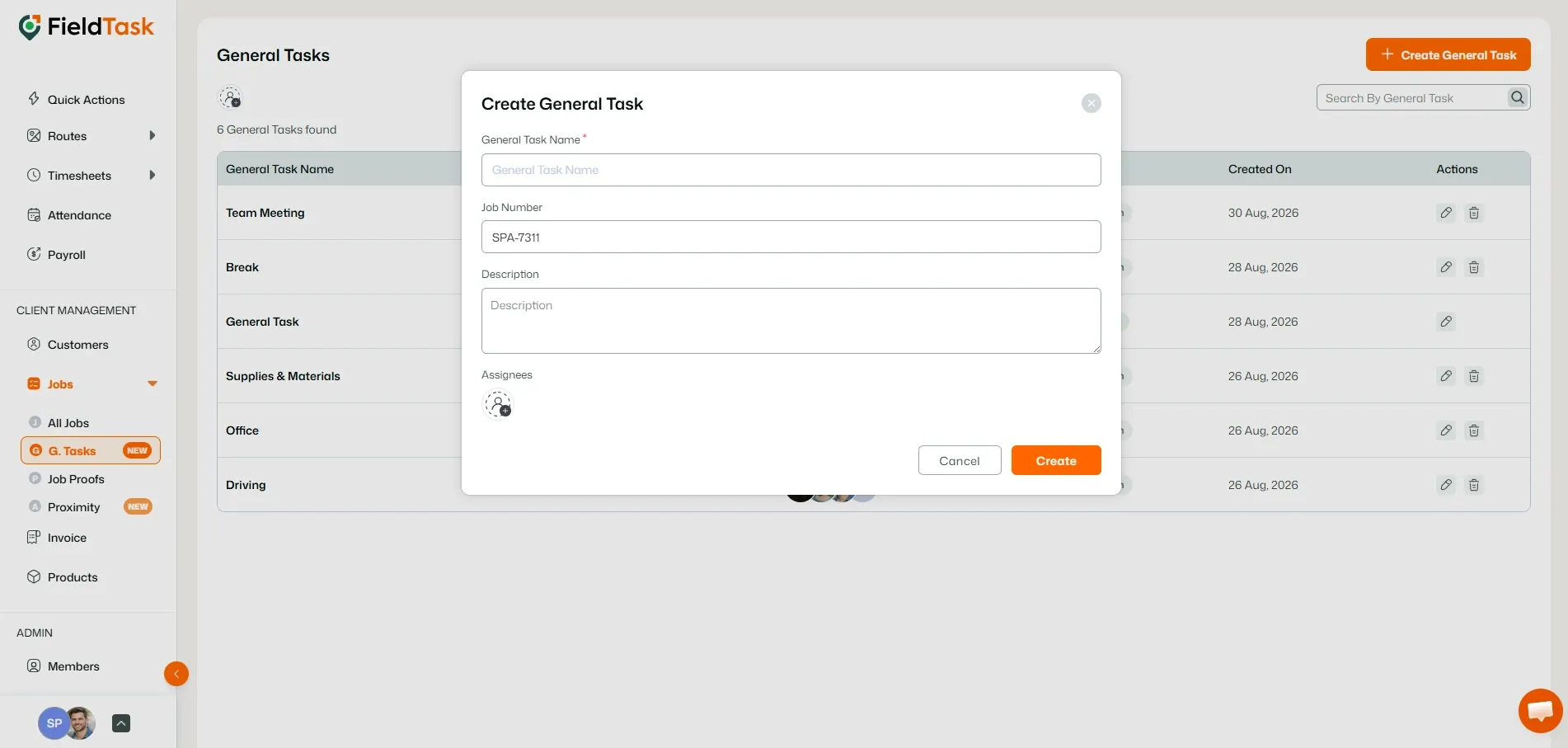
Your General Task is now ready to be used for time tracking.
Once the General Task has been created, you can start tracking time against it from the FieldTask Mobile App.
To start tracking a General Task:
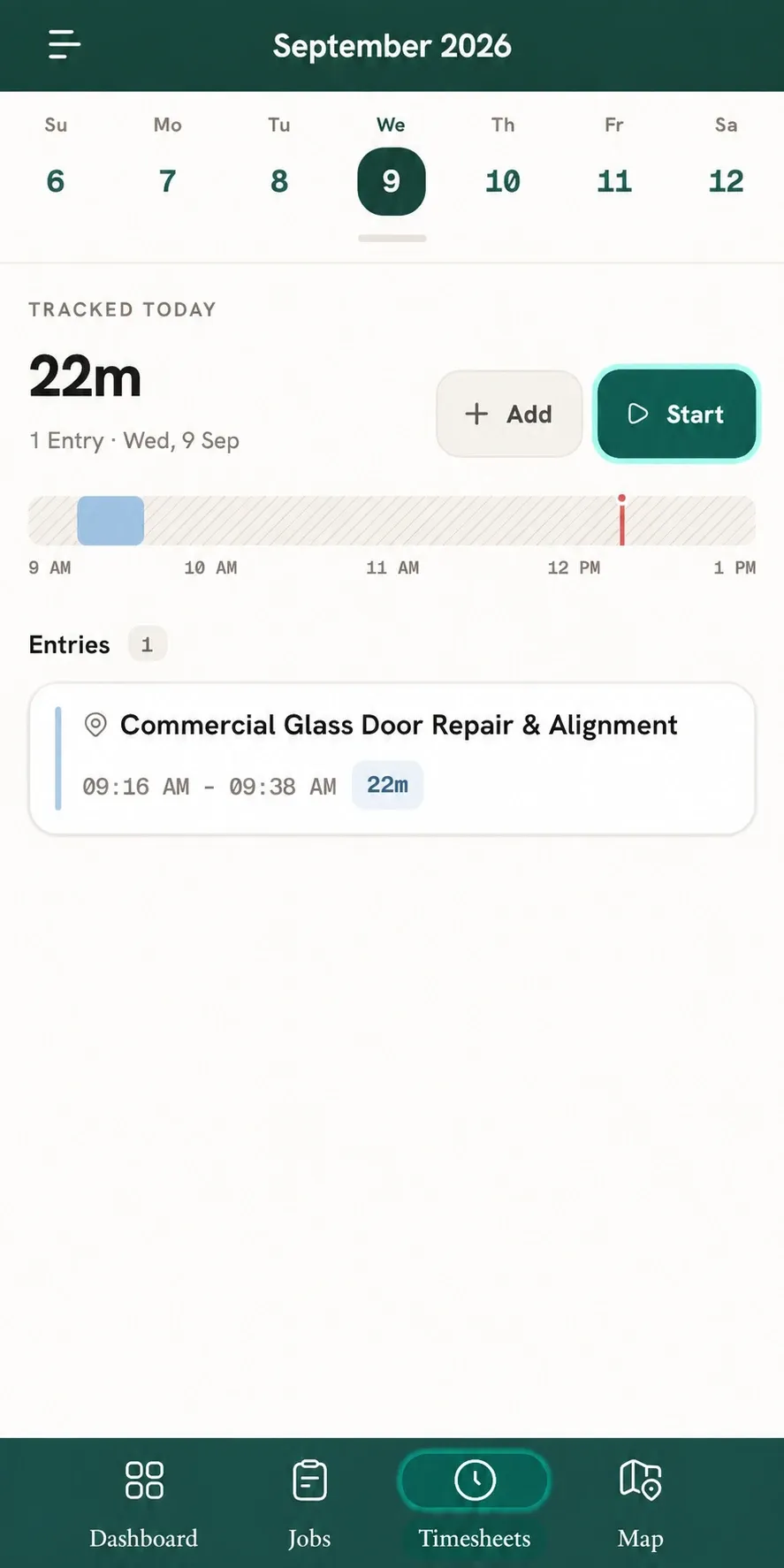
An app drawer will open and display the General Tasks available to you.
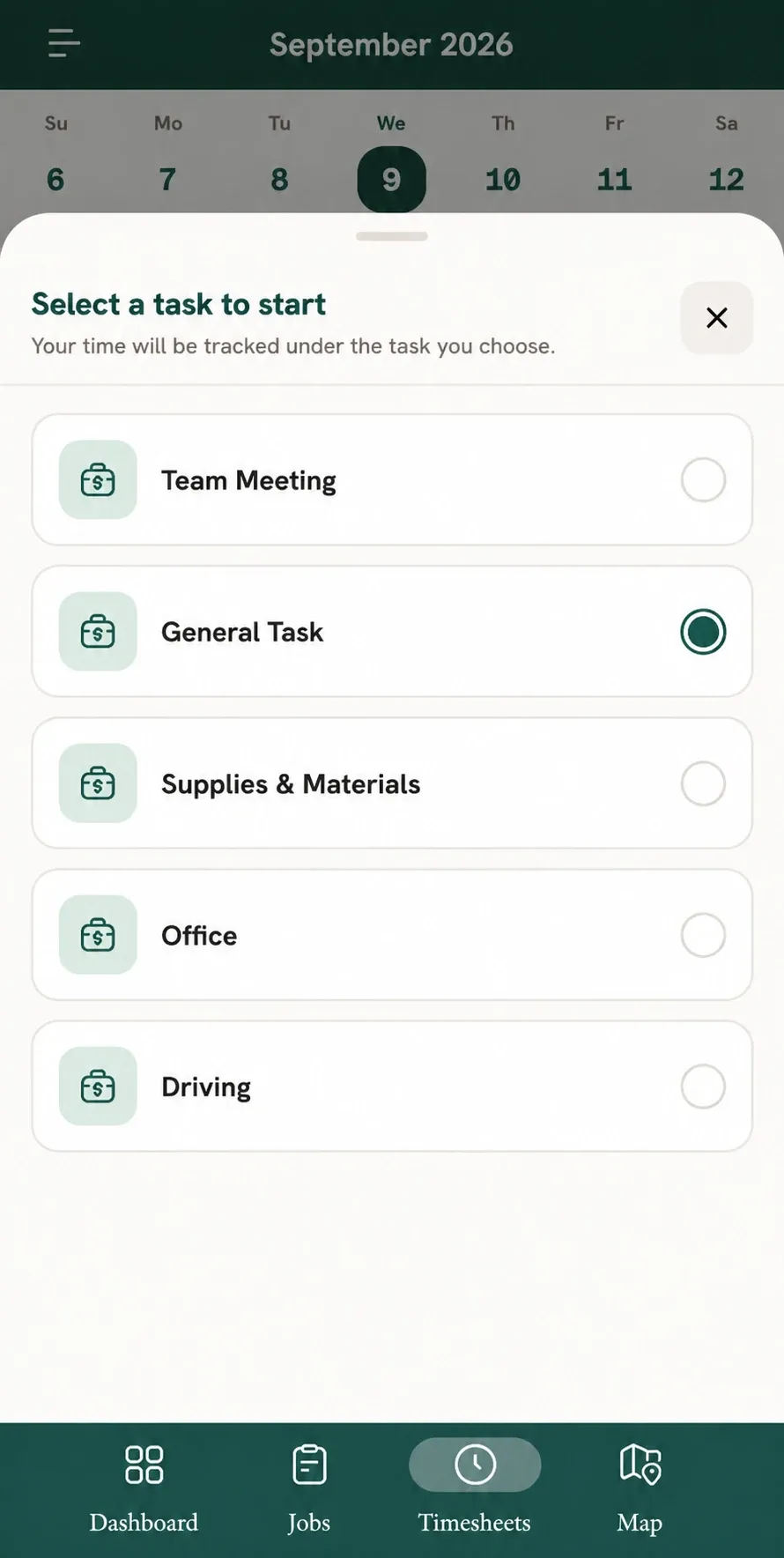
Time tracking for that General Task will begin immediately.
When you arrive at the job location and are ready to start the assigned job, simply check in to the job as usual.
FieldTask will automatically stop the active General Task and check you out of it when you check in to the job.
📌 Note: This helps keep time spent on travel, office work, or other non-job activities separate from the time tracked against an individual job.
Manage dispatch, route plan, techs, quotes, invoices, and more in GHL, the only dedicated field service app for HighLevel home service businesses and contractors.
The complete FieldTask sitemap: quick links to all pages.
Learn how FieldTask supports HIPAA compliance for home health and field service teams—encryption, BAAs, access controls, and audit logging.