Getting Started with FieldTask | GHL Field Service App
Getting Started with FieldTask
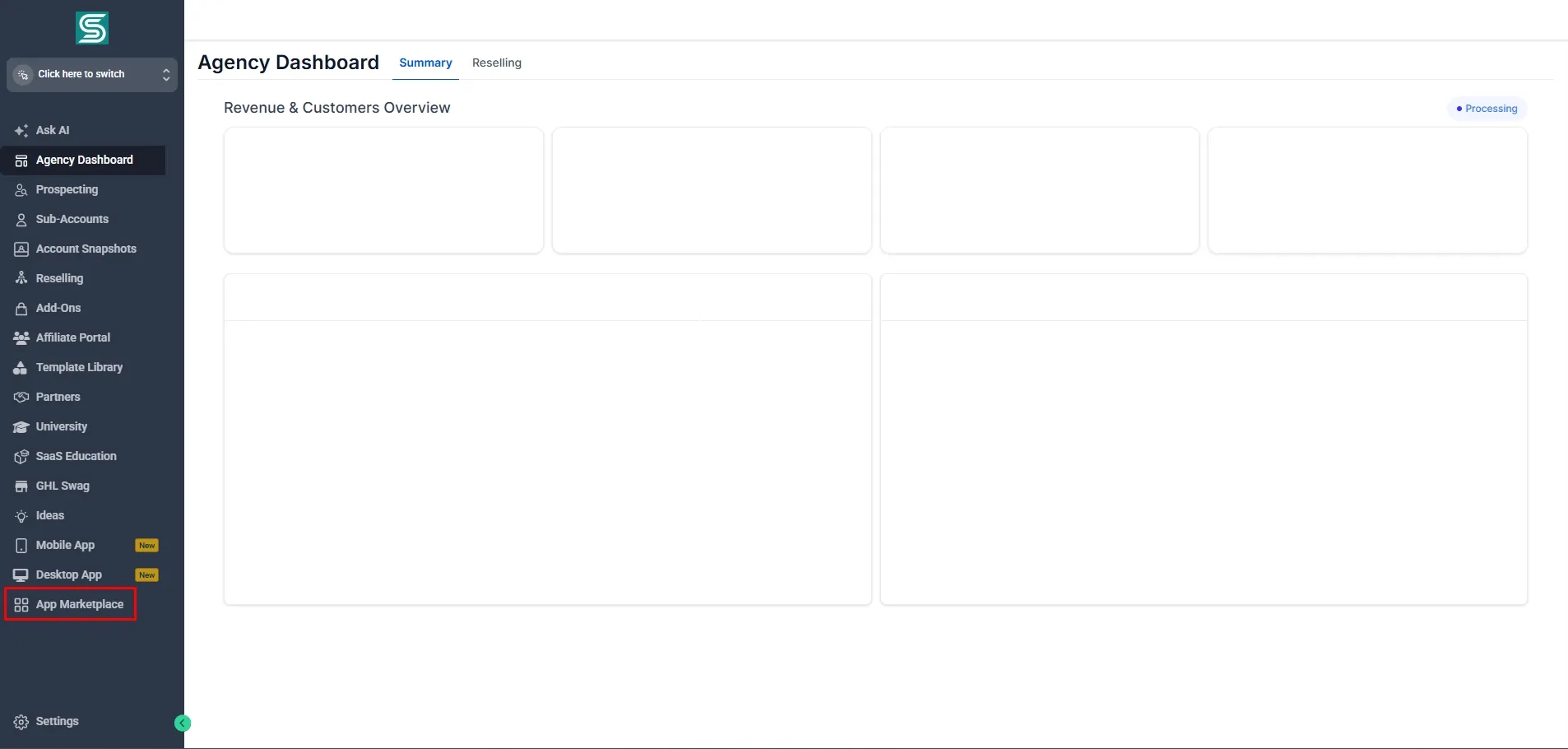
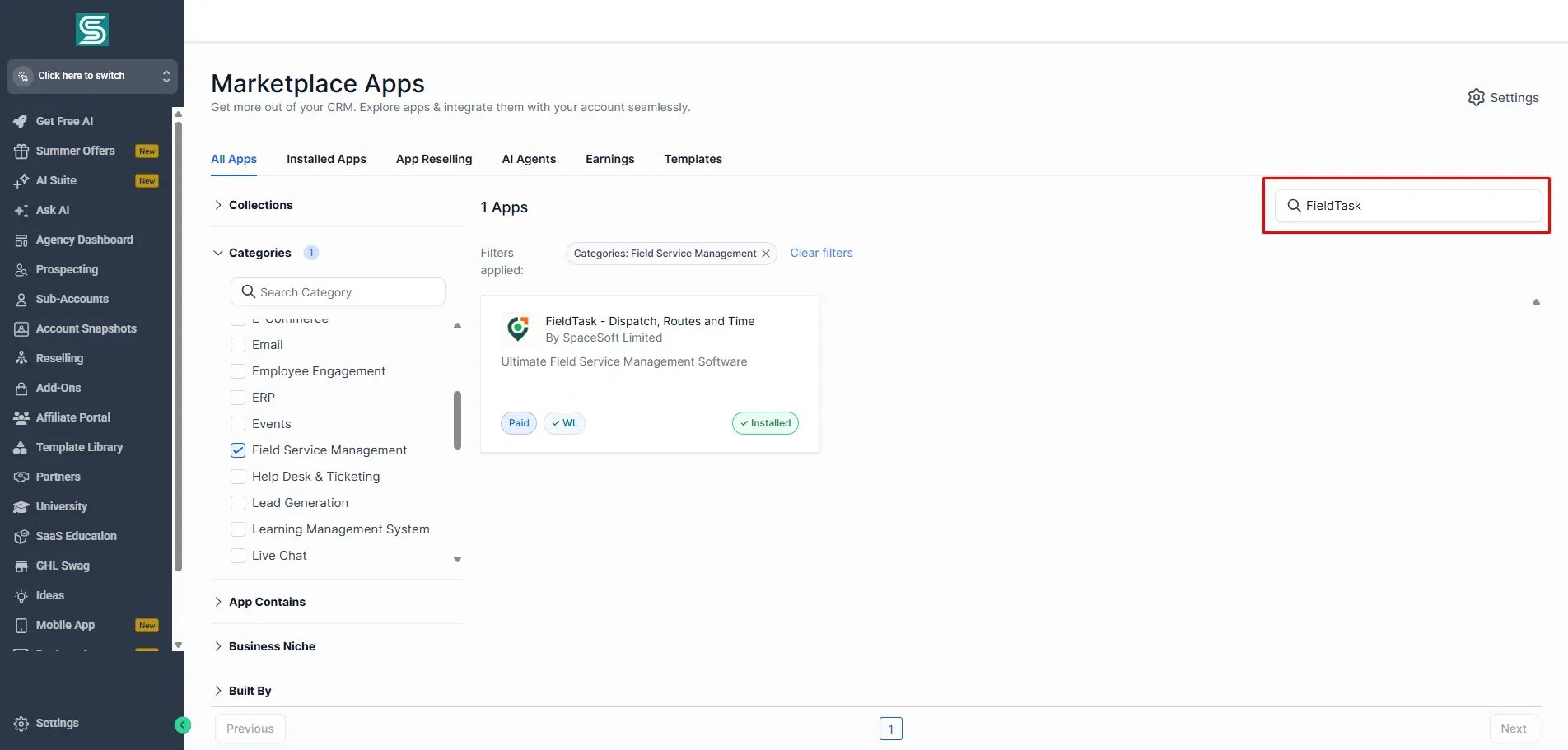
To install FieldTask to a Sub Account, first go to the App Marketplace from the left-side bar.
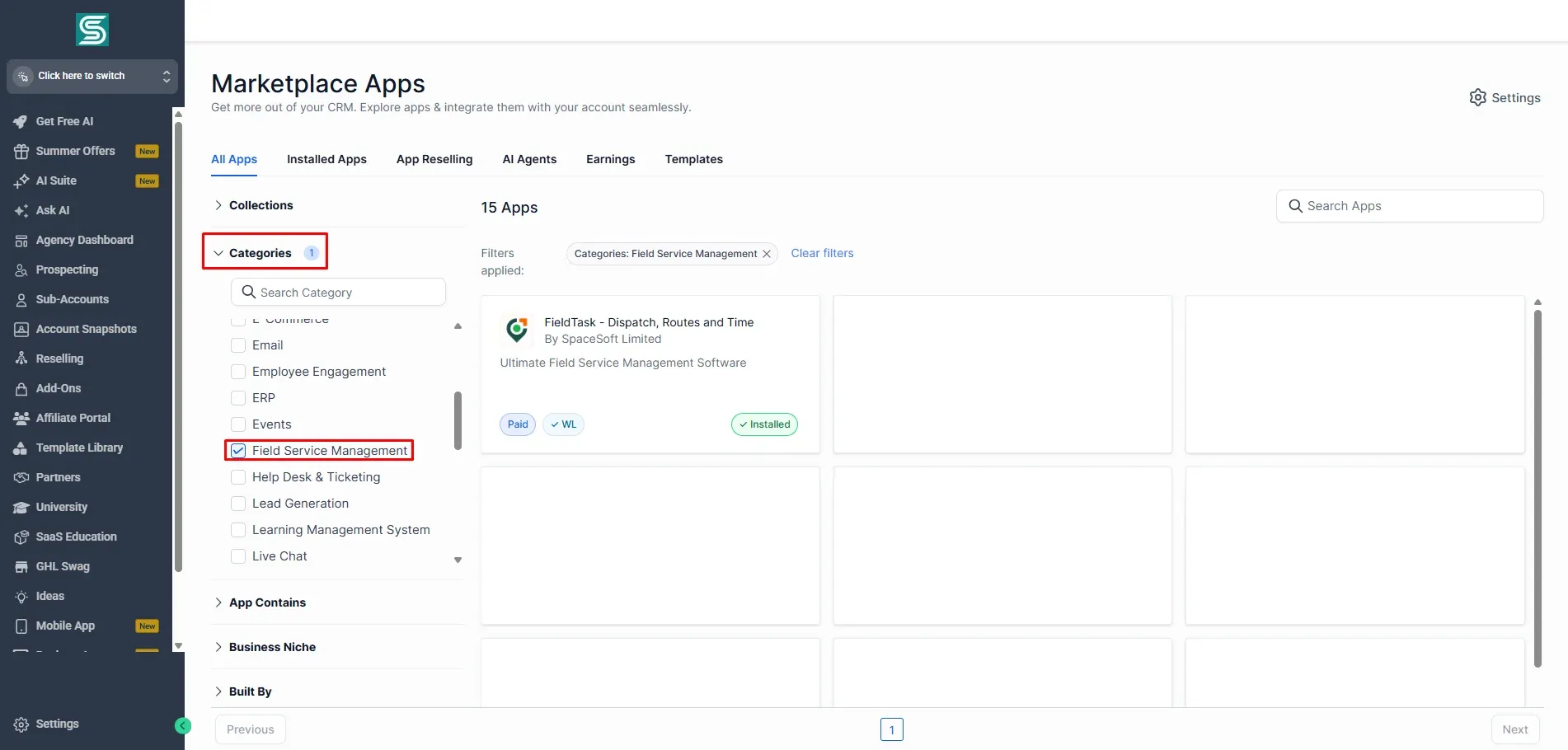
From here, you can either look up Fieldtask by choosing the Field Service Management category.
Or you can look it up directly by searching for it by name.
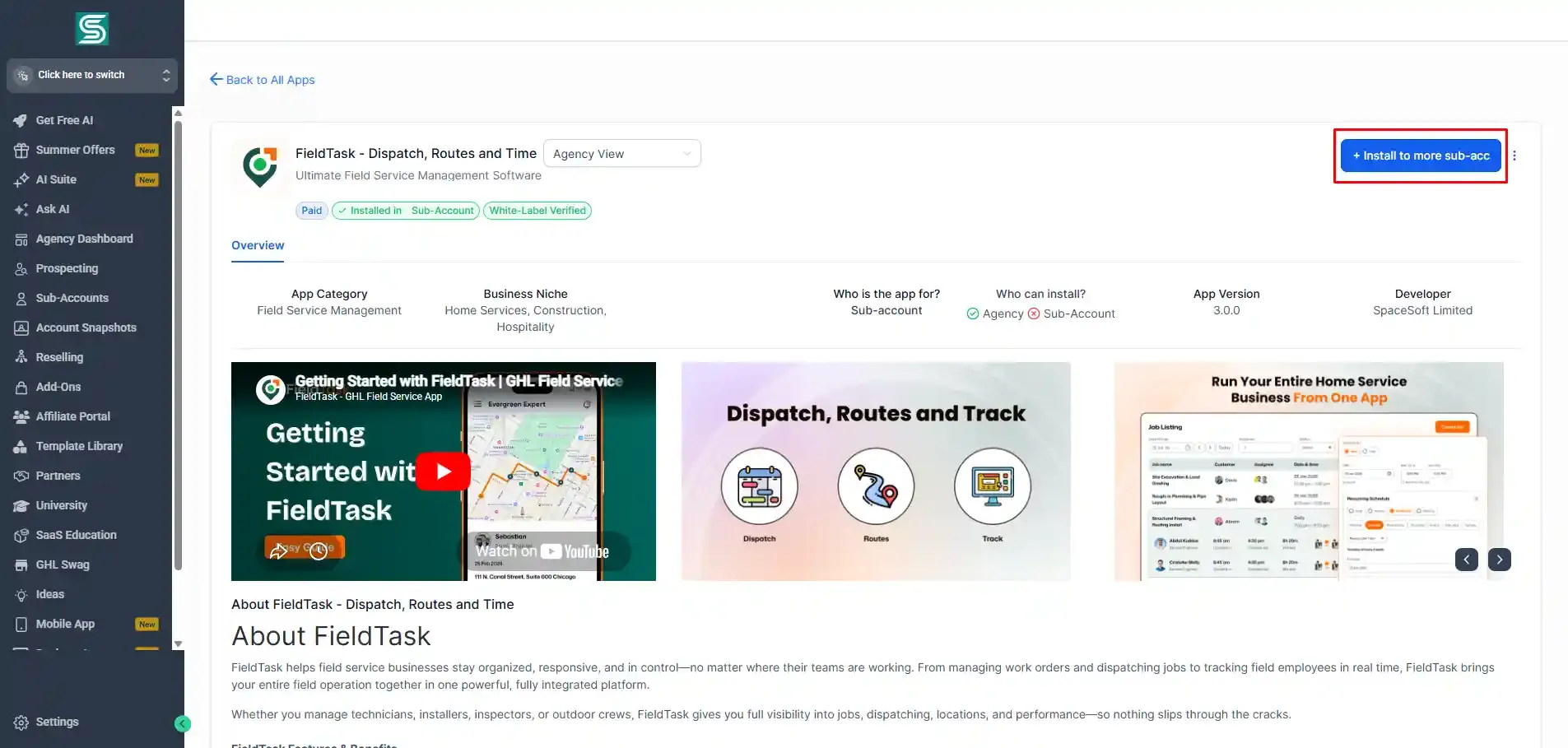
Once the app page loads, click on the install button on the right side of the app page.
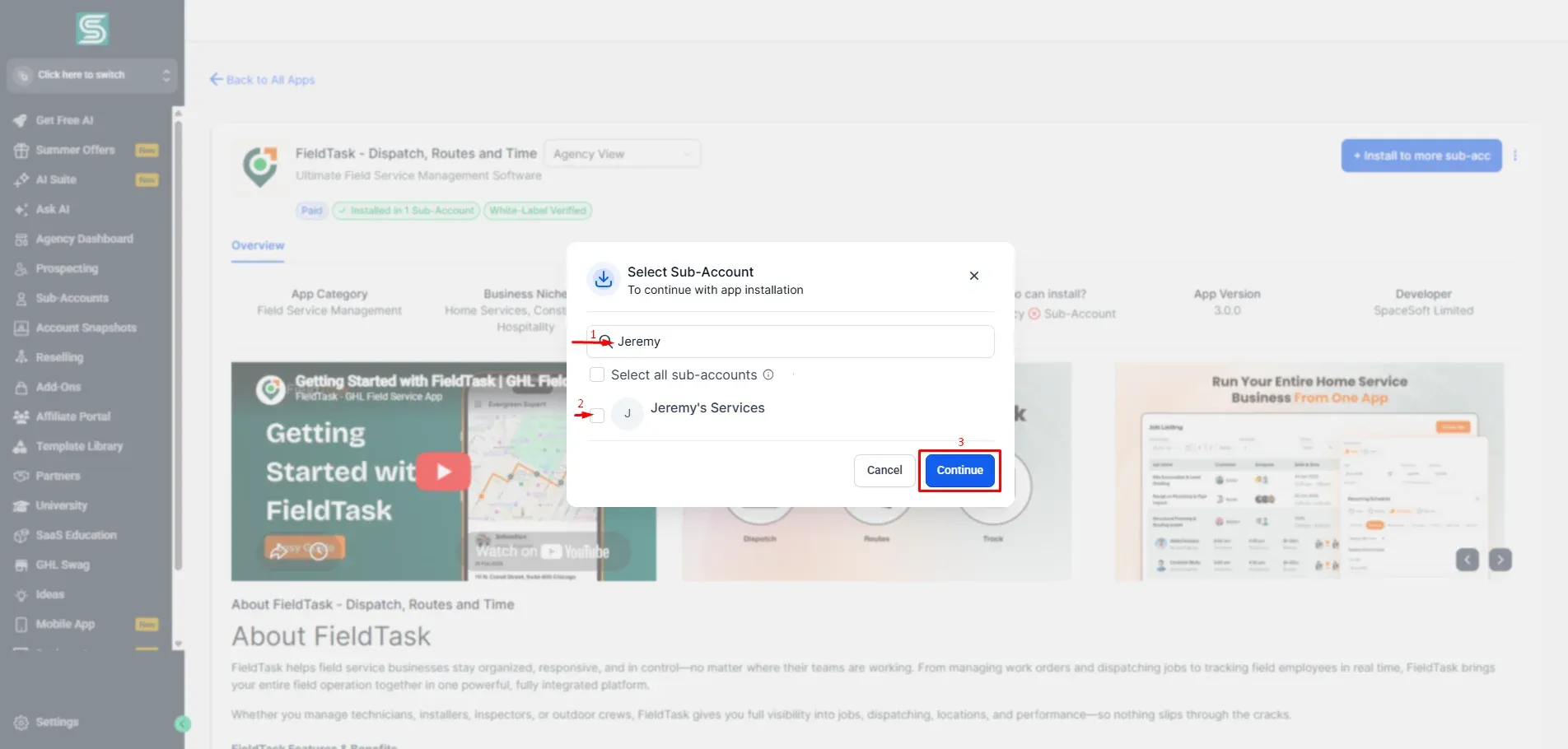
Look up the Sub Account you want to install FieldTask on, then click the check box, then the Continue button.
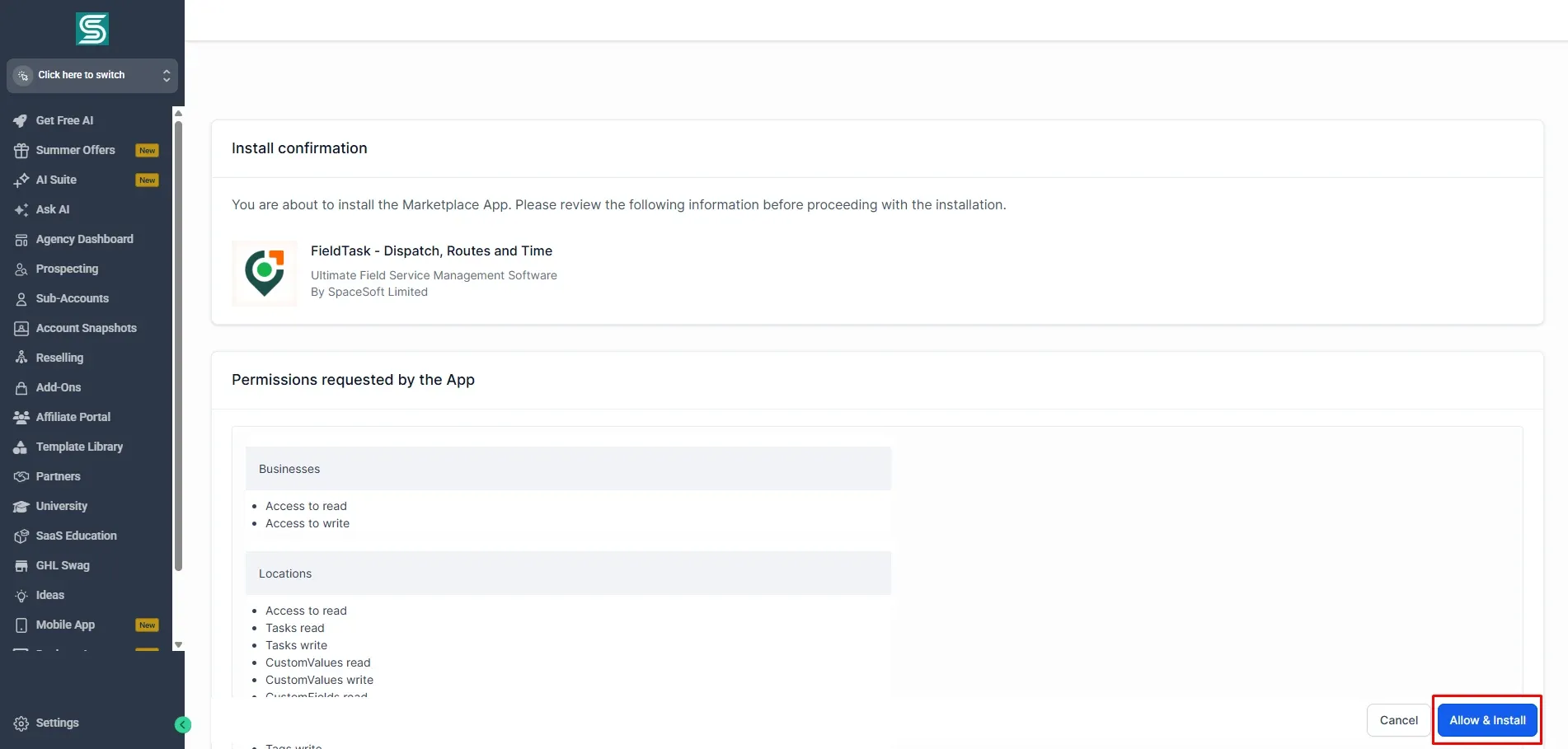
Click on Allow and Install on the Installation Confirmation page that loads.
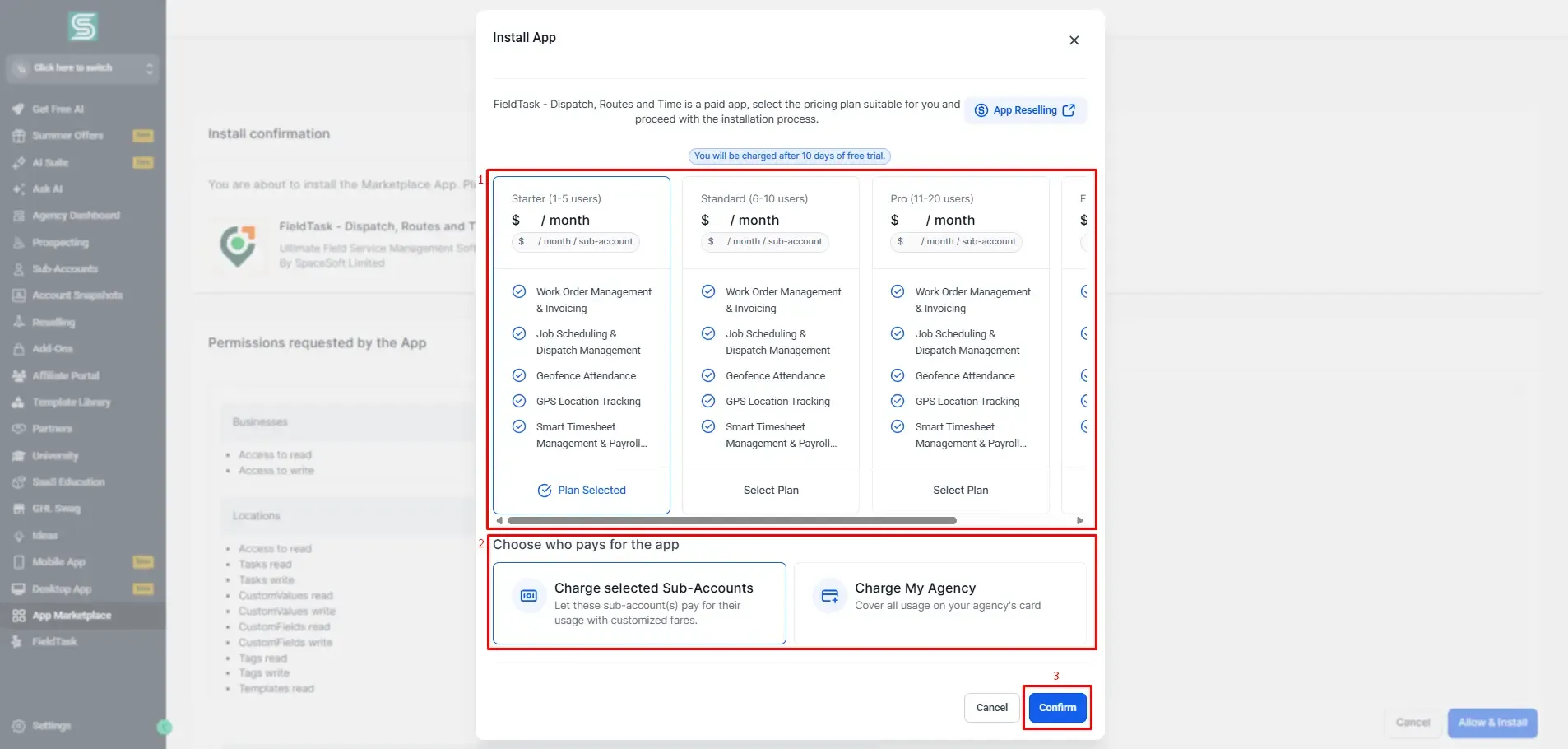
Choose the package that best suits your organization and how you would like the subaccount to be charged. Finally, click Confirm to move on to the next step.
Once you have done this part, you will receive a success message in a newly opened tab.
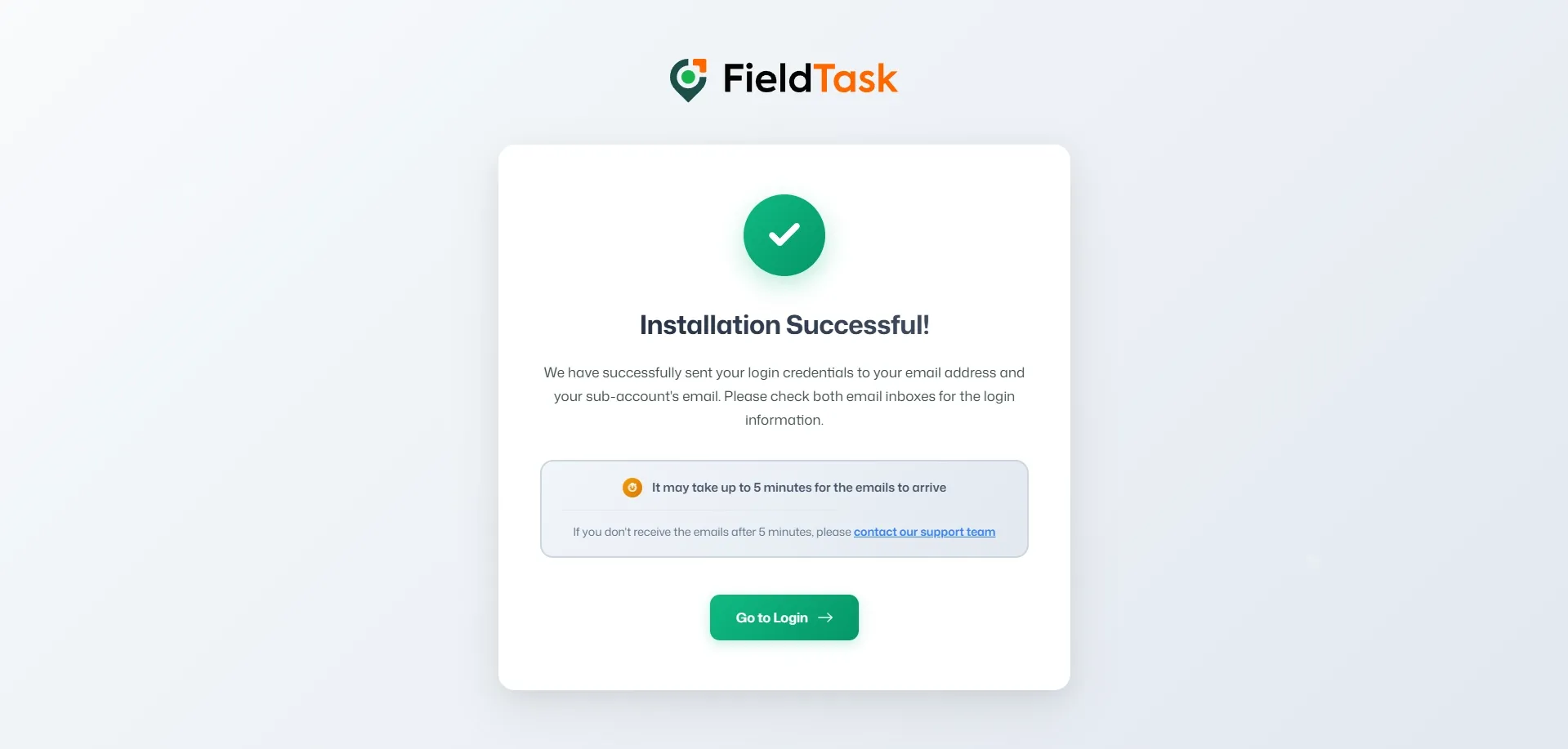
The login credentials are sent to the Agency Owner's email and the sub-account owner's business email. If your sub account does not have a business email, your credentials will be sent to your sub account’s location email. The Agency Owner’s email will also contain a link for our Snapshot.
You can log into your account by either:
- Clicking on the login button on the Confirmation Page
- Through the Custom Link now present on your GHL CRM.
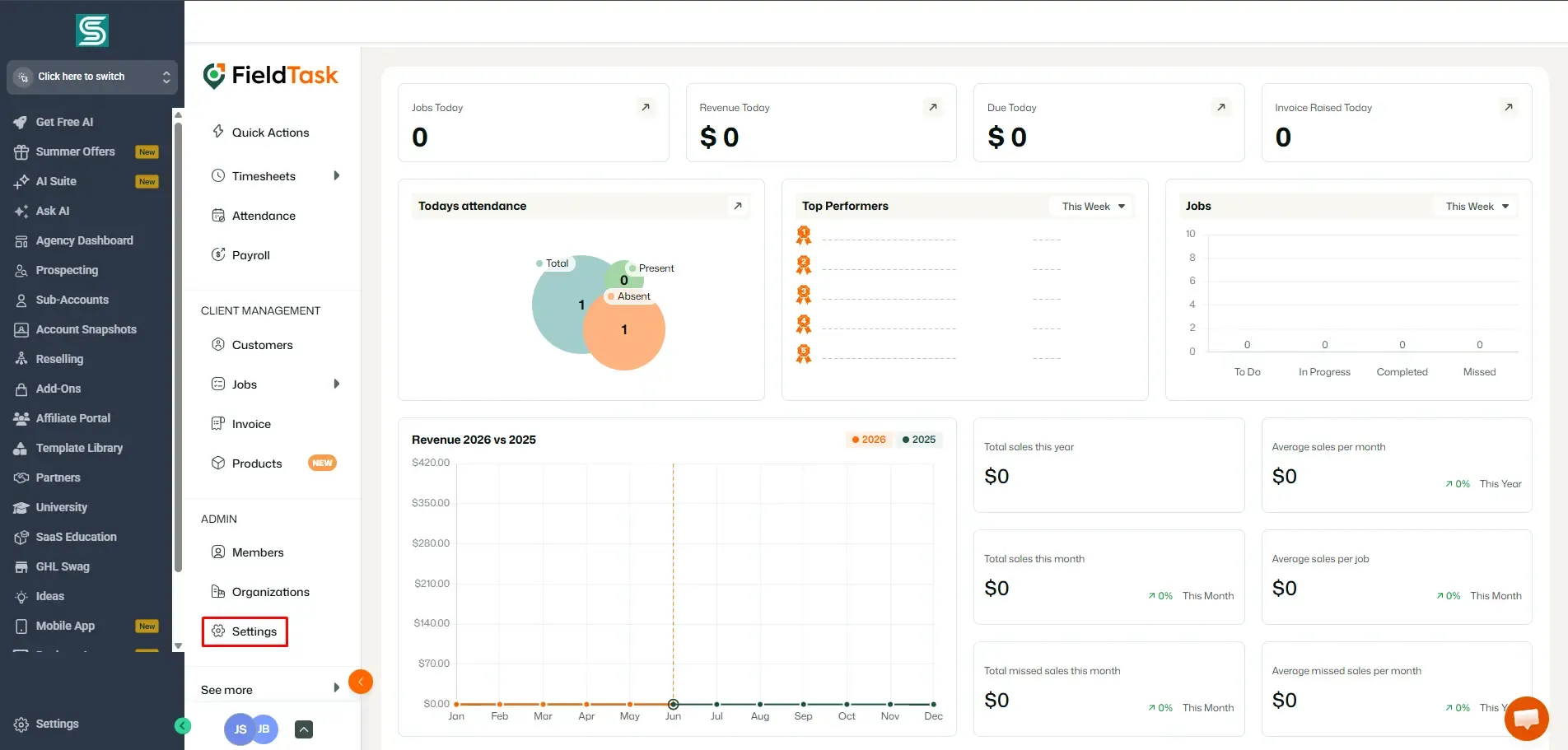
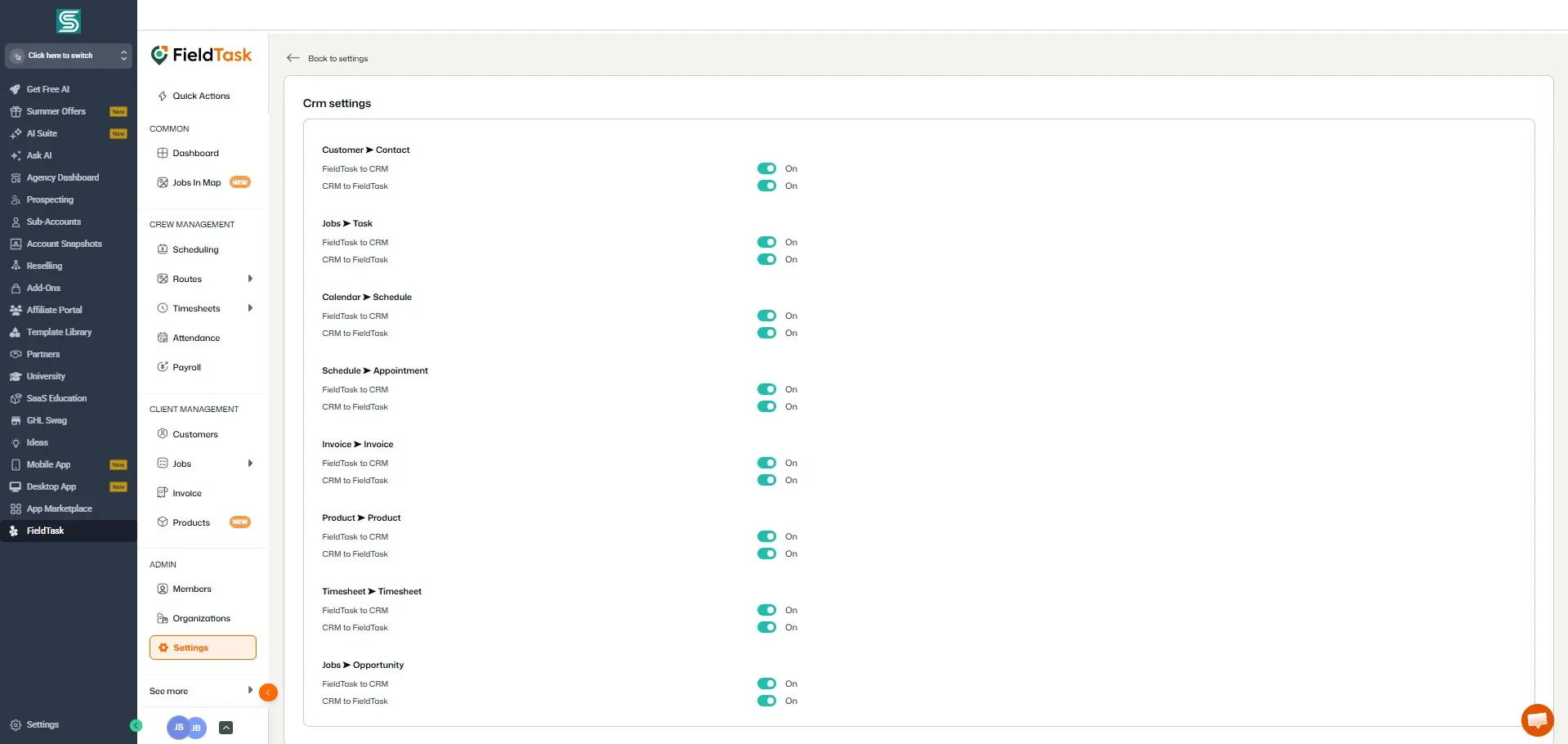
FieldTask is made specifically for the GHL system, and as such, you do not need to rely on a third-party integration tool. But you will need to choose which kinds of data you want shared between FieldTask and GHL. Go to Settings from your FieldTask Web App and enter the SRM Settings.
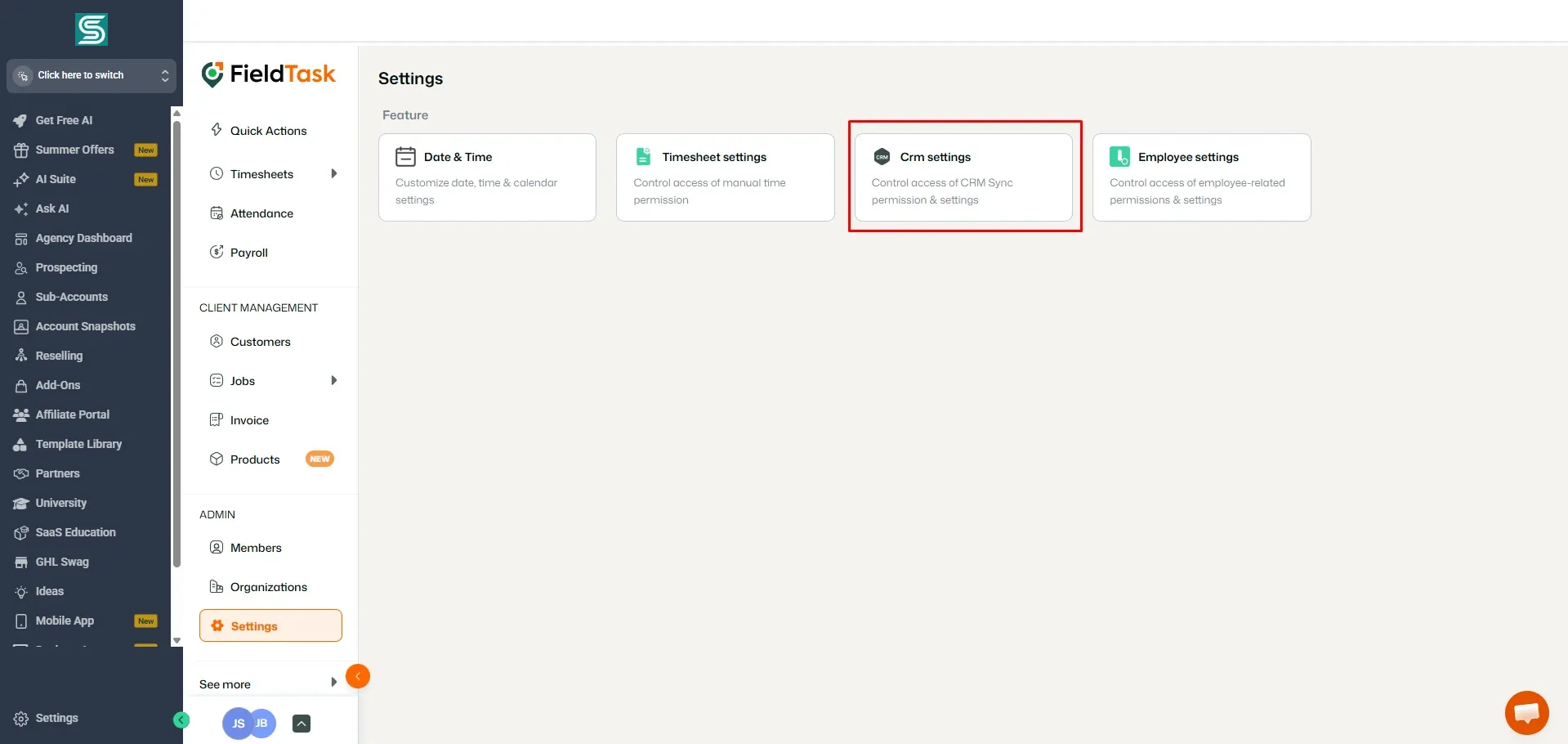
Toggle the options for the data you want shared between the two platforms.
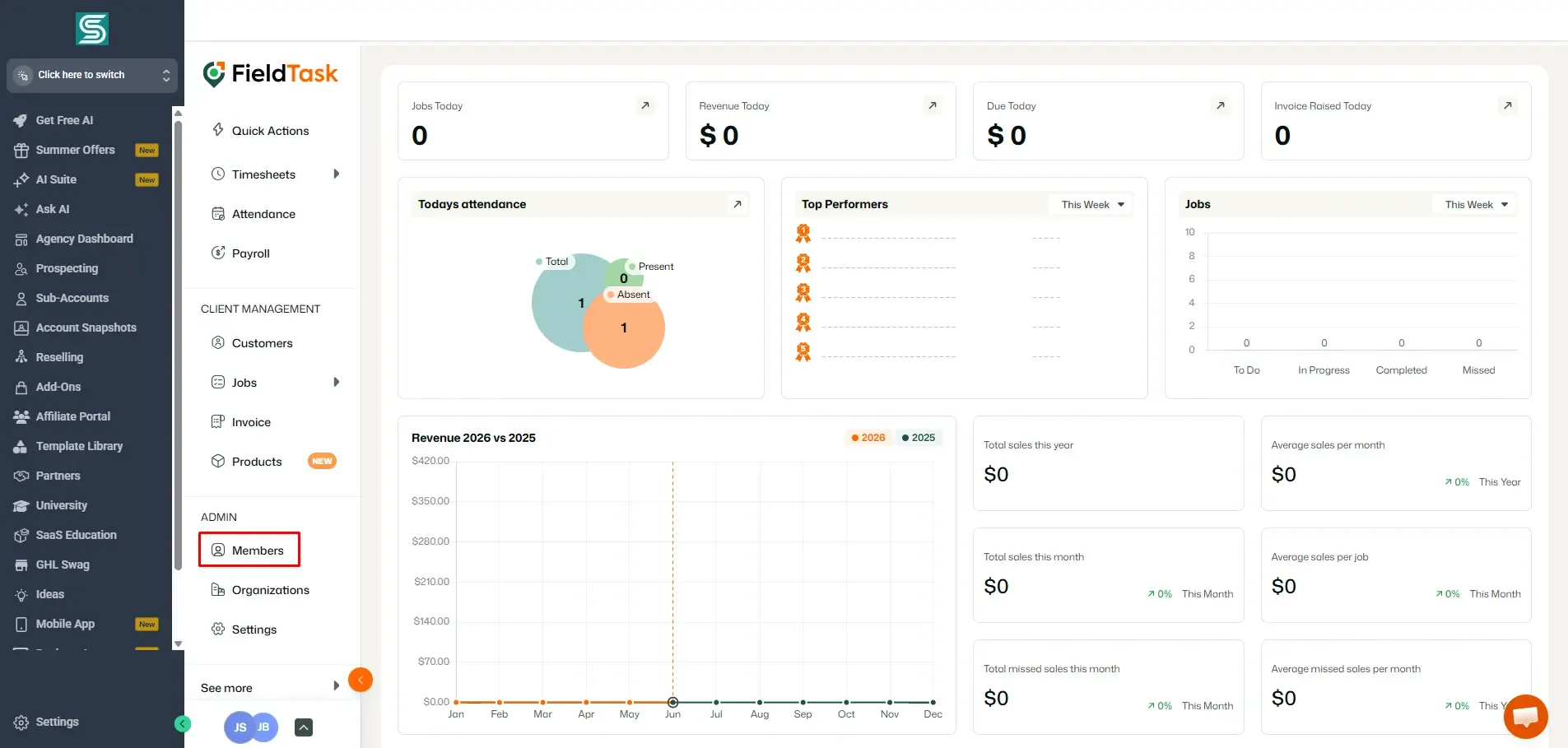
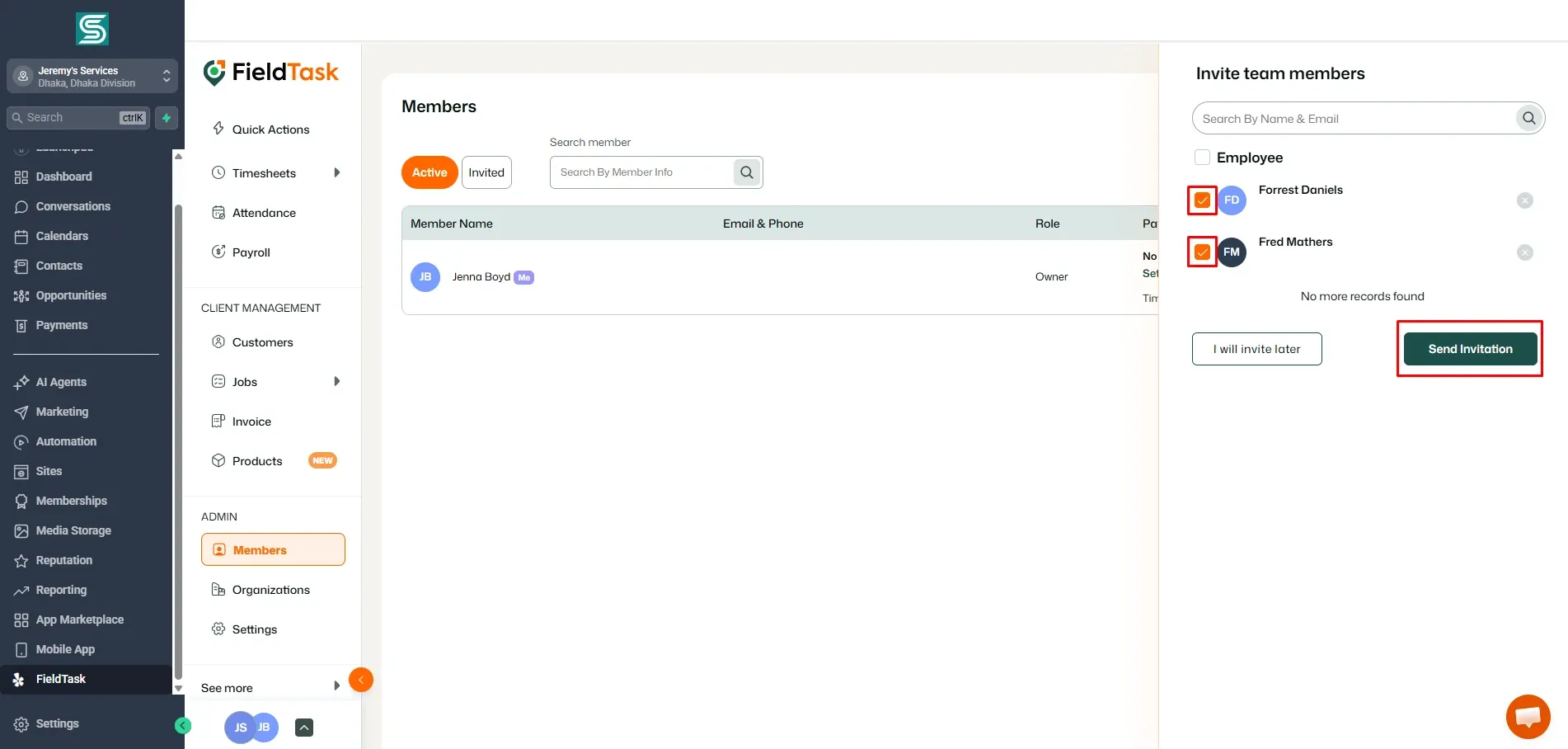
To begin assigning jobs, you will need to first invite members into your organization. To invite members, go to the members page from the left sidebar.
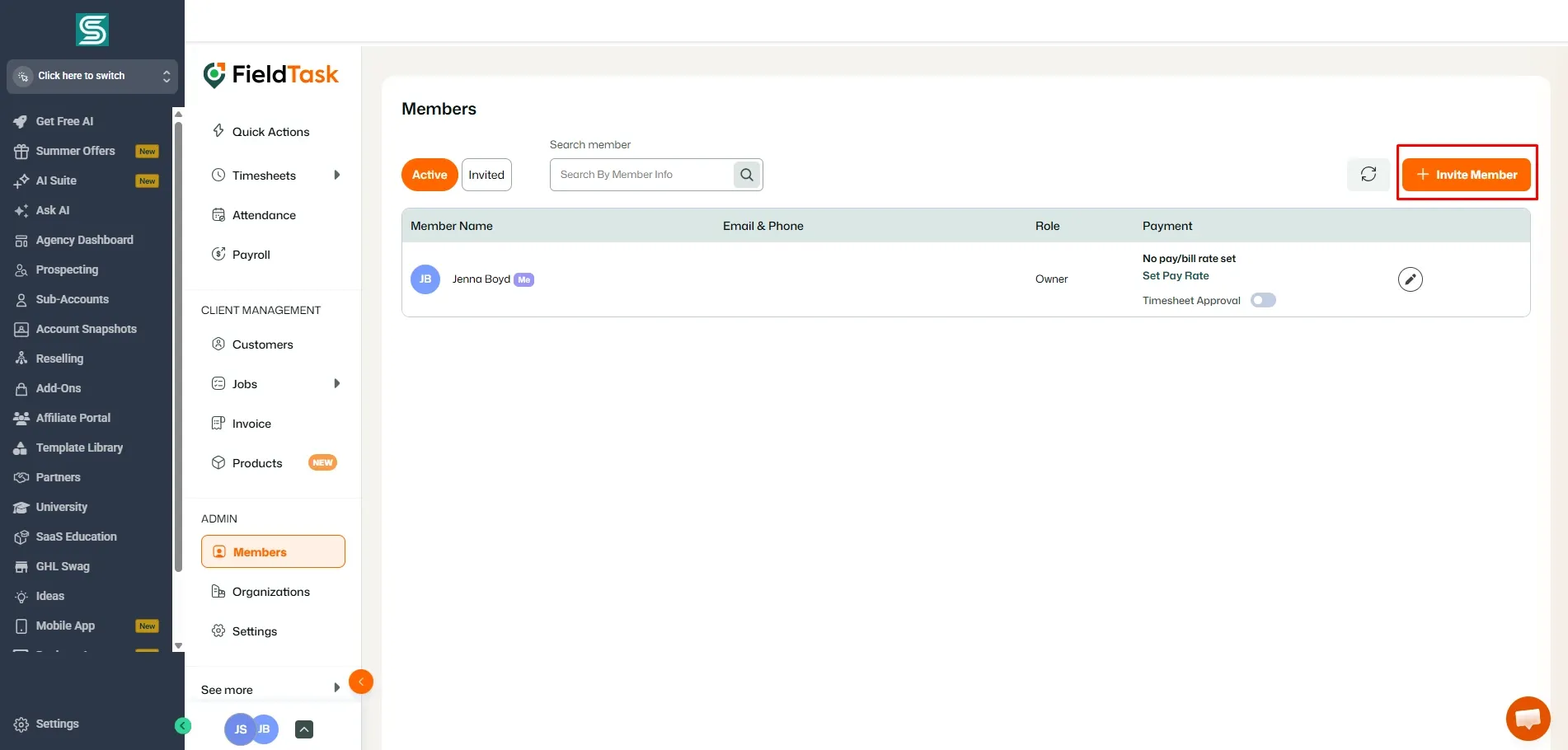
On the Members page, click on the Invite Member button at the top right.
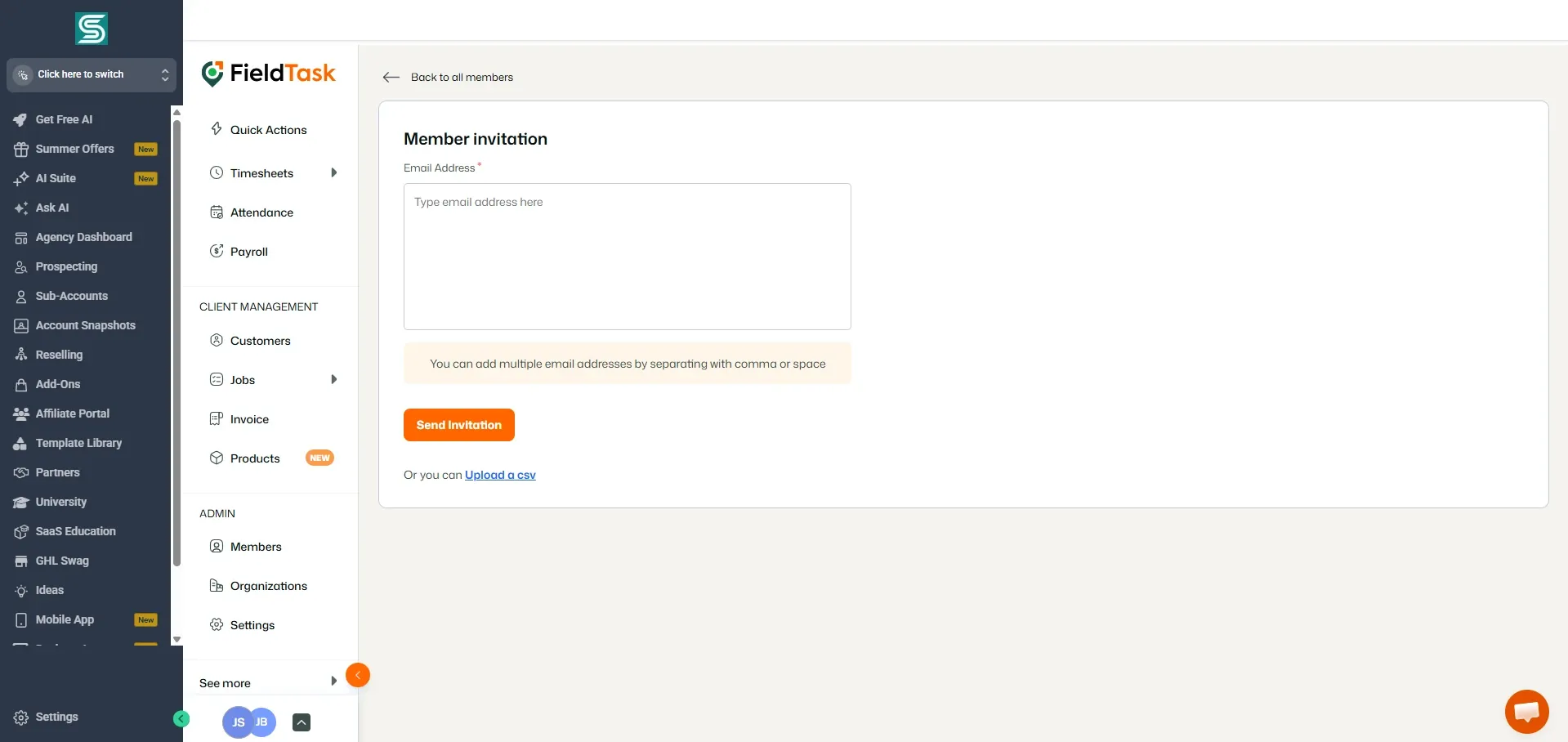
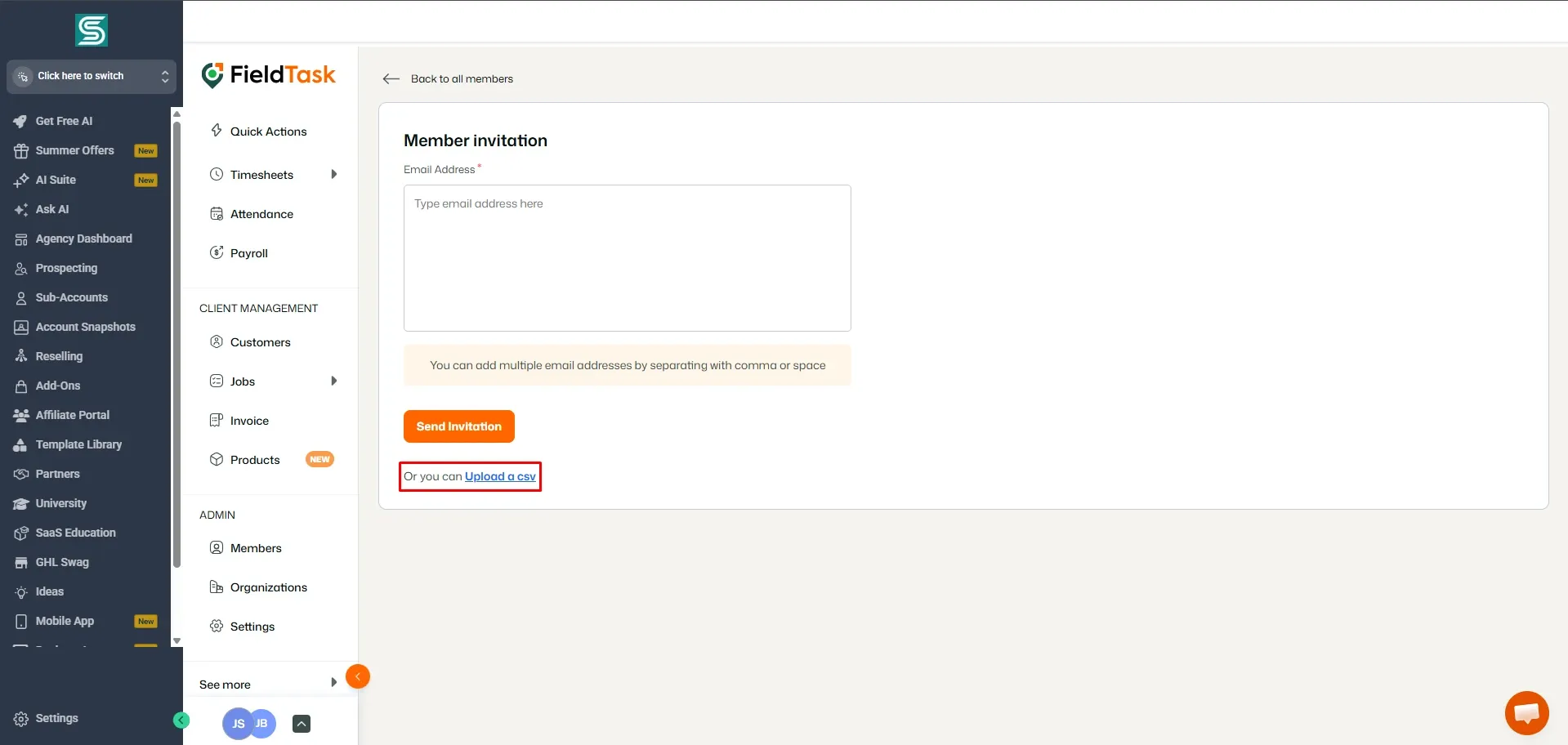
Just type in the email of who you want invited and click Send Invitation.
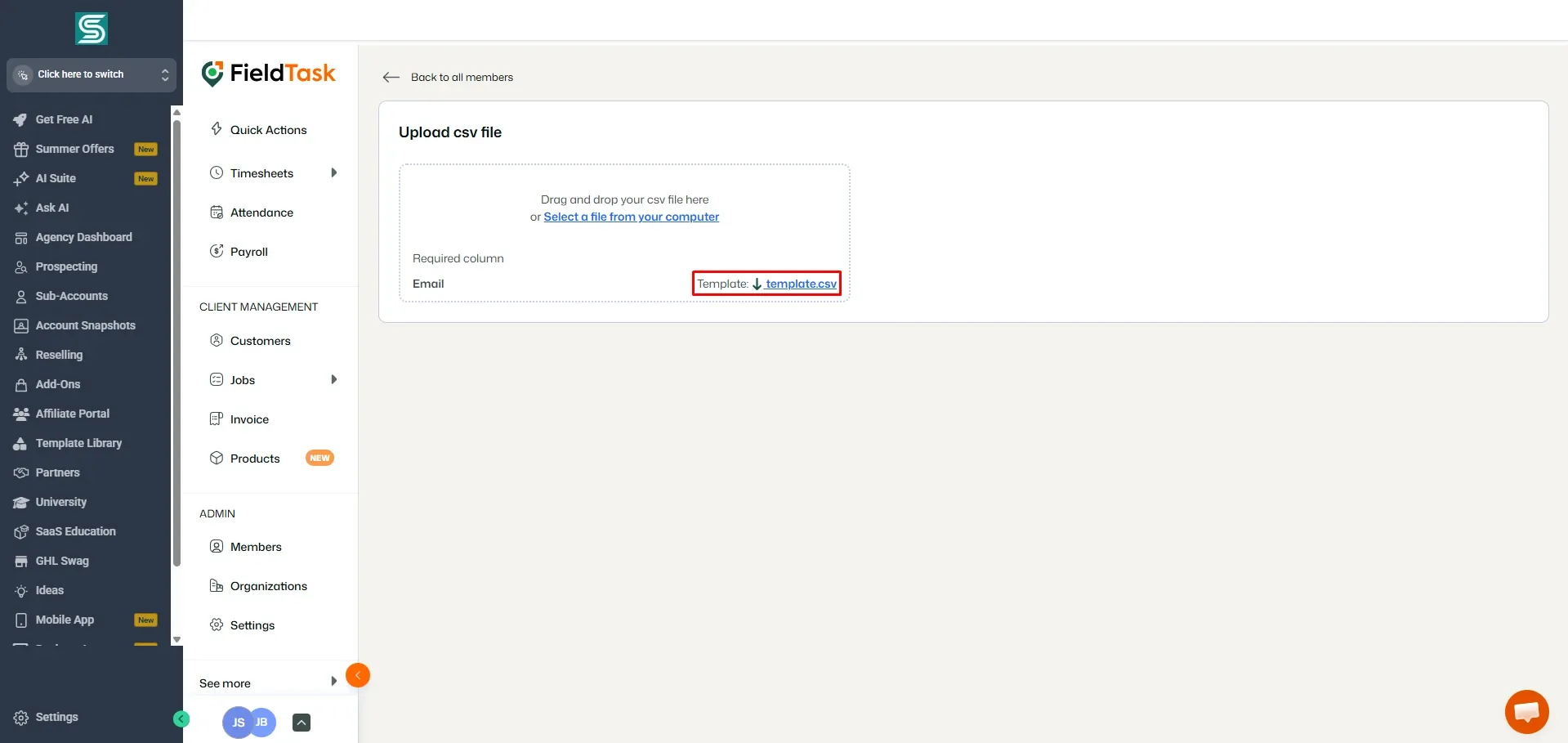
Or you can upload a CSV file with your employee data on it.
But for that, you will need to download our template first.
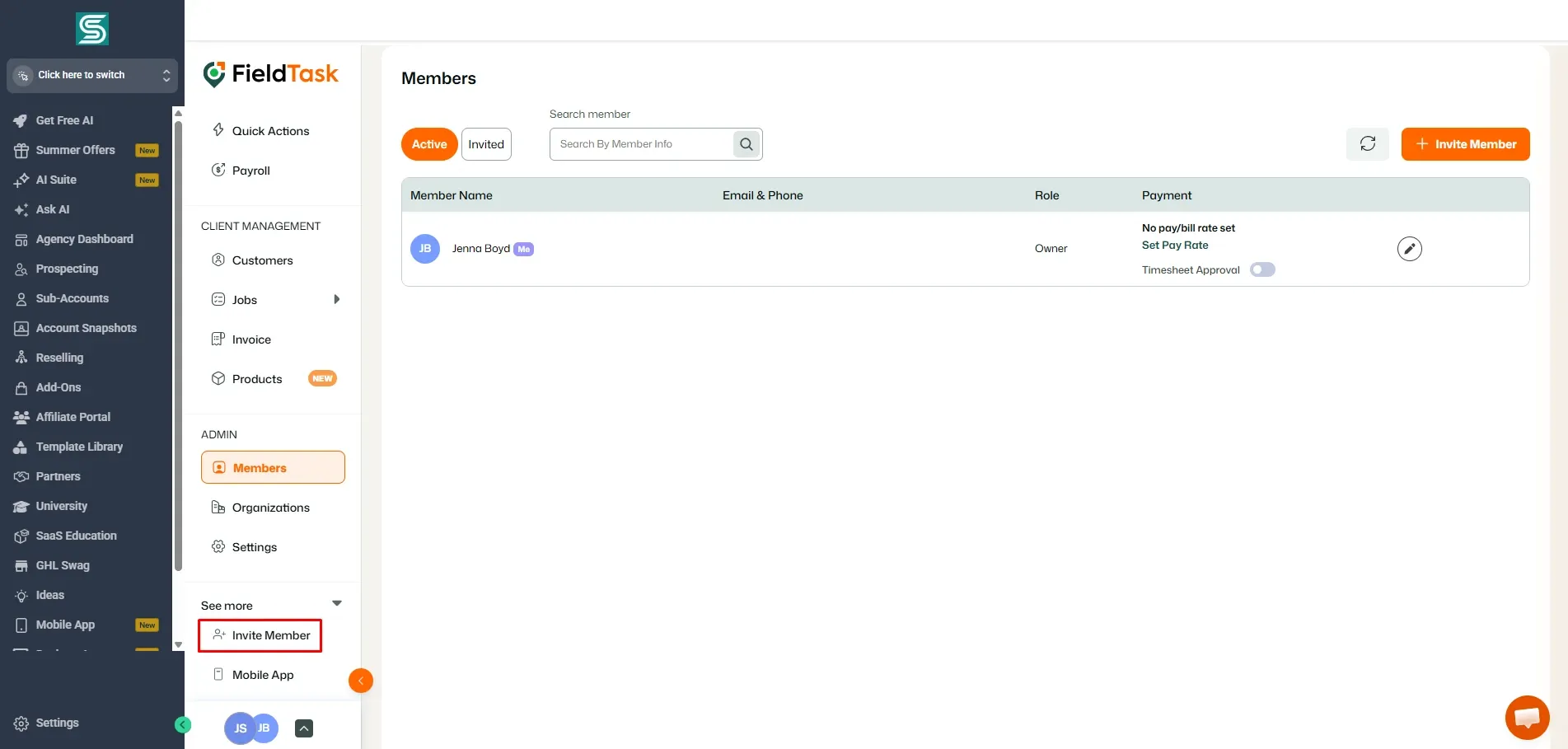
You can also access the member invite page by clicking on Invite Member.
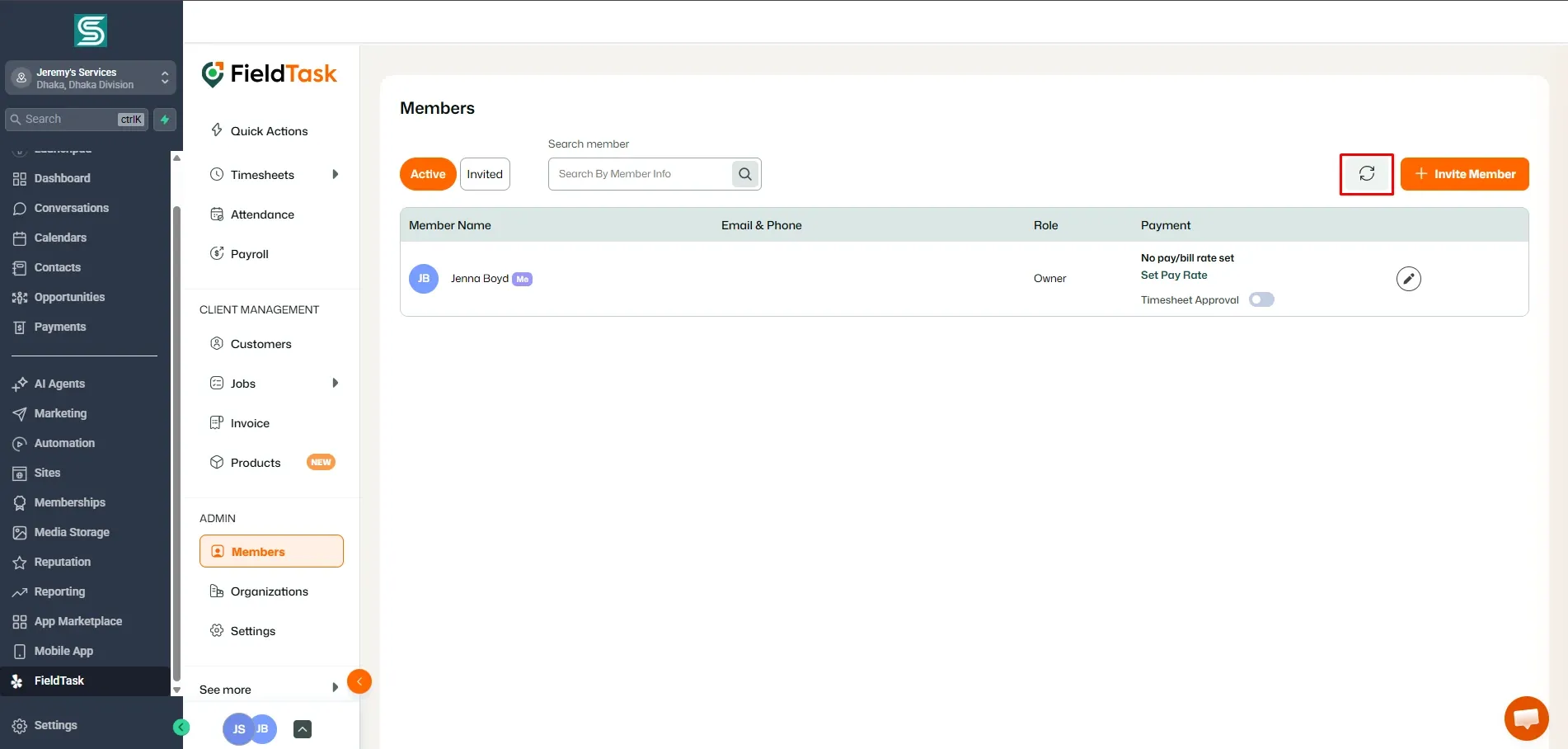
You can also bring in your GHL staff into FieldTask. Just click on the sync button and then choose who you want to bring in before clicking Send Invitation.
FieldTask also has a mobile app, which supports both Android and iOS
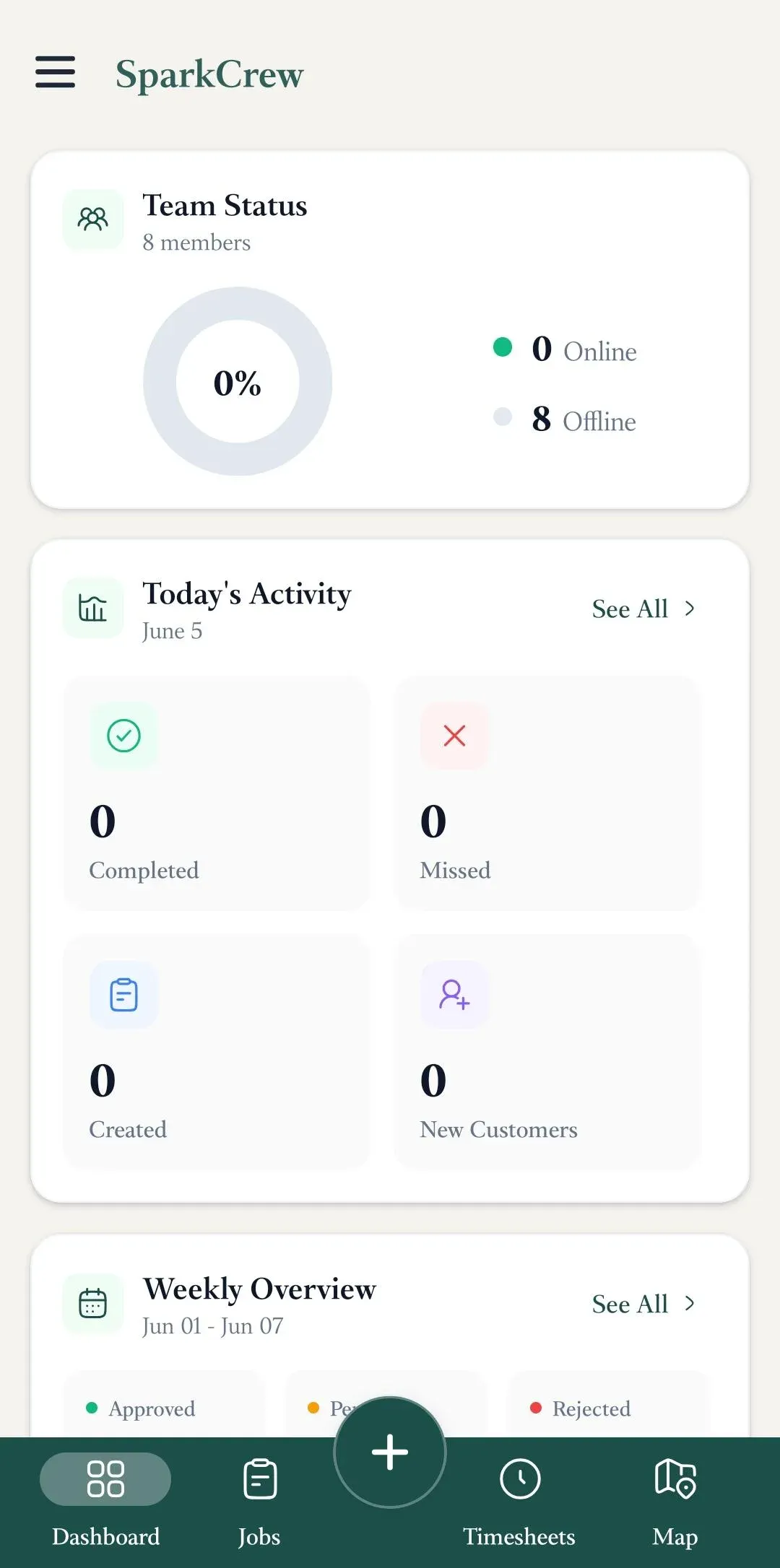
With the app downloaded, you can log in using the same credentials you received over email. Once you log in, you are shown the Dashboard, where you will see:
- Team Status
- Today’s Activity
- Weekly Overview
- Currently Active Jobs
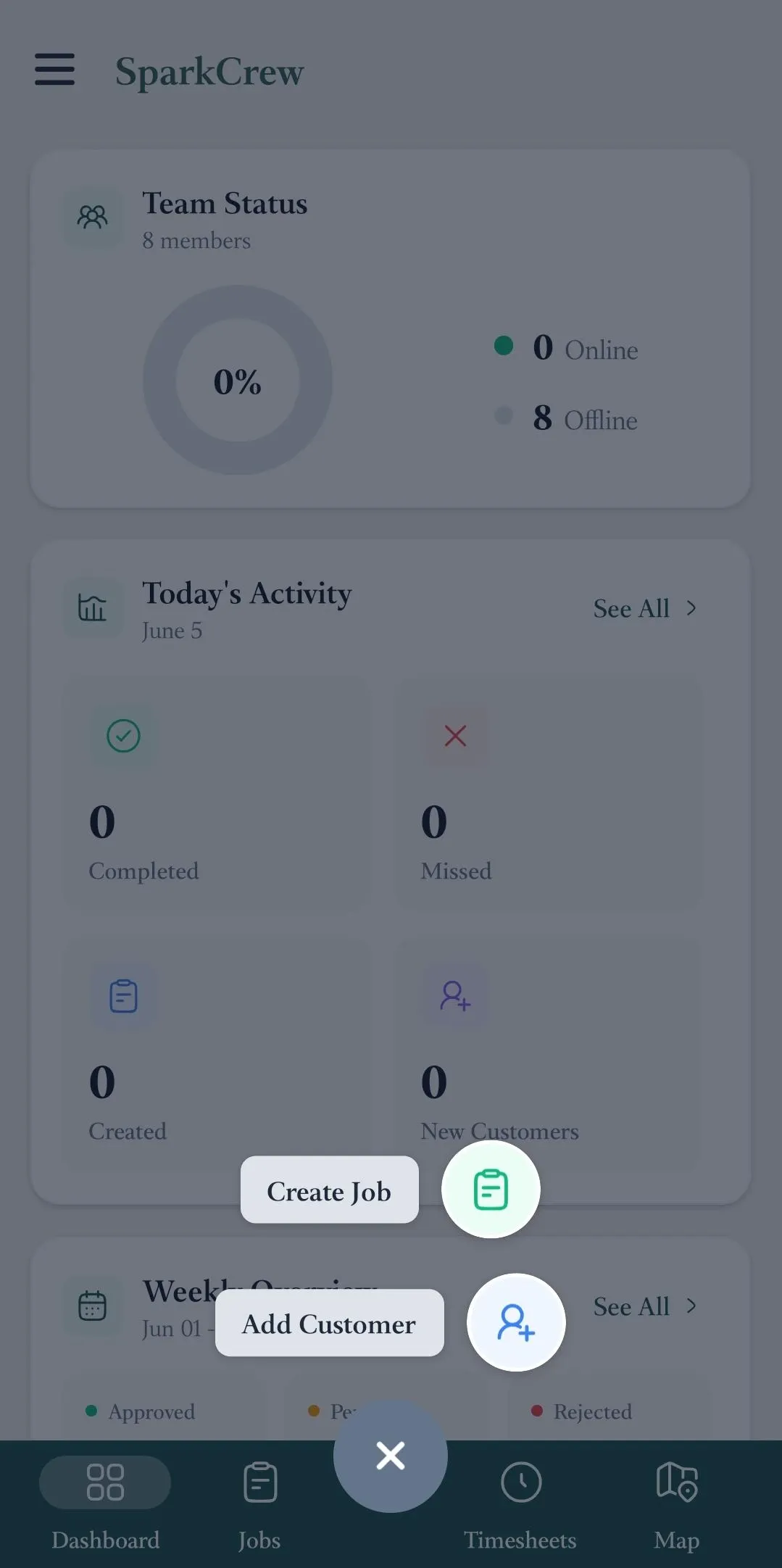
For Owners and Admins, the mobile app allows the creation of Jobs and the addition of new Customers.
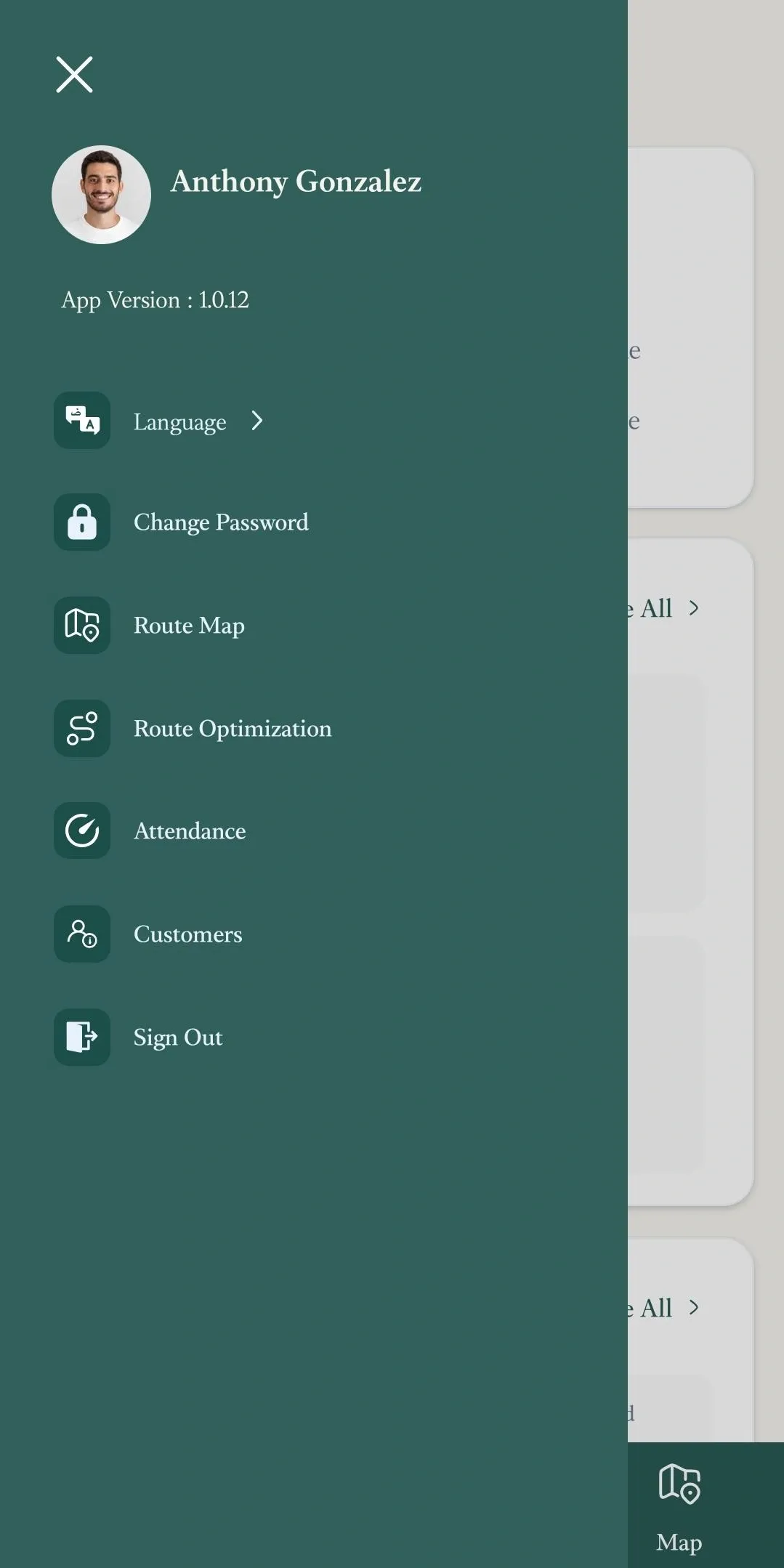
When you tap the side menu, you have the option to:
- Change App Language
- Change Account Password
- View Route Map
- View Optimized Route. Or if you are the Owner or Admin, create an Optimized Route for your technicians.
- See the Attendance.
- See the Customers.
- Sign Out of Account.
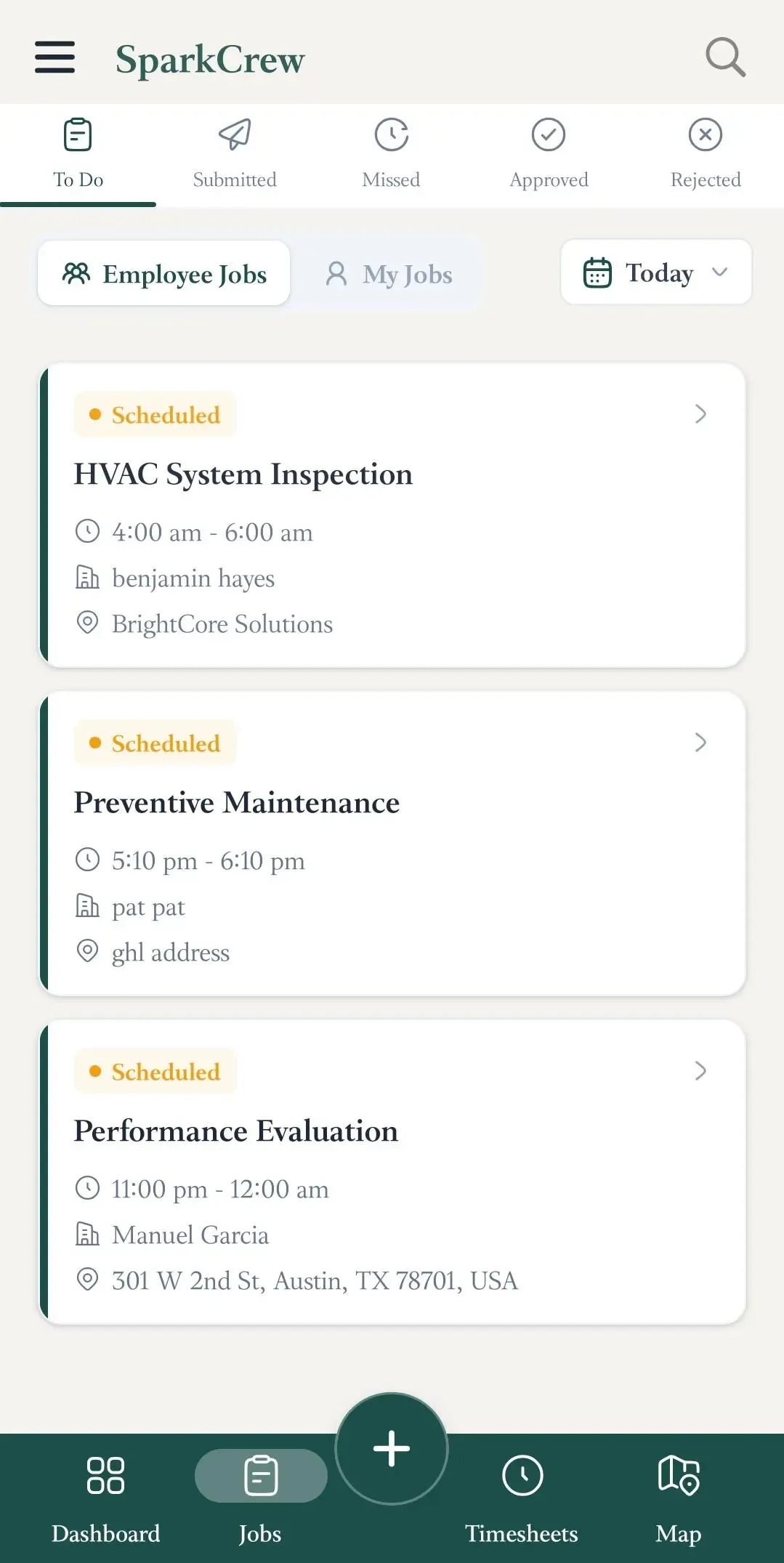
The Jobs page will show you the jobs that are:
- Assigned under To Do.
- Submitted for Approval.
- Missed.
- Approved.
- Rejected.
The Owner and Admin accounts have permission to see jobs assigned to all technicians and jobs assigned to themselves.
Using the Date Picker will let you see the jobs assigned on a future date.
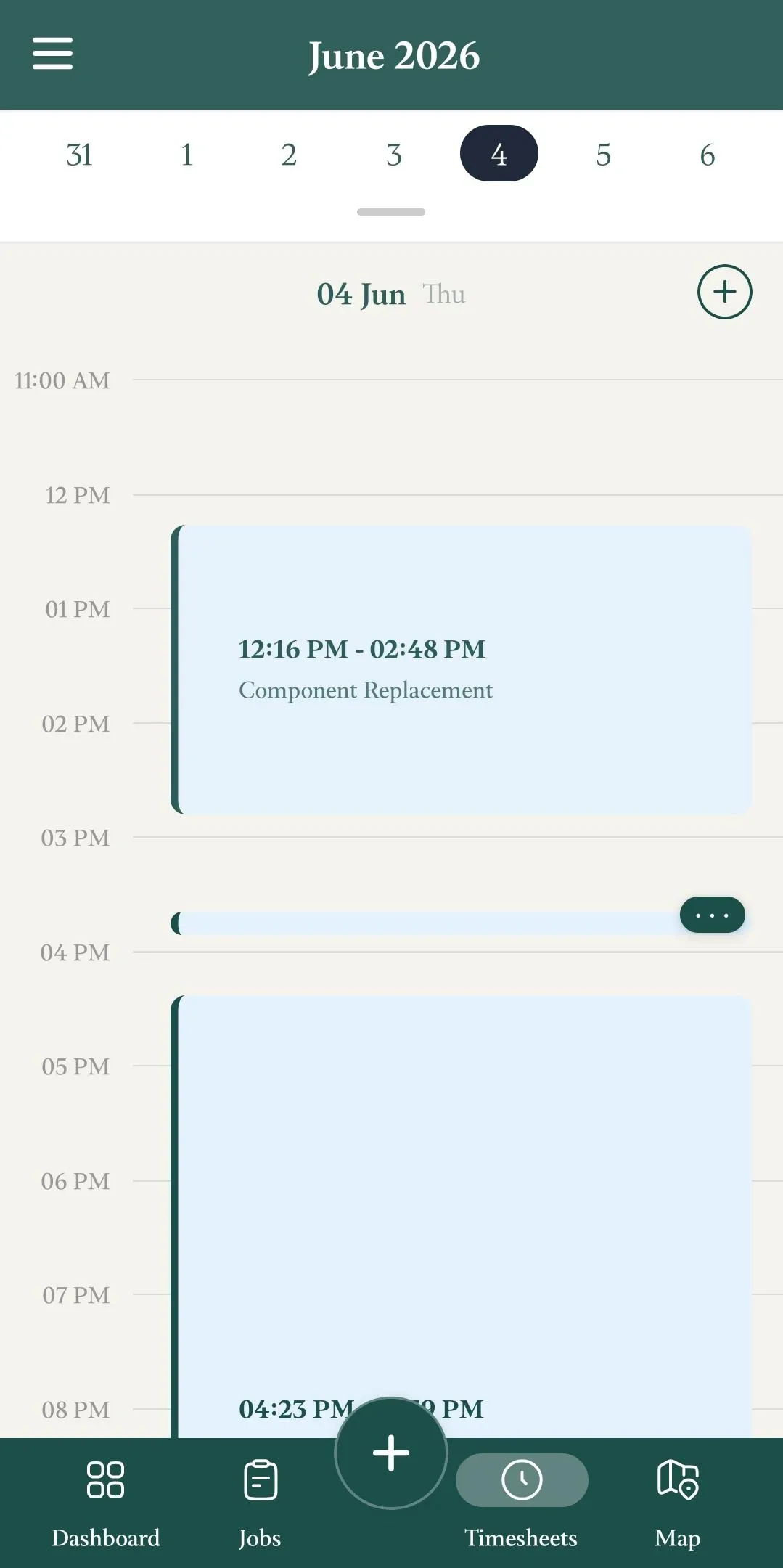
Timesheets will show you your timesheet.
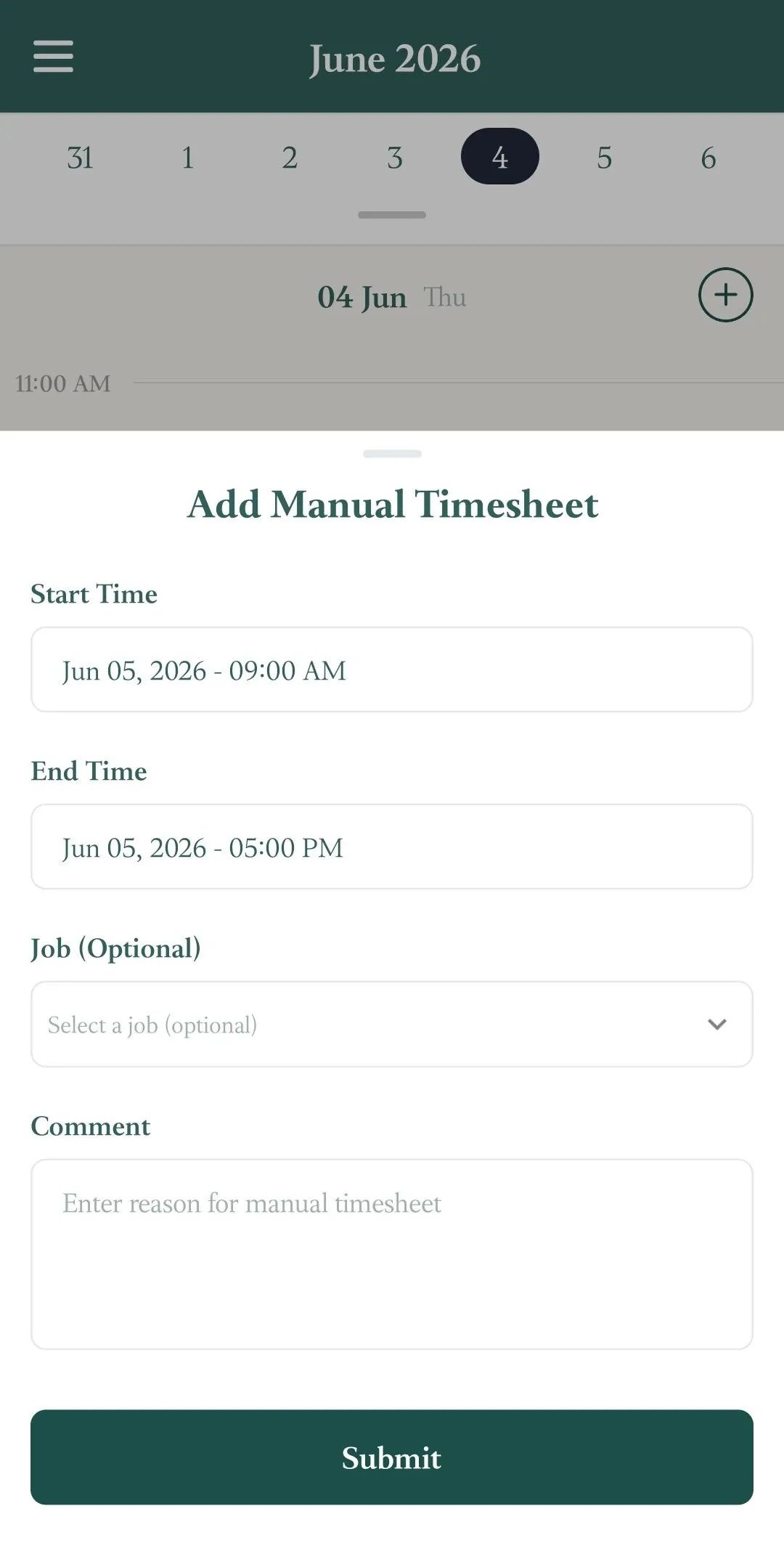
You all have the option to add a Manual Timesheet by tapping on the option at the top right of the page and providing:
- Start Time
- End TIme
- Job
- Comment
The Mobile App will also show you your assigned jobs on a Map View.