The HighLevel Home Service Business Management Software
Manage dispatch, route plan, techs, quotes, invoices, and more in GHL, the only dedicated field service app for HighLevel home service businesses and contractors.
No image available
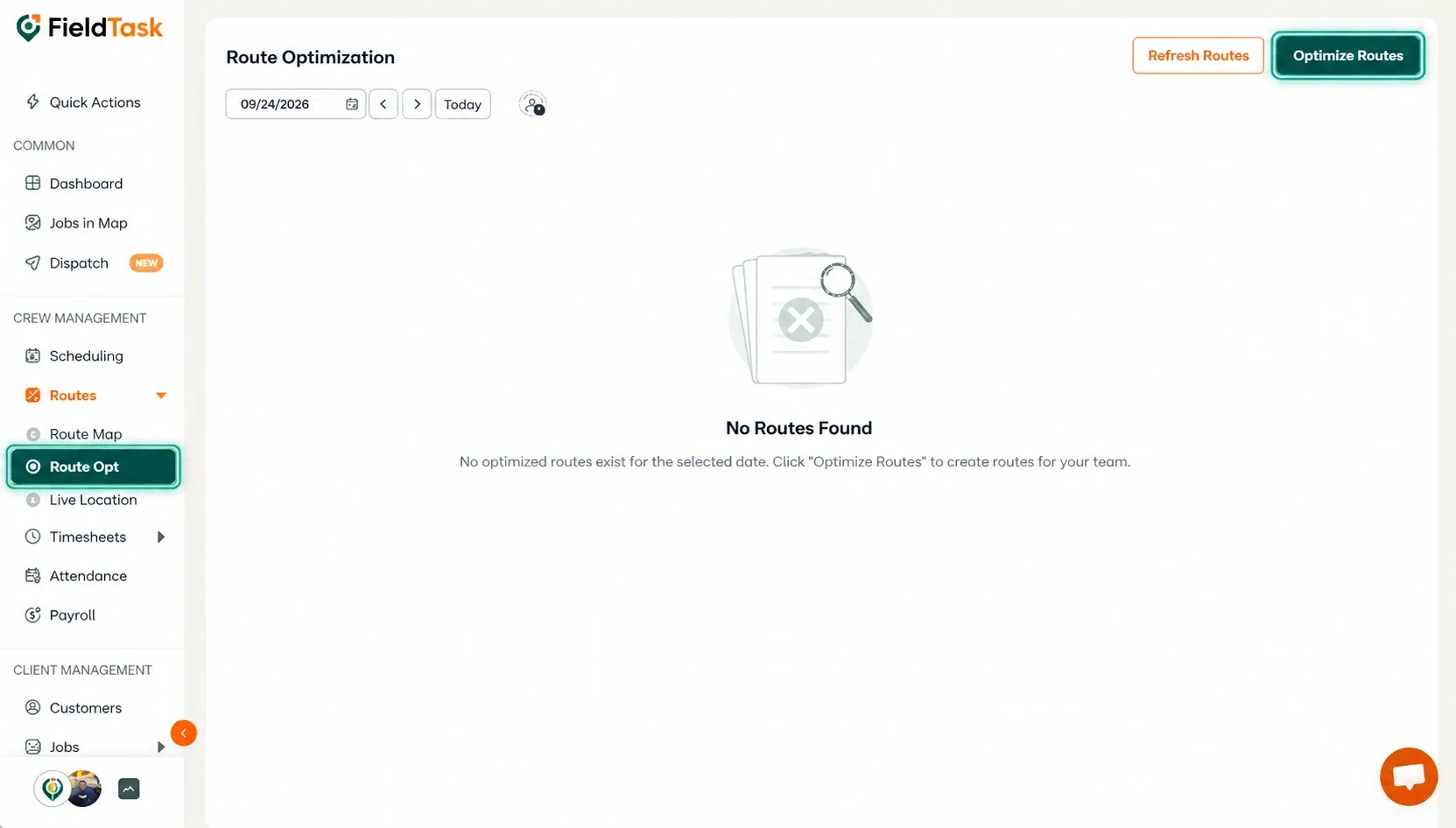
Learn how to create and manage an optimized route for assigned jobs from the FieldTask Web App.
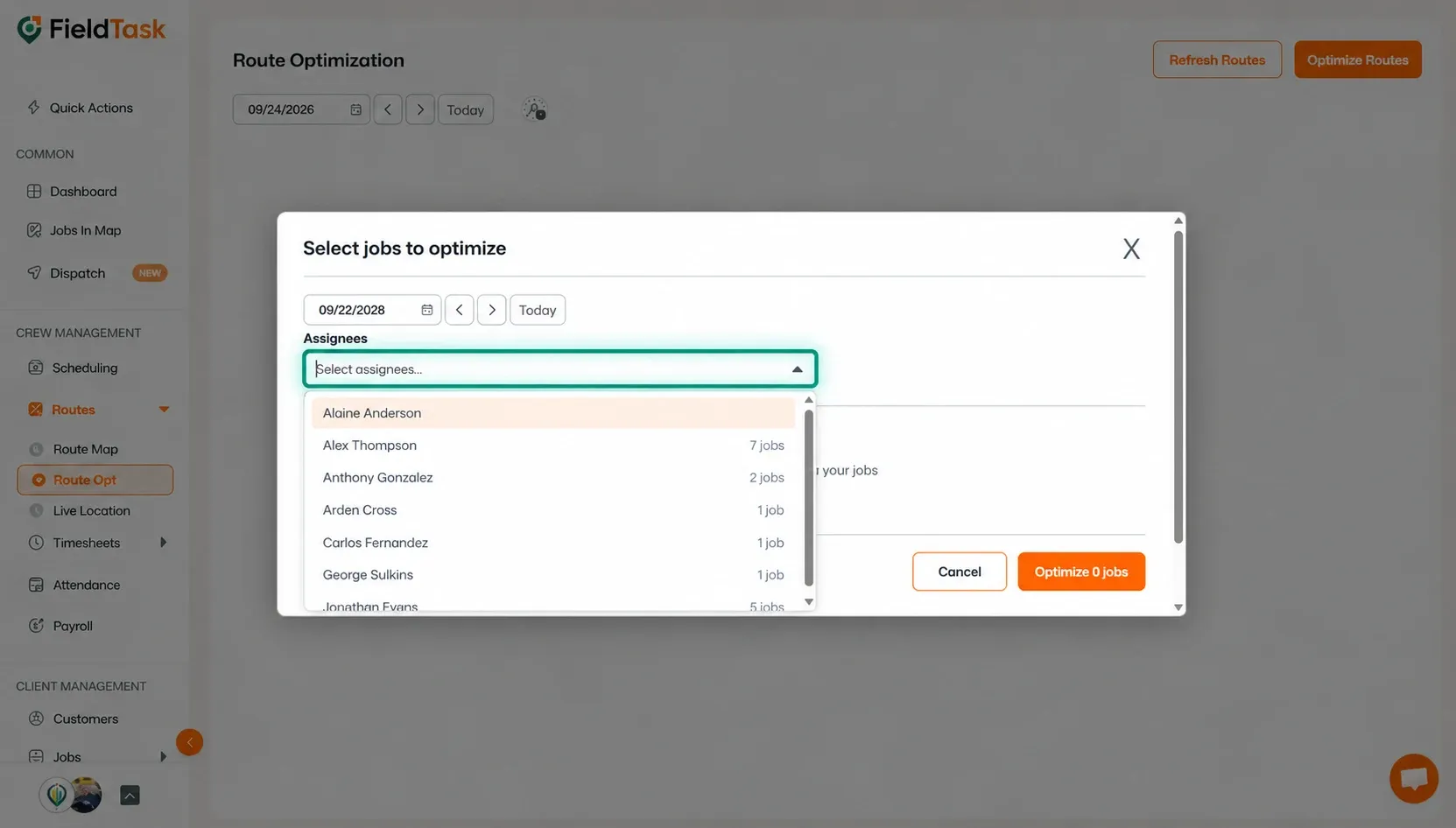
To optimize a route in FieldTask:
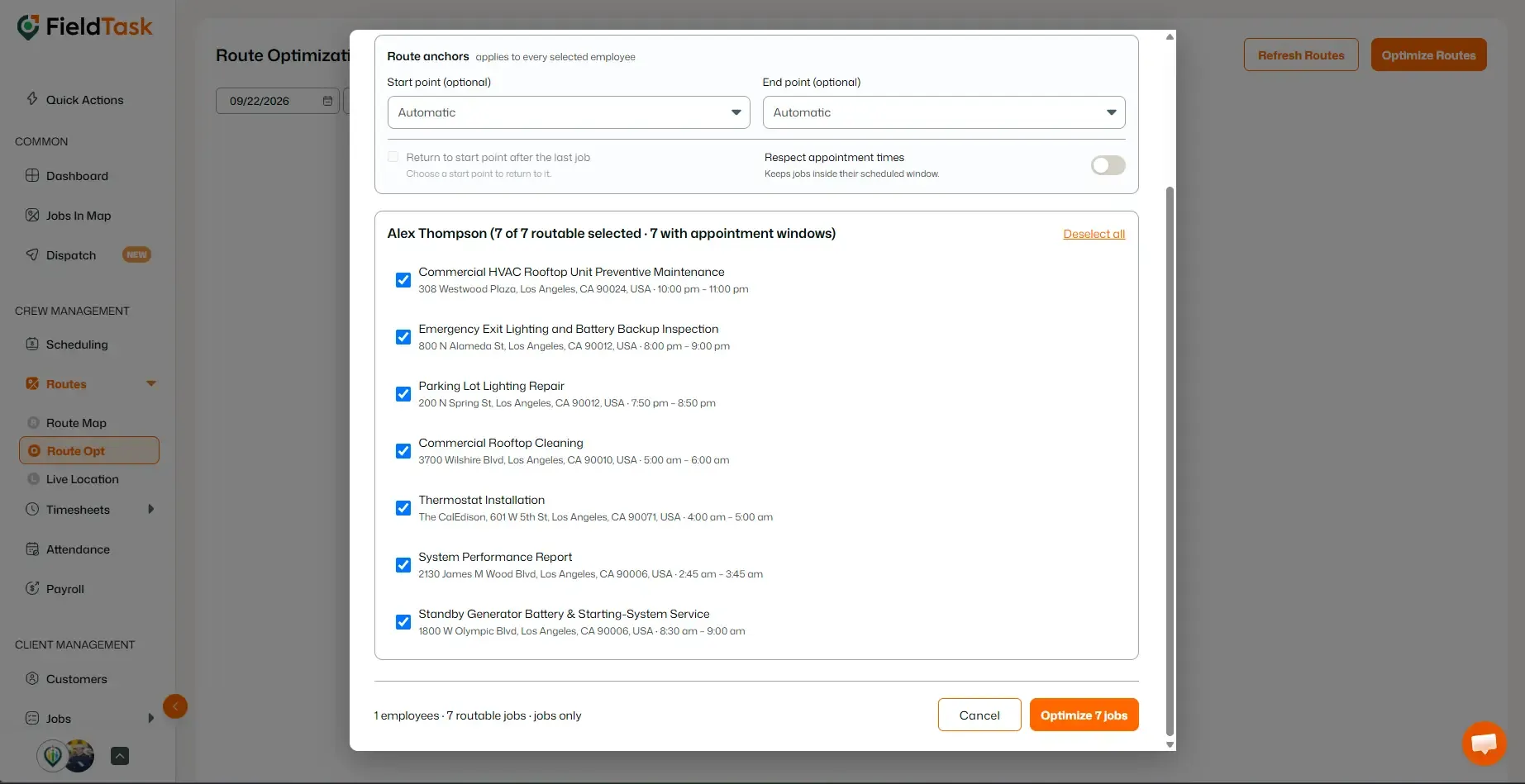
For both the Start Point and End Point, you can choose from:
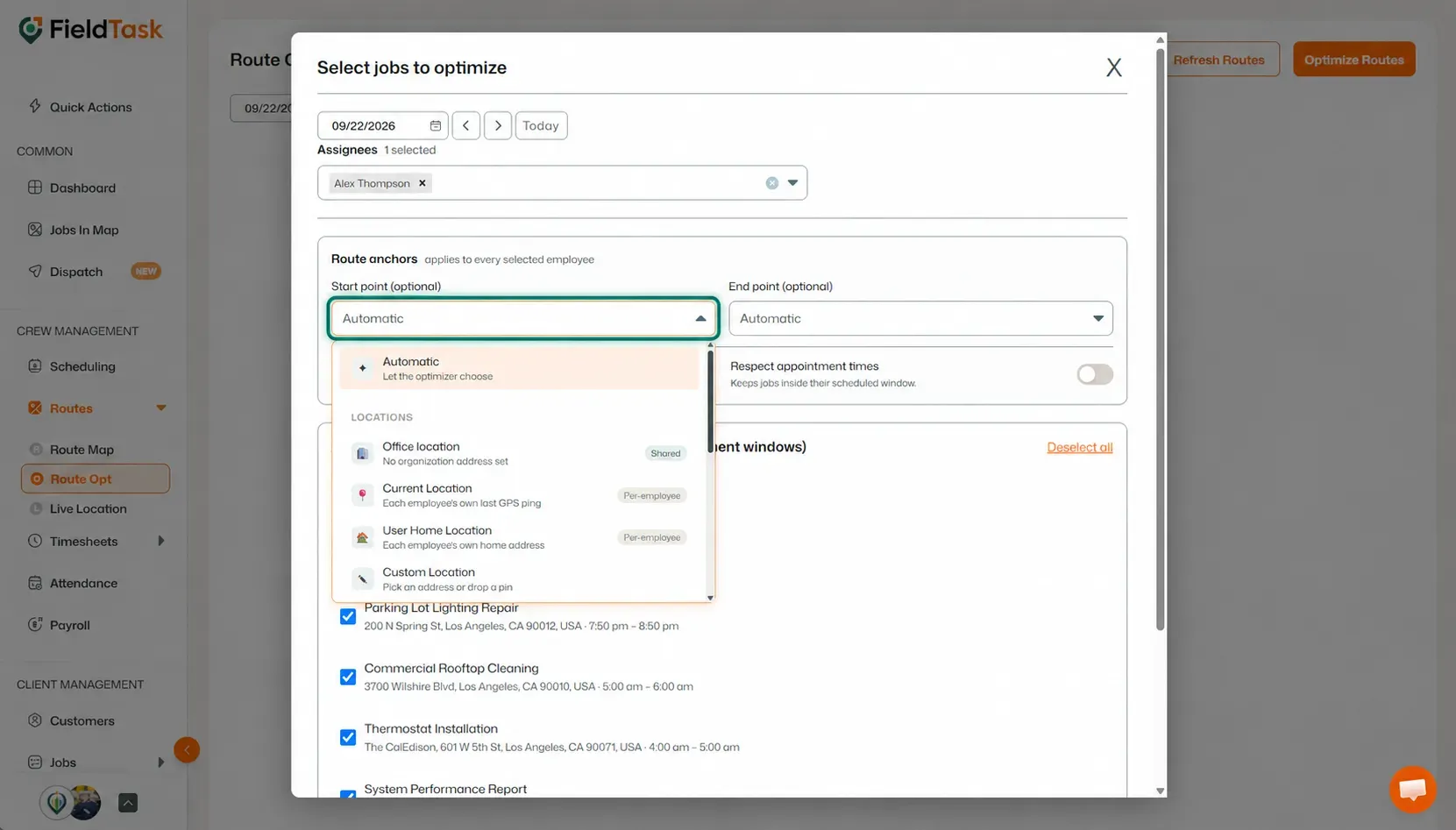
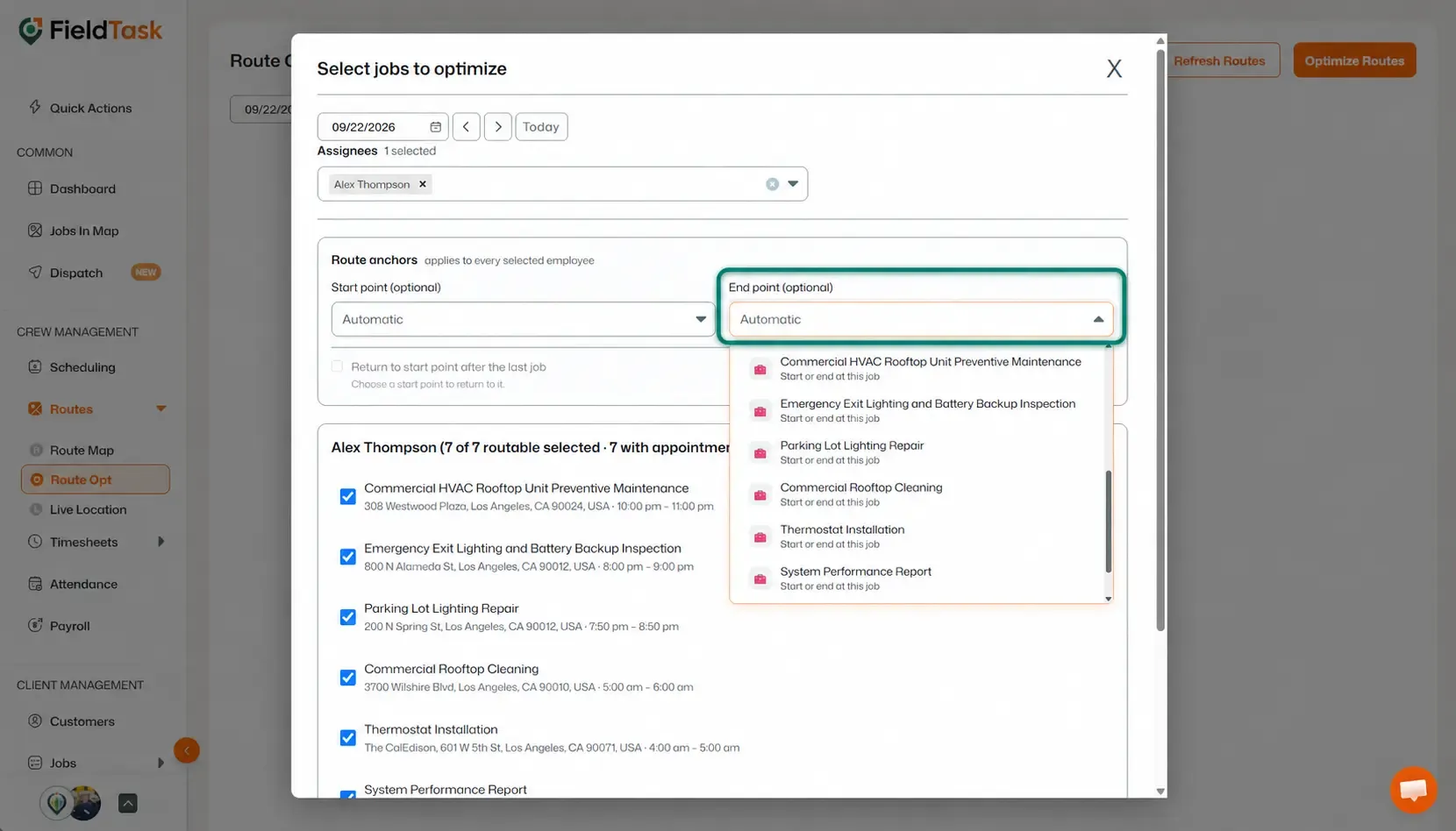
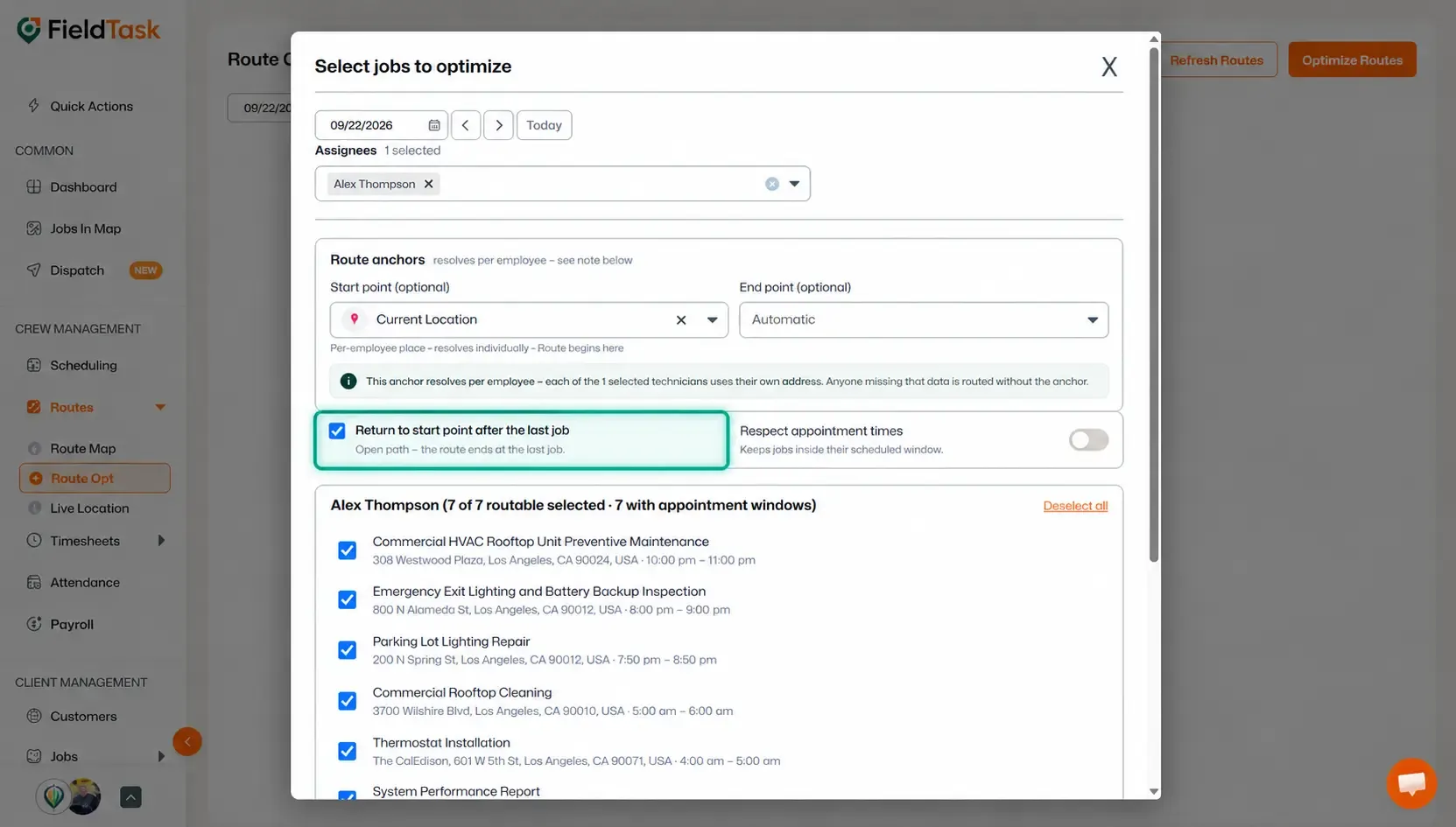
If you choose a Start Point but do not select an End Point, you can choose to return to the Start Point after completing the last job instead.
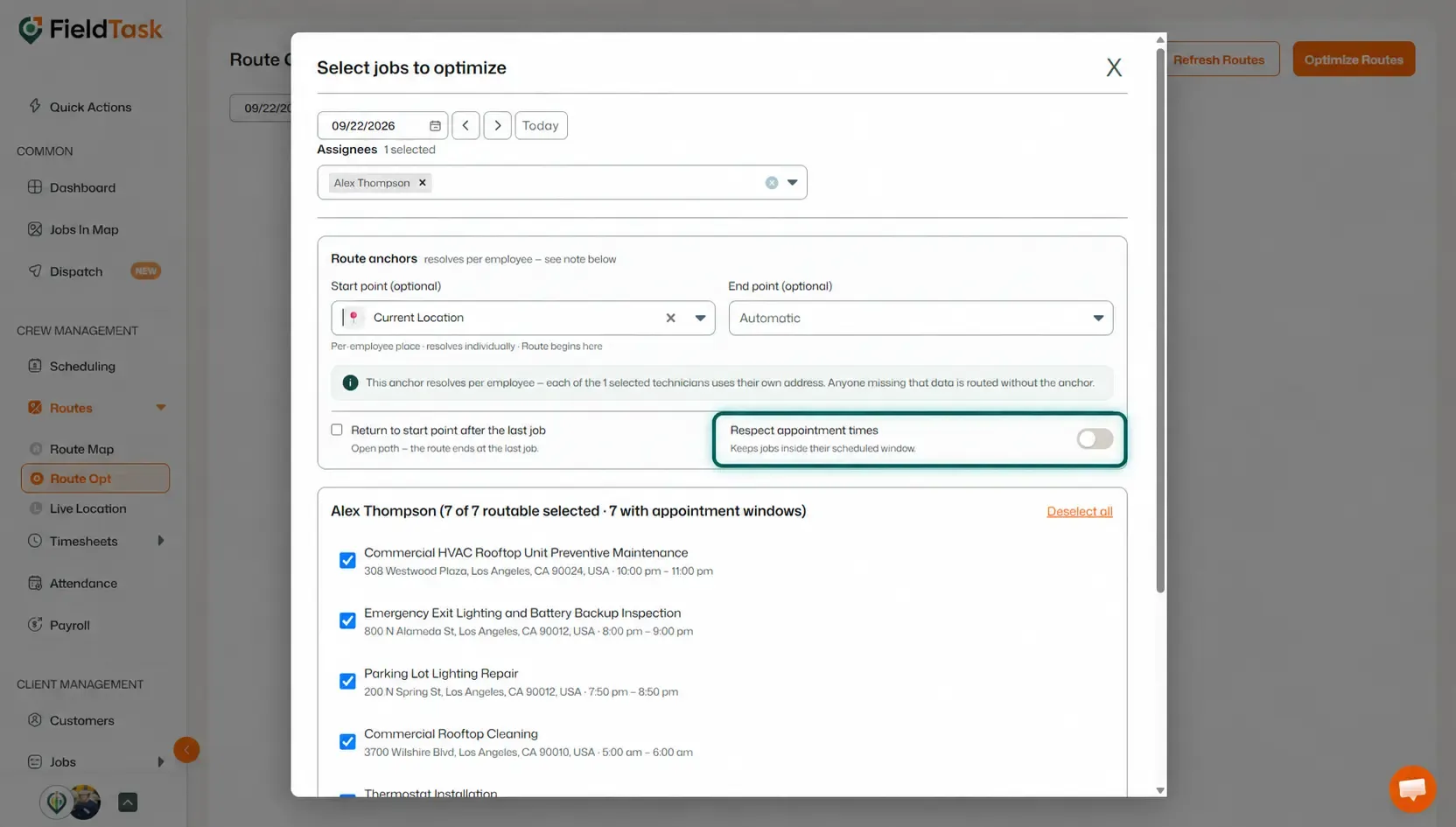
You can also toggle Respect Appointment Times if you want the optimized route to keep jobs within their scheduled appointment windows.
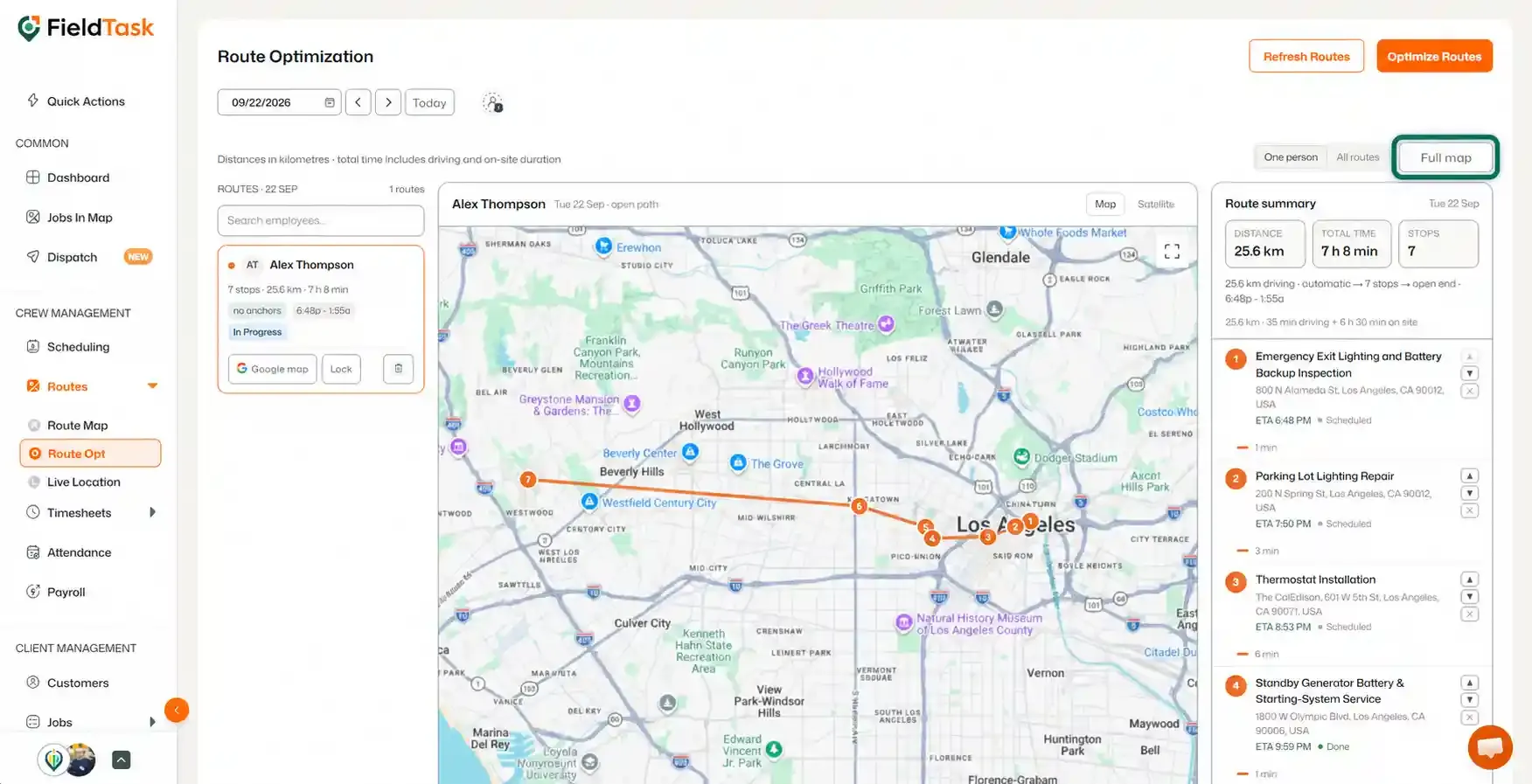
Once the route has been created, it will appear on the Route Opt page with a detailed view of:
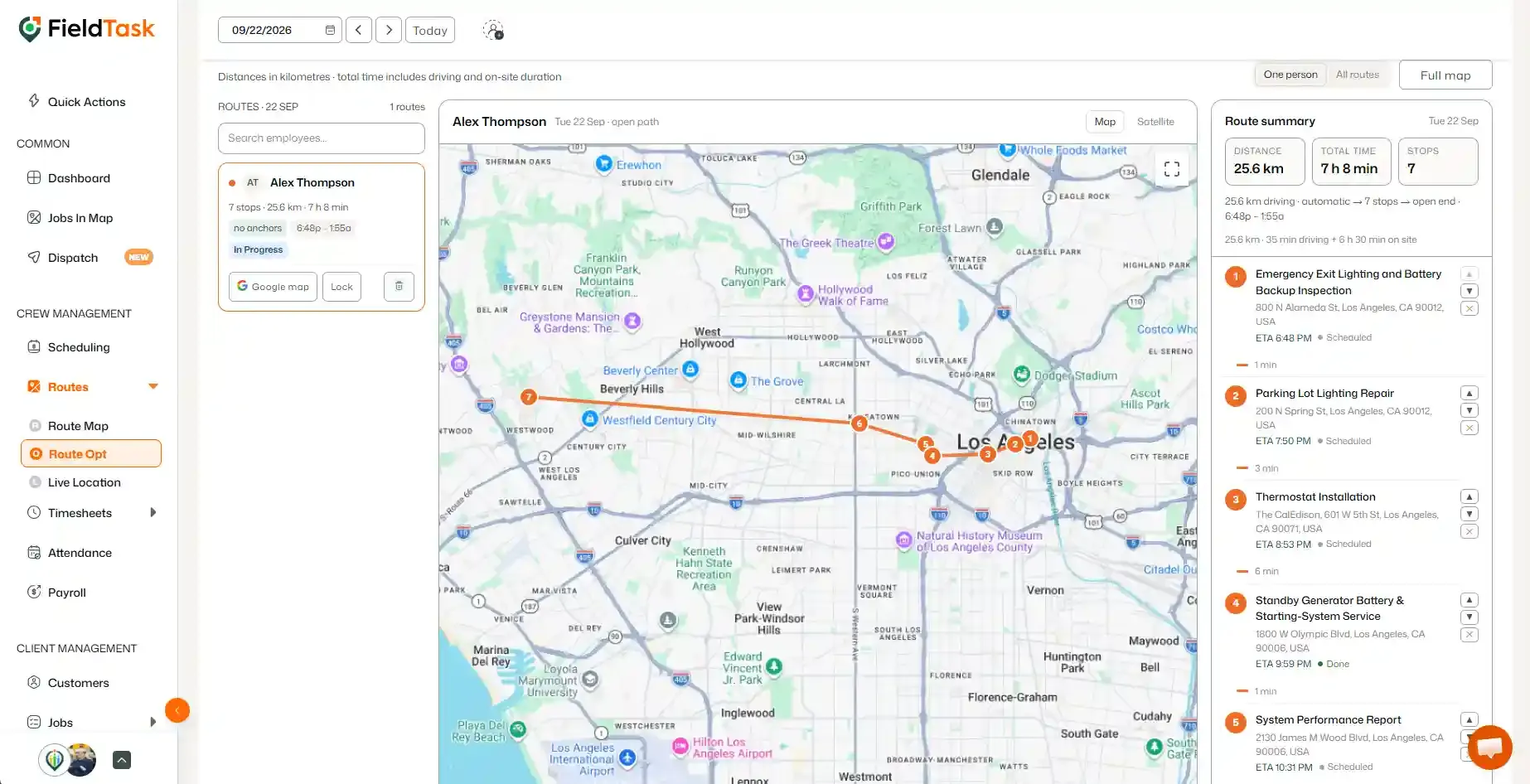
If you need to add another stop to the route, click Add a Stop on the right-hand side of the map.
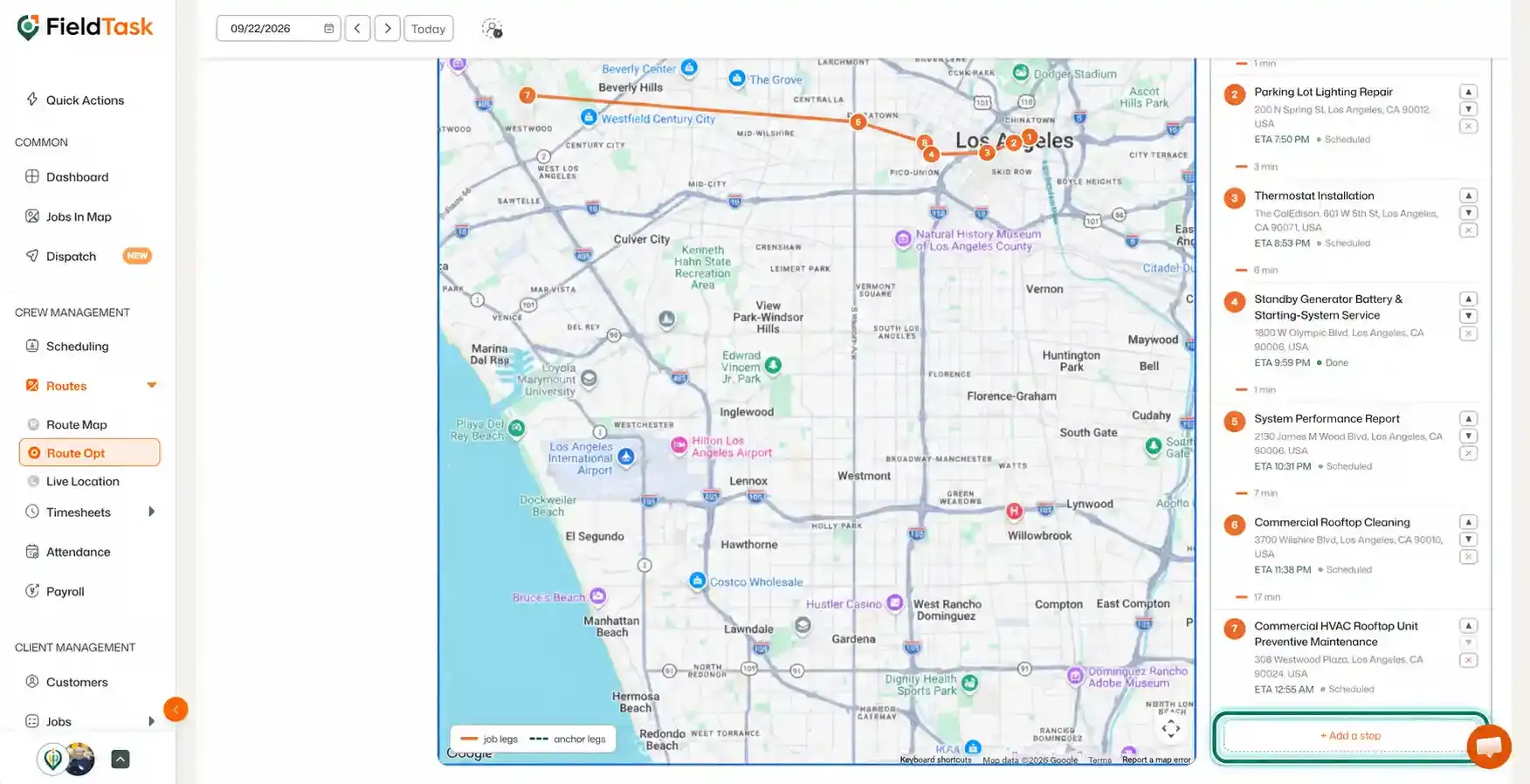
Click Full Map to open a larger view of the optimized route.
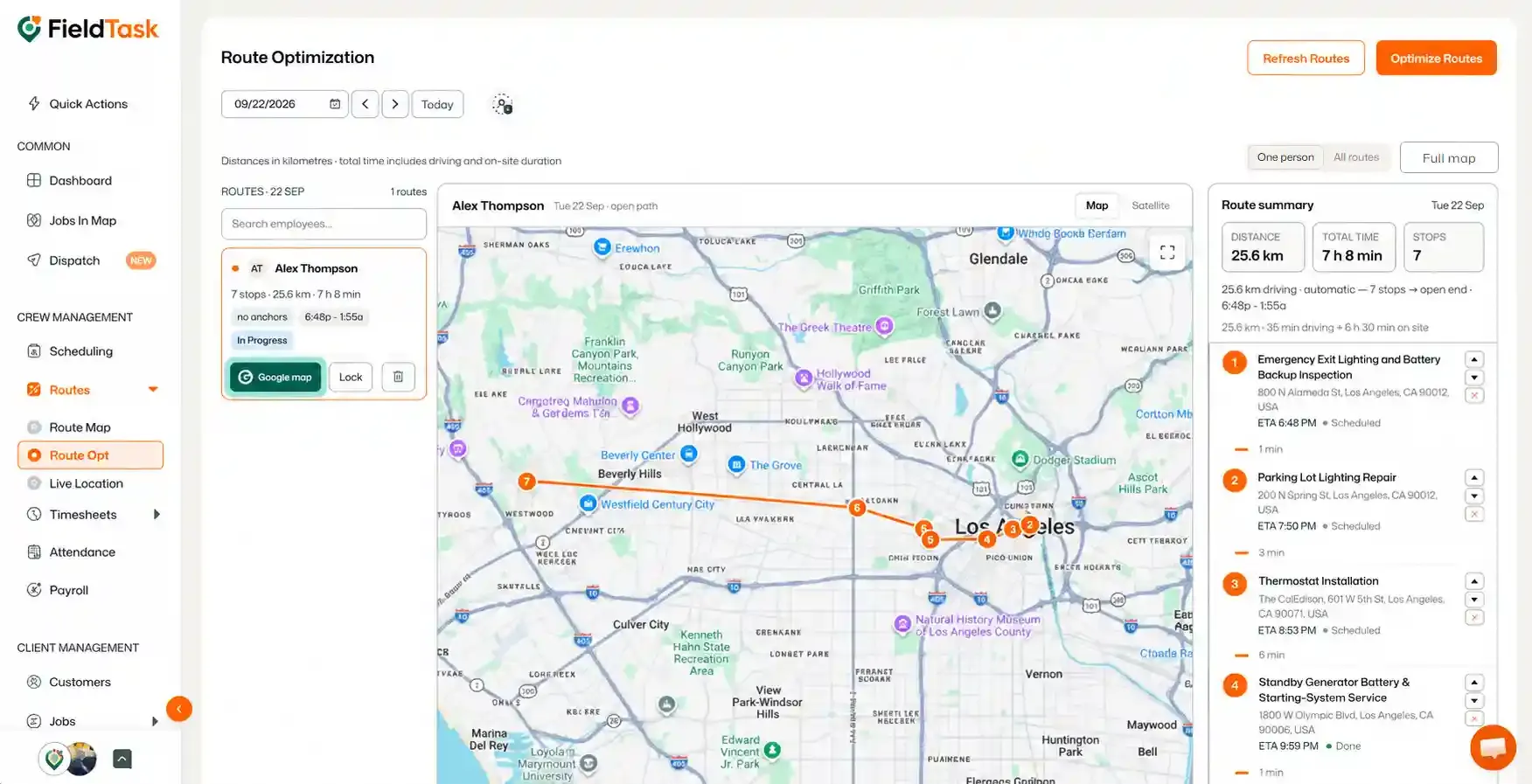
Click Google Map to open and view the optimized route in Google Maps.
📌 Note: If you want to learn how to optimize routes from the FieldTask Mobile App, follow this article.
Manage dispatch, route plan, techs, quotes, invoices, and more in GHL, the only dedicated field service app for HighLevel home service businesses and contractors.
The complete FieldTask sitemap: quick links to all pages.
Learn how FieldTask supports HIPAA compliance for home health and field service teams—encryption, BAAs, access controls, and audit logging.