FieldTask Sitemap
The complete FieldTask sitemap: quick links to all pages.
No image available
Learn how to remove a Line Item while creating or editing a job in the FieldTask Mobile App.
You can remove a Line Item from two places:
If you add a Line Item by mistake or decide that it is no longer needed while creating a job:
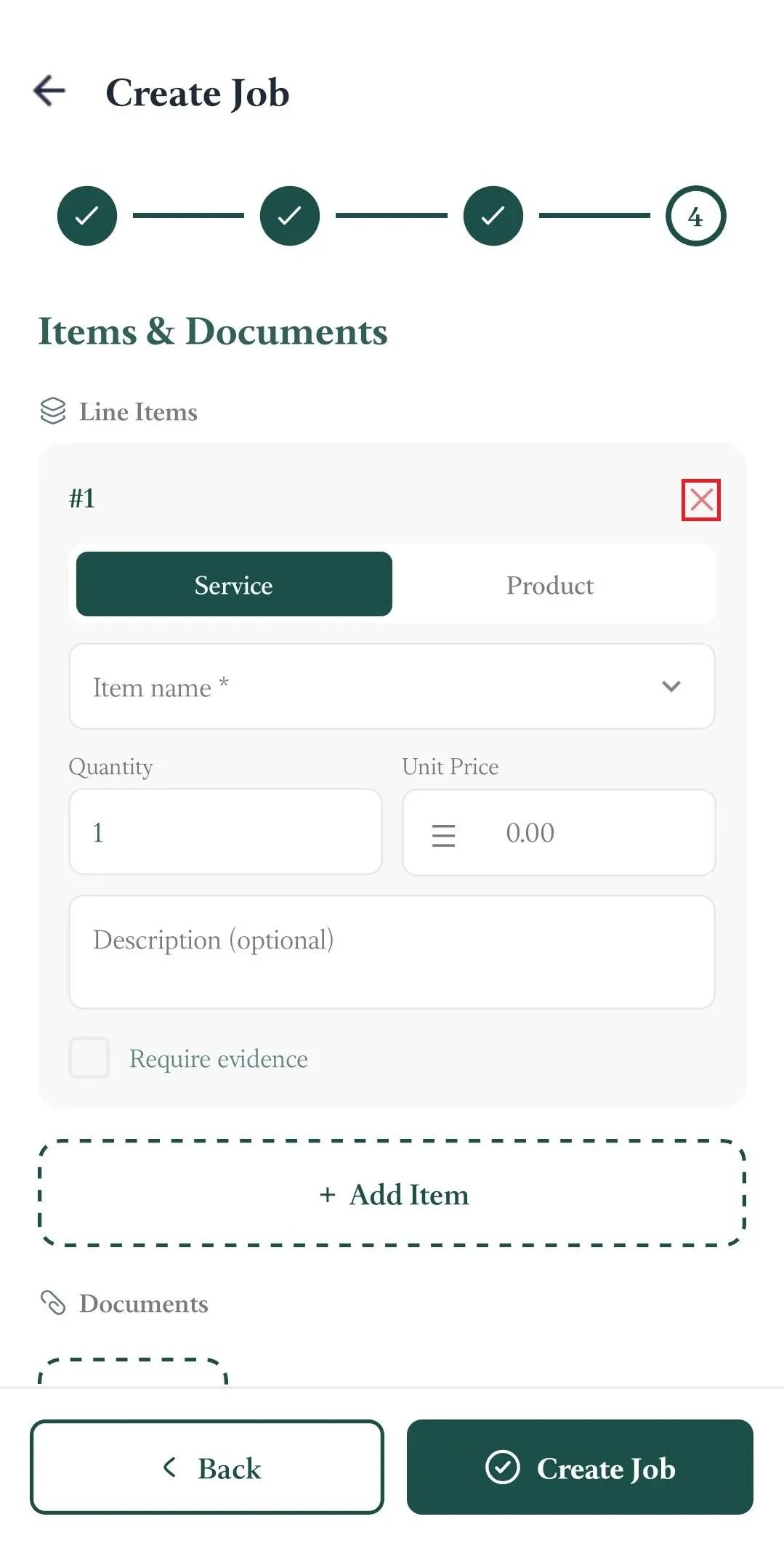
The Line Item will be removed from the job before it is created.
If a Line Item no longer applies to an existing job, you can remove it by editing the job.
To remove a Line Item from an existing job:
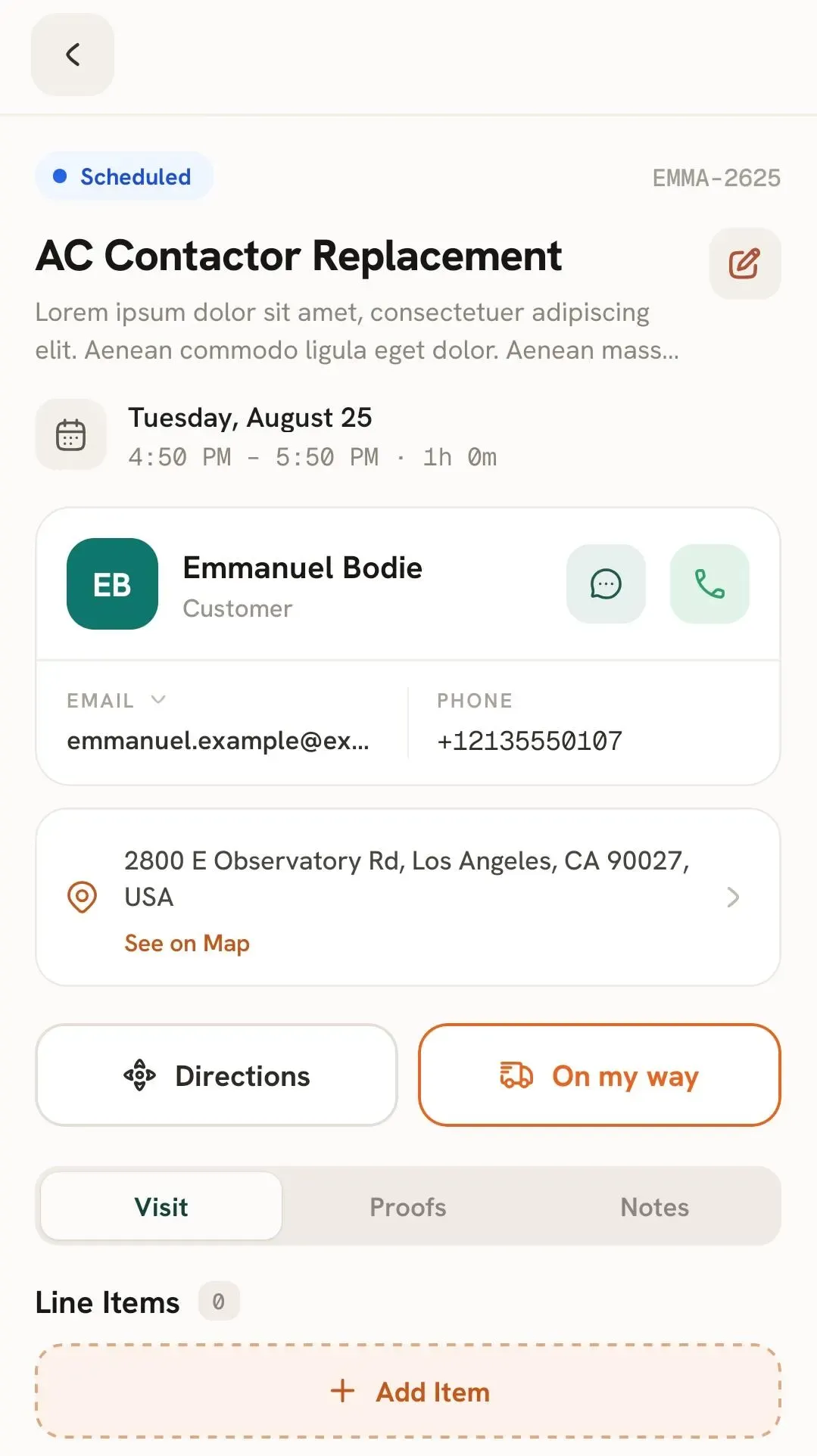
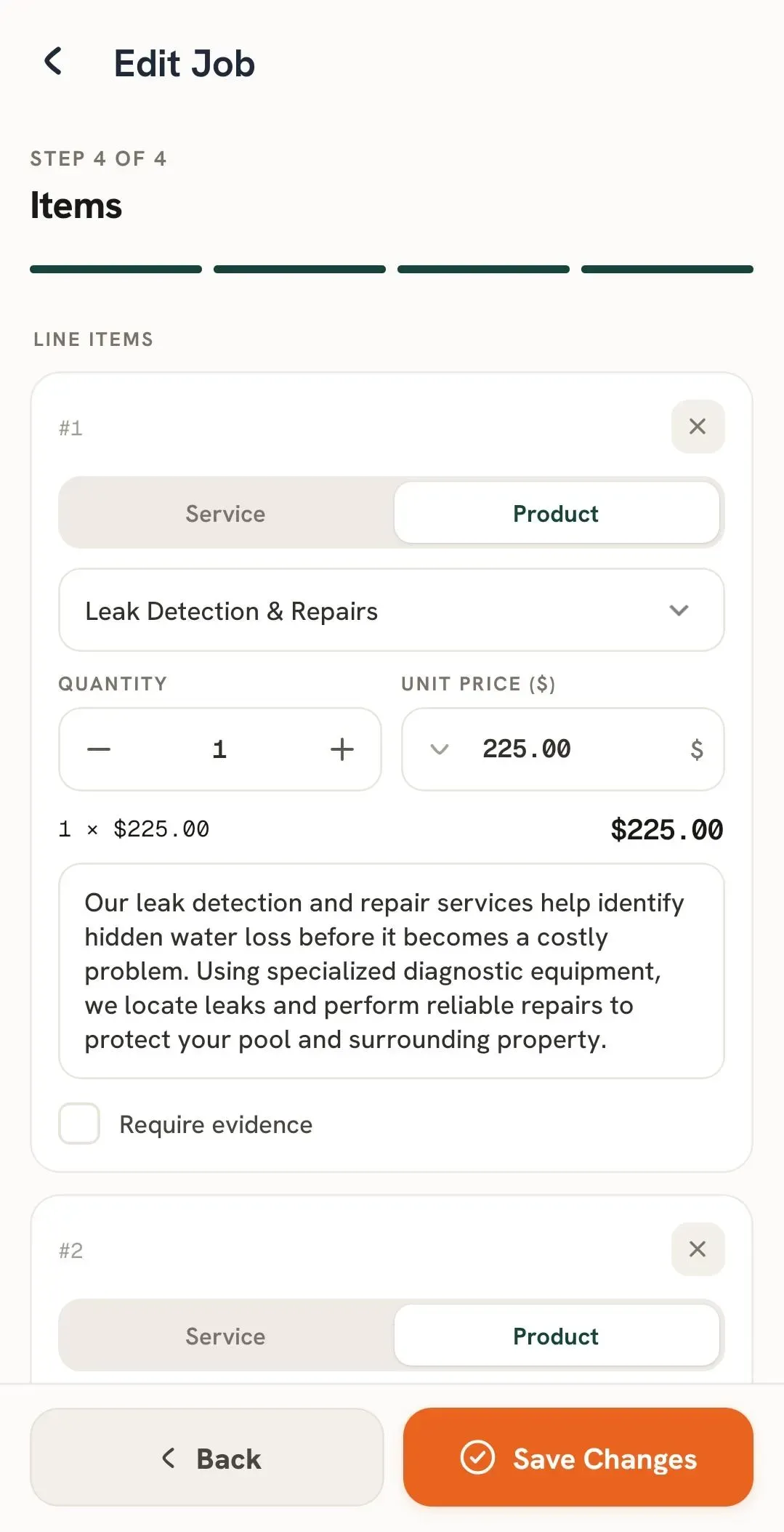
The Line Item will then be removed from the job.
The complete FieldTask sitemap: quick links to all pages.
Learn how FieldTask supports HIPAA compliance for home health and field service teams—encryption, BAAs, access controls, and audit logging.
Explore how FieldTask connects with HighLevel. Learn about two-way syncing, automation, and how to turn HighLevel into a complete field service management solution.