The HighLevel Home Service Business Management Software
Manage dispatch, route plan, techs, quotes, invoices, and more in GHL, the only dedicated field service app for HighLevel home service businesses and contractors.
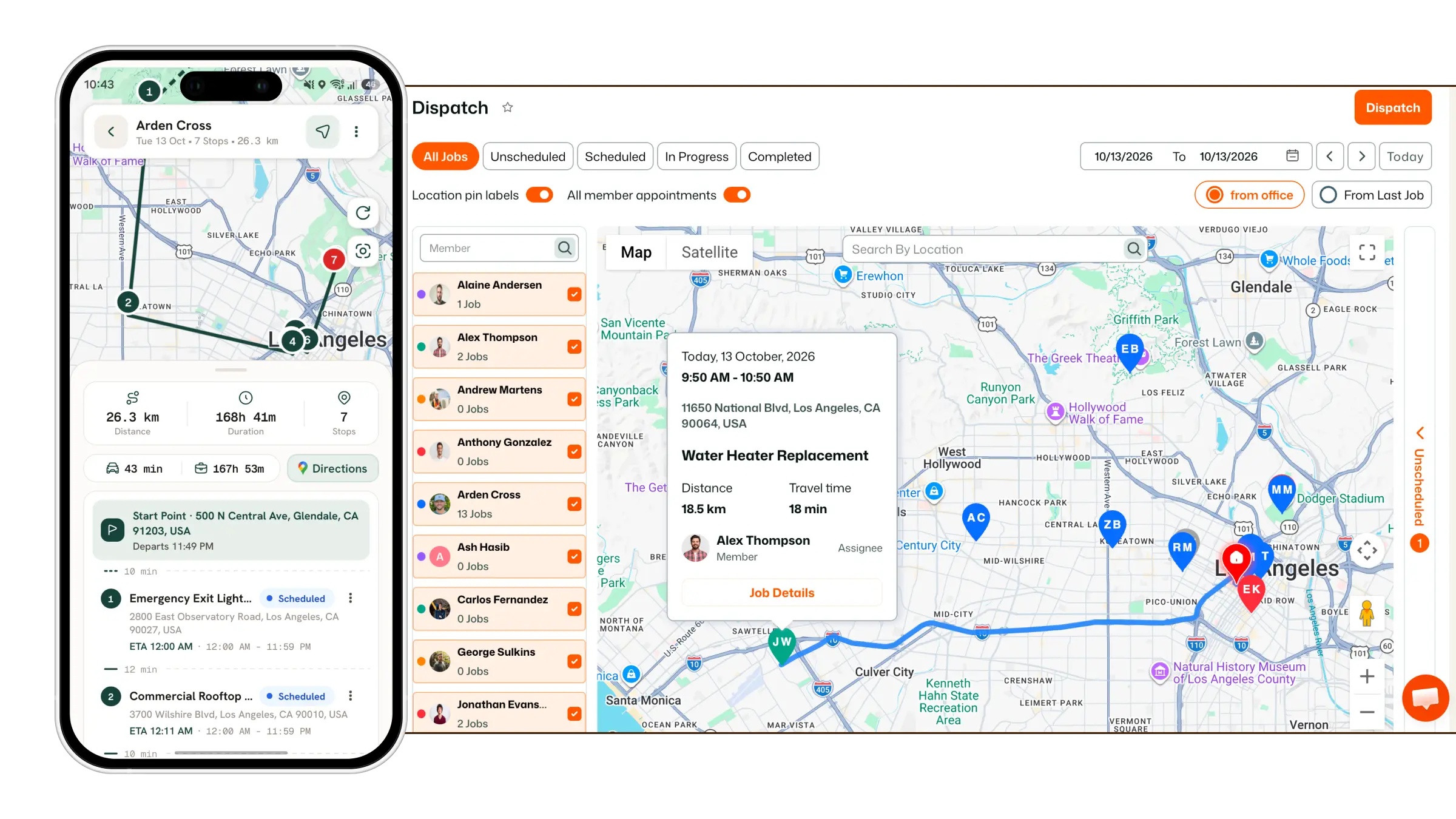
Learn how to check into a job from the FieldTask Mobile App and start recording your work time.
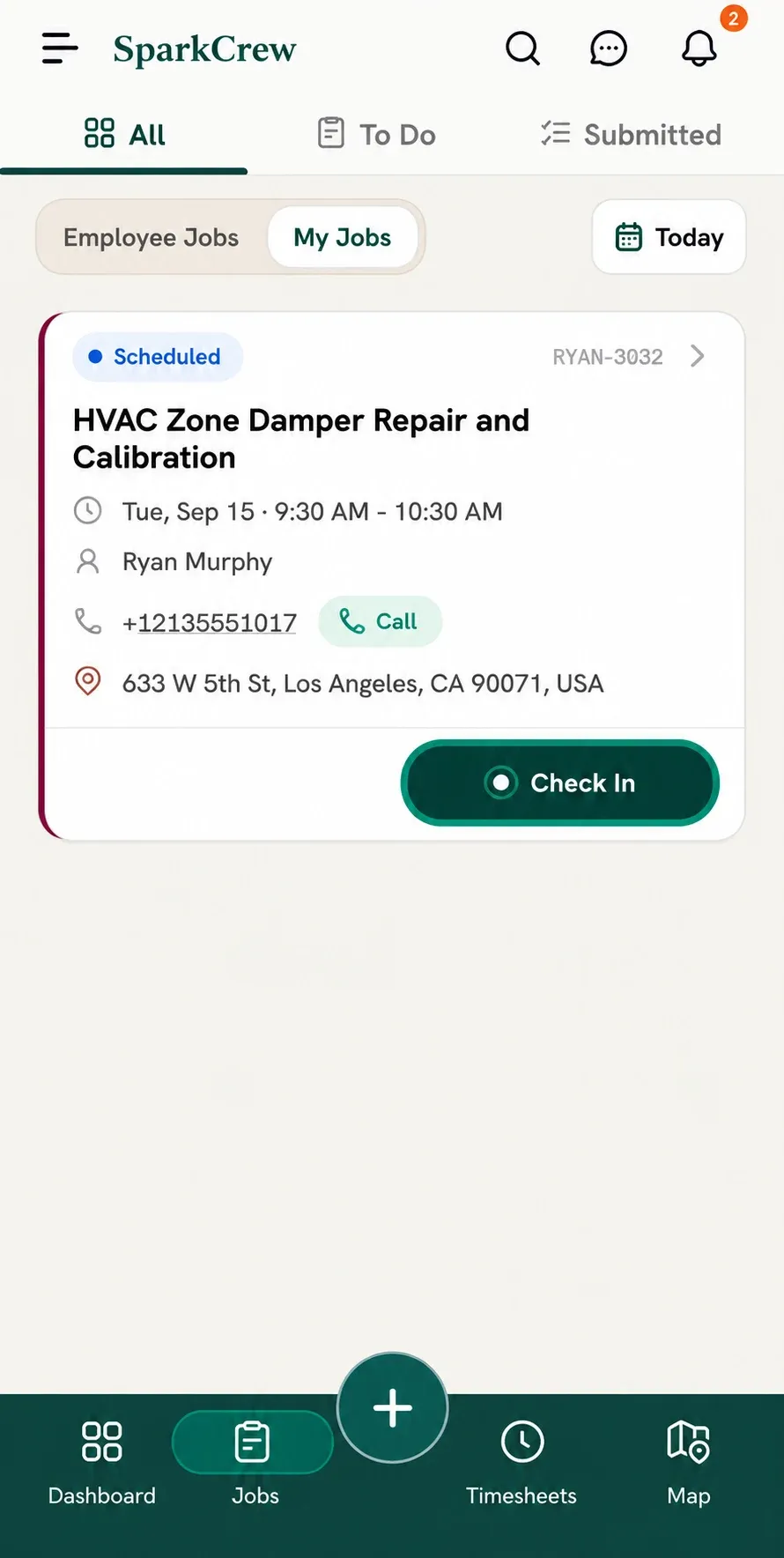
To check into a job, you will need the FieldTask Mobile App. You can download it from:
Once you have downloaded the app:
You can also check into a job from its Job Details page:
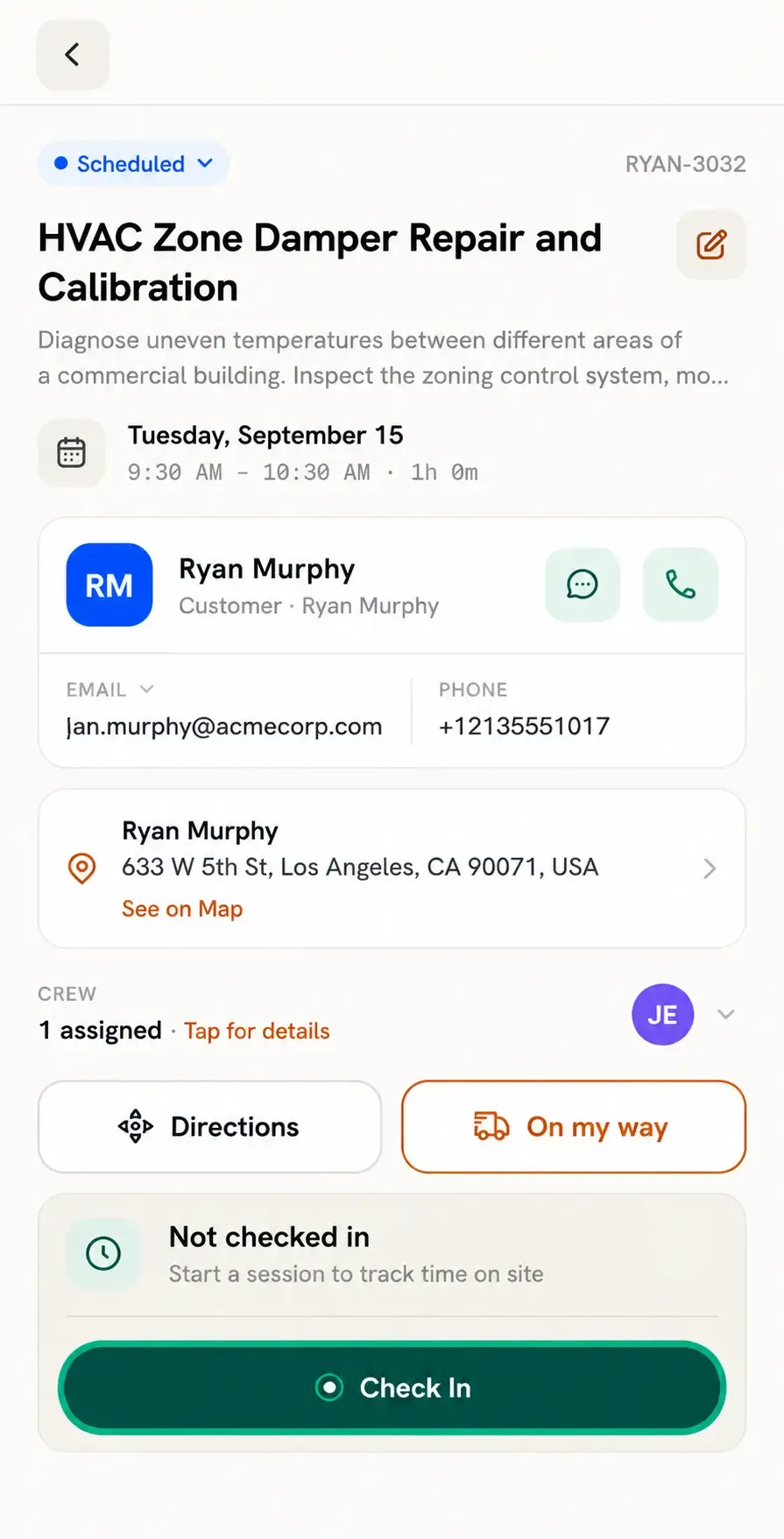
Once you check in, FieldTask will begin recording your work time for the job.
Manage dispatch, route plan, techs, quotes, invoices, and more in GHL, the only dedicated field service app for HighLevel home service businesses and contractors.
The complete FieldTask sitemap: quick links to all pages.
Learn how FieldTask supports HIPAA compliance for home health and field service teams—encryption, BAAs, access controls, and audit logging.