The HighLevel Home Service Business Management Software
Manage dispatch, route plan, techs, quotes, invoices, and more in GHL, the only dedicated field service app for HighLevel home service businesses and contractors.
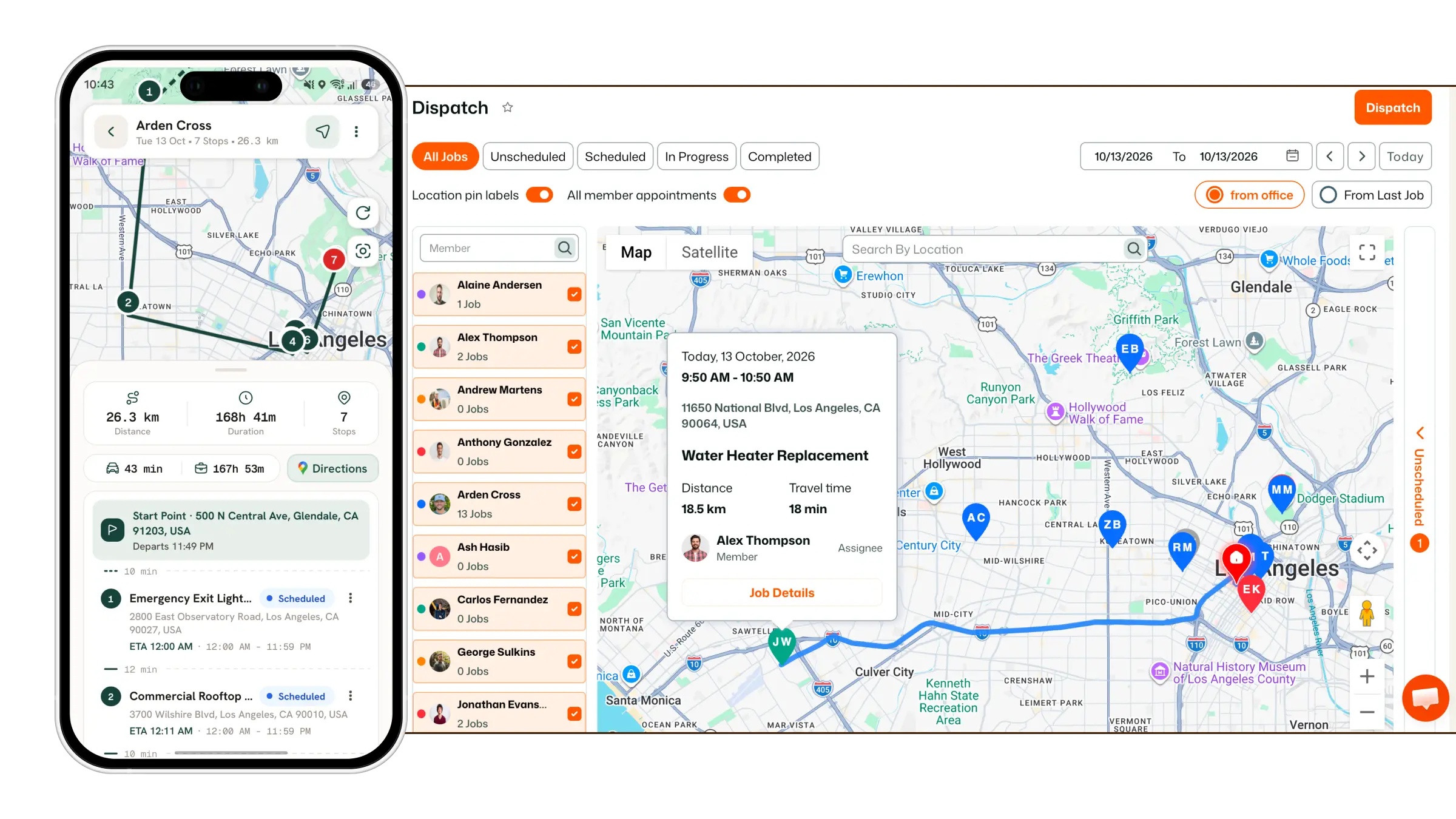
Learn how to install FieldTask from the HighLevel App Marketplace and add it to your Sub Account.
You can install FieldTask directly from the HighLevel App Marketplace and connect it to the Sub Account where you want to use it.
To install FieldTask on a Sub Account:
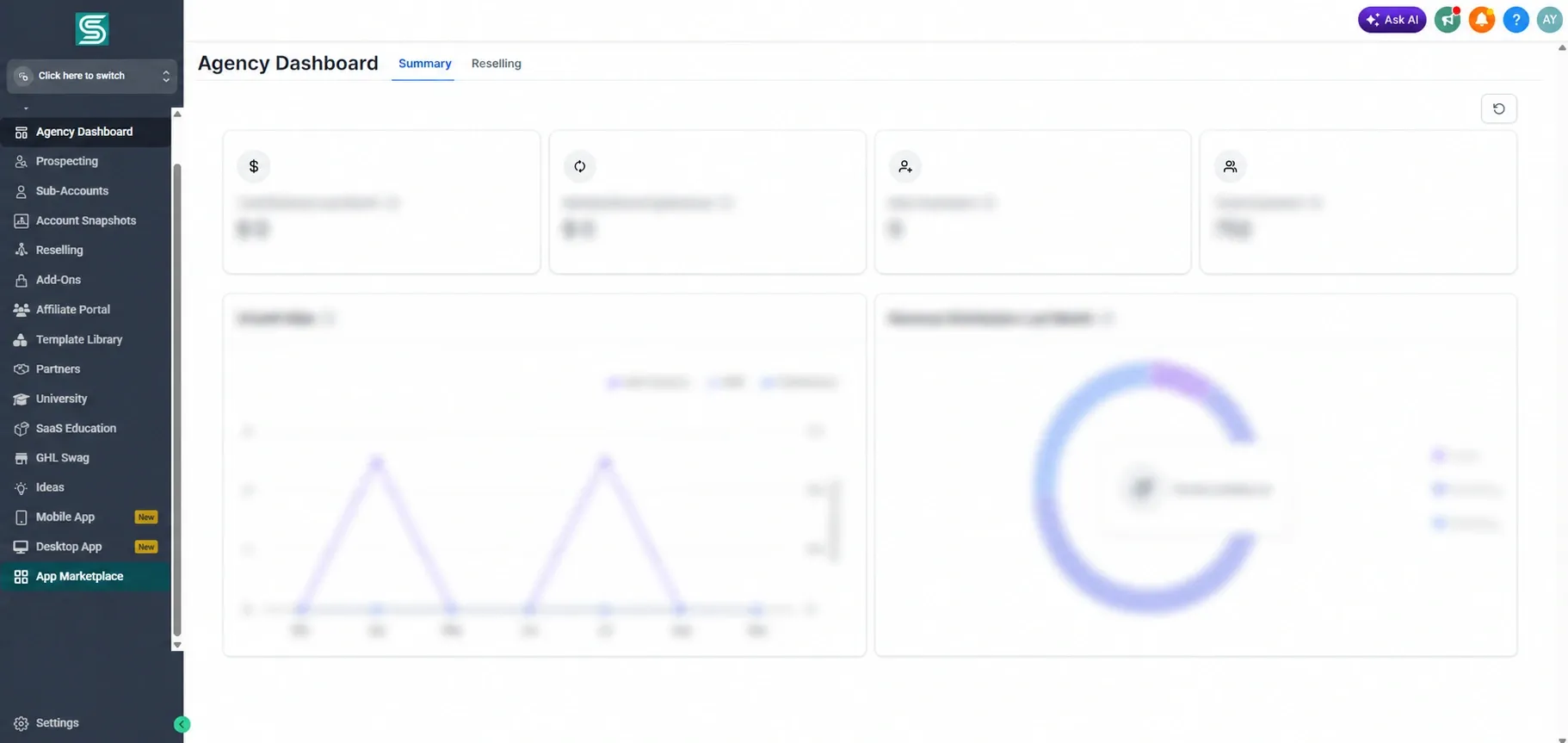
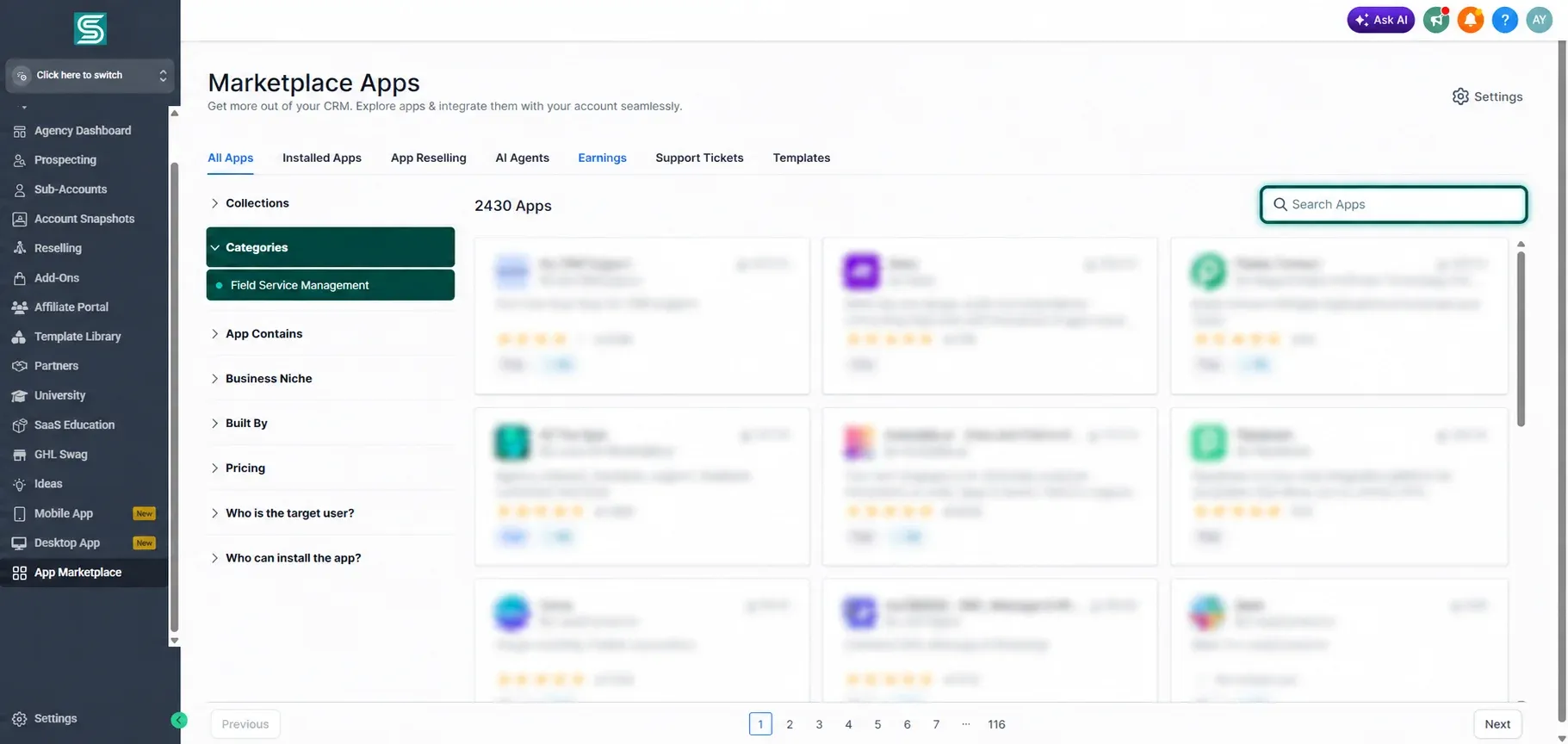
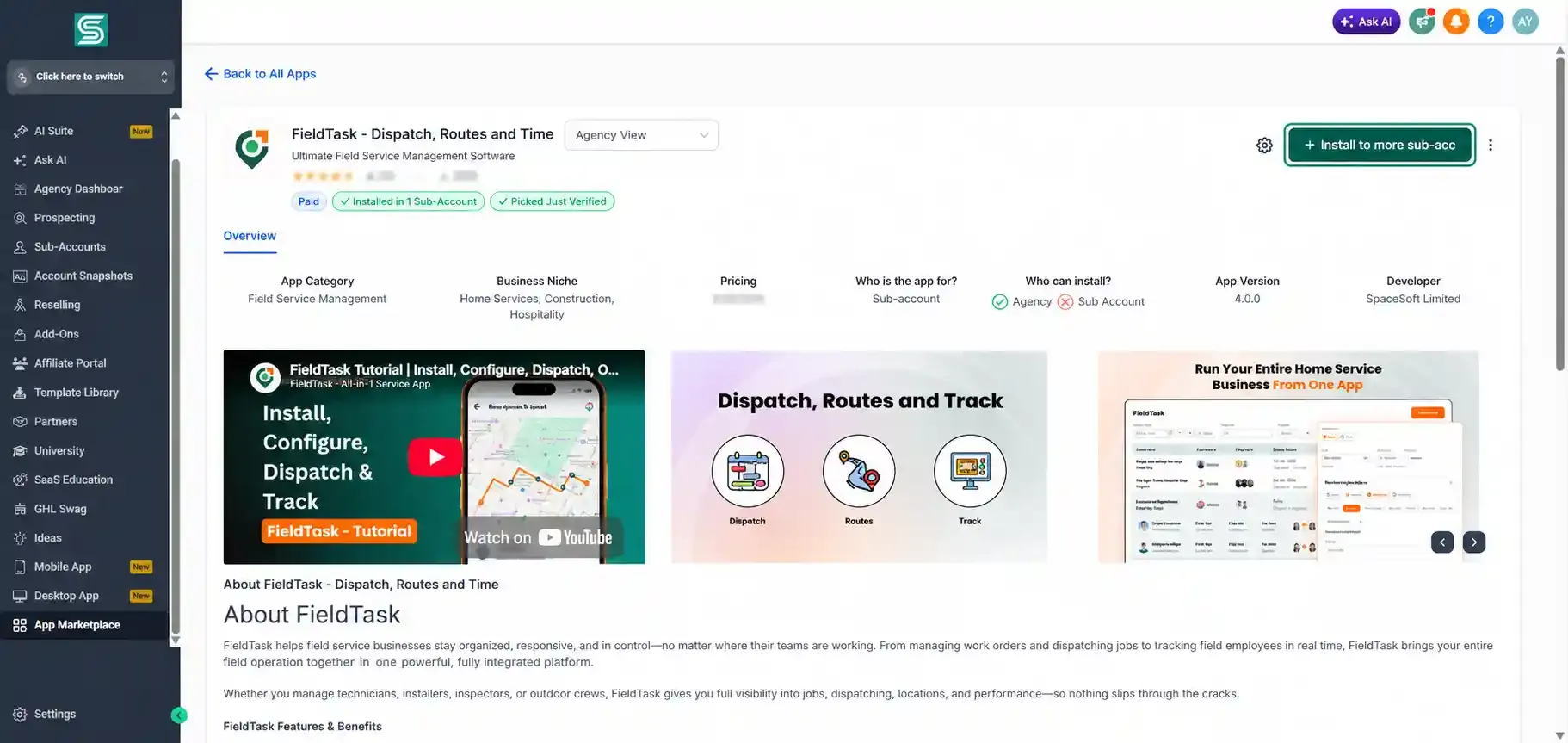
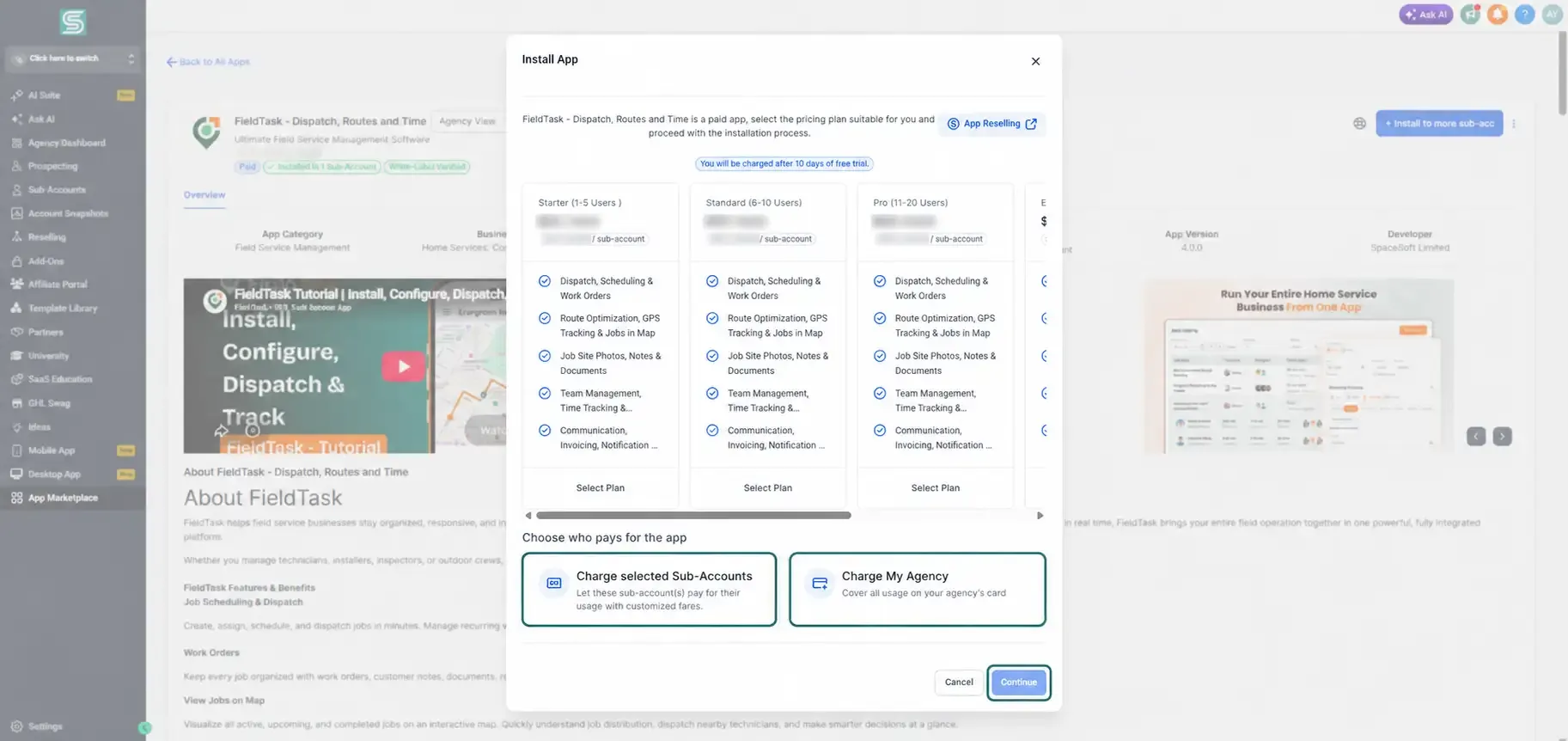
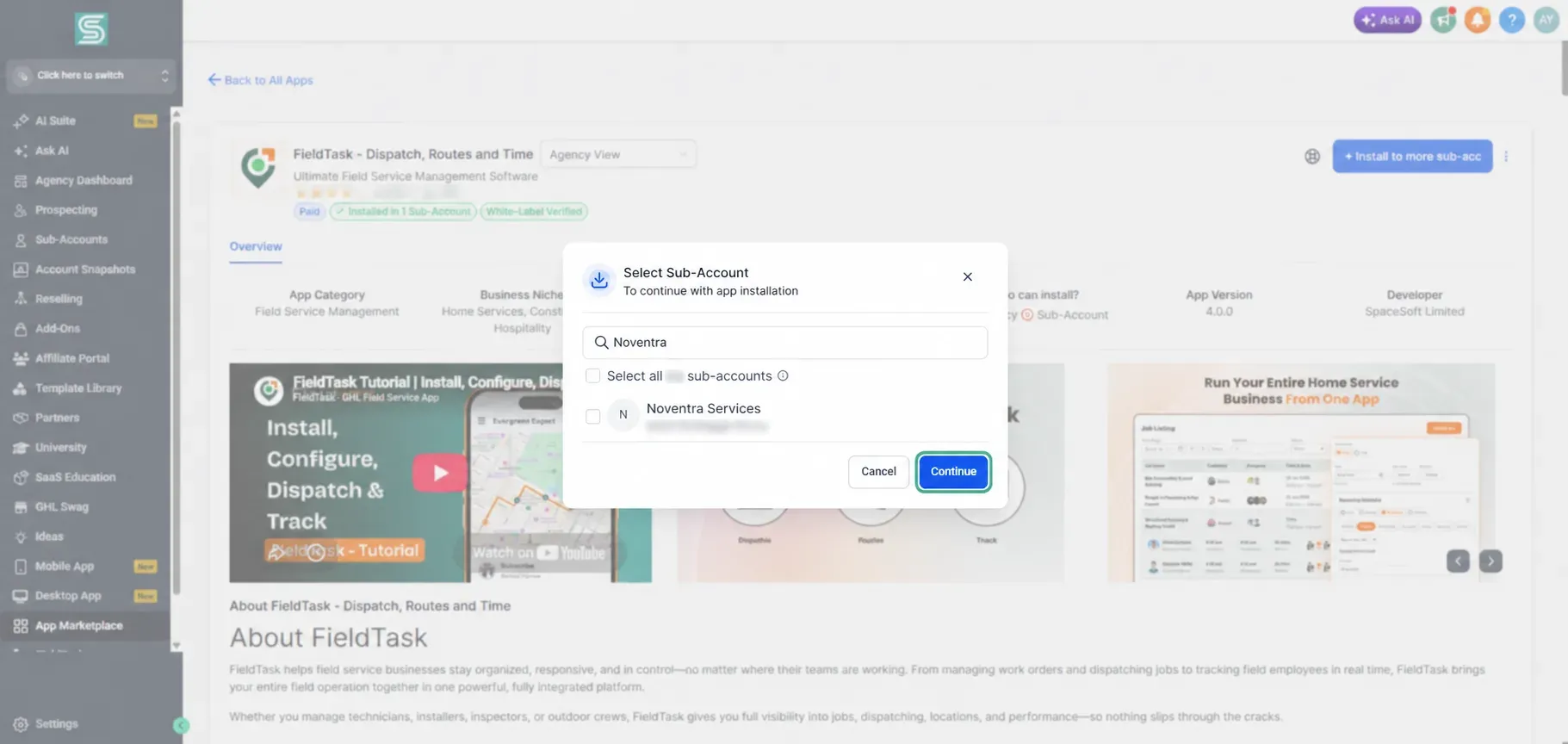
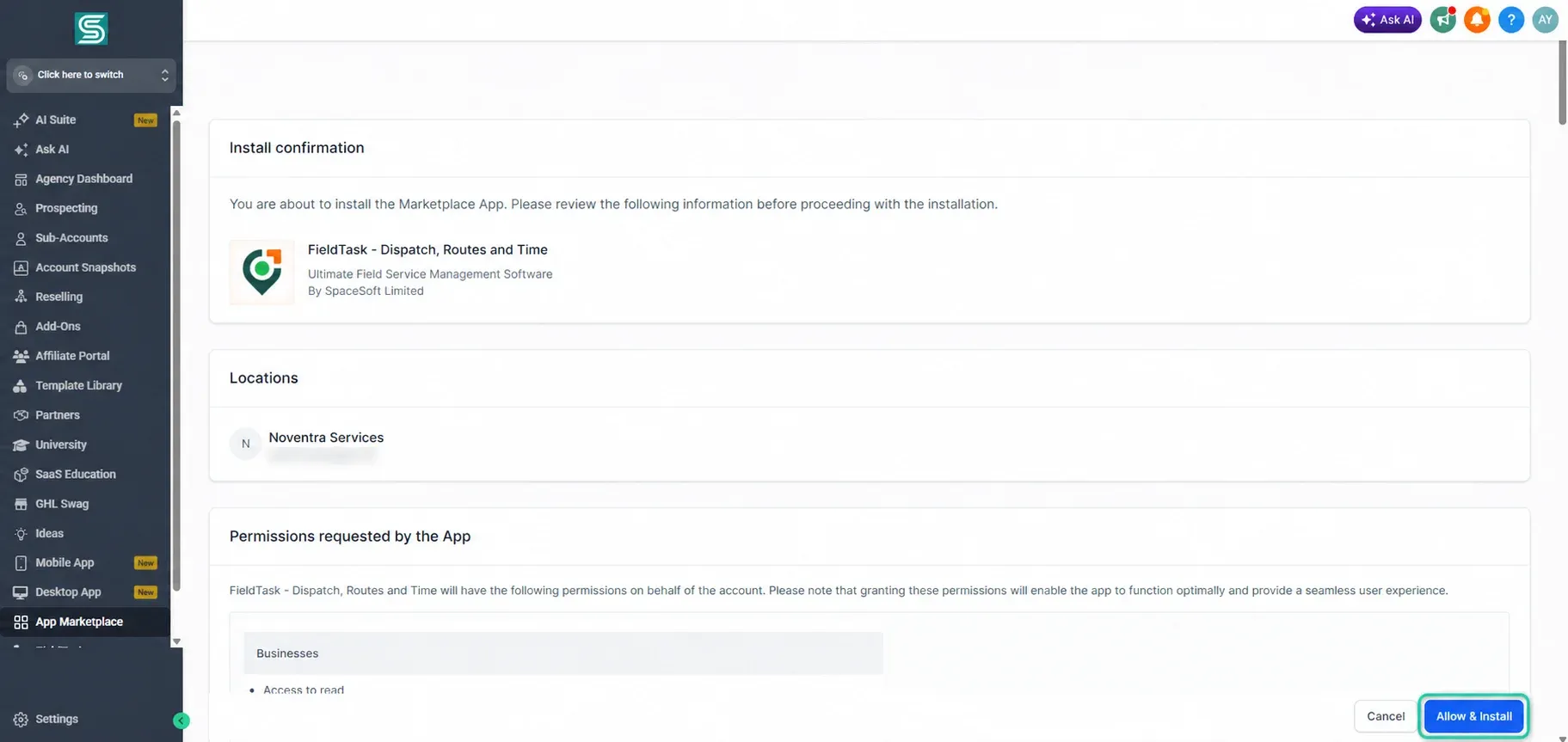
A new page will open while FieldTask is being added to your Sub Account.
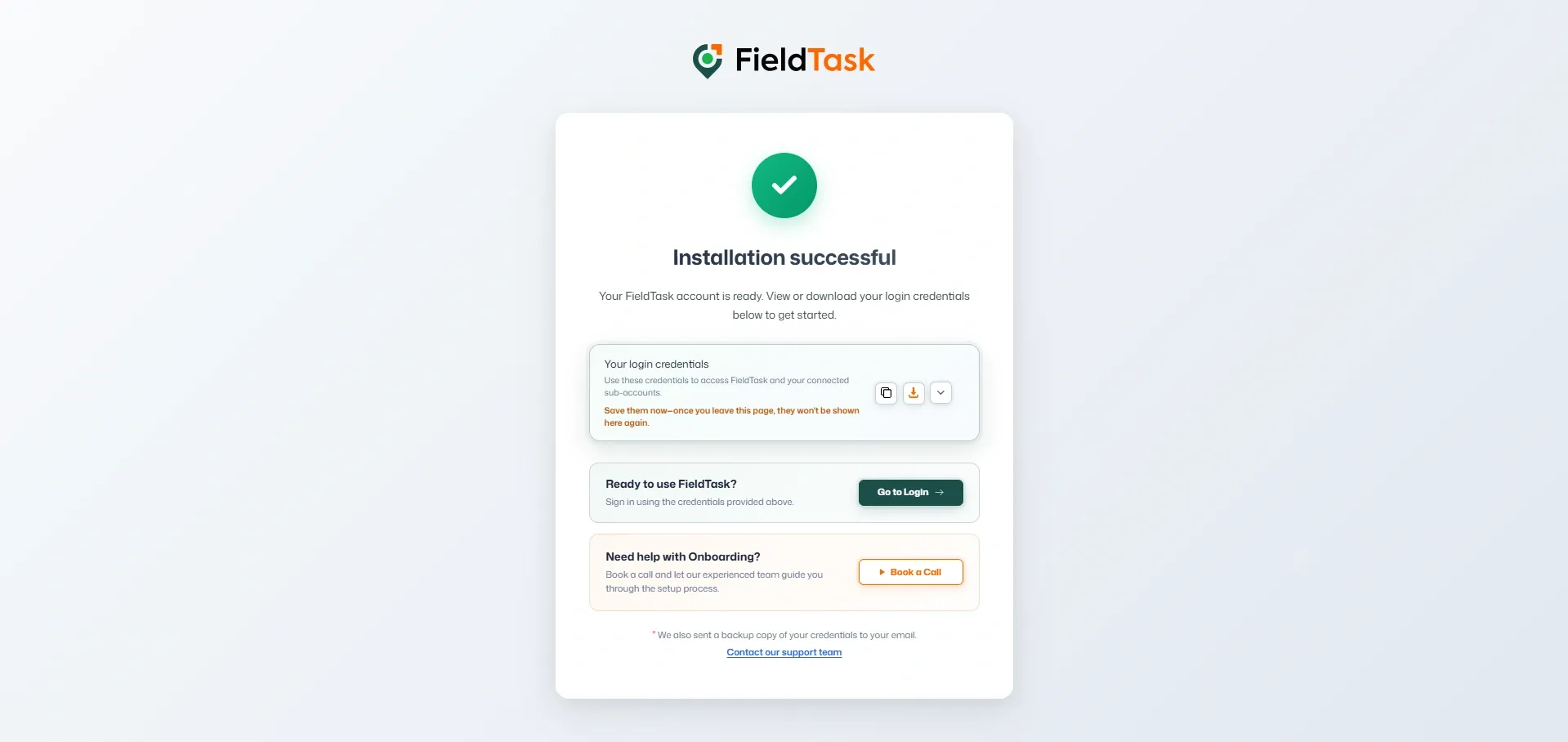
FieldTask has now been successfully added to your HighLevel Sub Account.
Manage dispatch, route plan, techs, quotes, invoices, and more in GHL, the only dedicated field service app for HighLevel home service businesses and contractors.
The complete FieldTask sitemap: quick links to all pages.
Learn how FieldTask supports HIPAA compliance for home health and field service teams—encryption, BAAs, access controls, and audit logging.