The HighLevel Home Service Business Management Software
Manage dispatch, route plan, techs, quotes, invoices, and more in GHL, the only dedicated field service app for HighLevel home service businesses and contractors.
No image available
Learn how to create Tags for Jobs and Customers and use them to organize information more efficiently in FieldTask.
Tags in FieldTask allow you to label Jobs and Customers based on specific conditions or characteristics.
This makes it easier to organize and sort Jobs or Customers that share something in common without affecting others in your system.
You can create and attach Tags from several places in FieldTask.
When creating a new Job or Customer:
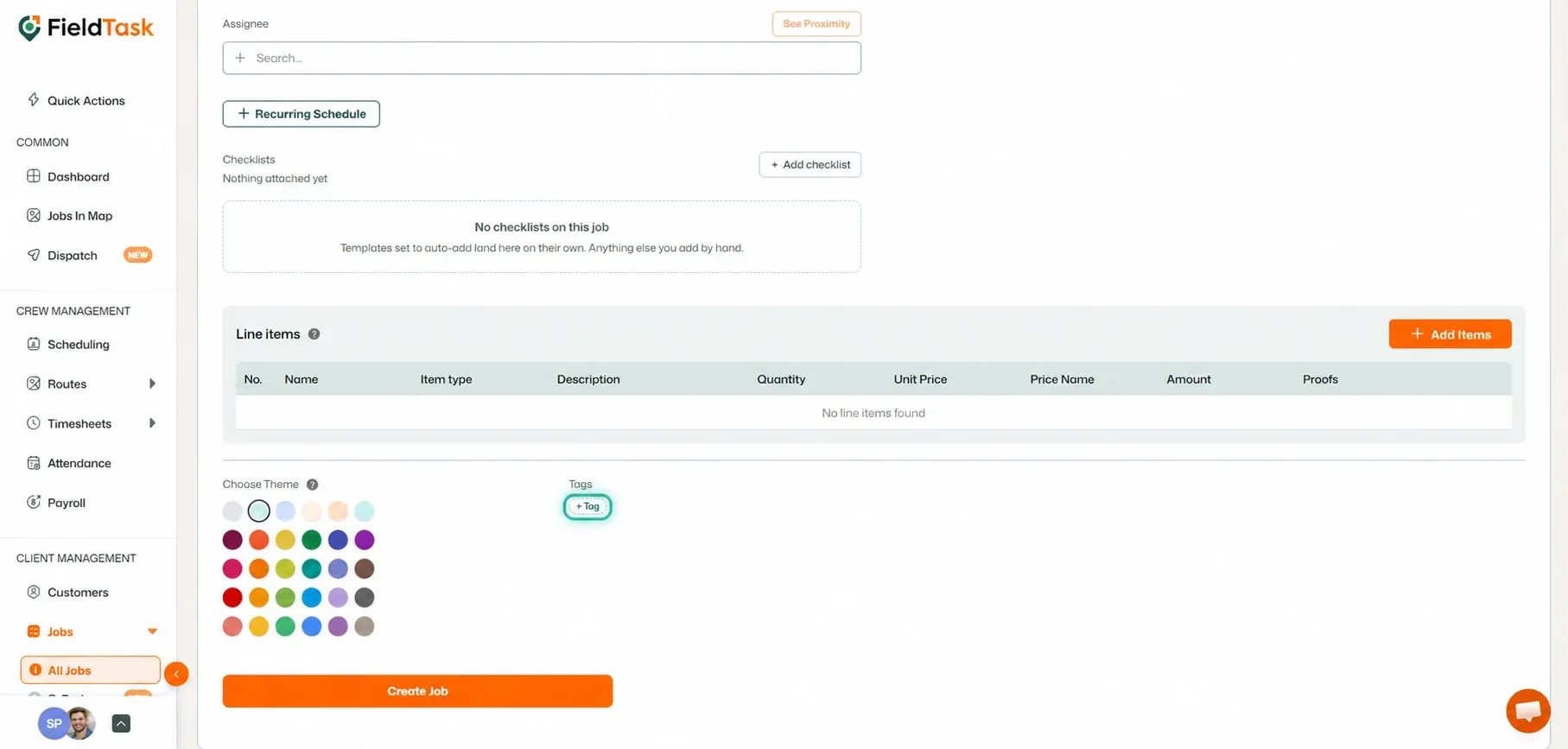
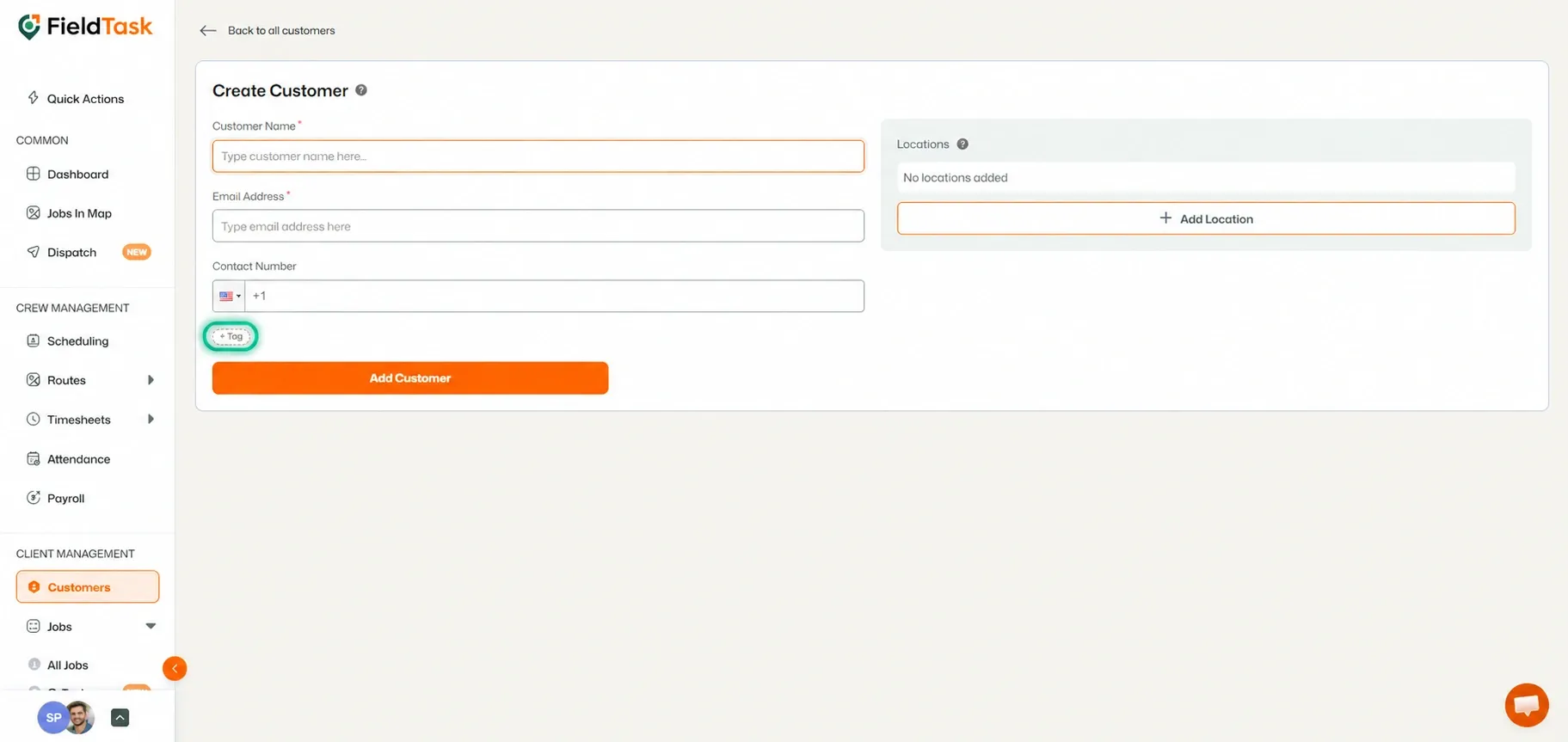
You can then attach the Tag to the Job or Customer you are creating.
You can also add Tags directly from the listing pages.
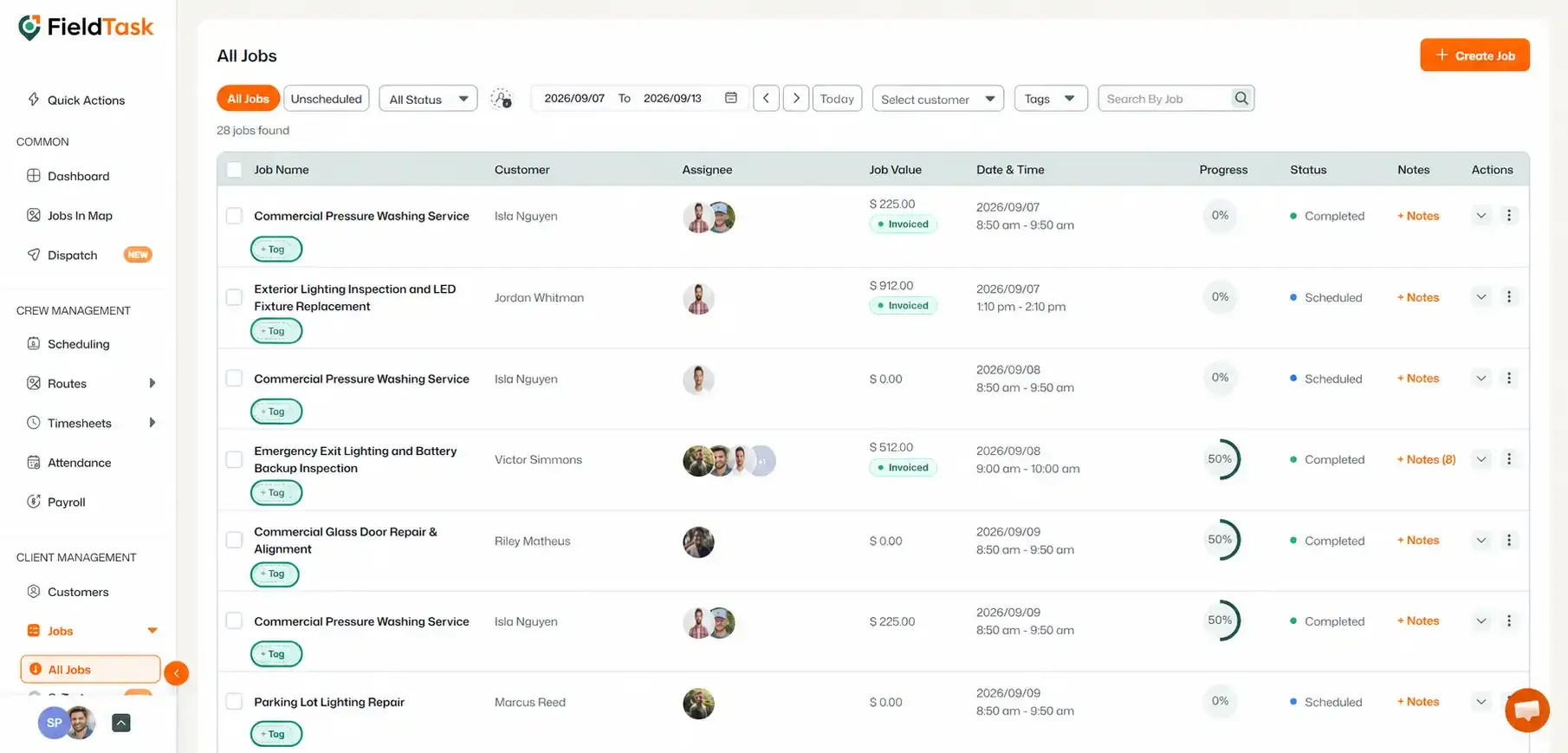
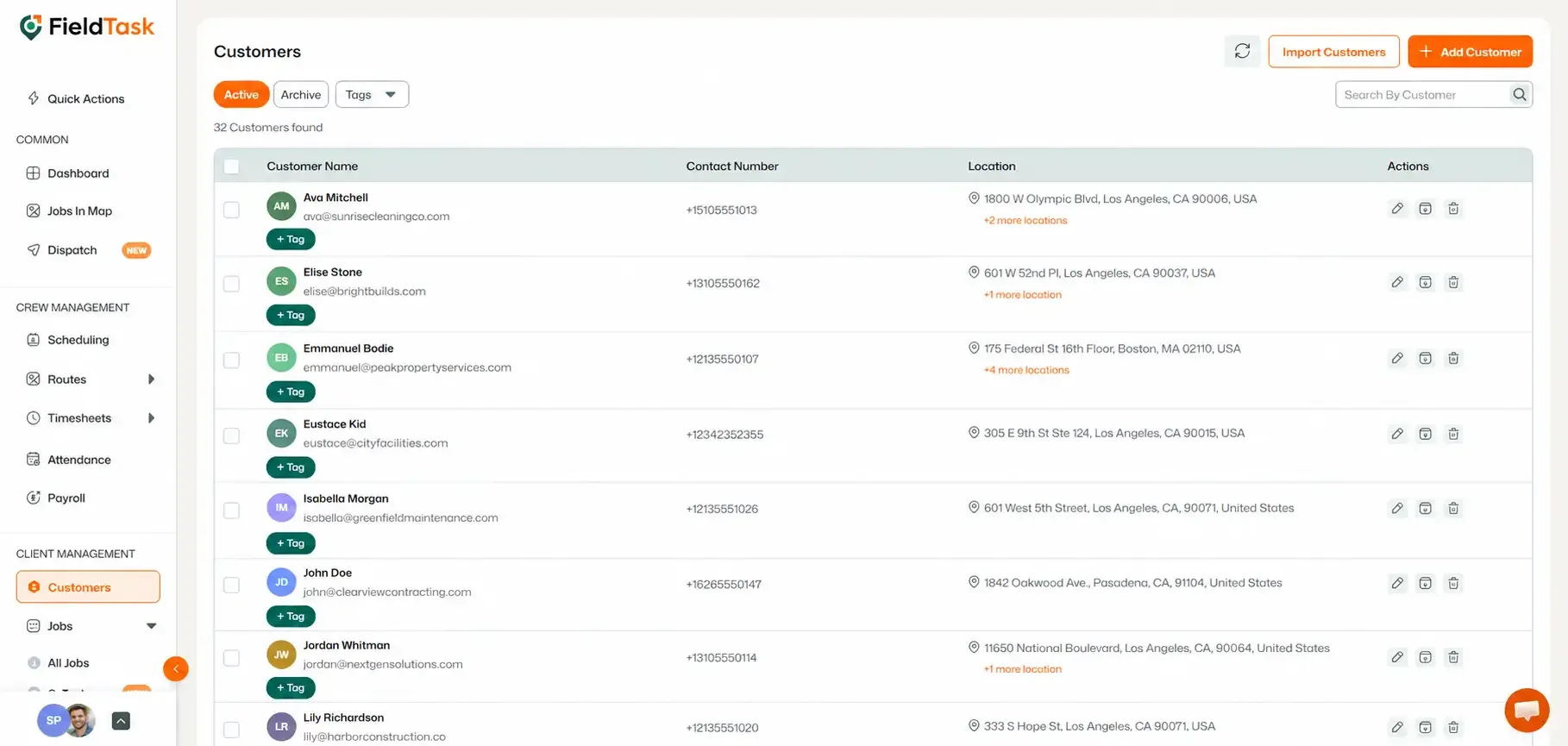
Tags can also be added directly from the Job Details or Customer Details page.
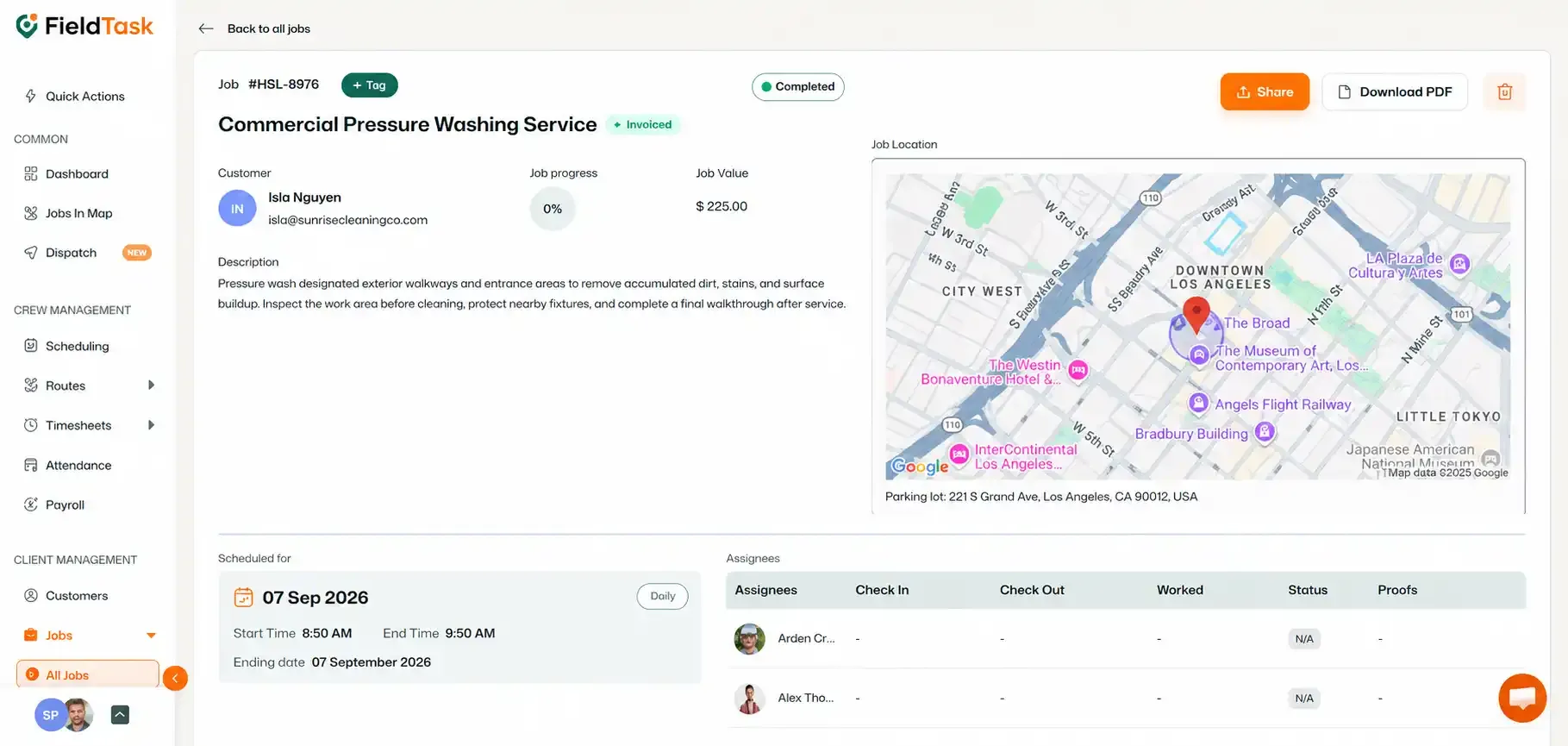
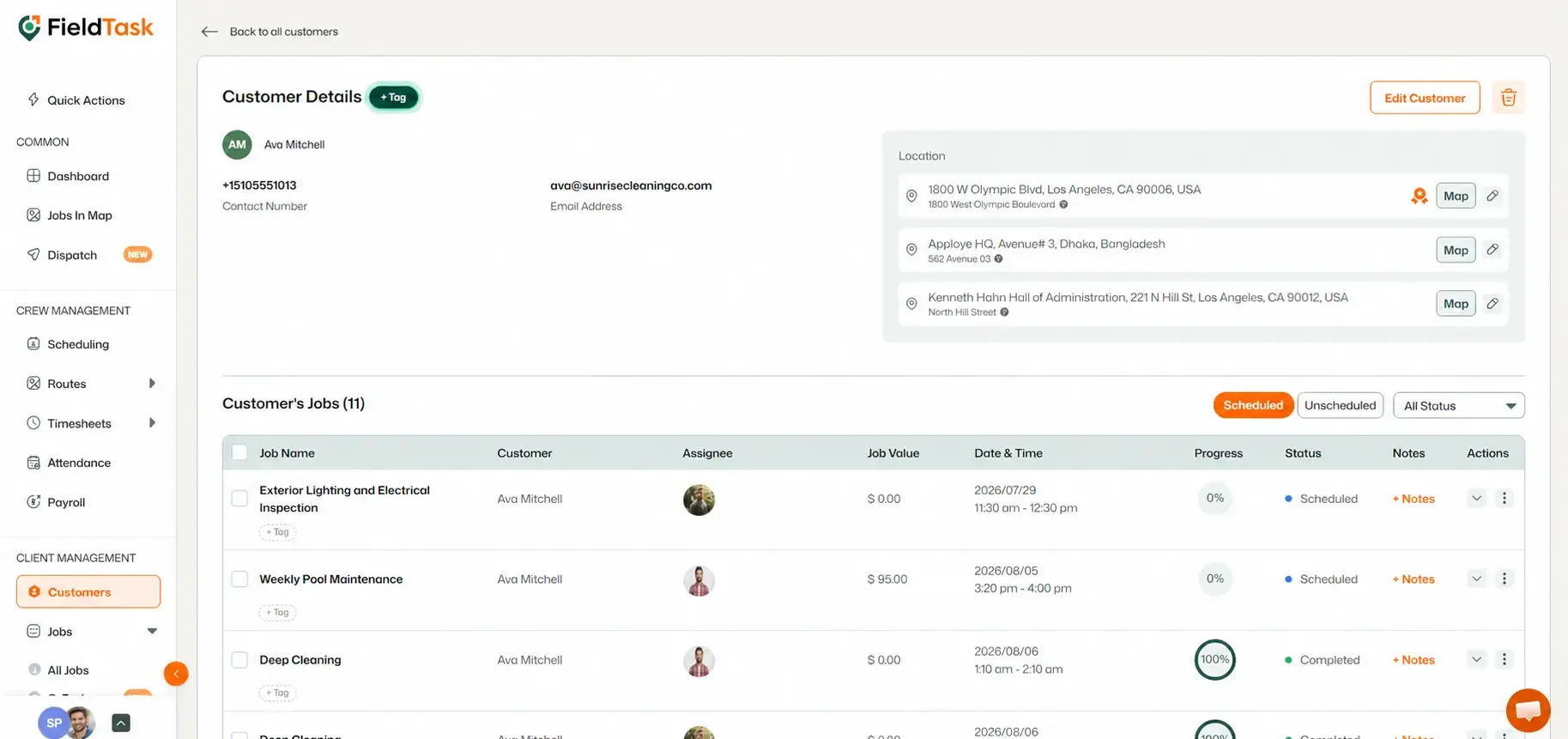
This allows you to update Tags without having to return to the main Job or Customer list.
You can also manage Tags from one central location.
To access Tag Management:
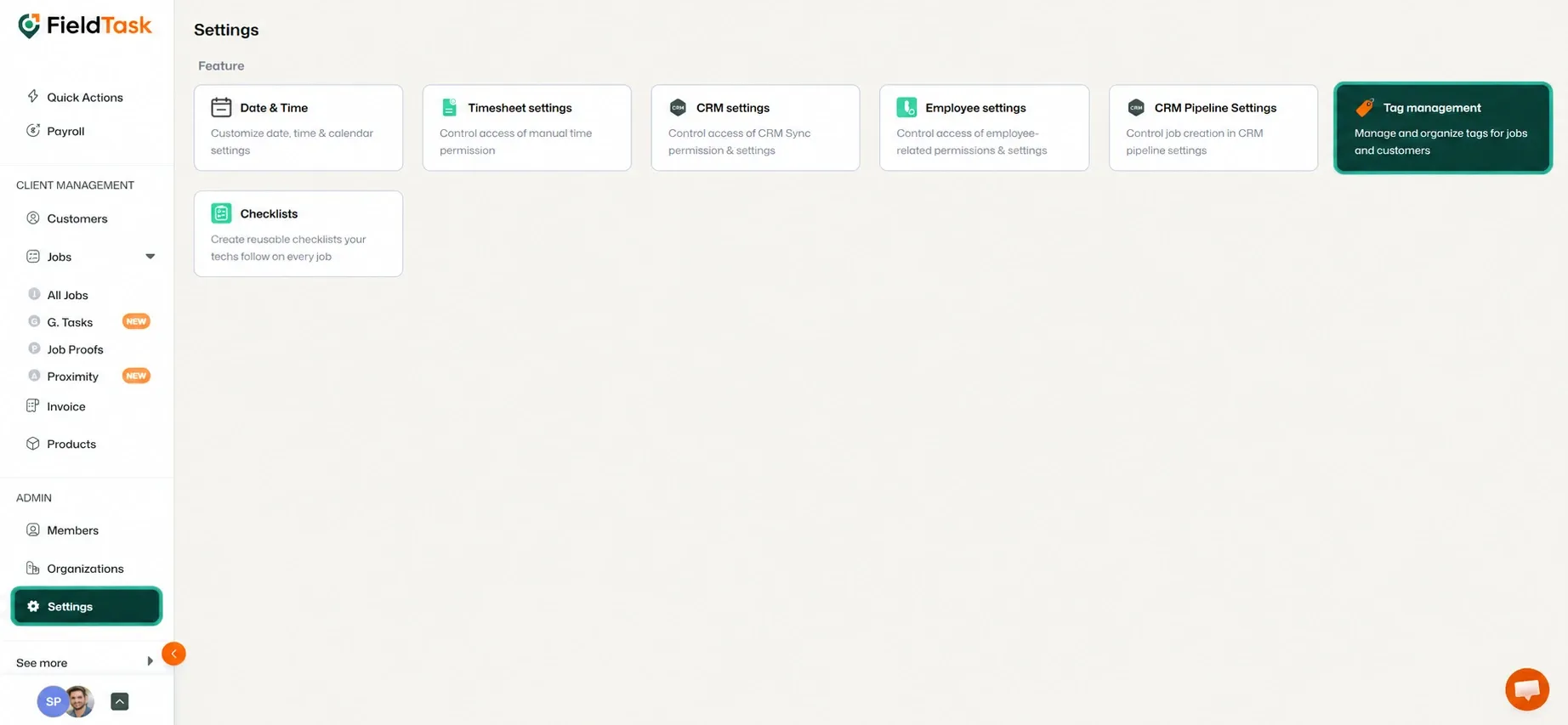
From this page, you can create and manage the Tags available in FieldTask.
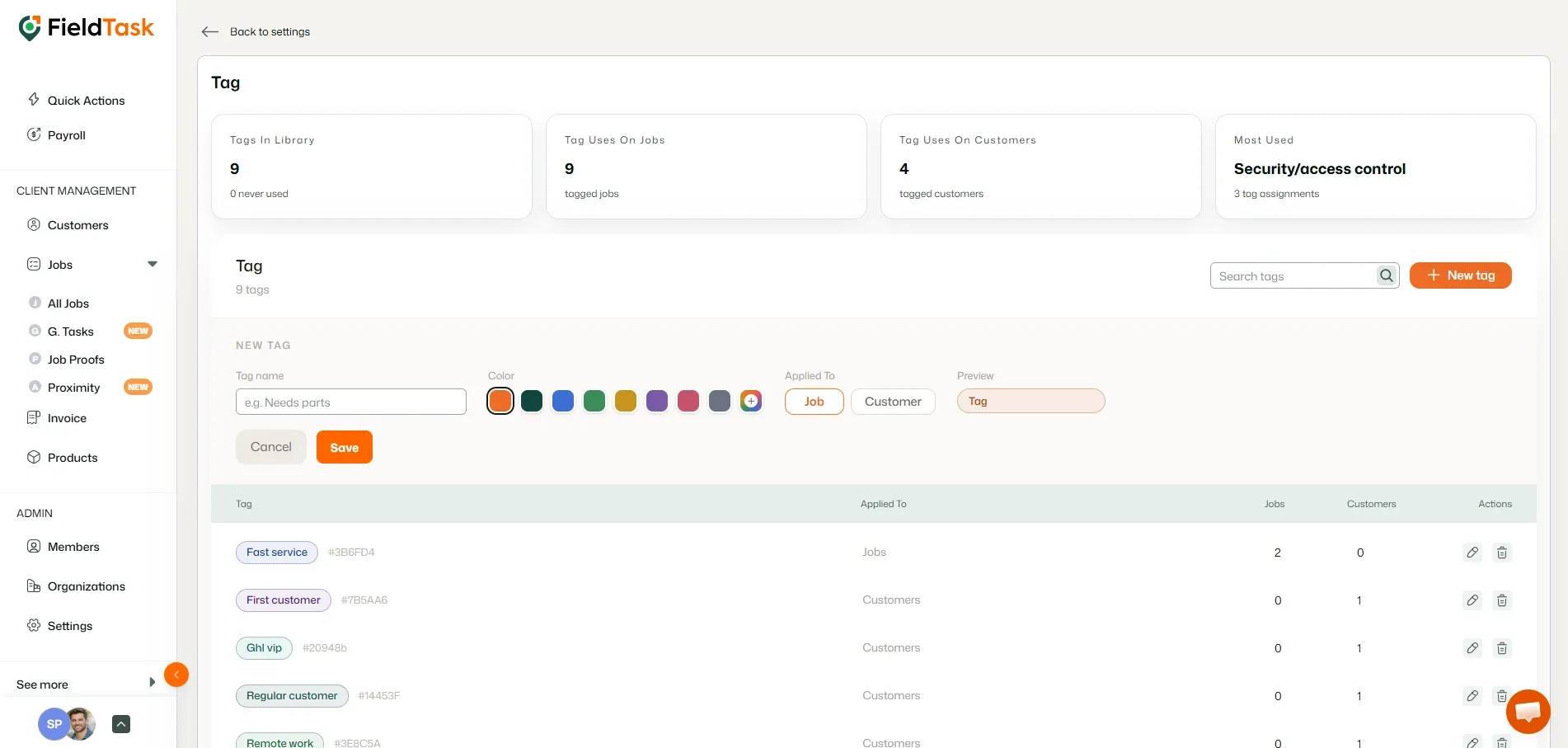
Tags attached to Customers can sync between FieldTask and HighLevel.
This means Customer Tags created or attached in FieldTask can sync to HighLevel, and Tags from HighLevel can sync back to FieldTask.
📌 Note: Because Customer Tags sync between FieldTask and HighLevel, you do not need to create and maintain the same Tags separately on both platforms.
Manage dispatch, route plan, techs, quotes, invoices, and more in GHL, the only dedicated field service app for HighLevel home service businesses and contractors.
The complete FieldTask sitemap: quick links to all pages.
Learn how FieldTask supports HIPAA compliance for home health and field service teams—encryption, BAAs, access controls, and audit logging.