The HighLevel Home Service Business Management Software
Manage dispatch, route plan, techs, quotes, invoices, and more in GHL, the only dedicated field service app for HighLevel home service businesses and contractors.
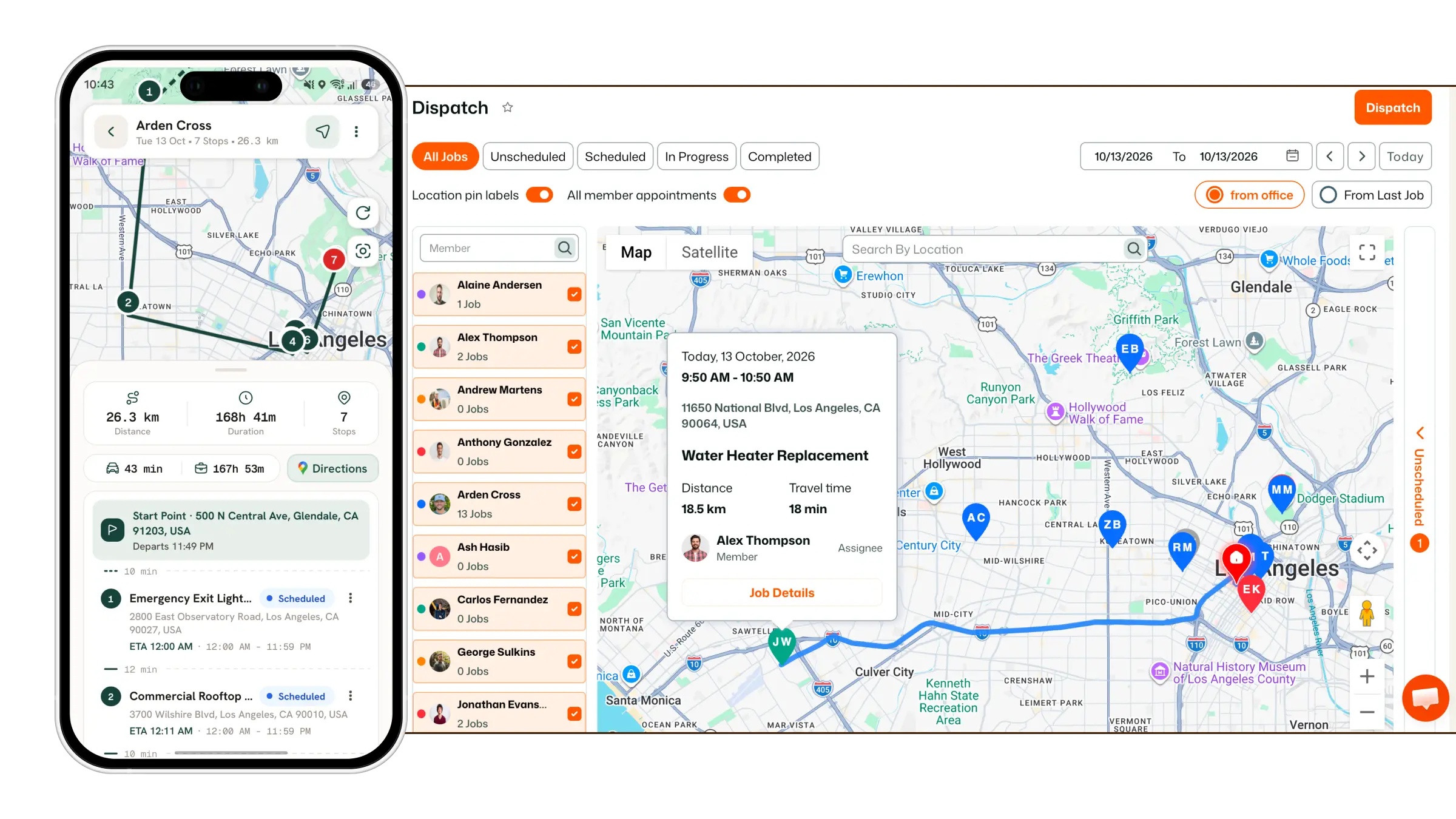
Learn how to view your field members’ routes and live locations after they check in to a job.
FieldTask uses GPS tracking to provide two ways to keep track of your field members while they are actively working:
Once a Field Member checks into a job, FieldTask begins tracking their location. Tracking continues while they are working and automatically stops once they check out of the job.
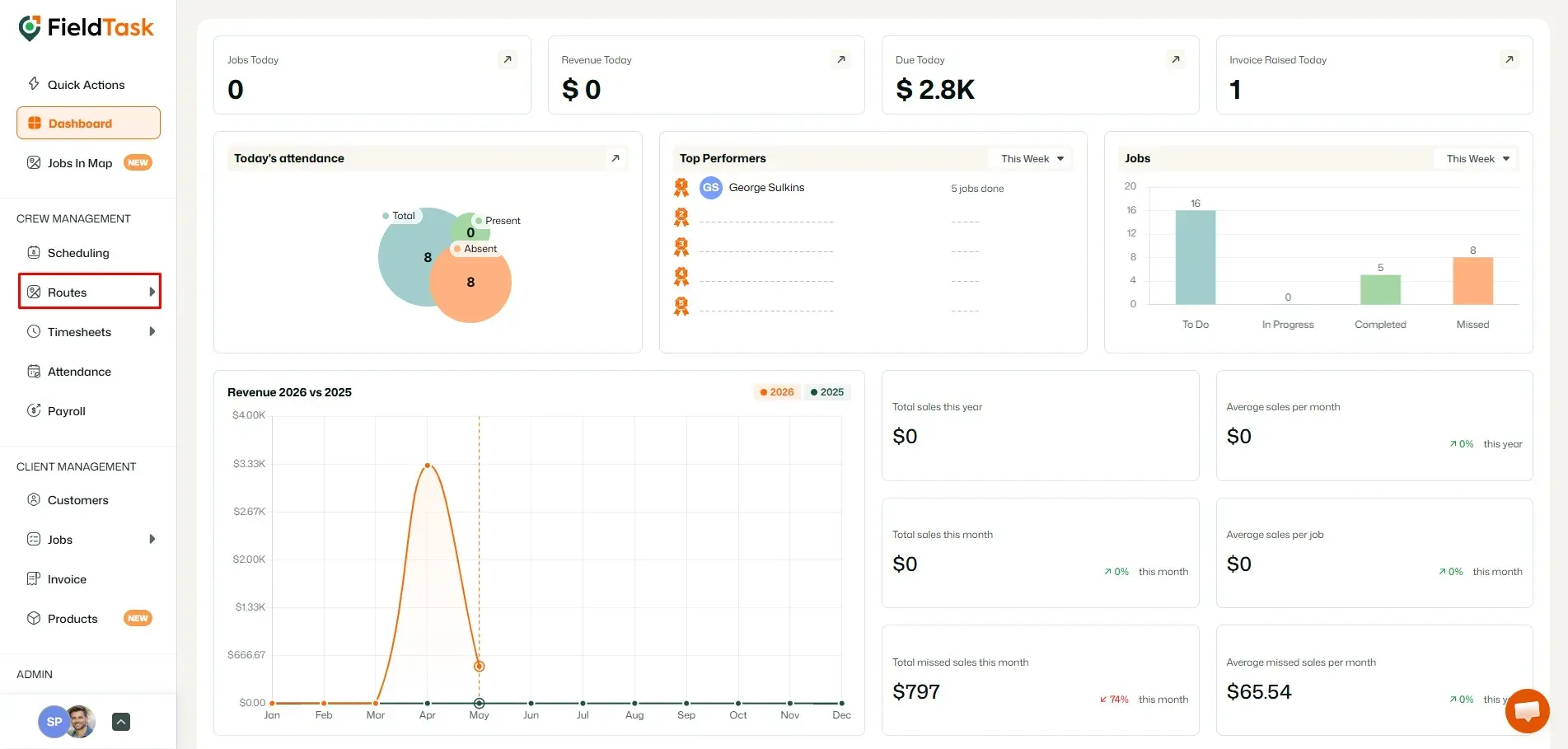
The Route Map allows you to view the route taken by your Field Members after they have checked into a job.
To view a Member’s Route Map:
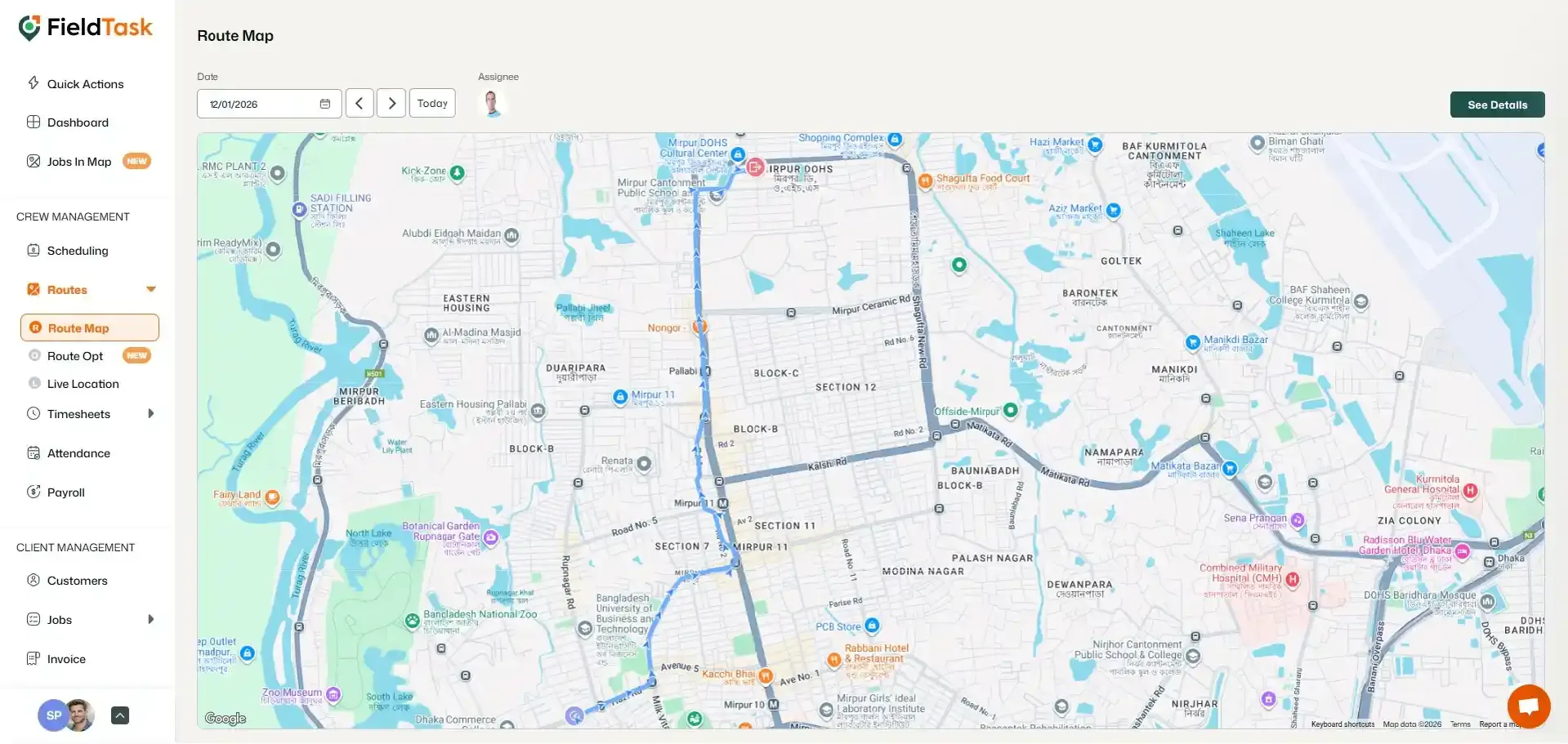
The Route Map will show the tracked route recorded while the Member was checked into their job.
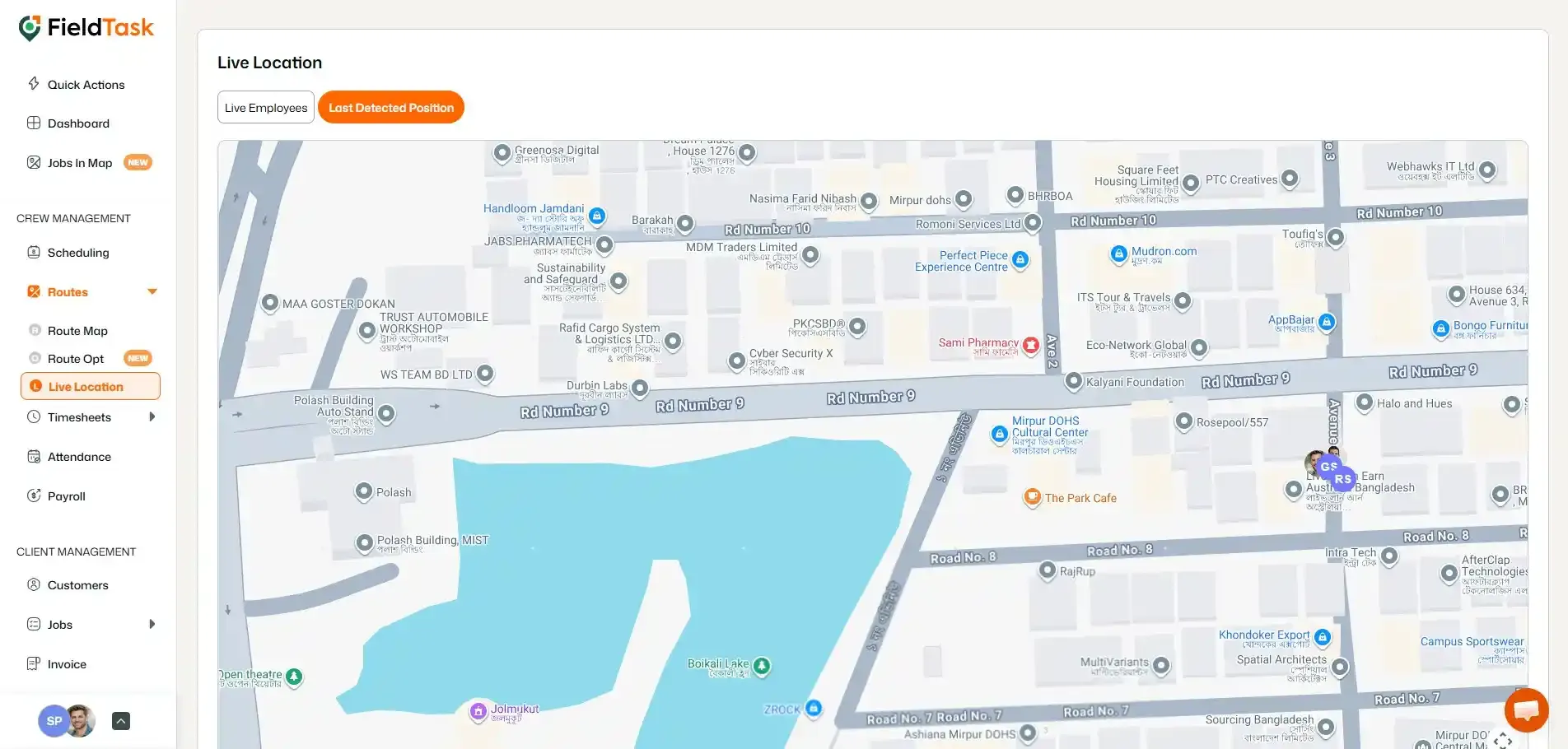
The Live Location feature allows you to see the current location of your online Field Members.
To view Live Location:
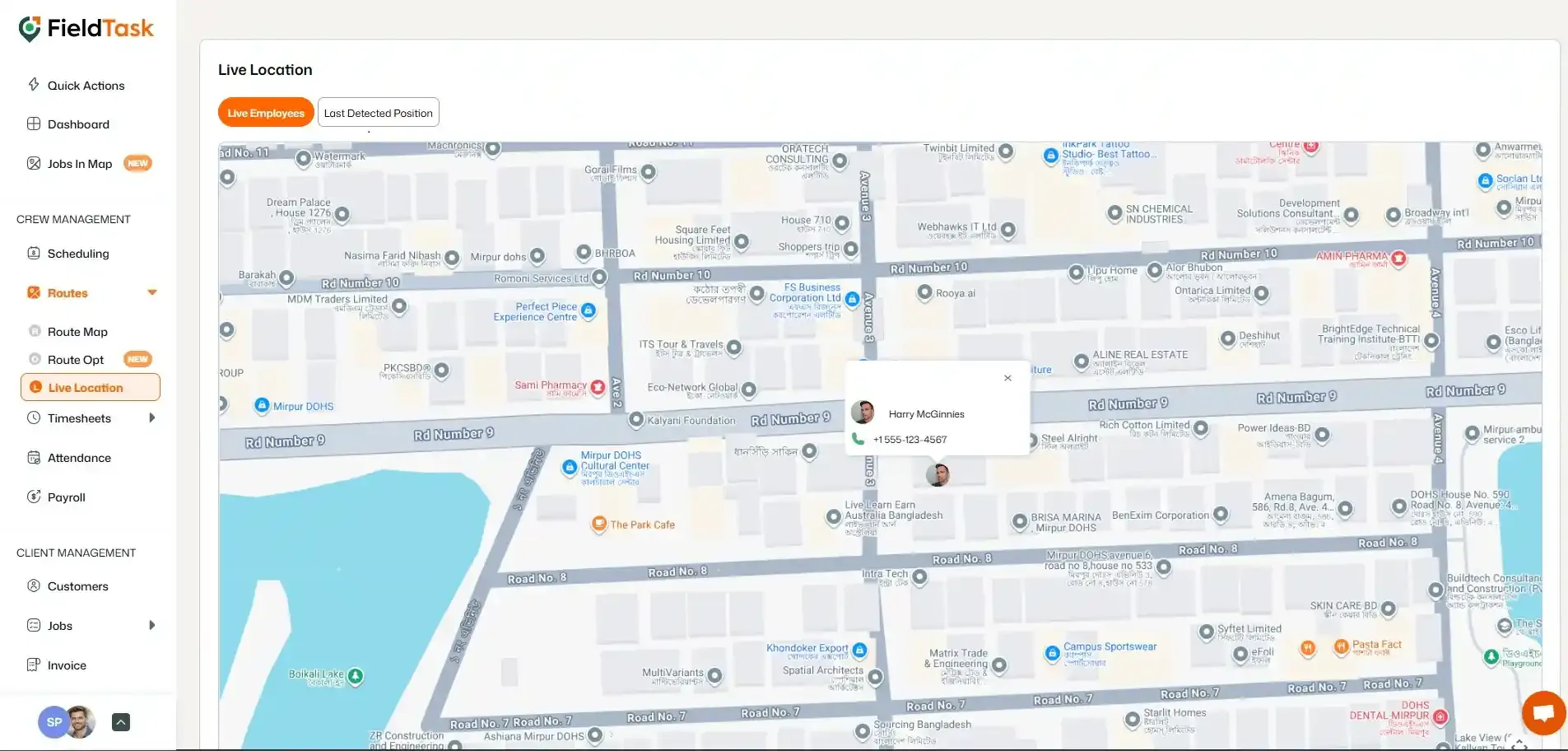
The Live Location page will display the location of your available Members.
You can switch between:
📌 Note: GPS tracking begins when a Field Member checks into a job and stops automatically when they check out. FieldTask only tracks location during the active job period.
Manage dispatch, route plan, techs, quotes, invoices, and more in GHL, the only dedicated field service app for HighLevel home service businesses and contractors.
The complete FieldTask sitemap: quick links to all pages.
Learn how FieldTask supports HIPAA compliance for home health and field service teams—encryption, BAAs, access controls, and audit logging.