The HighLevel Home Service Business Management Software
Manage dispatch, route plan, techs, quotes, invoices, and more in GHL, the only dedicated field service app for HighLevel home service businesses and contractors.
No image available
Jump to
Learn how filters help you quickly find and focus on specific information across FieldTask.
Filters in FieldTask help you narrow down the information displayed on a page. Instead of searching through large lists of jobs, customers, or members, you can use filters to quickly locate the data you need.
Depending on the page, available filters may include:
The available filtering options depend on the FieldTask section you are viewing.
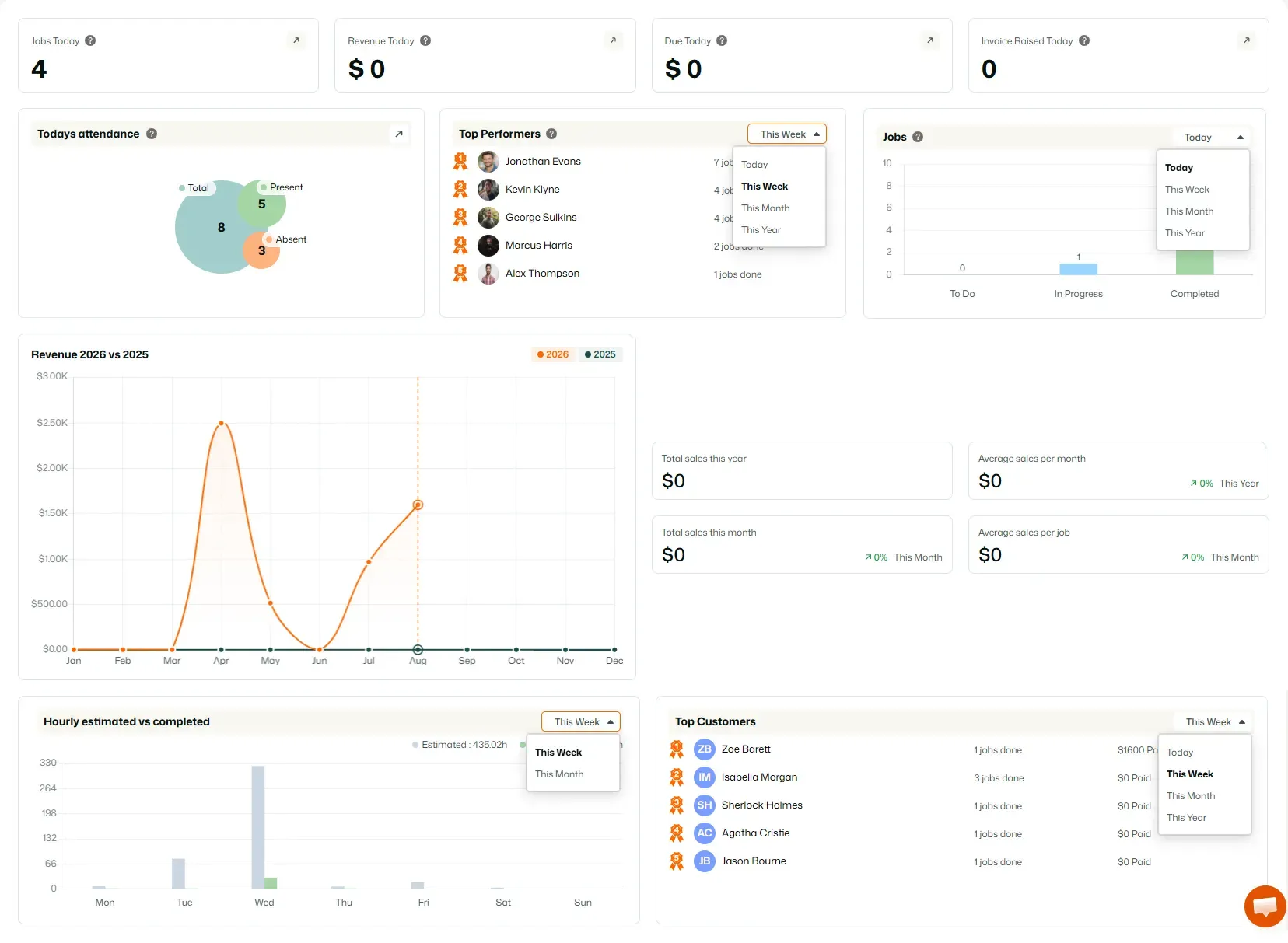
The Dashboard provides an overview of important Organization statistics.
You can filter the following sections by time period:
Available time periods:
The Jobs in Map page displays jobs on a map based on their assigned locations.
You can filter jobs by:
You can also filter by:
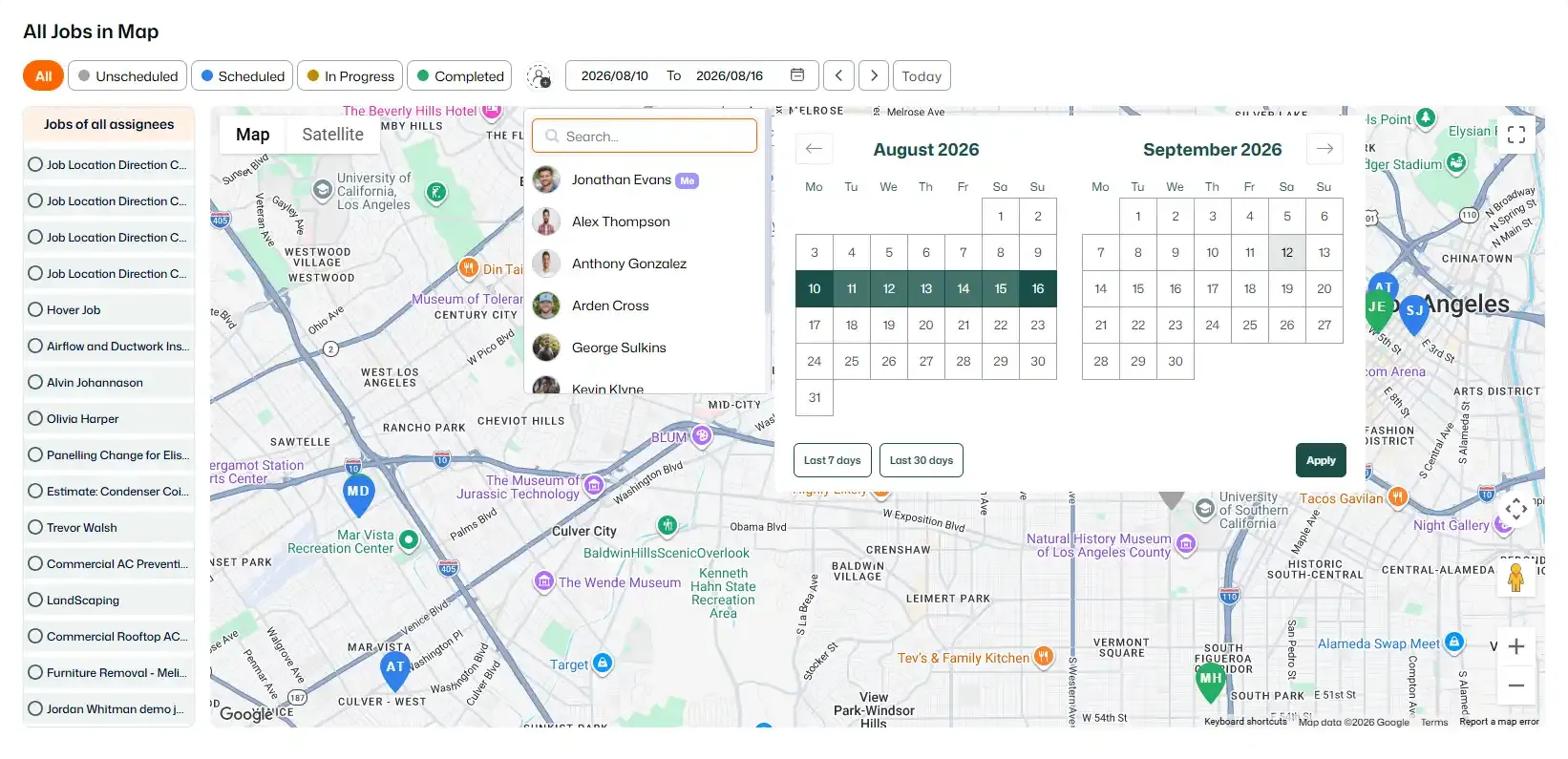
📌 Note: If Missed Jobs are disabled in your Organization settings, the Missed filter will not appear.
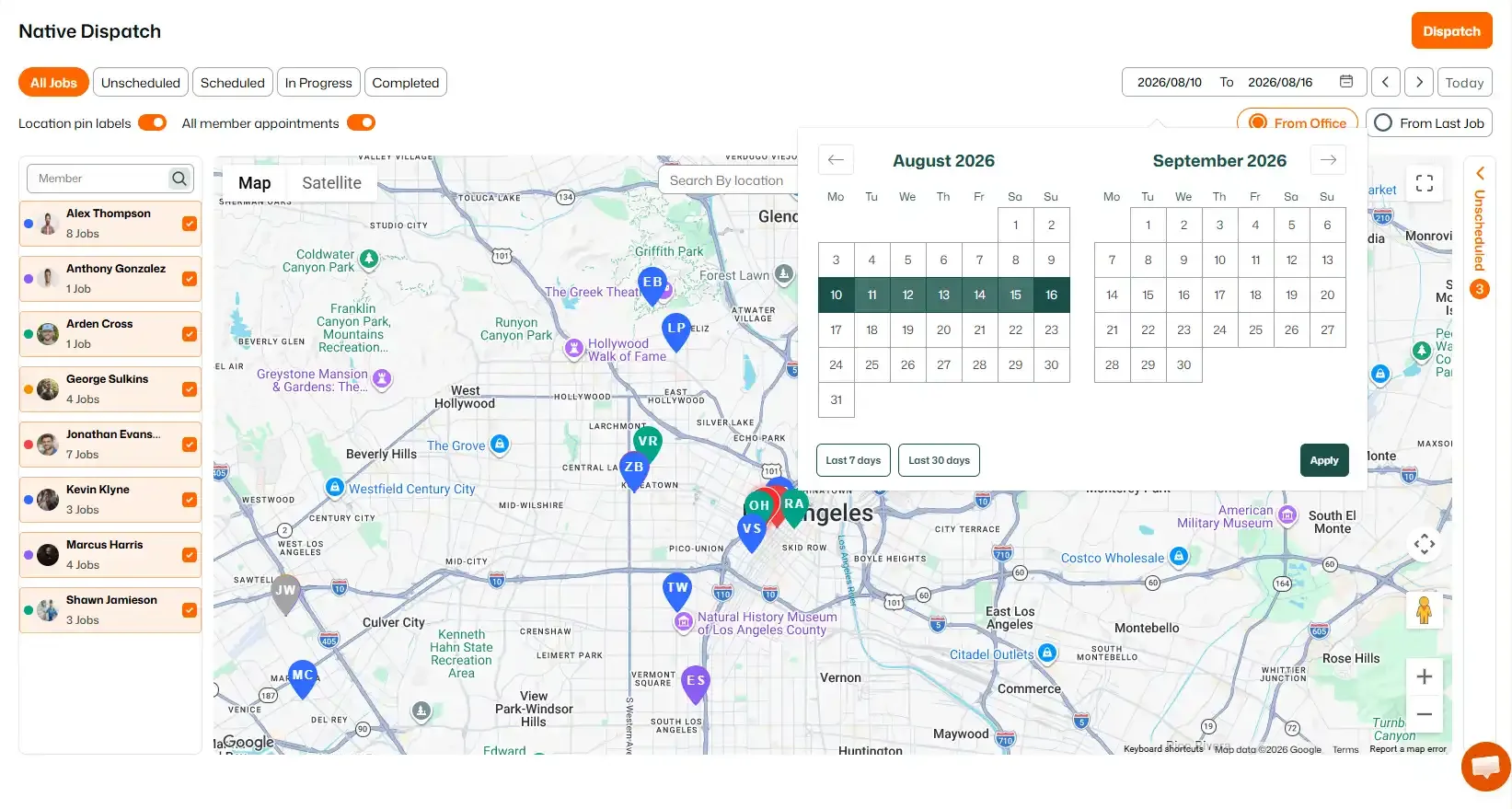
The Dispatch page provides a map view of your Organization’s jobs and shows how many jobs are assigned to each Member.
You can filter jobs by:
Additional filtering options include:
The Scheduling page provides a calendar view of your Organization’s jobs.
You can switch between:
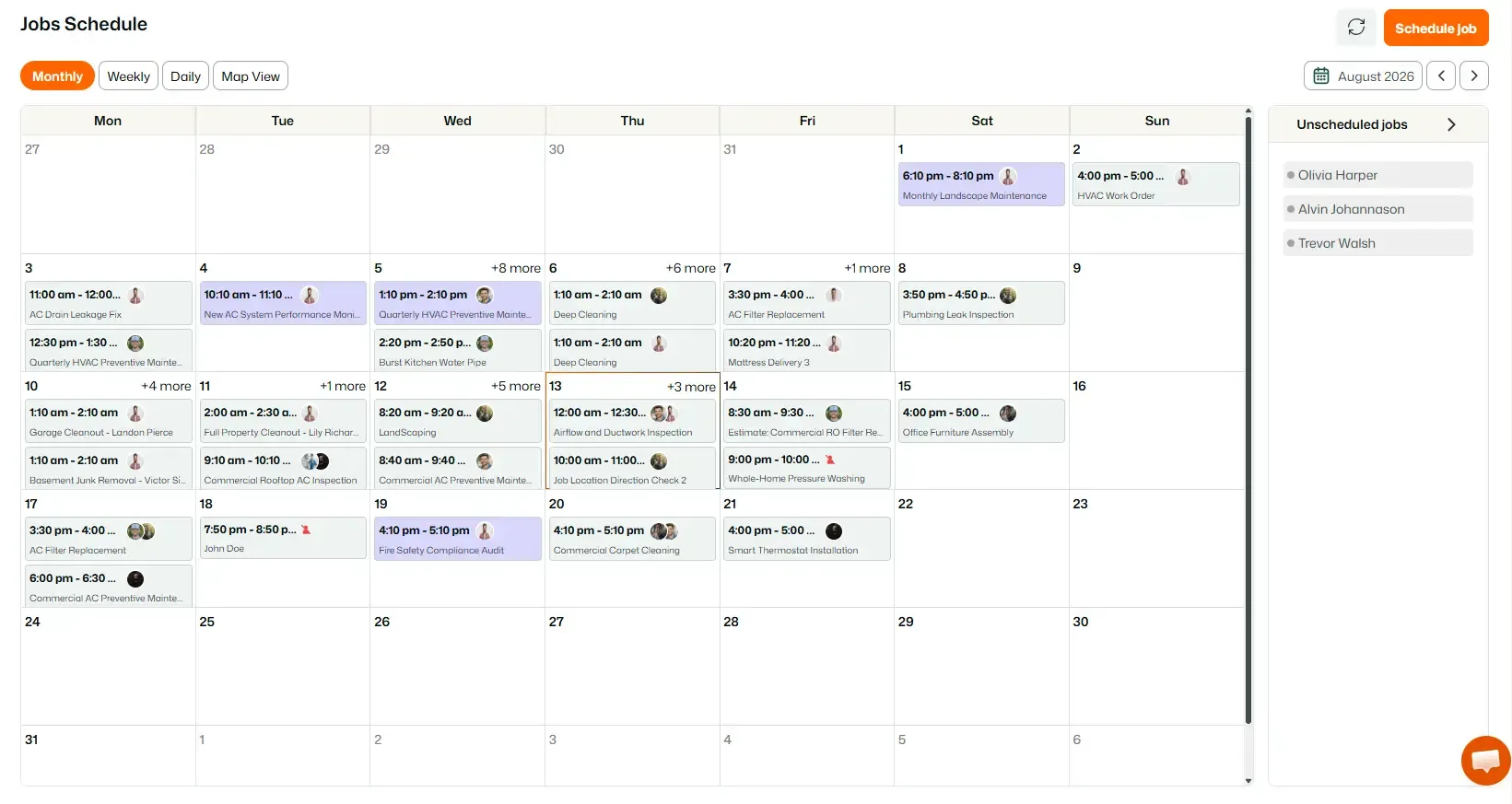
You can also access unscheduled jobs from the Unscheduled collapsible panel.
Jobs from this panel can be dragged and dropped onto a date to schedule them.
The Routes section contains FieldTask’s employee tracking and route optimization features.
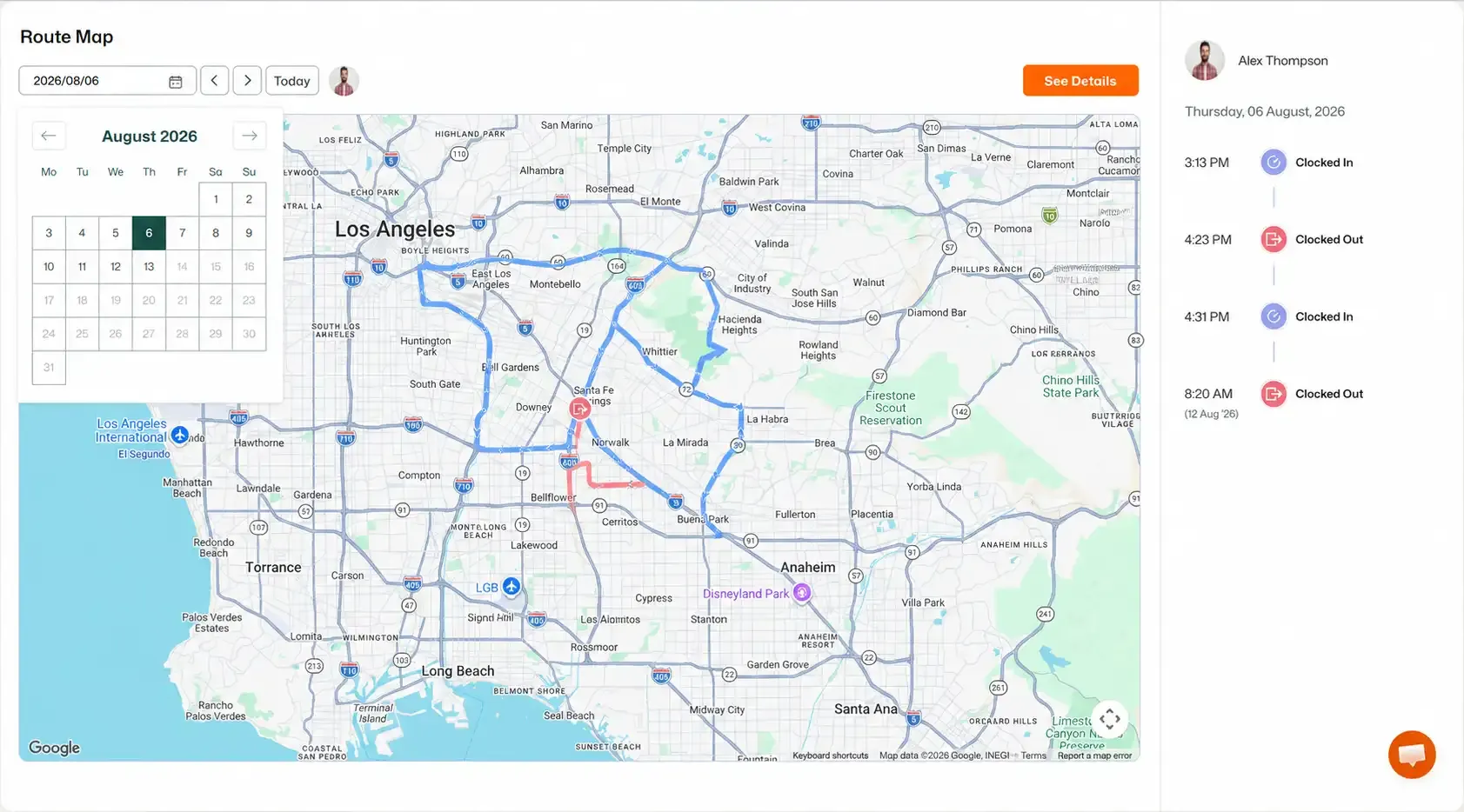
The Route Map displays the route traveled by a Member between job Check-In and Check-Out.
You can filter Route Maps by:
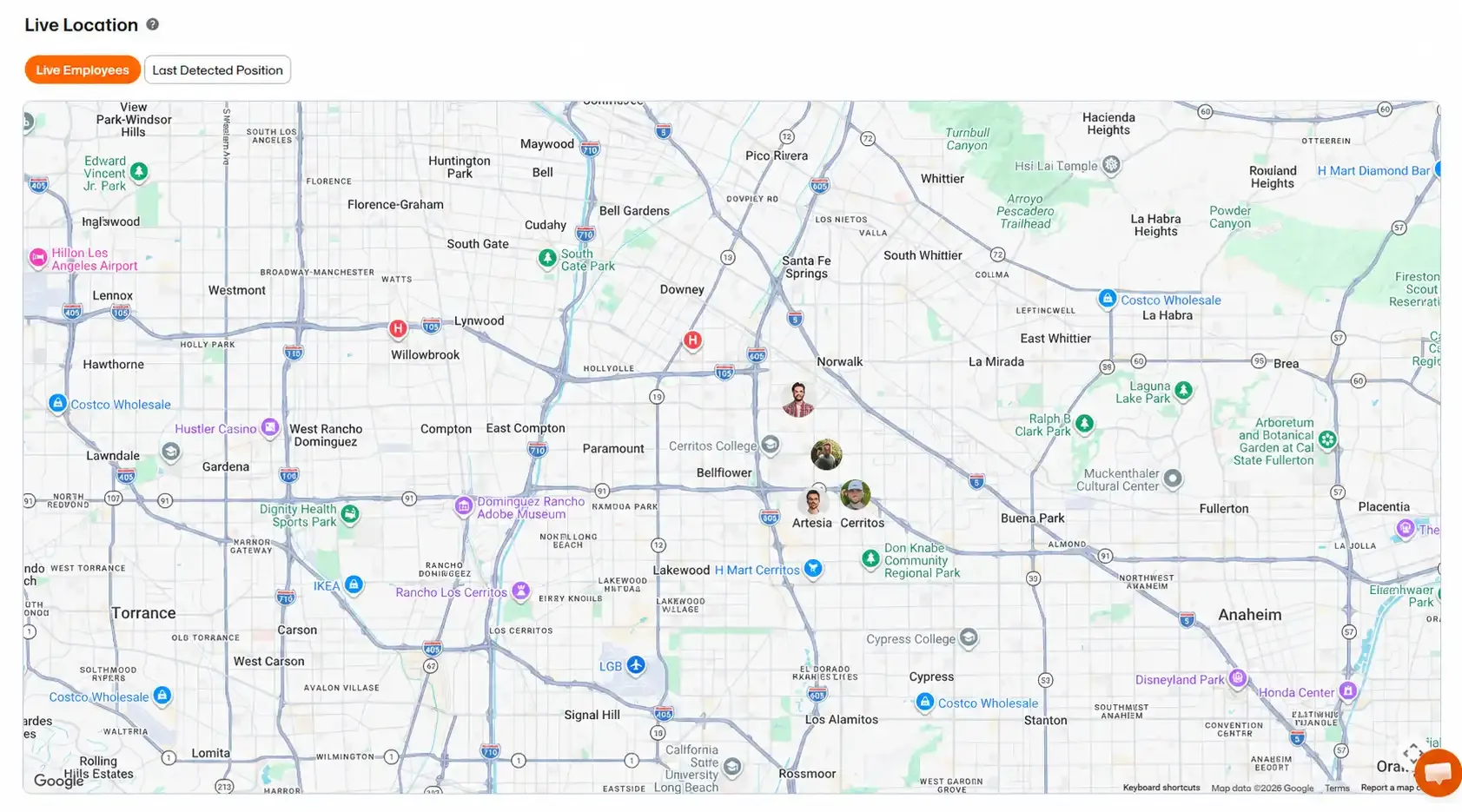
The Live Location page provides two views:
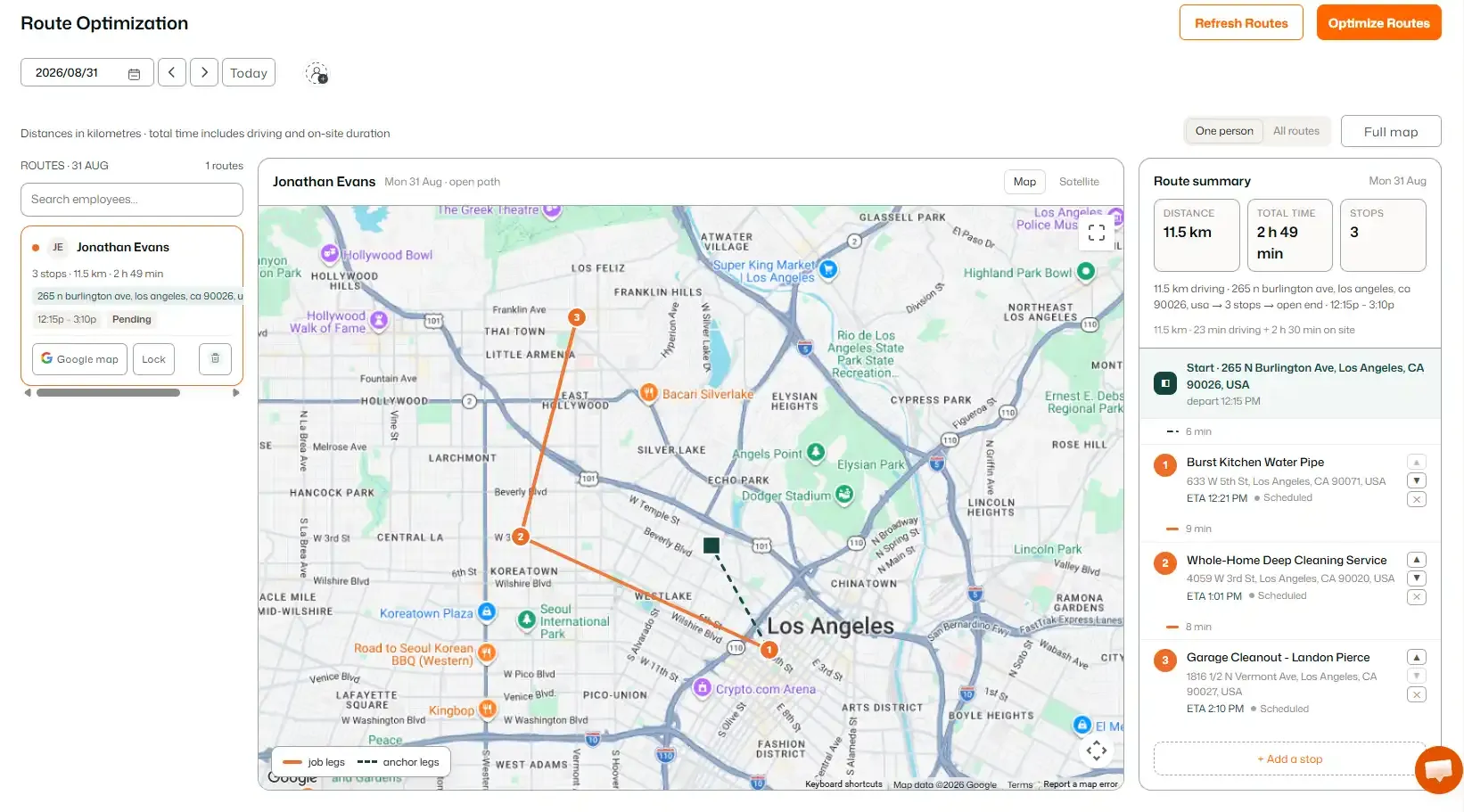
The Route Optimization feature helps create efficient routes for Members with multiple jobs scheduled on the same day.
You can use the Date Picker to view routes created for a specific day.
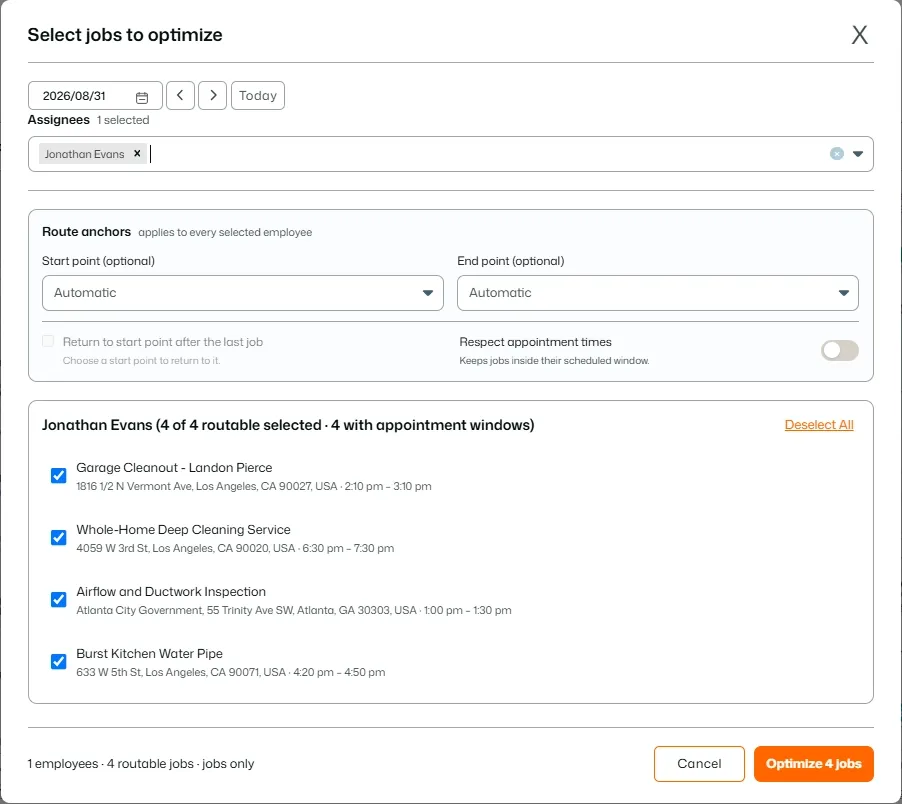
When creating an optimized route, you can filter by:
The Timesheets section shows recorded work time for Members.
Available filters depend on the Timesheet view.
Filters:
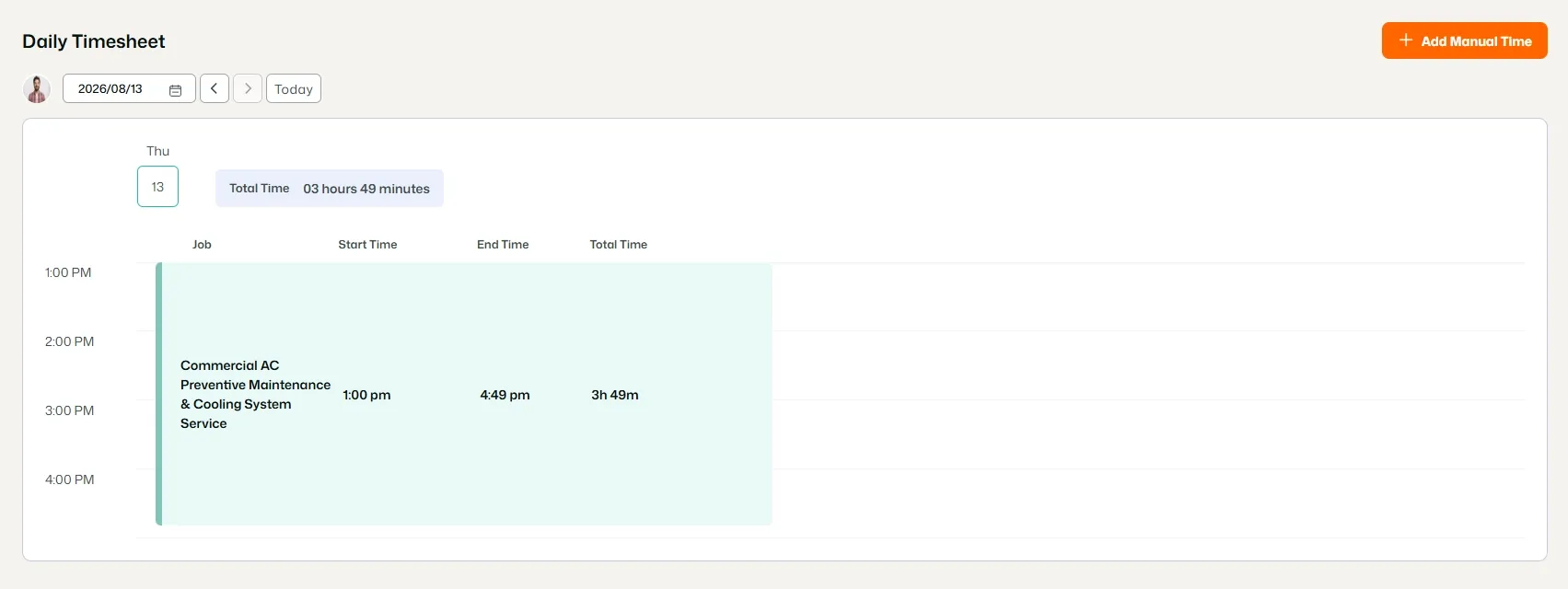
Filters:
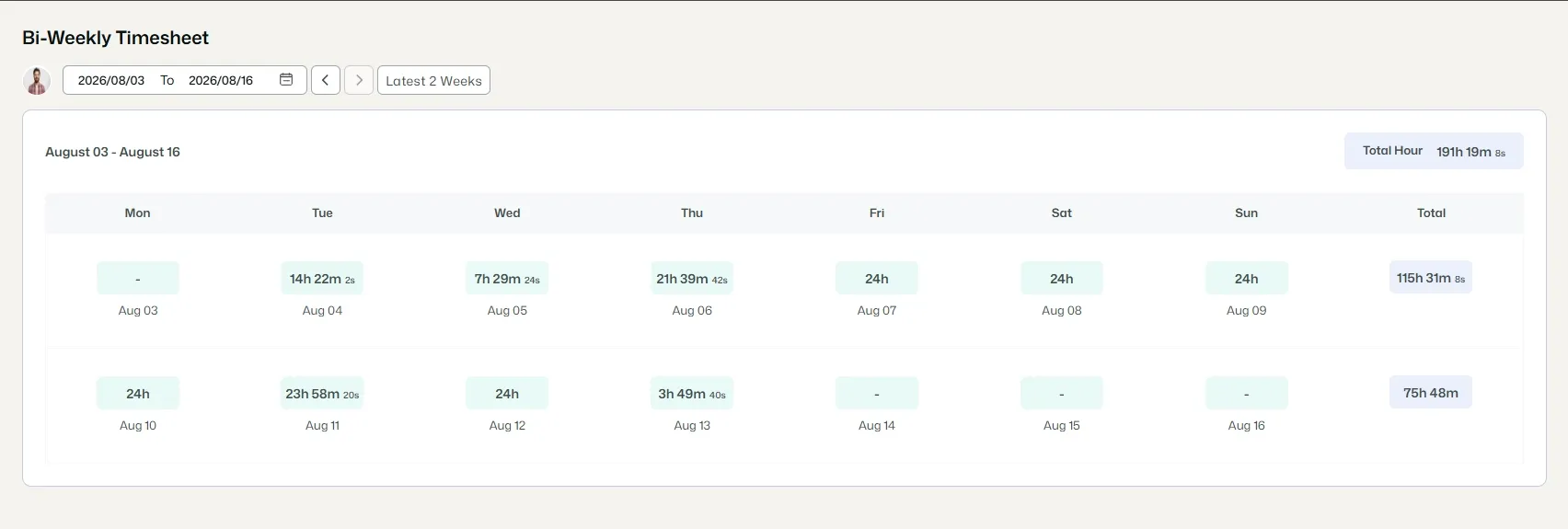
Filters:
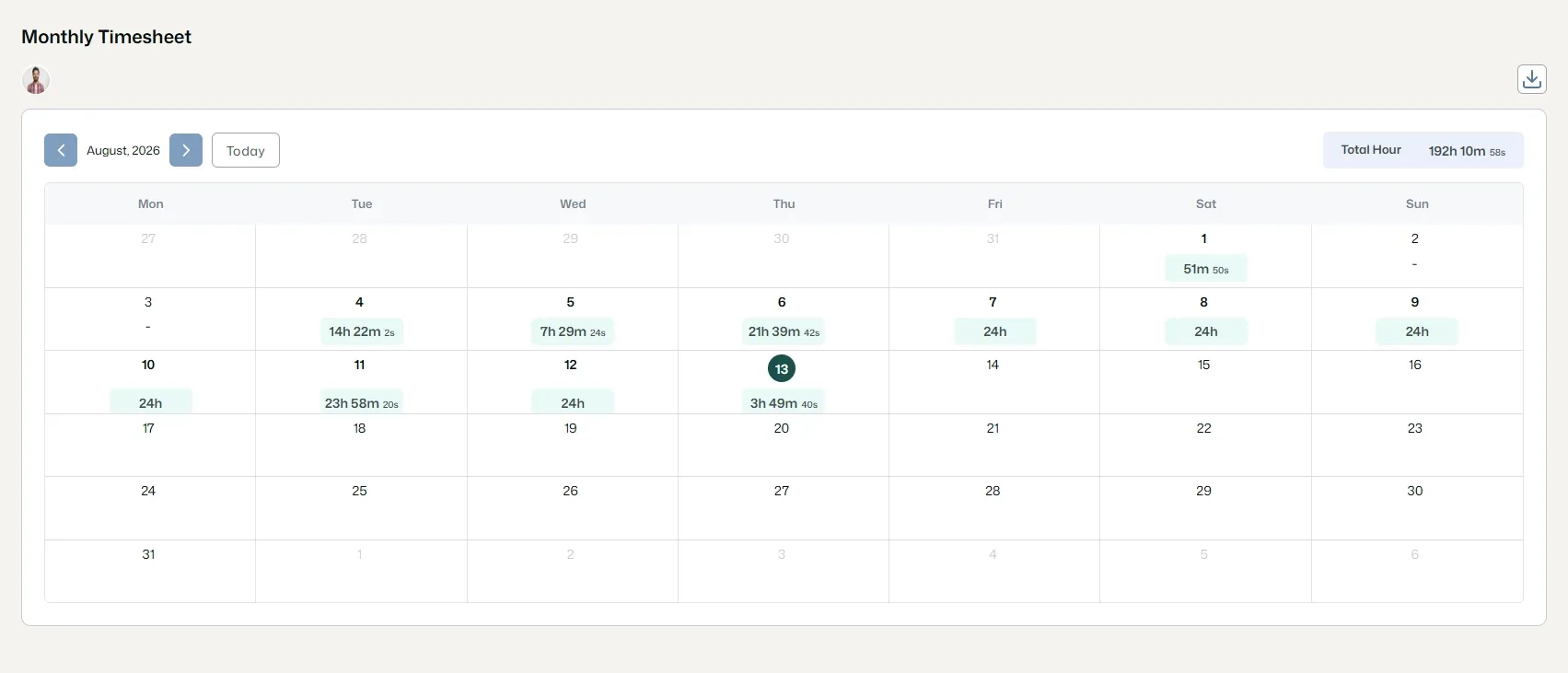
Filters:
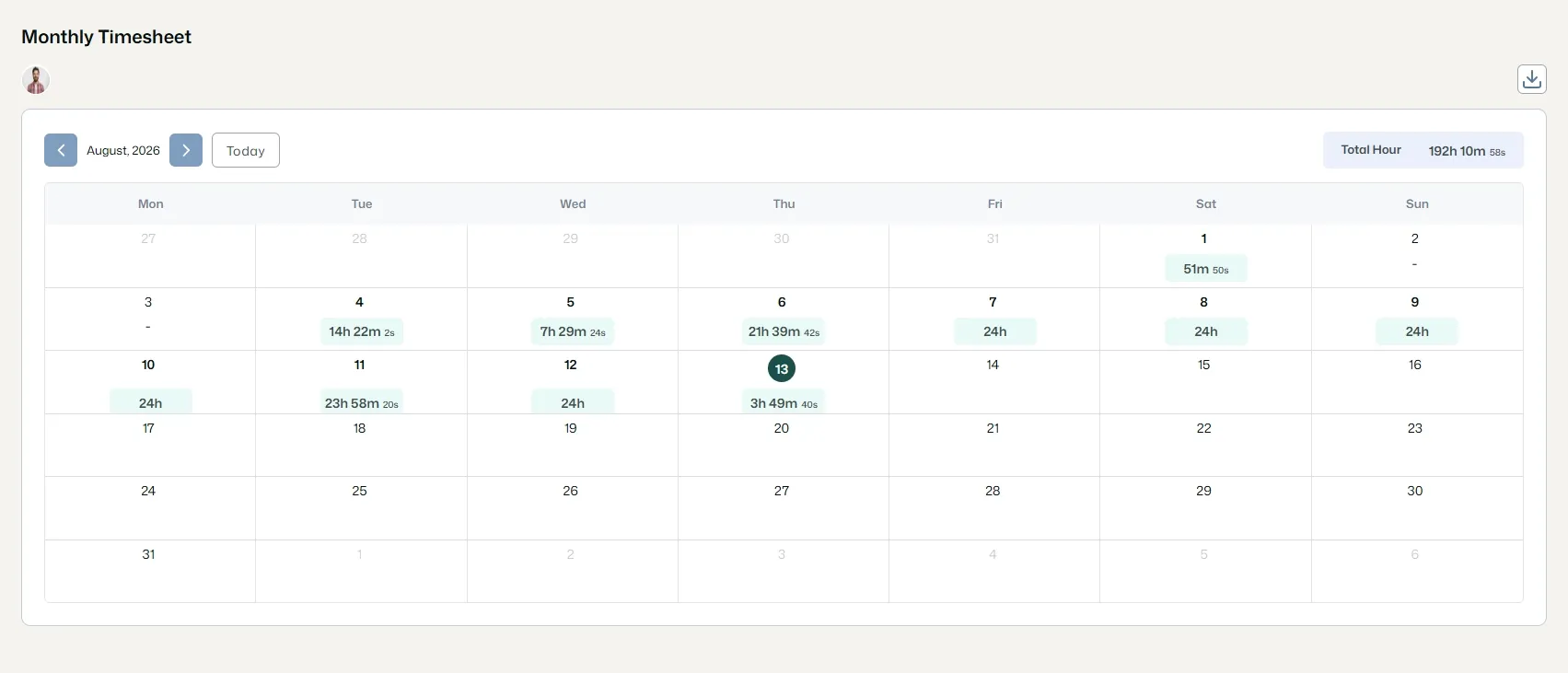
Filters:
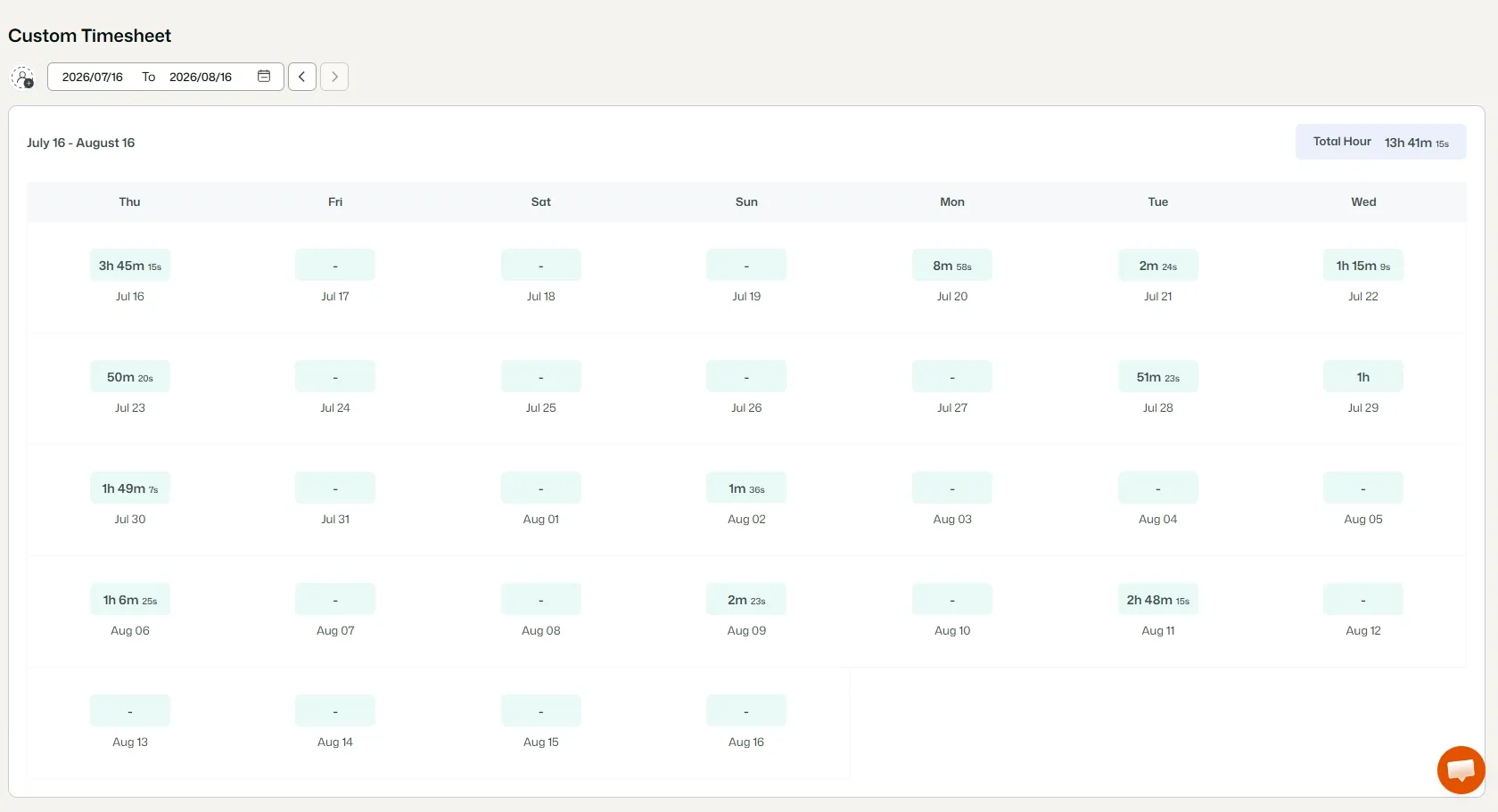
The Approval section shows Timesheets requiring approval.
It contains two pages:
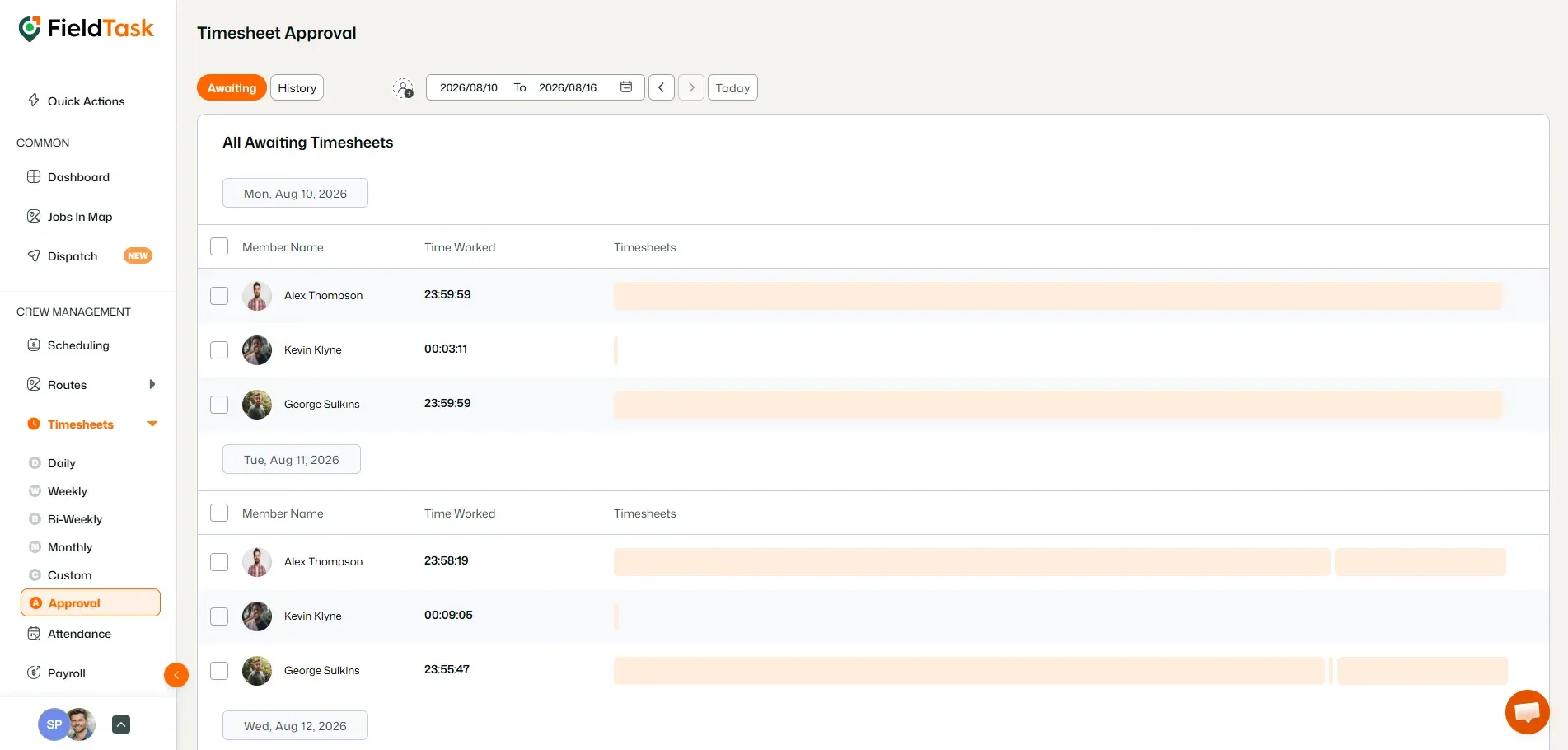
Shows Timesheets waiting for approval.
Filters:
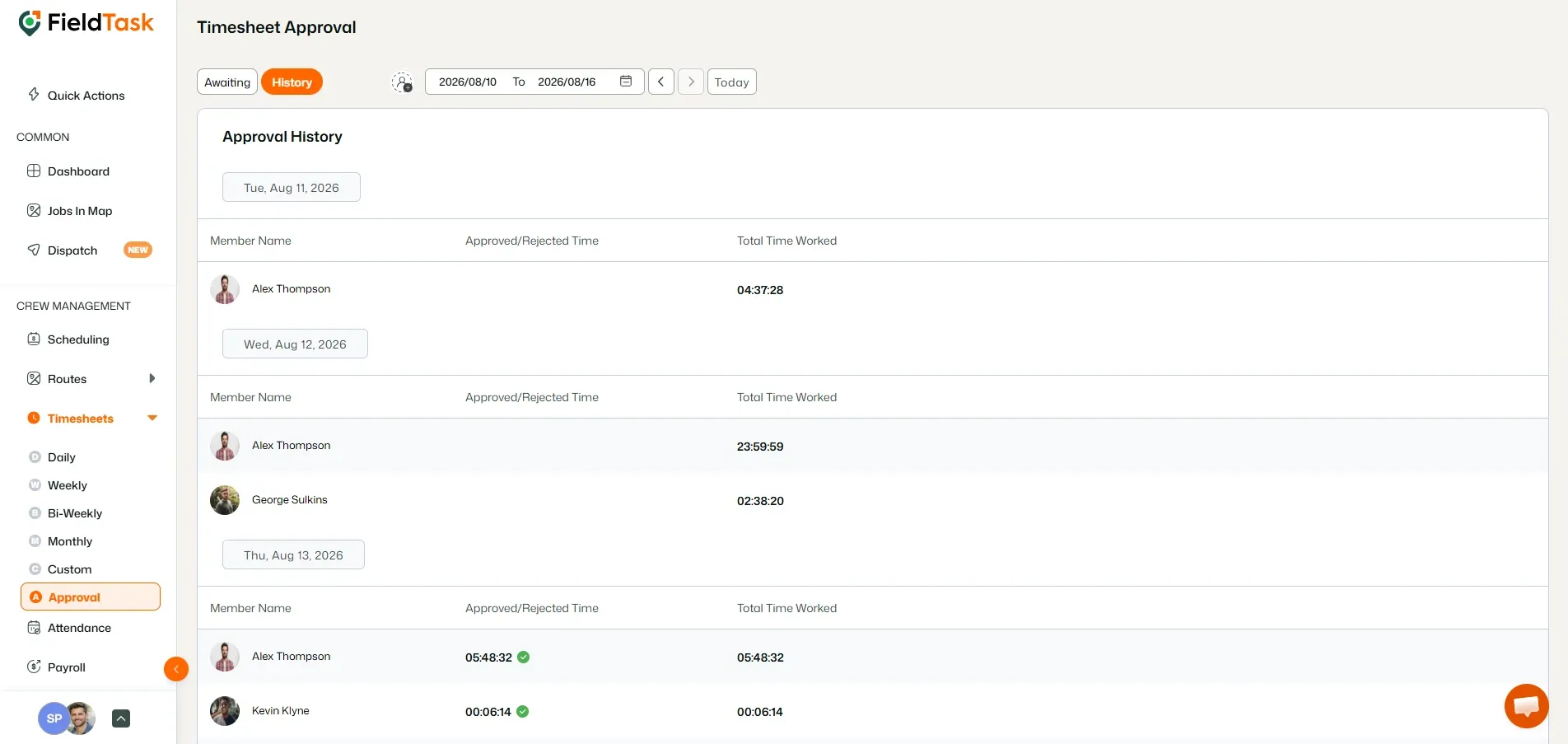
Shows previously approved Timesheets.
Filters:
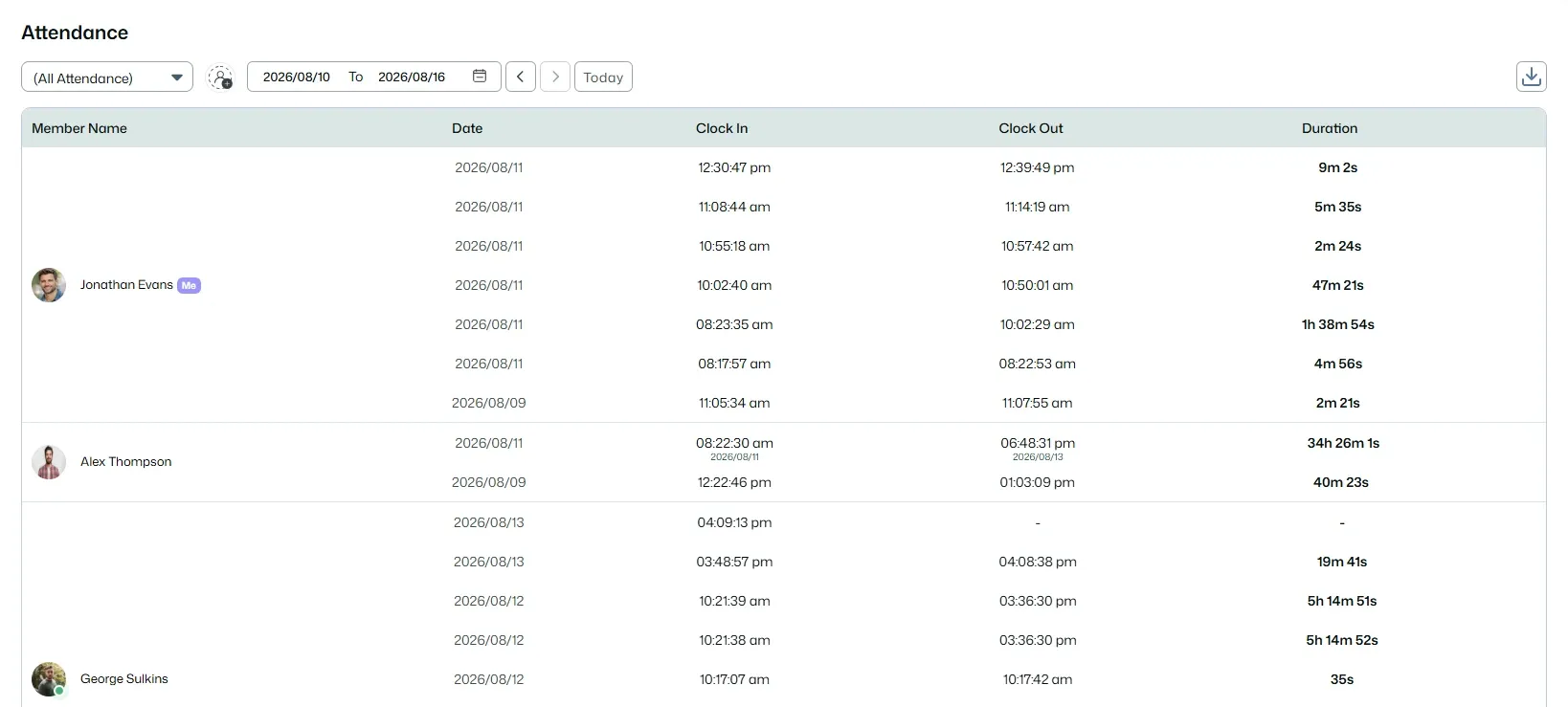
The Attendance page displays attendance records, including:
Filters:
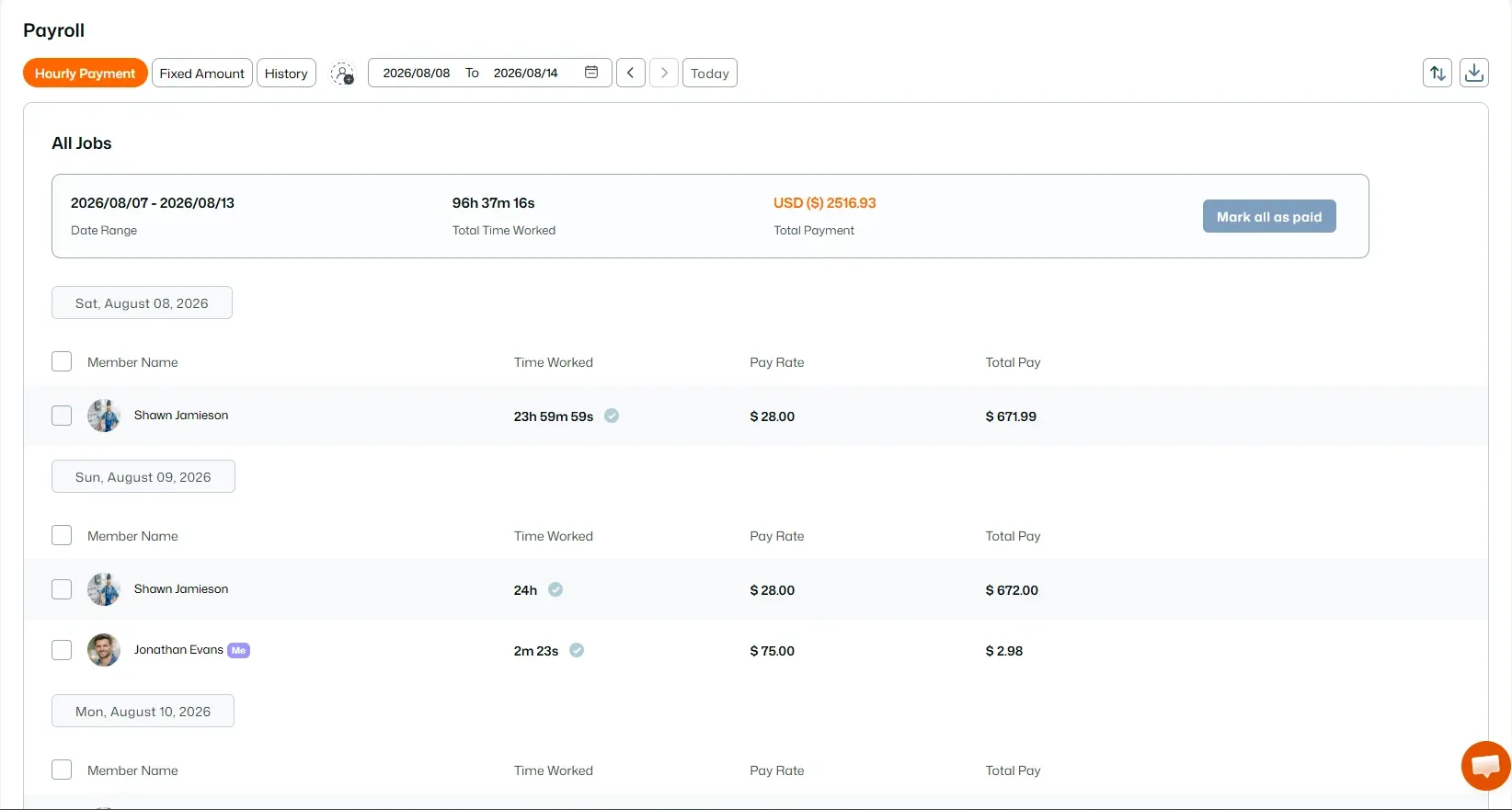
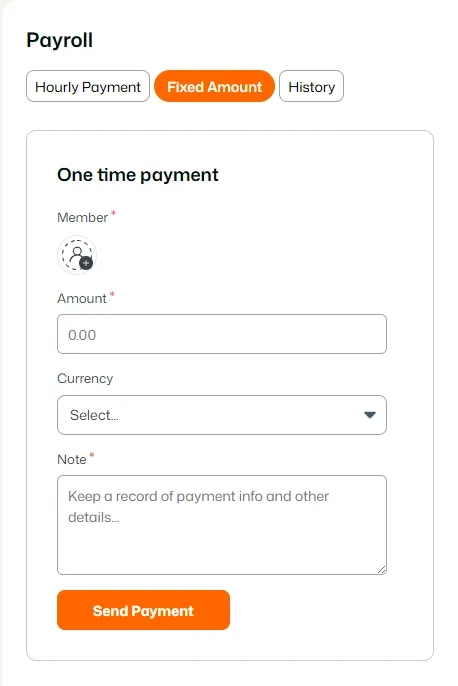
The Payroll section contains payment information and is divided into three sections.
Shows pending hourly payments.
Filters:
Shows fixed payment information.
Shows completed payments from:
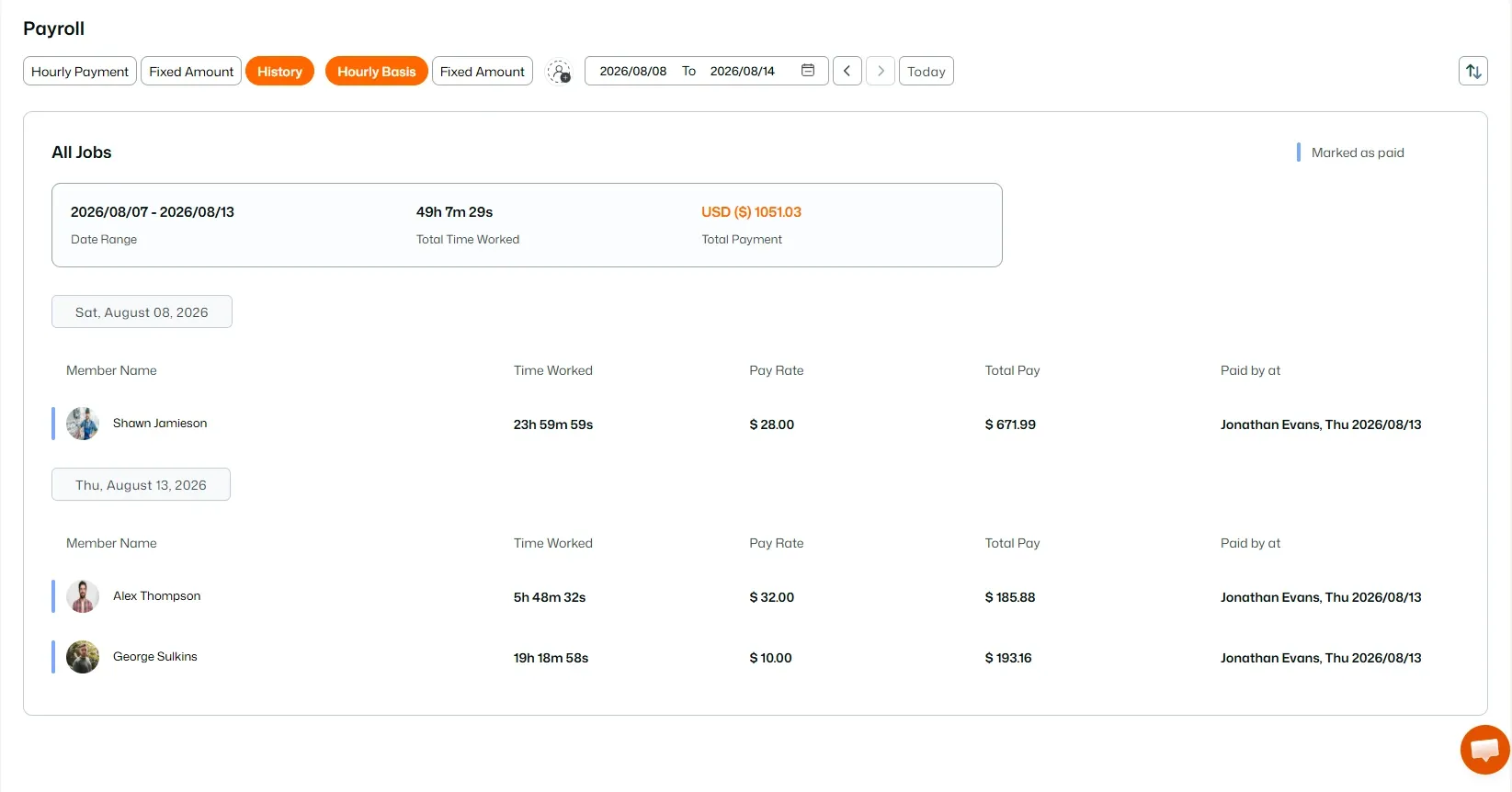
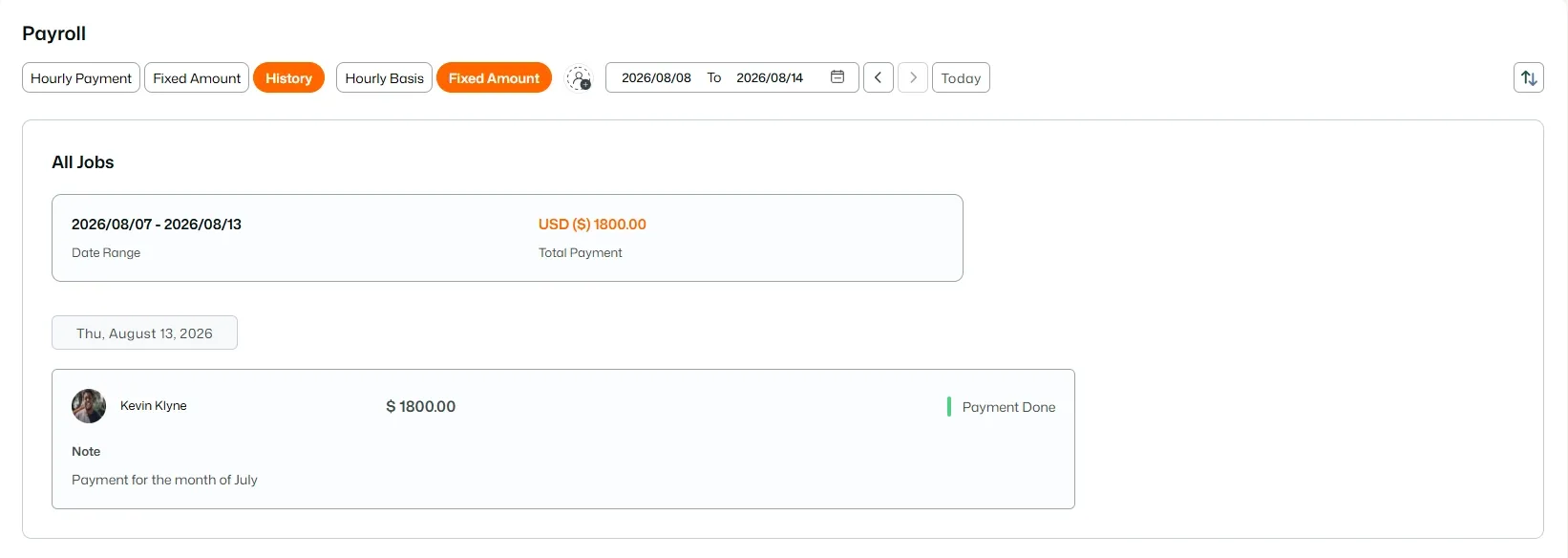
Filters:
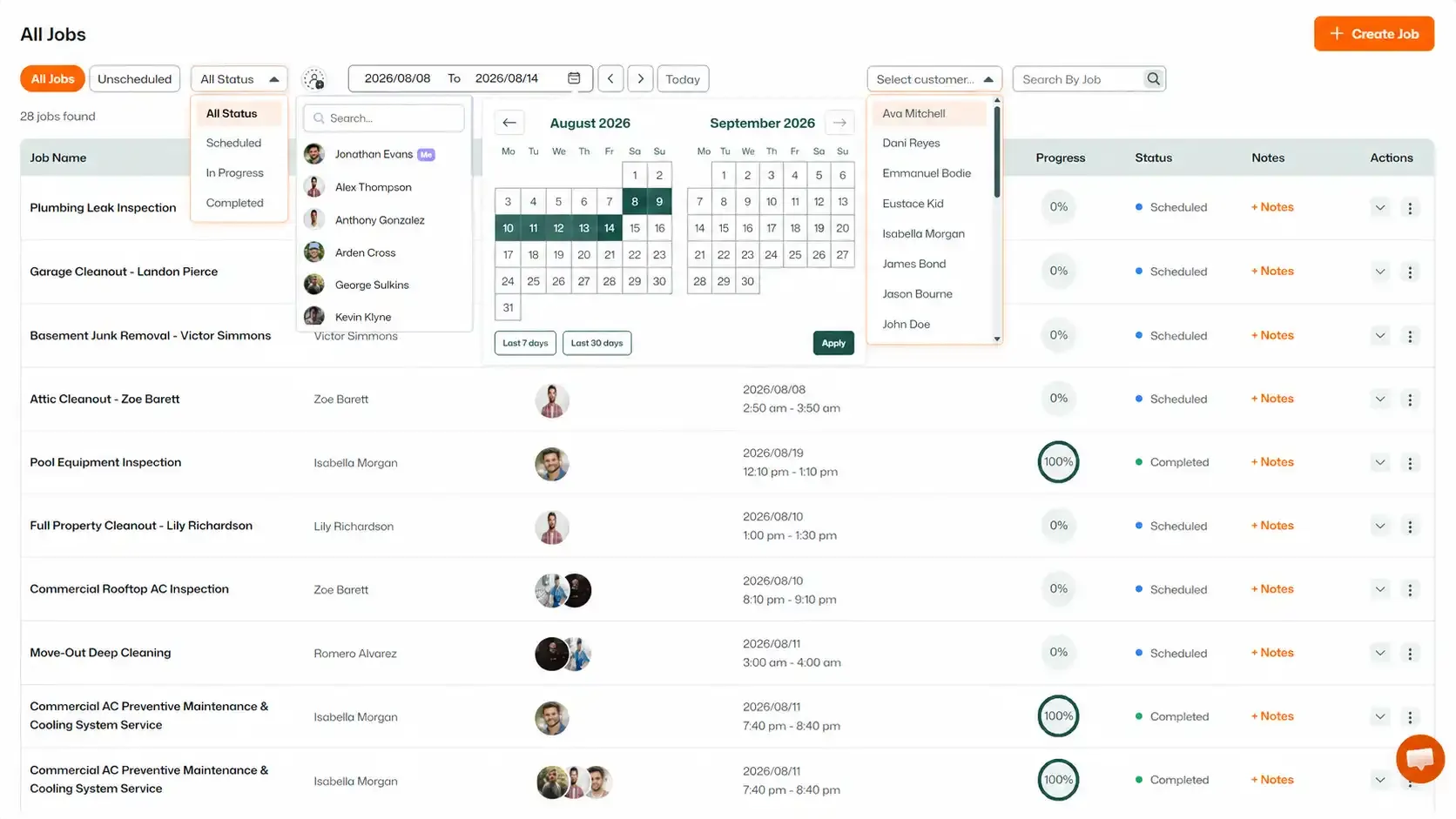
The Jobs module contains:
Filters:
Other filters:
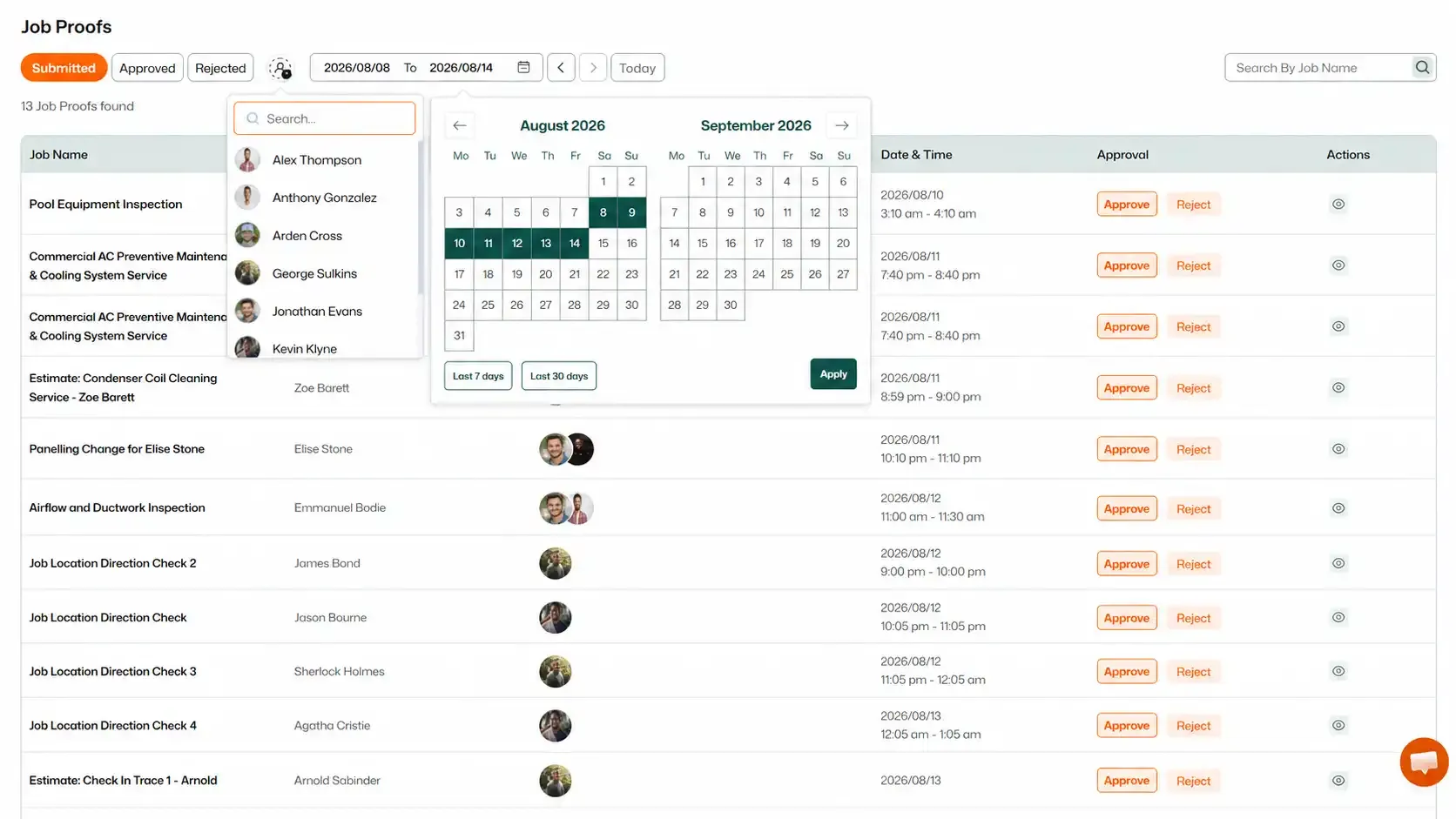
Displays jobs requiring Proof approval.
Filters:
Other filters:
The Proximity page helps assign jobs based on Member proximity.
You can switch between:
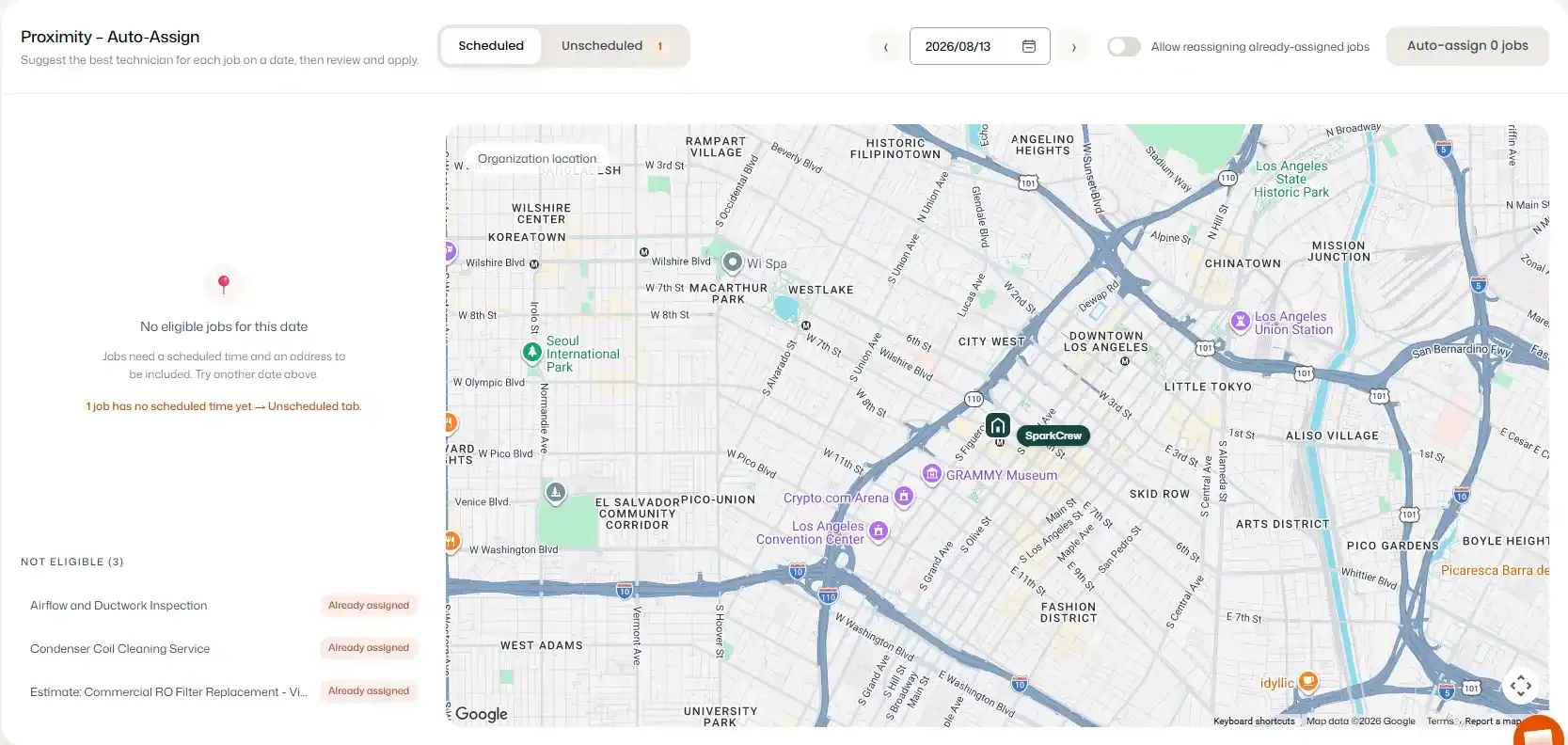
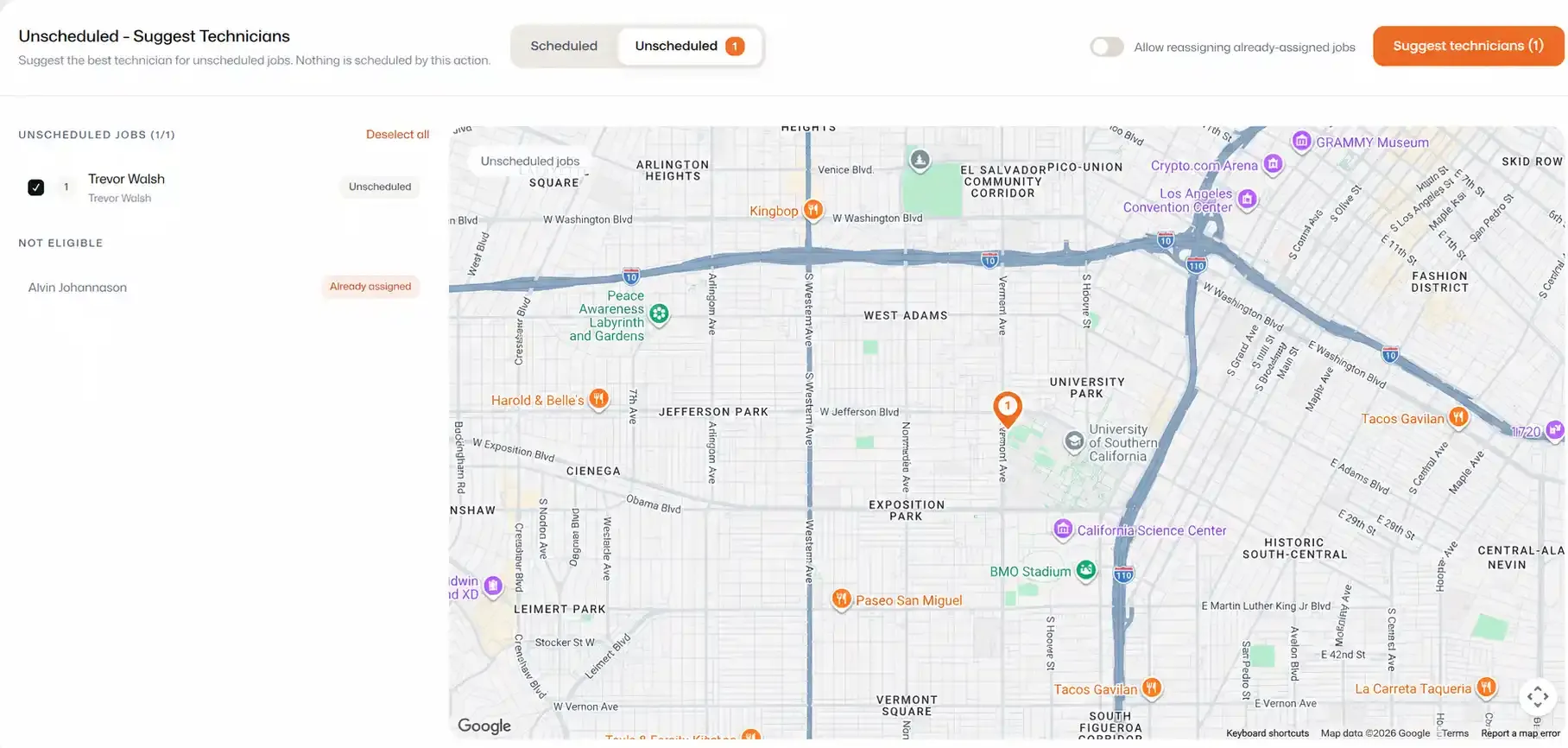
If Allow reassigning already assigned jobs is enabled, Scheduled jobs that are already assigned can also appear for reassignment.
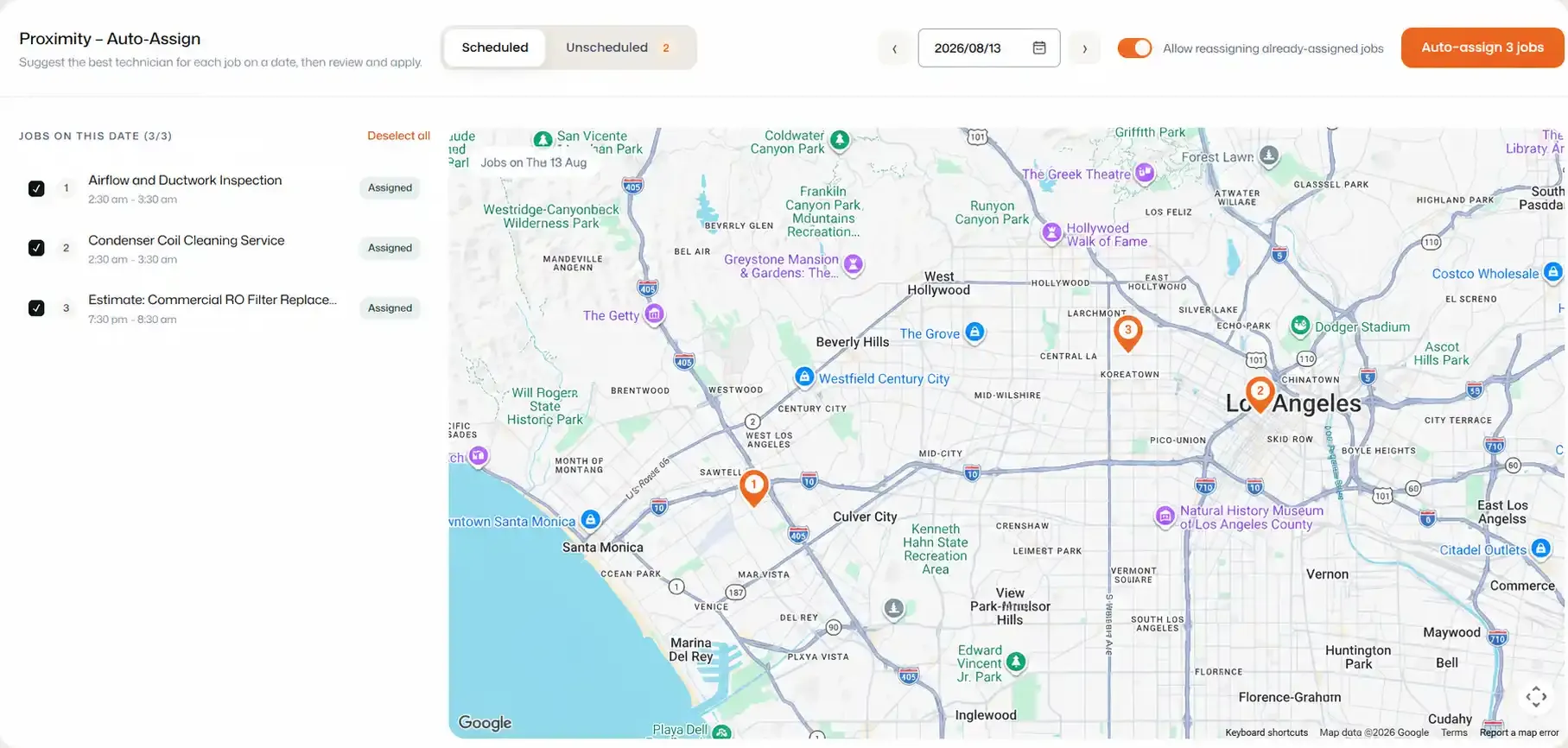
Filter available:
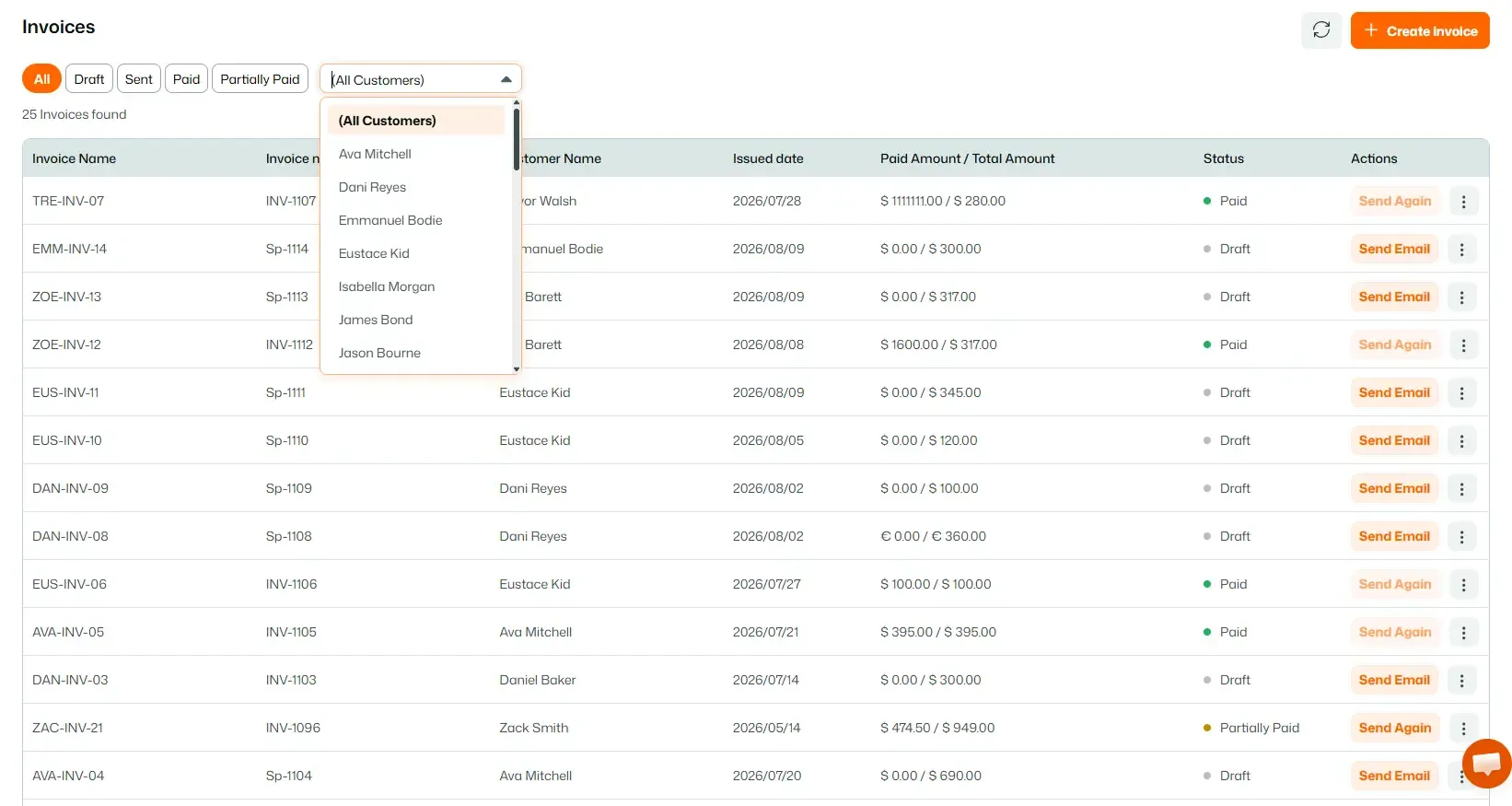
The Invoice page displays created invoices.
Filters:
Other filter:
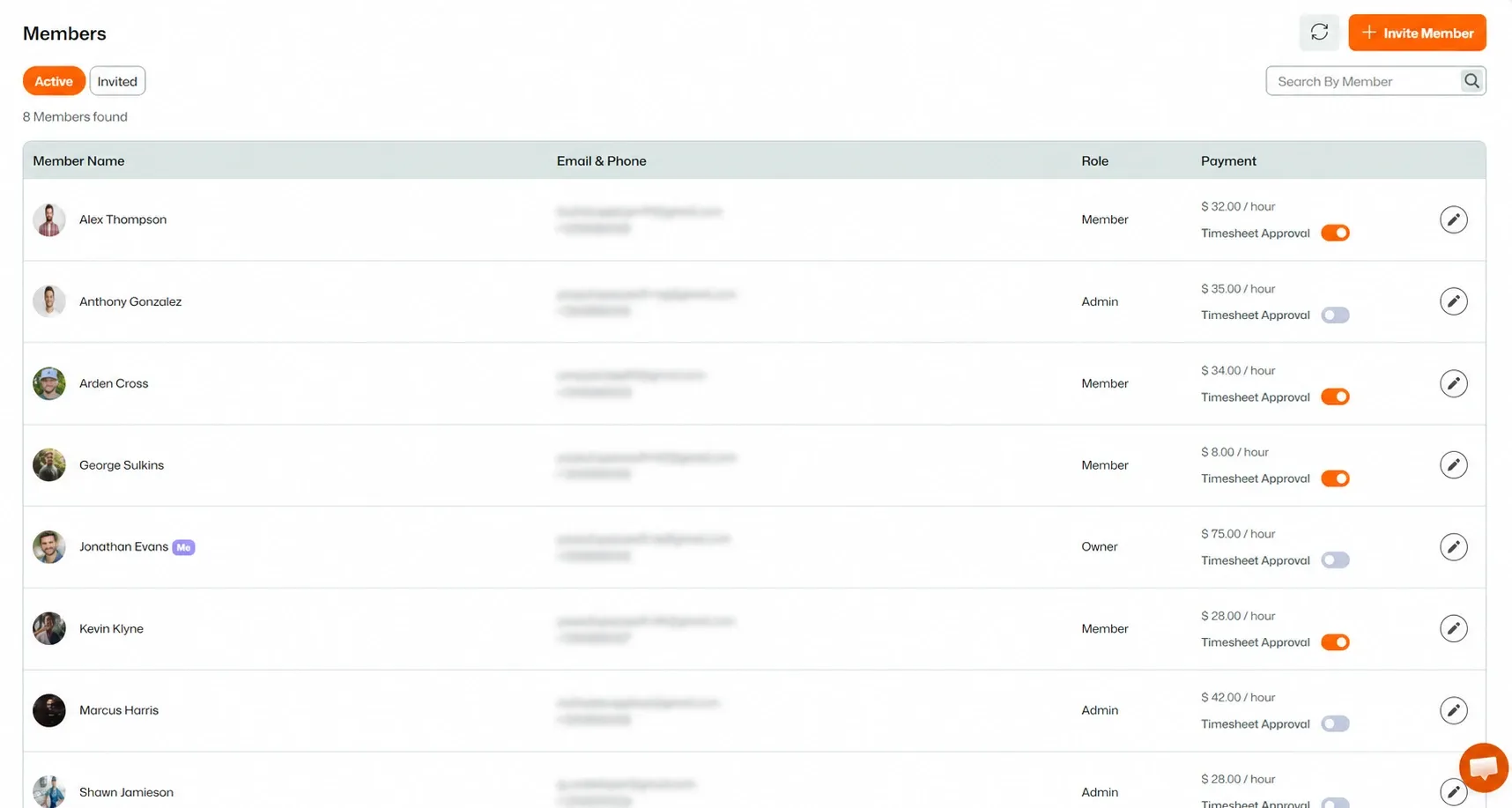
The Members page displays Organization Members.
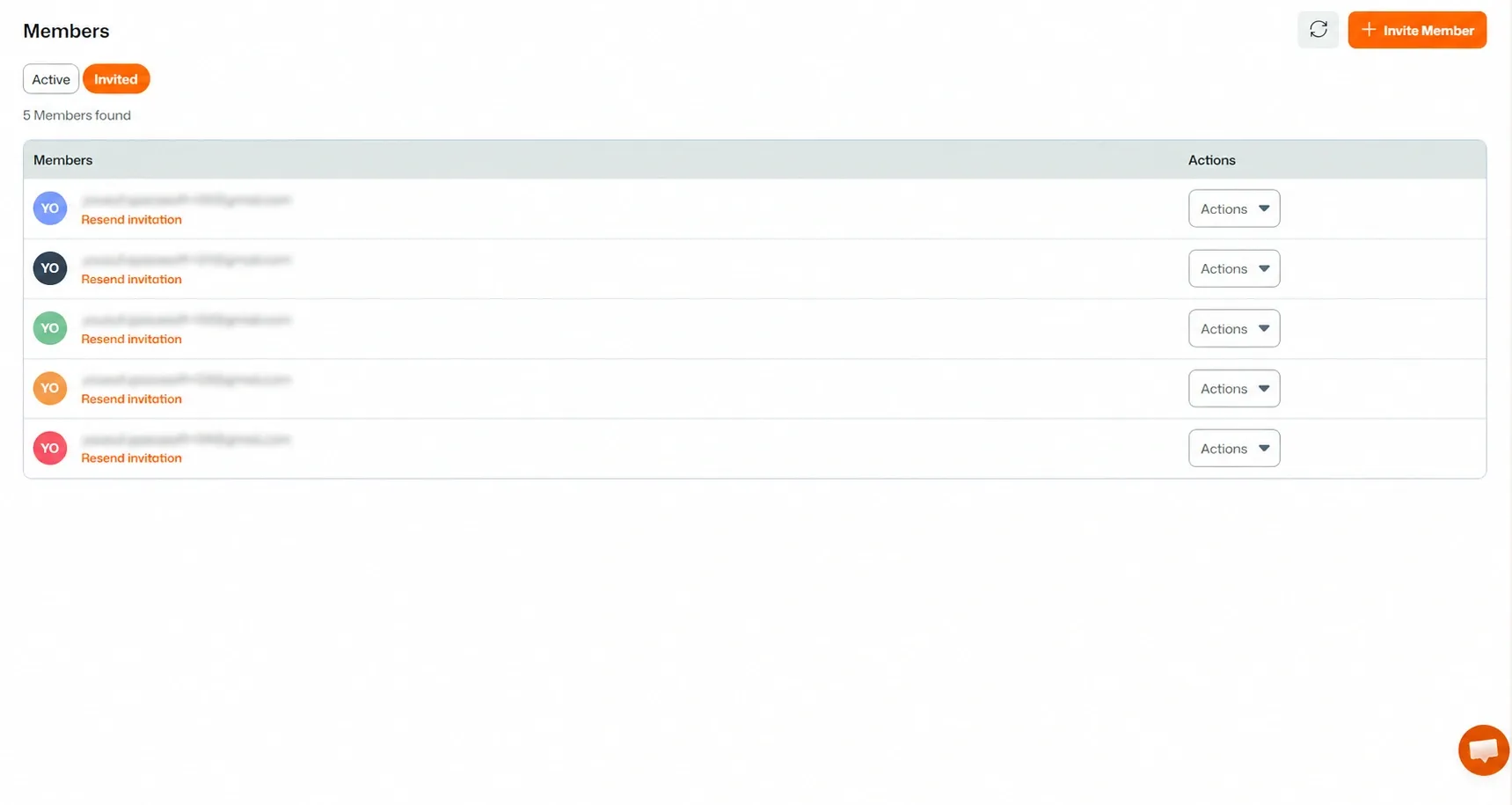
It contains two tabs:
Shows Members currently active in your Organization.
Shows people who have been invited to join your Organization.
Filters help you quickly locate specific information throughout FieldTask and make managing your field operations more efficient.
Manage dispatch, route plan, techs, quotes, invoices, and more in GHL, the only dedicated field service app for HighLevel home service businesses and contractors.
The complete FieldTask sitemap: quick links to all pages.
Learn how FieldTask supports HIPAA compliance for home health and field service teams—encryption, BAAs, access controls, and audit logging.