
Invoice Creation
Create an invoice for an existing customer or add a customer from the invoice form. Enter the invoice name, review its number, choose the currency, set issue and due dates, and select a related work order.
Prepare customer invoices without rebuilding every item from scratch. Add saved products and services, apply taxes or discounts, and send invoices while keeping your billing connected to HighLevel.

Bring invoice details, line items, and payment statuses into one workflow. Create bills connected to your customers and work orders, then see what’s drafted, sent, partially paid, or paid.
Create an invoice for an existing customer or add a customer from the invoice form. Enter the invoice name, review its number, choose the currency, set issue and due dates, and select a related work order.
Add products or services as invoice items. Select an existing catalog entry or enter an item name, then review the description, quantity, and unit price. For products with multiple prices, choose the appropriate pricing option.
Configure up to two named taxes and an invoice discount. Enter percentage values or fixed amounts, and use the tax switches on individual line items to specify which taxes apply. Review the grand total before saving.
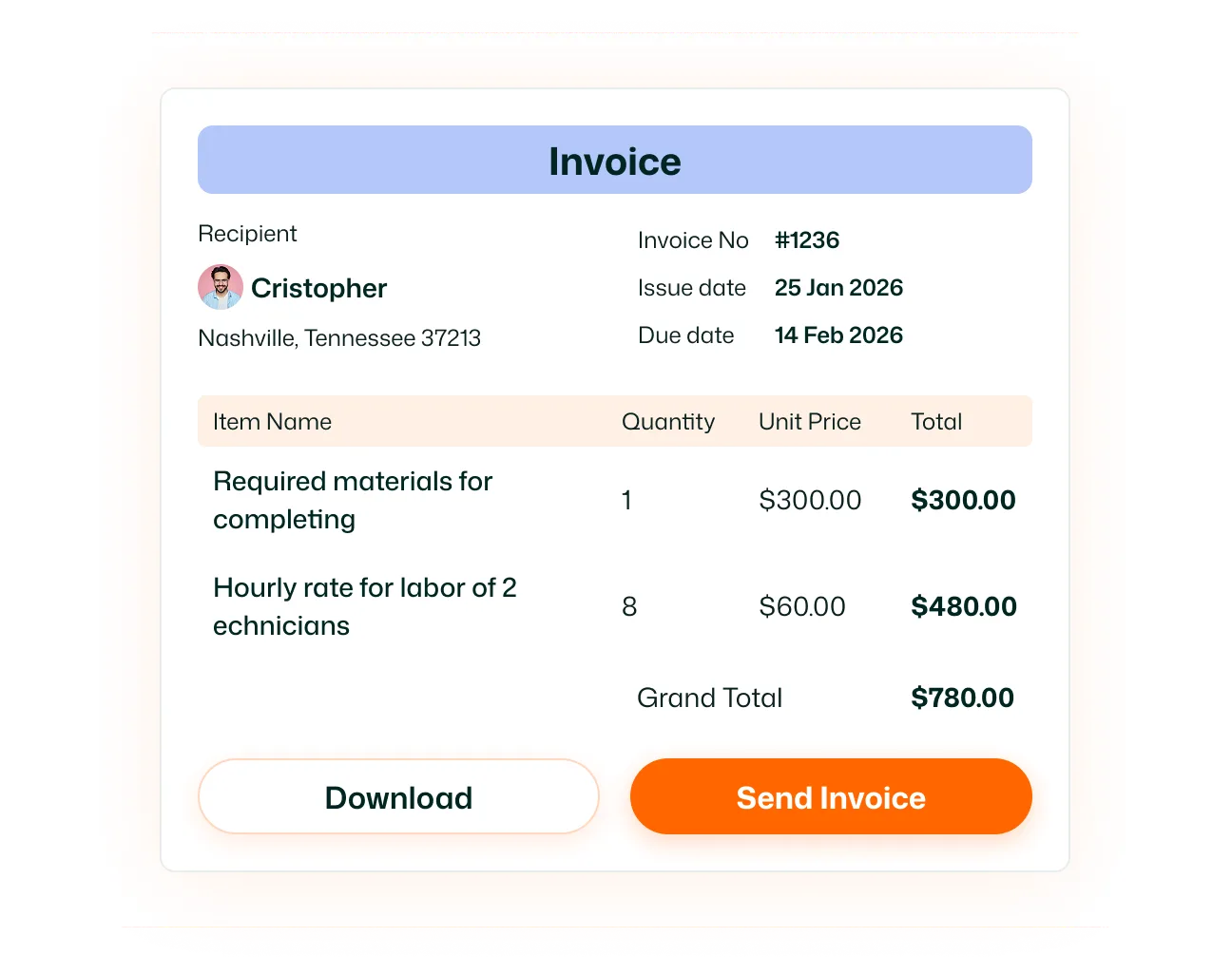
Use Save Invoice to keep a draft or Save & Send when the invoice is ready. The invoice list also provides Send Email for drafts and Send Again for sent invoices, so you can manage delivery from the same page. You can either send it from GHL or FieldTask if you want to.
View invoice names, numbers, customers, issue dates, paid amounts, totals, and statuses in one list. Filter by customer or switch between Draft, Sent, Paid, Partially Paid, and Void to review specific invoices.
Bring available HighLevel invoices into FieldTask individually or with Add All. Invoices created in FieldTask also sync with HighLevel, with updates reflected across both platforms through two-way synchronization.
Reduce the admin between finishing a job and billing your customer. Reuse catalog items, send clear invoices, and keep payment statuses visible so your team knows which bills need attention.
Open Invoices and click Create Invoice. Select the customer, enter the invoice details, add line items, and configure any taxes or discounts. Then save the invoice as a draft or use Save & Send.
Yes. The invoice form includes a Work Orders selector so you can associate the invoice with relevant work. This keeps the billing record connected to the service you’re invoicing.
Yes. Select products or services from your catalog when adding line items. Review the description, quantity, and unit price before adding the item. If a product has multiple pricing options, you can select the appropriate price.
Yes. FieldTask provides fields for two named taxes and a discount, with percentage or fixed-amount options. Individual line items have switches for each tax, allowing you to specify which taxes apply.
Yes. Choose Save Invoice to keep it as a draft. Draft invoices appear in the invoice list, where you can find them using the Draft filter and send them when ready.
Yes. Use Save & Send during invoice creation or Send Email from the draft invoice list. Sent invoices provide a Send Again action when you need to resend them.
The invoice list displays each invoice’s status alongside its paid amount and total amount. You can filter for Draft, Sent, Paid, Partially Paid, or Void, and narrow the list to a specific customer.
