The HighLevel Home Service Business Management Software
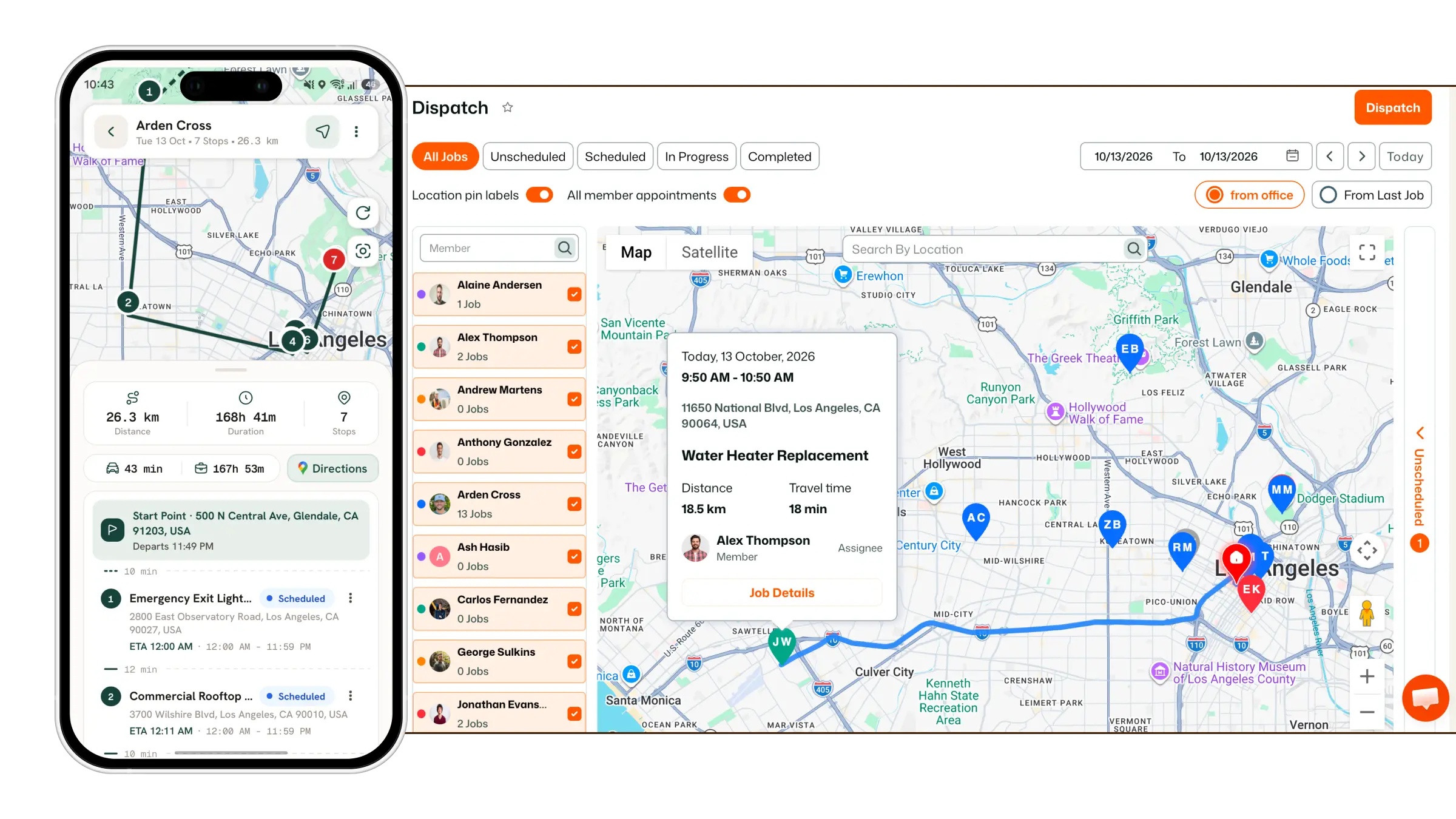
Manage dispatch, route plan, techs, quotes, invoices, and more in GHL, the only dedicated field service app for HighLevel home service businesses and contractors.
Jump to
Learn how to create a new customer directly from the FieldTask Mobile App.
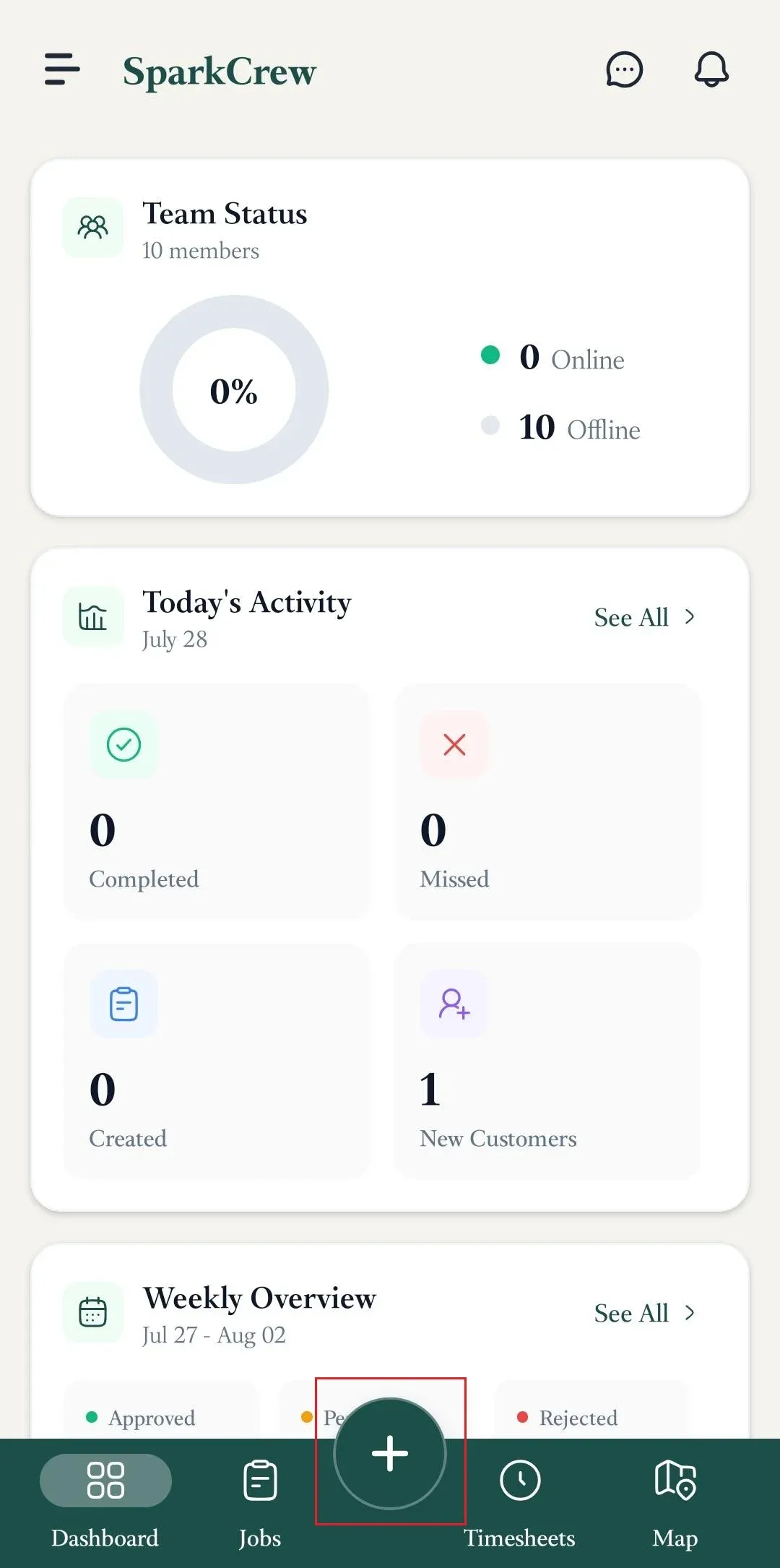
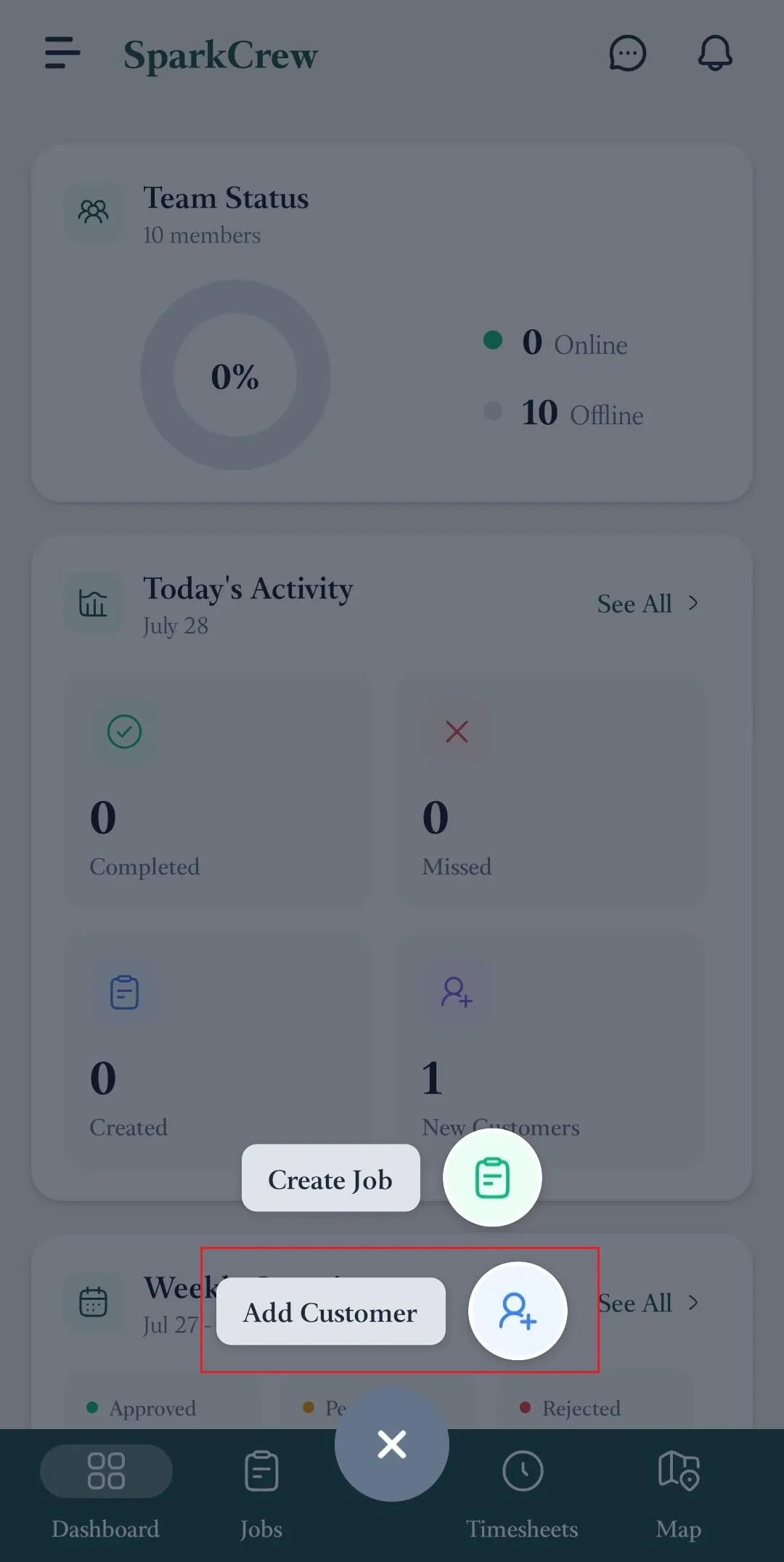
You can add a new customer from two places in the Mobile App:
Once you are logged in to the FieldTask Mobile App, you will see the Create option as a '+' symbol on the bottom navigation bar.
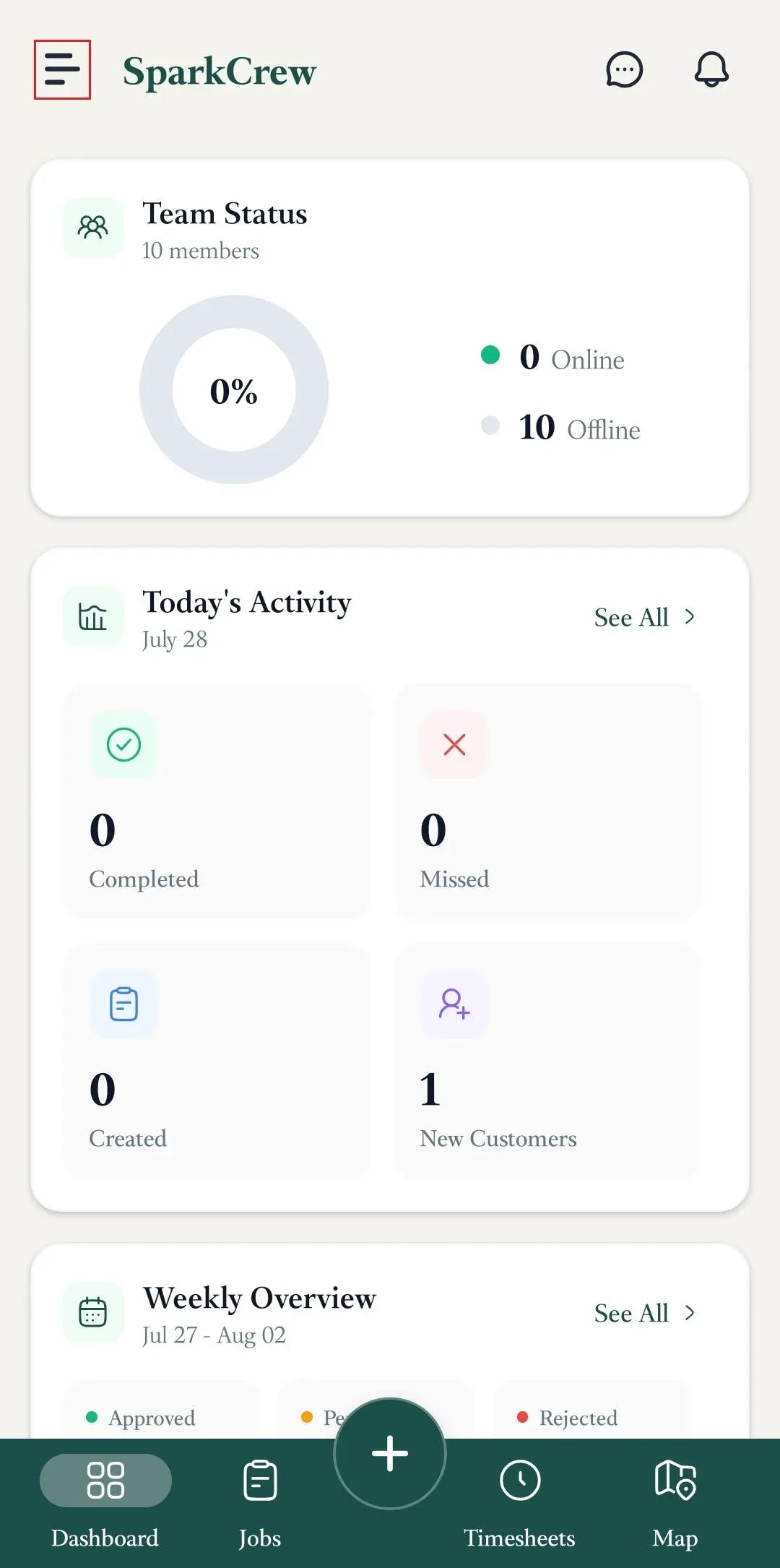
You can also create a new customer directly from the Customers page.
To access the Customers page:
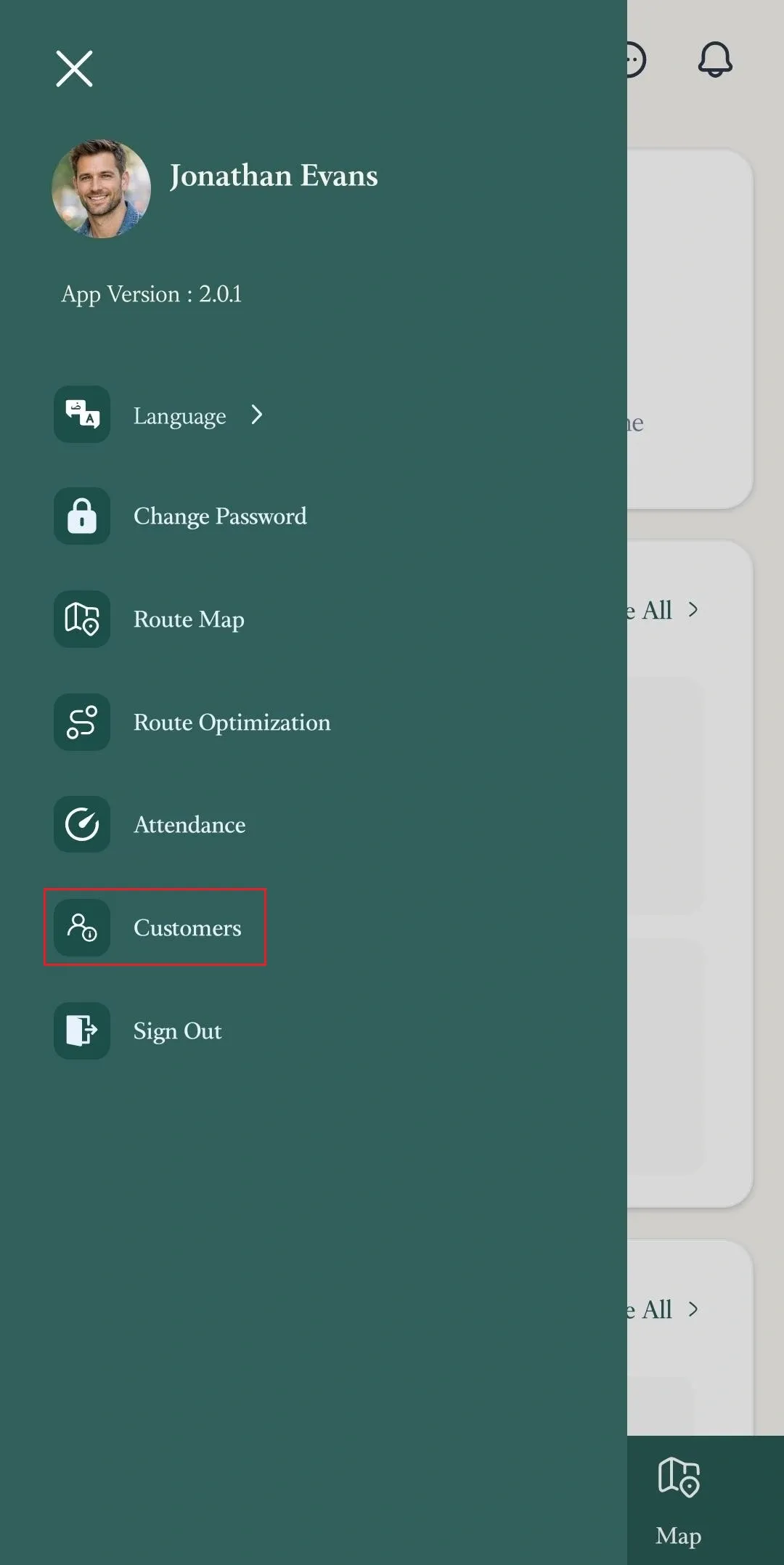
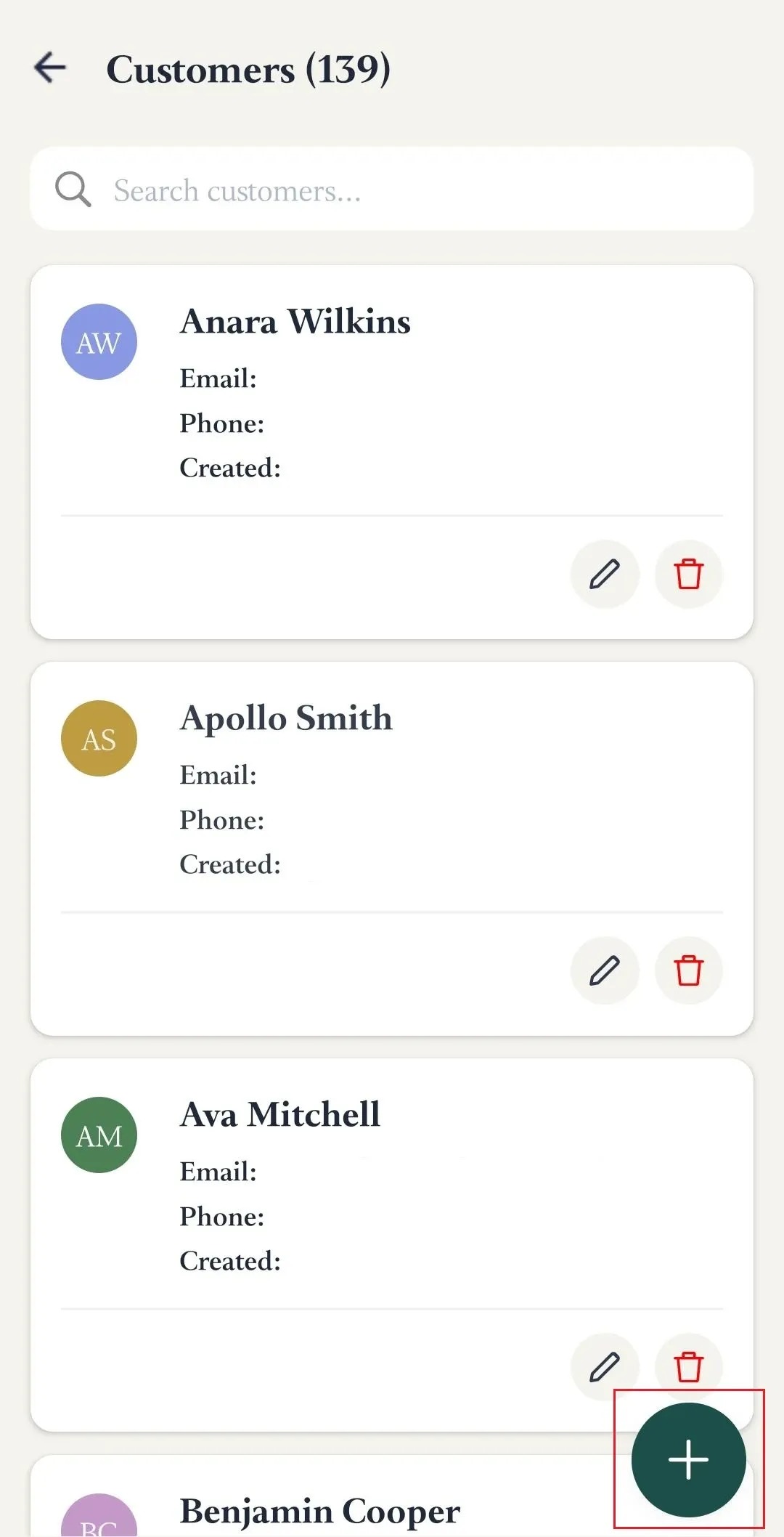
Both methods will take you to the Customer Creation form.
Enter the following customer information:
Your new customer will then be added to FieldTask.
If you want to add a customer from the FieldTask Web App, follow this article.
❗ Please Note: Only Organization Owners and Admins can add new customers through the FieldTask Mobile App or Web App. Members cannot create customers unless their role is changed to Admin.
Manage dispatch, route plan, techs, quotes, invoices, and more in GHL, the only dedicated field service app for HighLevel home service businesses and contractors.
The complete FieldTask sitemap: quick links to all pages.
Learn how FieldTask supports HIPAA compliance for home health and field service teams—encryption, BAAs, access controls, and audit logging.