The HighLevel Home Service Business Management Software
Manage dispatch, route plan, techs, quotes, invoices, and more in GHL, the only dedicated field service app for HighLevel home service businesses and contractors.
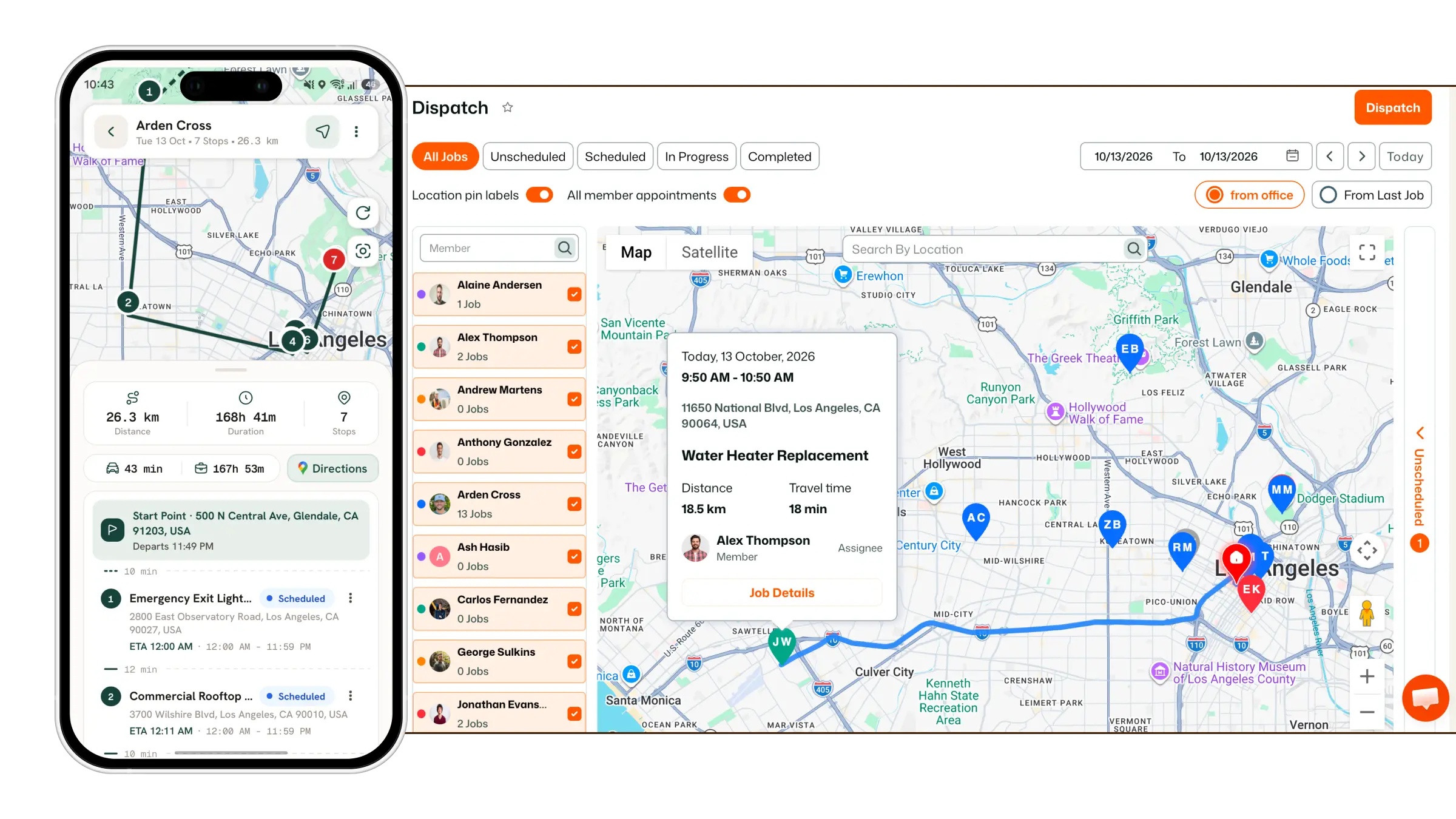
Learn where to find Unscheduled Jobs and how to schedule or dispatch them in FieldTask.
Unscheduled Jobs are jobs that have been saved in FieldTask to be scheduled later. They can also include jobs created from an accepted GHL Estimate.
You can find and manage Unscheduled Jobs from several places in FieldTask.
The Jobs on Map section allows you to view Unscheduled Jobs on a map.
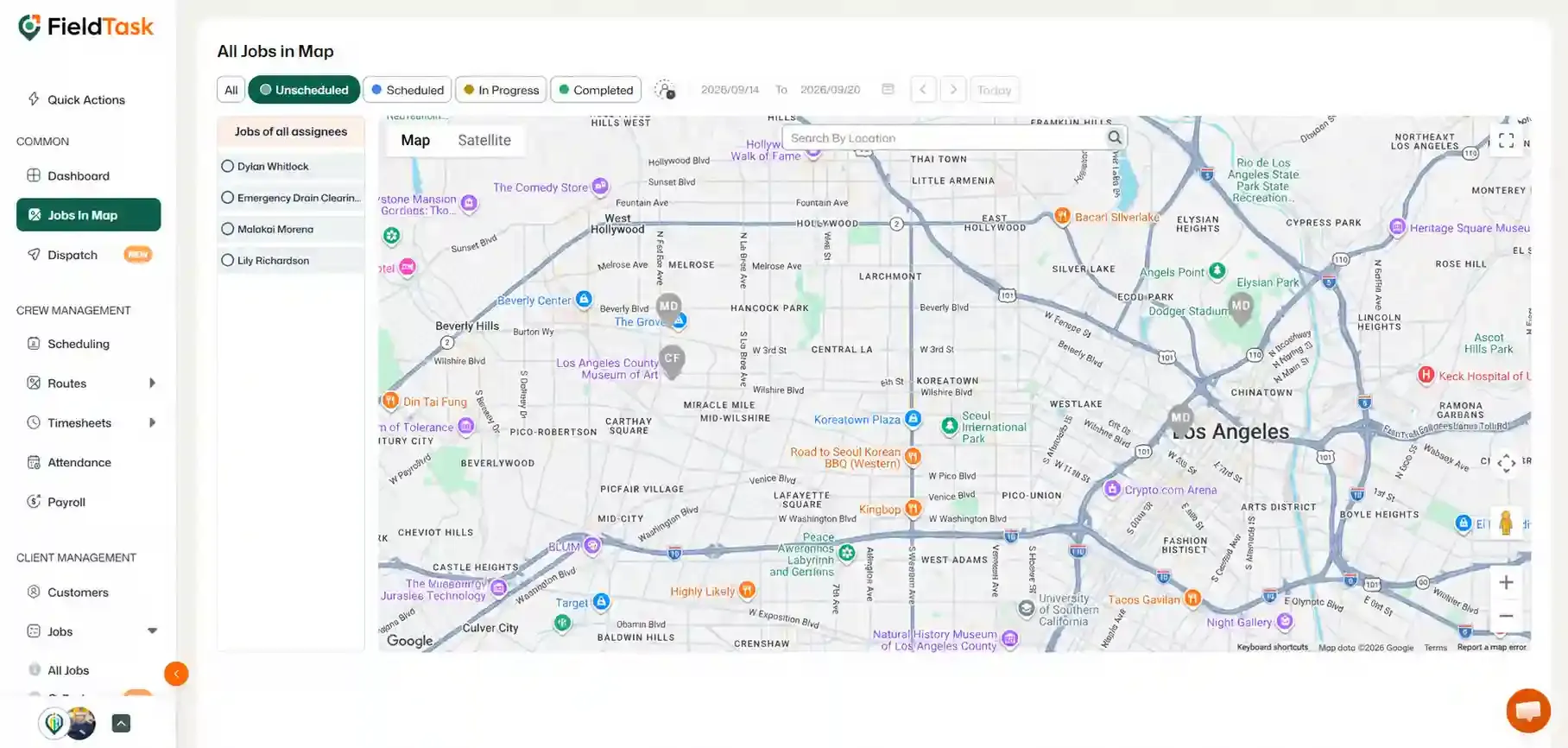
The jobs will appear on the map based on their assigned locations.
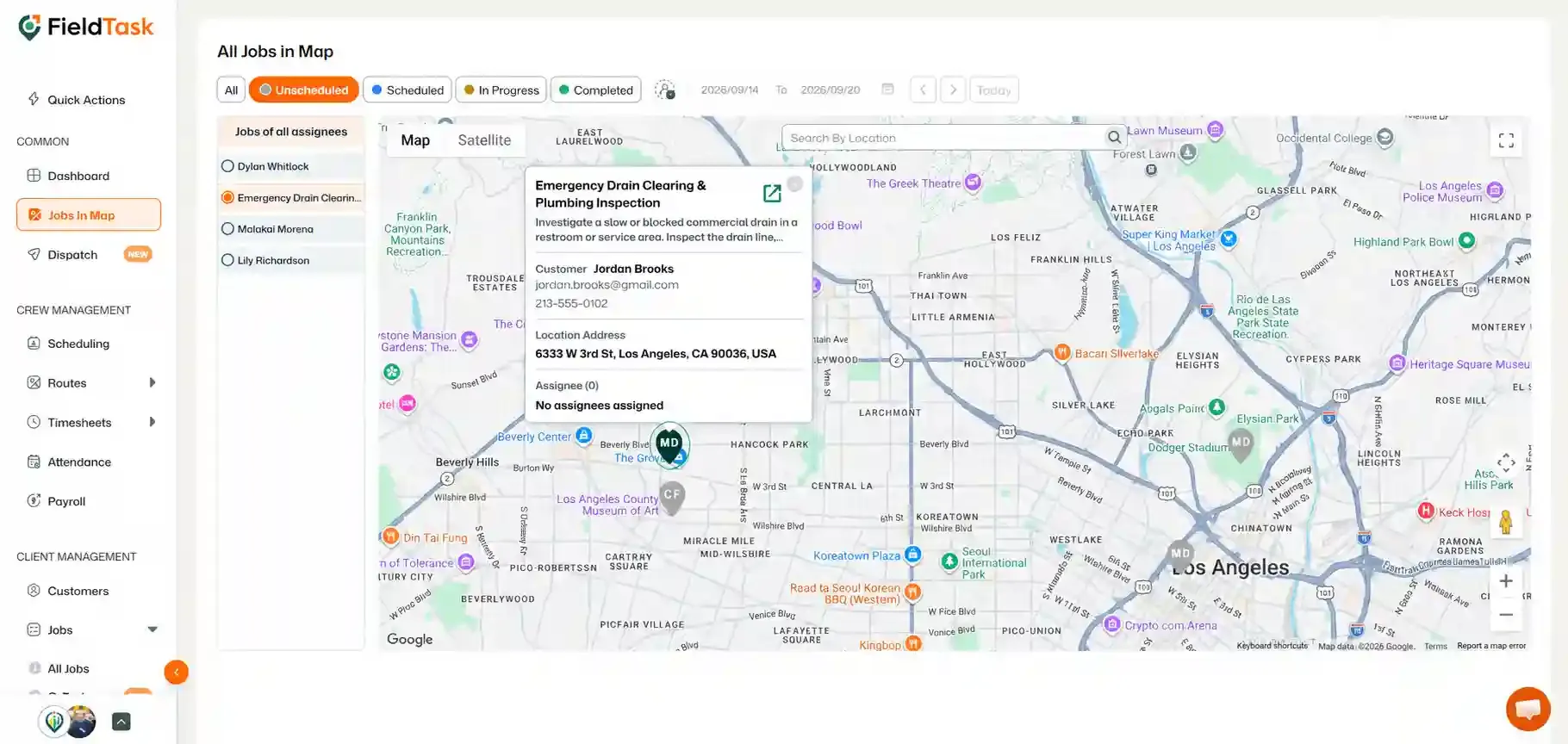
From the Job Details page, you can edit the job and schedule it.
You can also find Unscheduled Jobs from the Dispatch page.
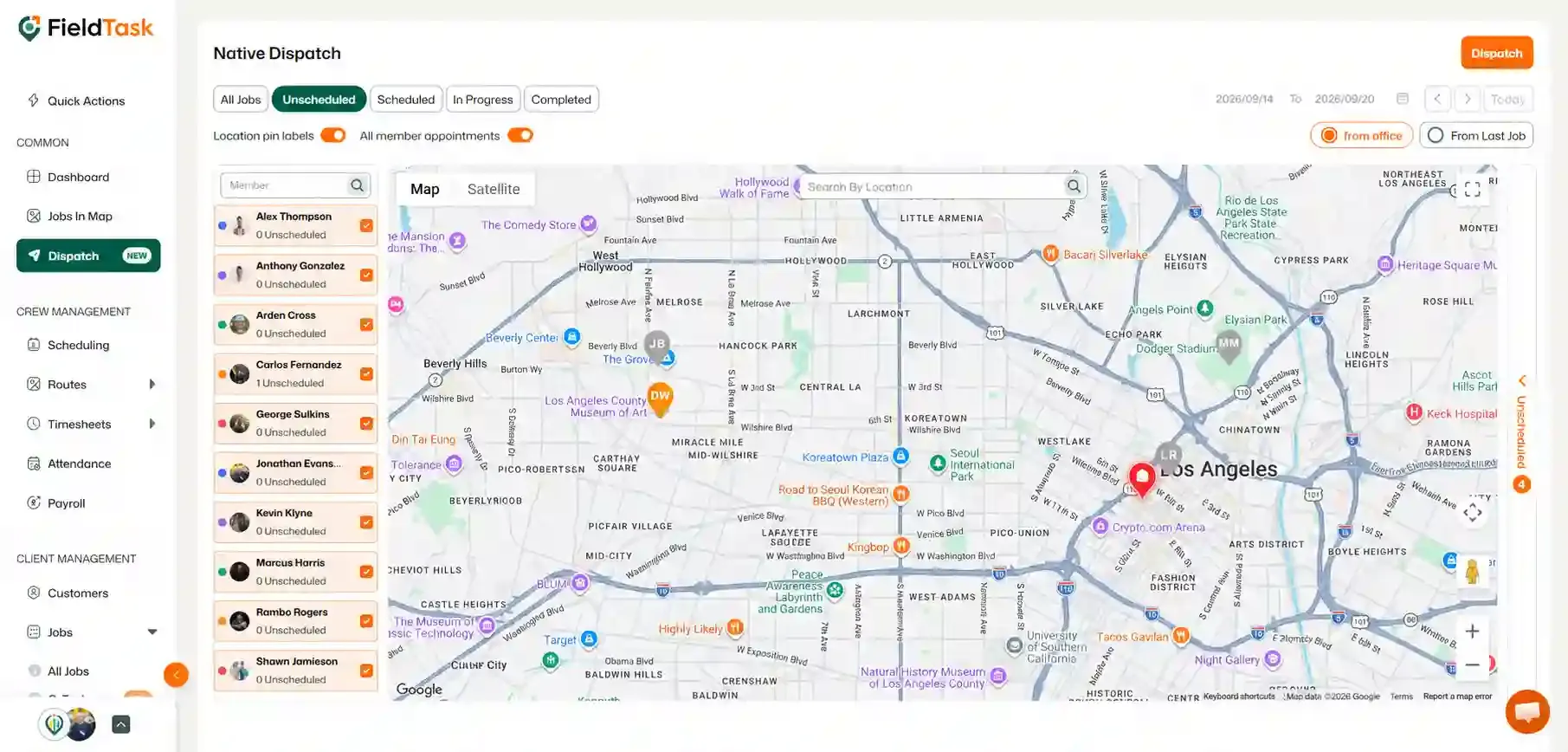
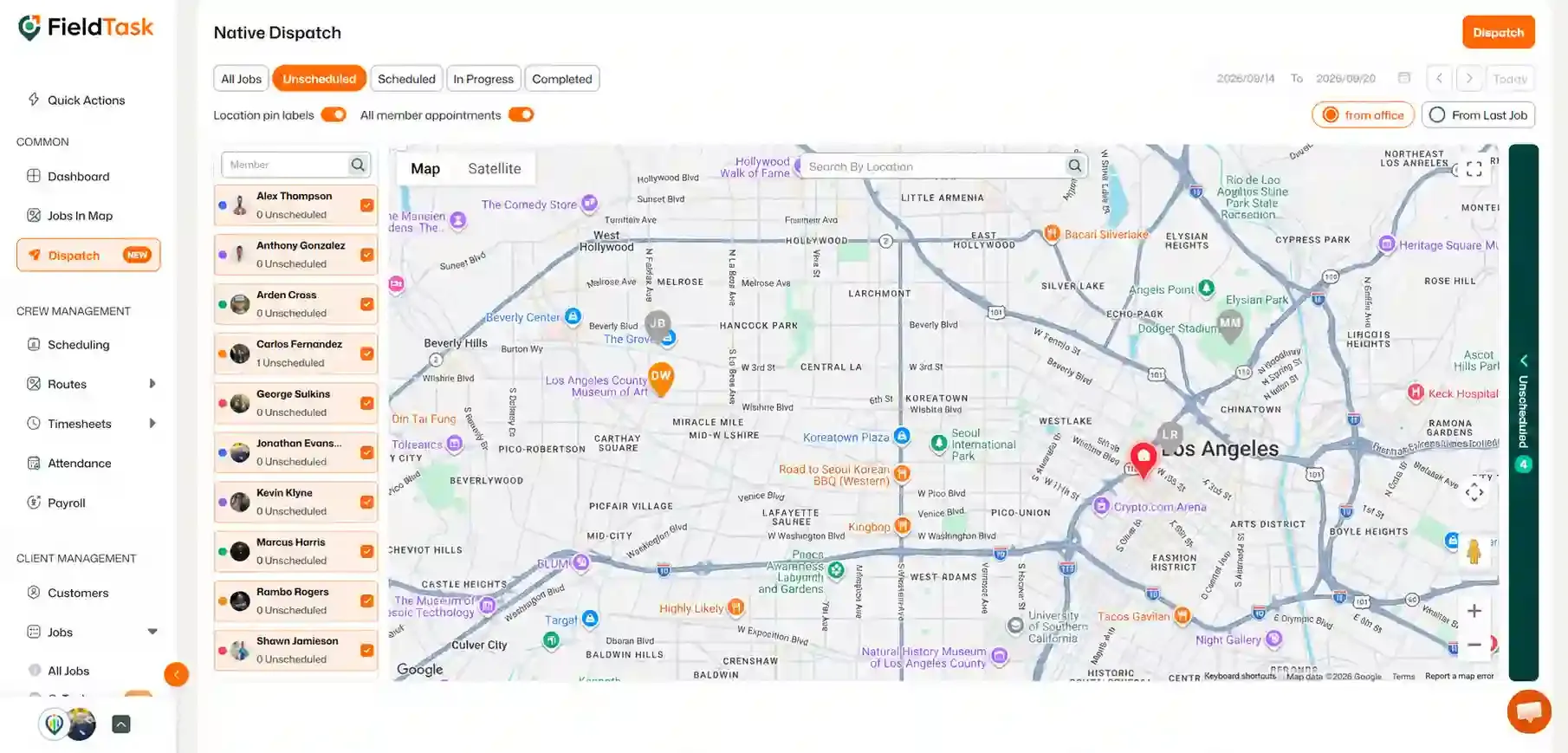
The drawer will display the Unscheduled Jobs in a list.
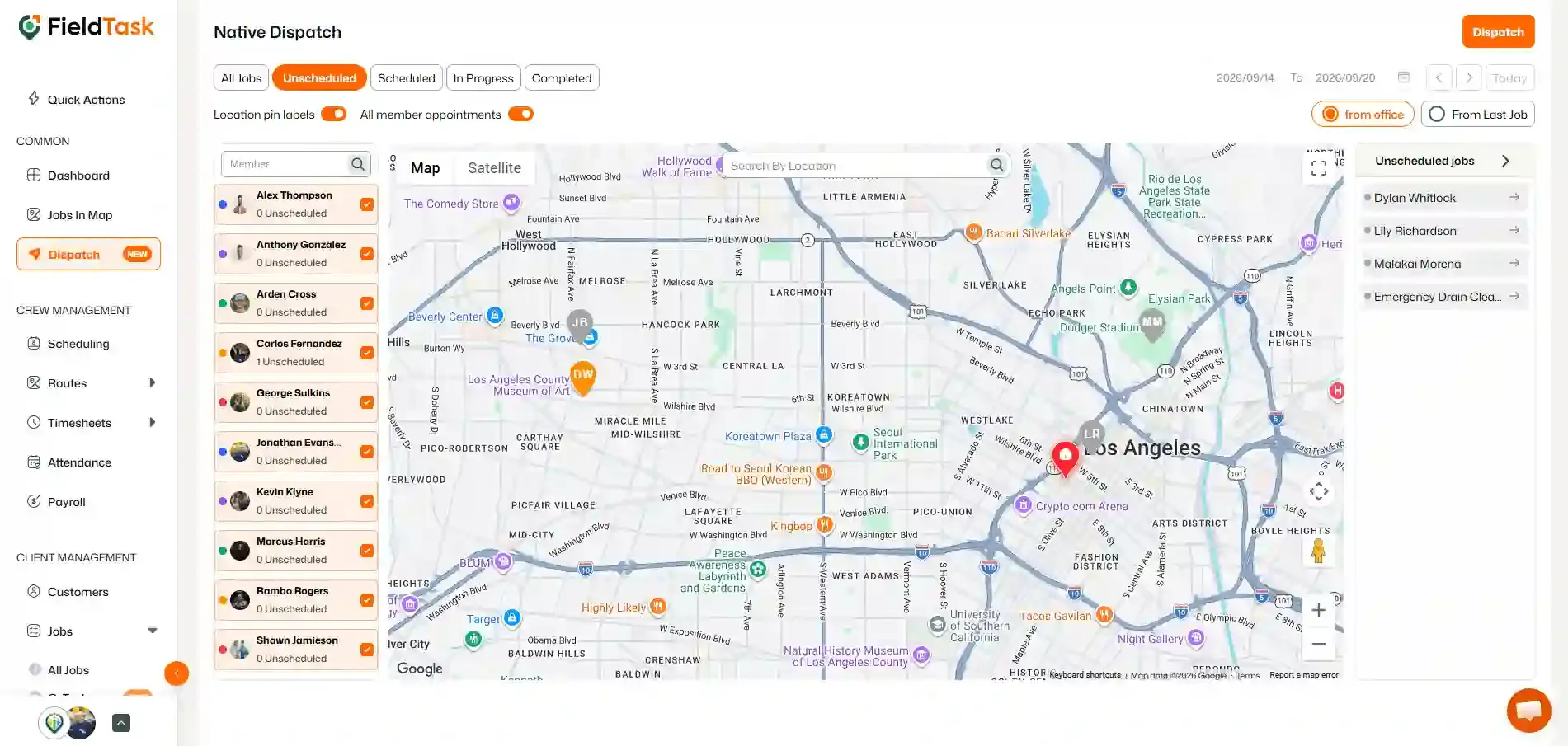
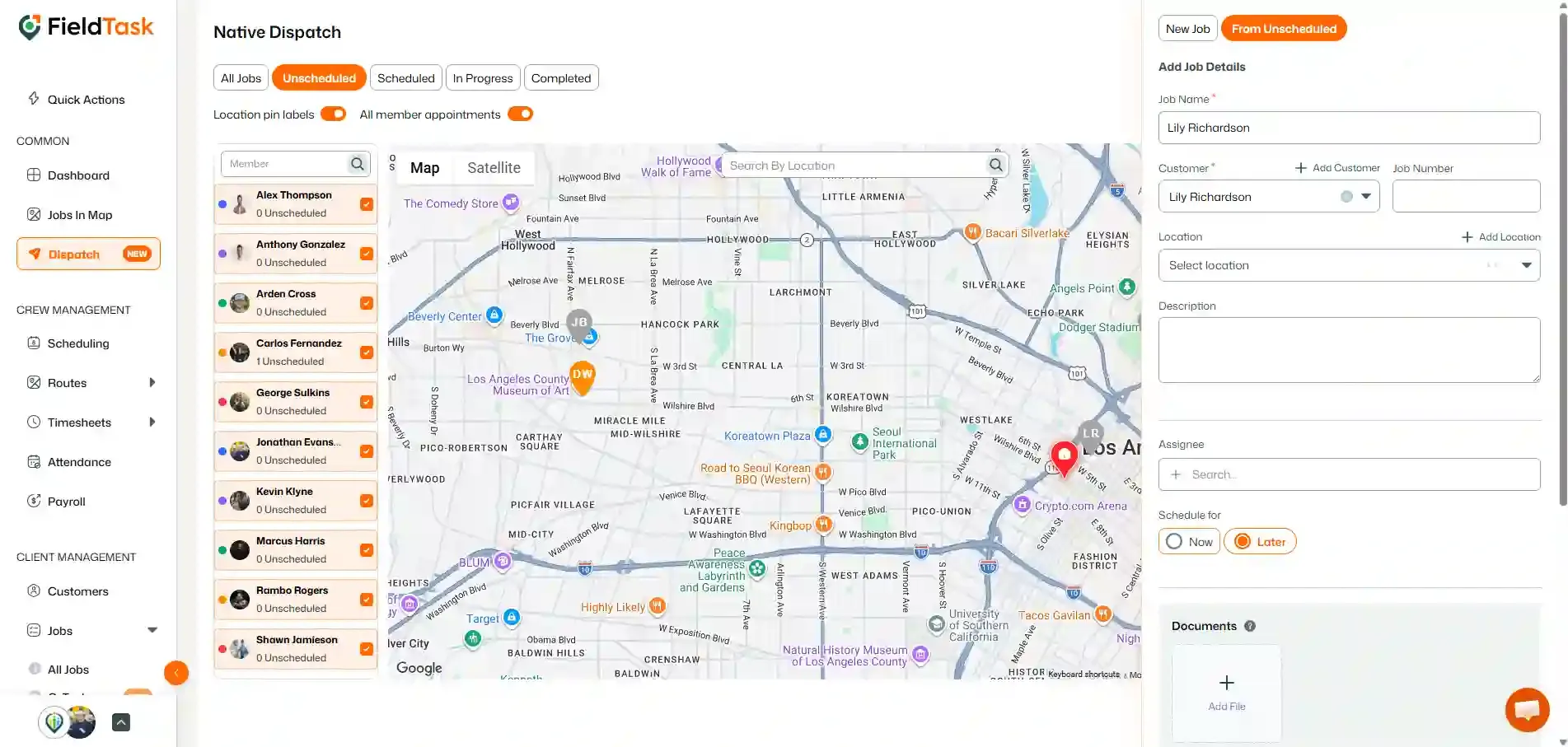
You can then dispatch the Unscheduled Job from the Dispatch page.
The Scheduling Calendar also has an Unscheduled drawer containing jobs that have not yet been scheduled.
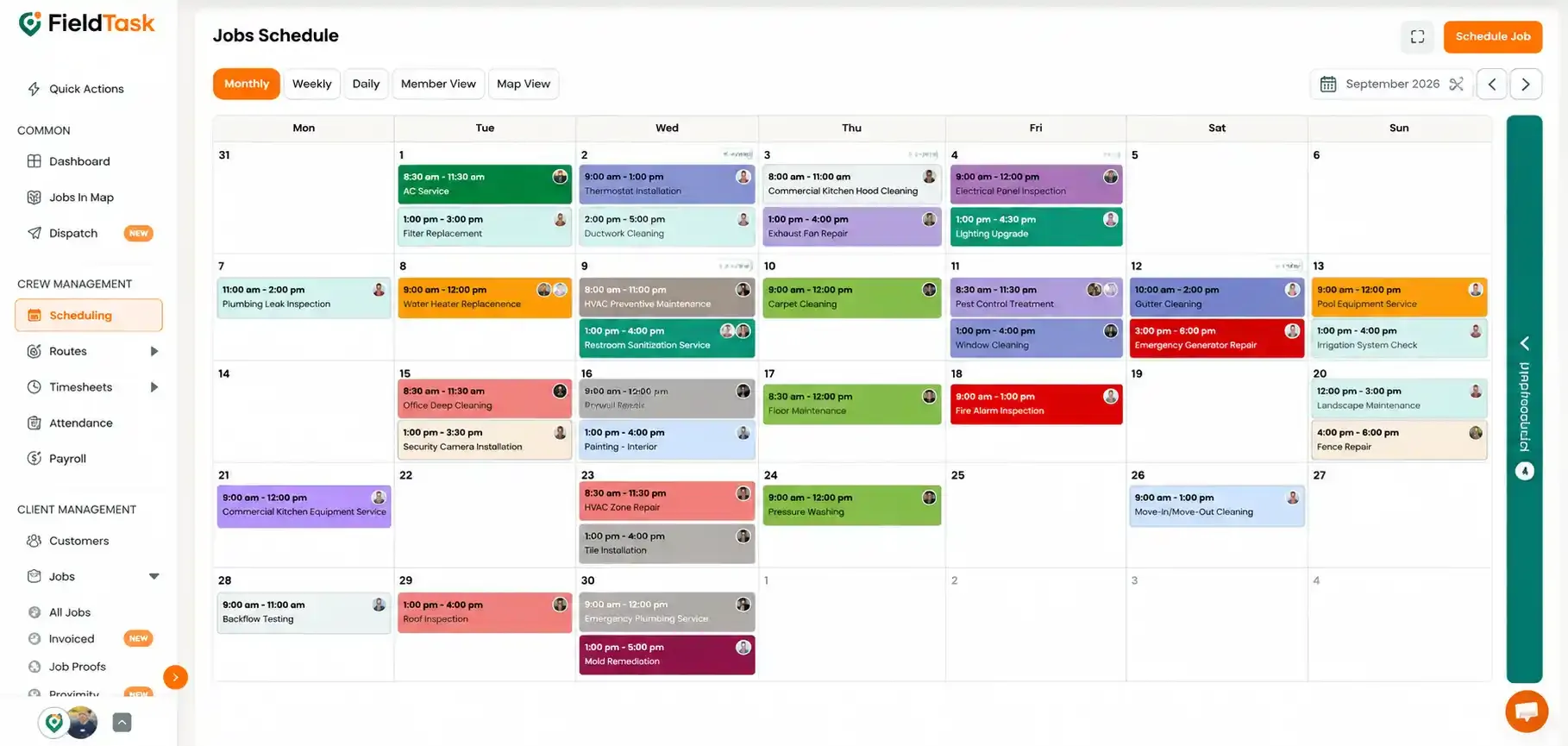
You can schedule a job directly from here:
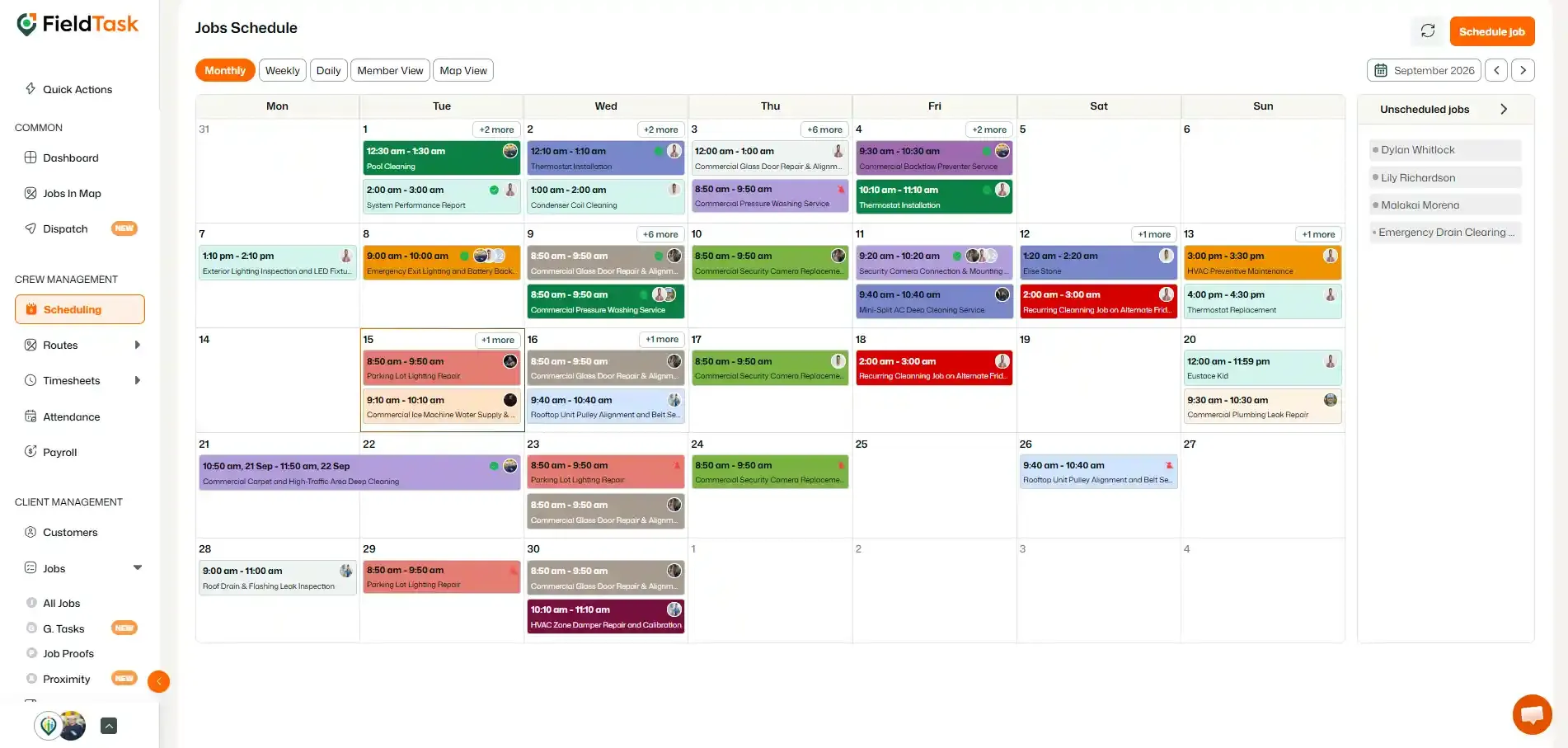
The job will then be scheduled for the selected date.
You can also find Unscheduled Jobs from the All Jobs page.
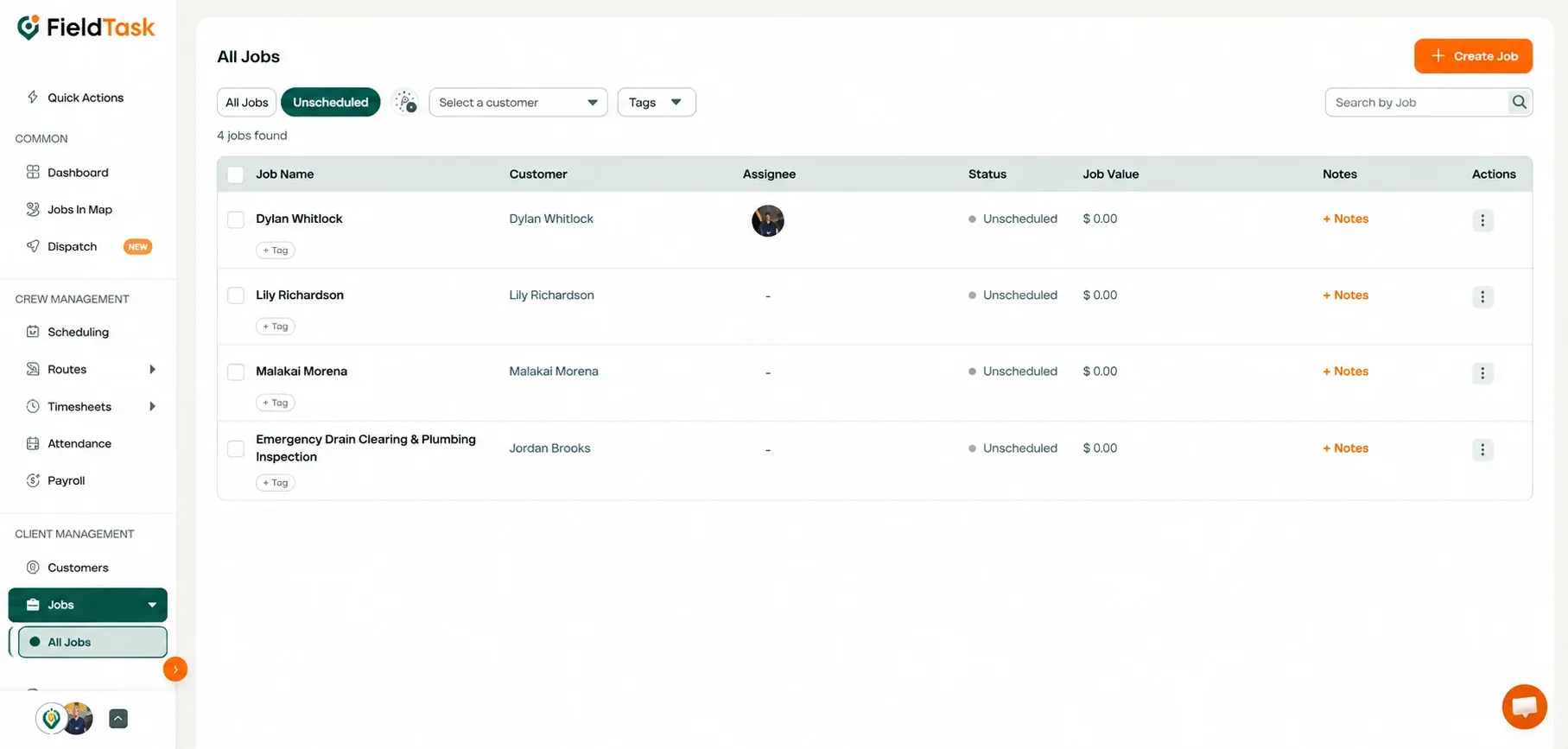
The Unscheduled Jobs will be displayed in the list.
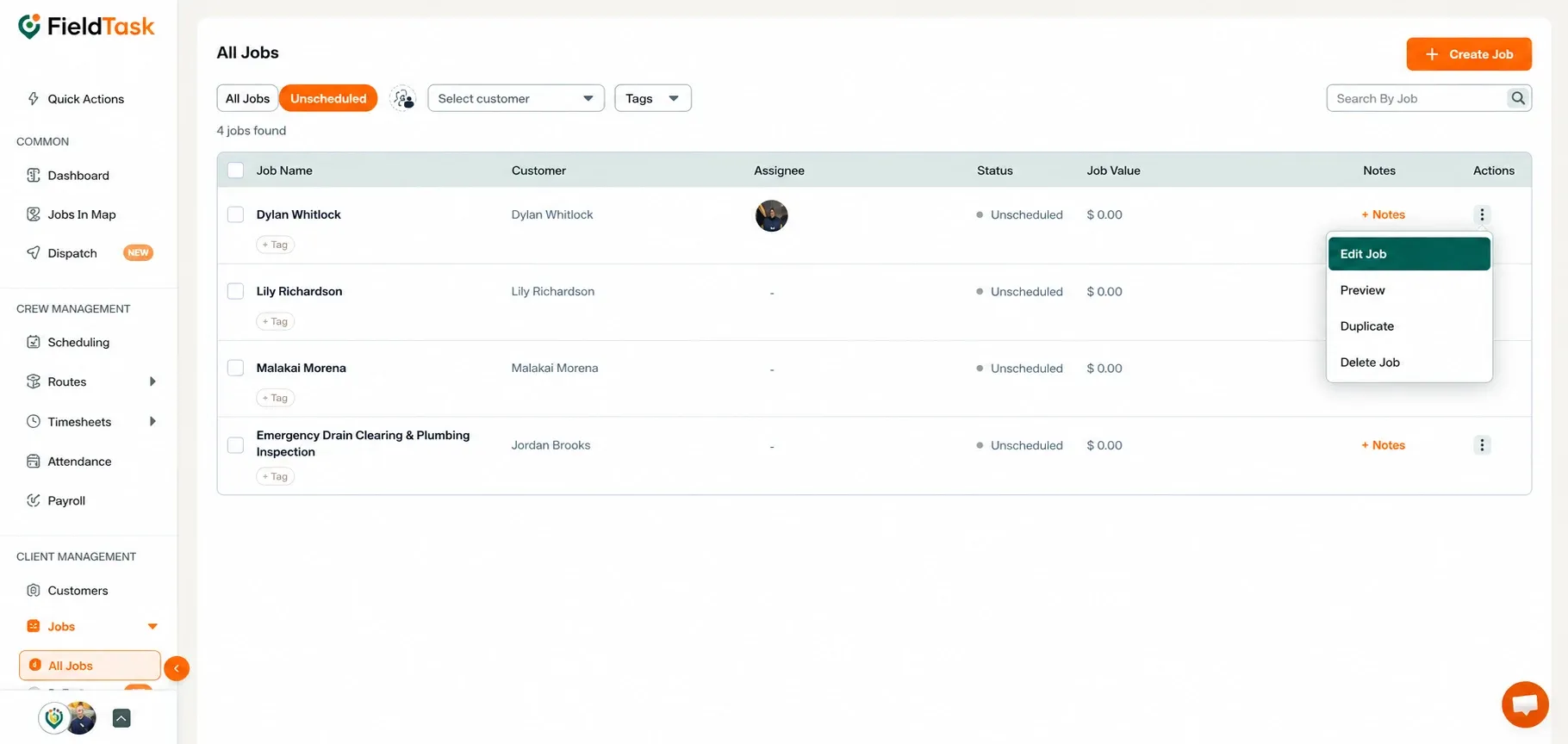
📌 Note: To learn how to edit jobs in FieldTask, follow this article.
Manage dispatch, route plan, techs, quotes, invoices, and more in GHL, the only dedicated field service app for HighLevel home service businesses and contractors.
The complete FieldTask sitemap: quick links to all pages.
Learn how FieldTask supports HIPAA compliance for home health and field service teams—encryption, BAAs, access controls, and audit logging.