The HighLevel Home Service Business Management Software
Manage dispatch, route plan, techs, quotes, invoices, and more in GHL, the only dedicated field service app for HighLevel home service businesses and contractors.
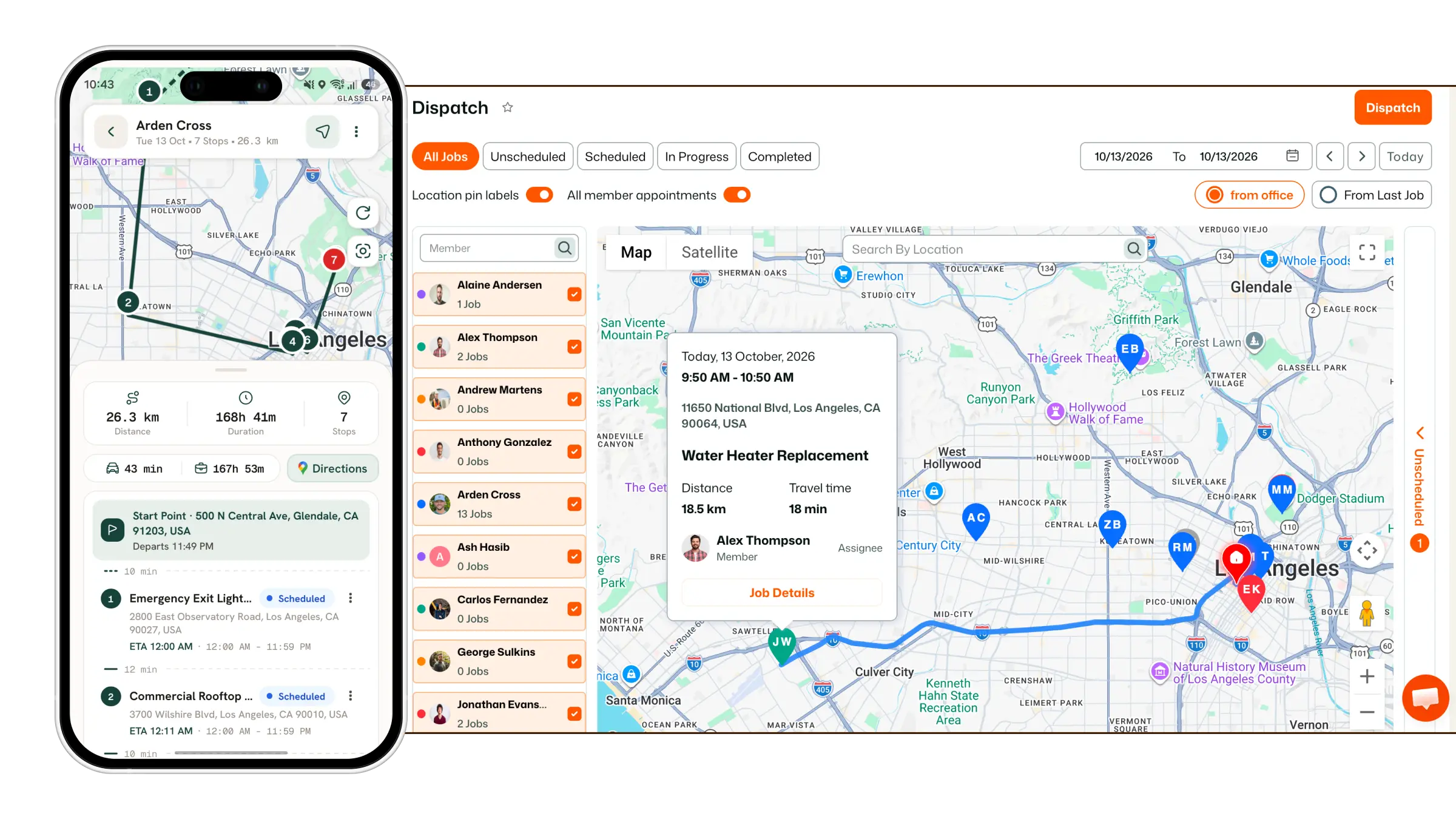
Create and manage invoices directly from FieldTask by adding customer, job, tax, discount, and line-item information.

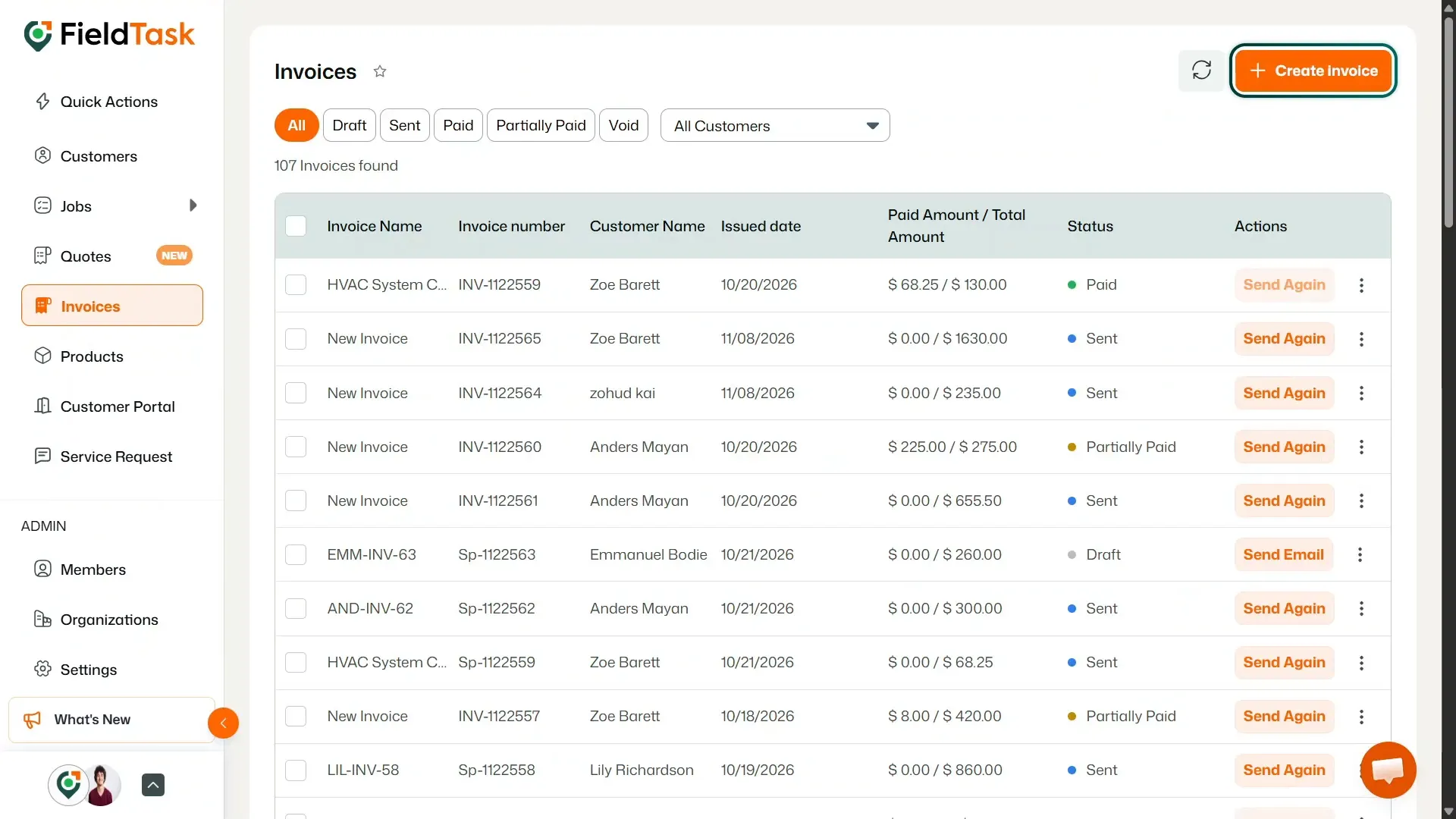
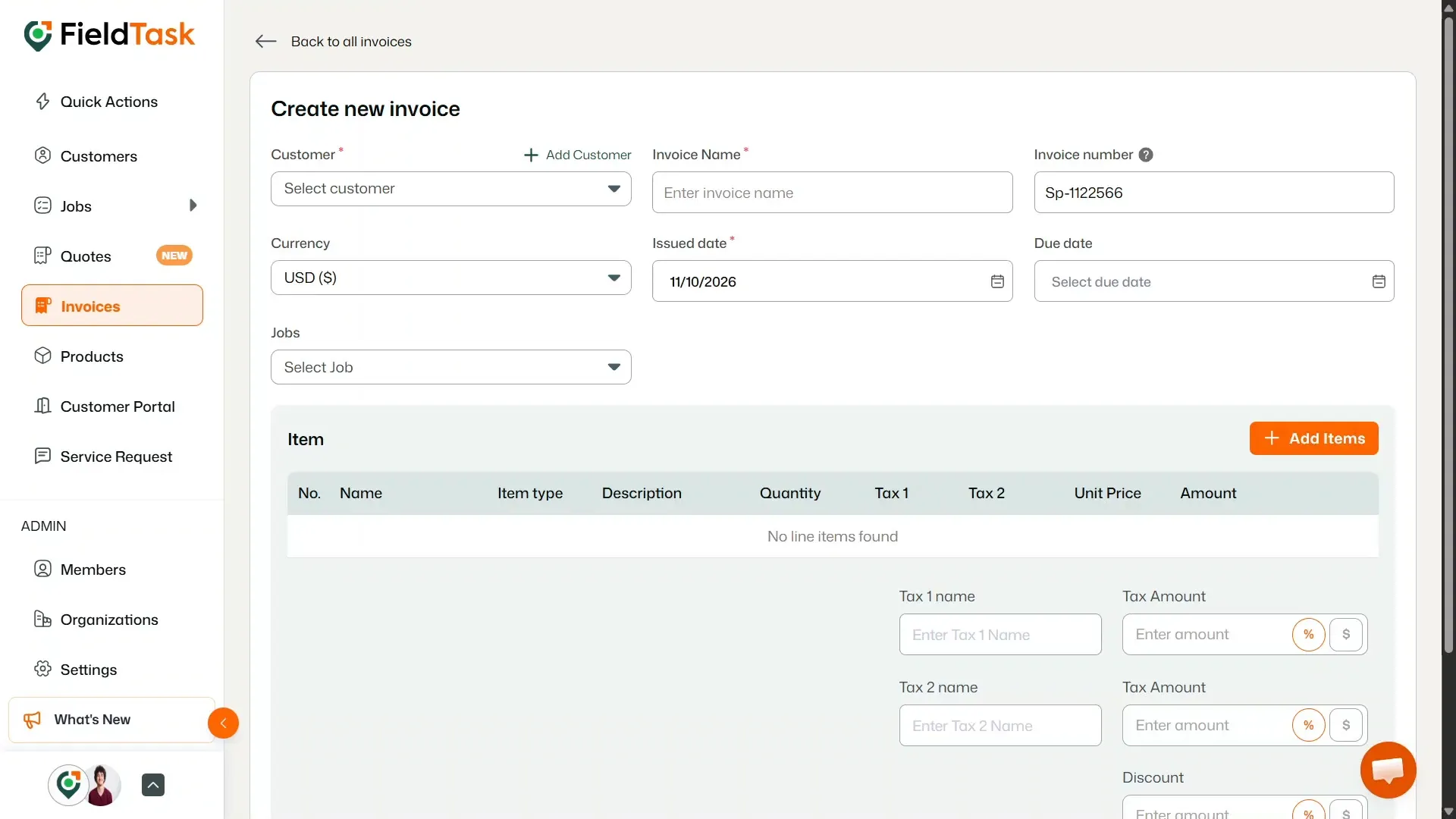
Fill in the required invoice information:
Some invoice details are automatically populated based on information already available in your organization:
These details can still be edited if you need to make changes.
When you select a job, any existing line items from that job are automatically added to the invoice as individual items.
You can also add additional items manually:
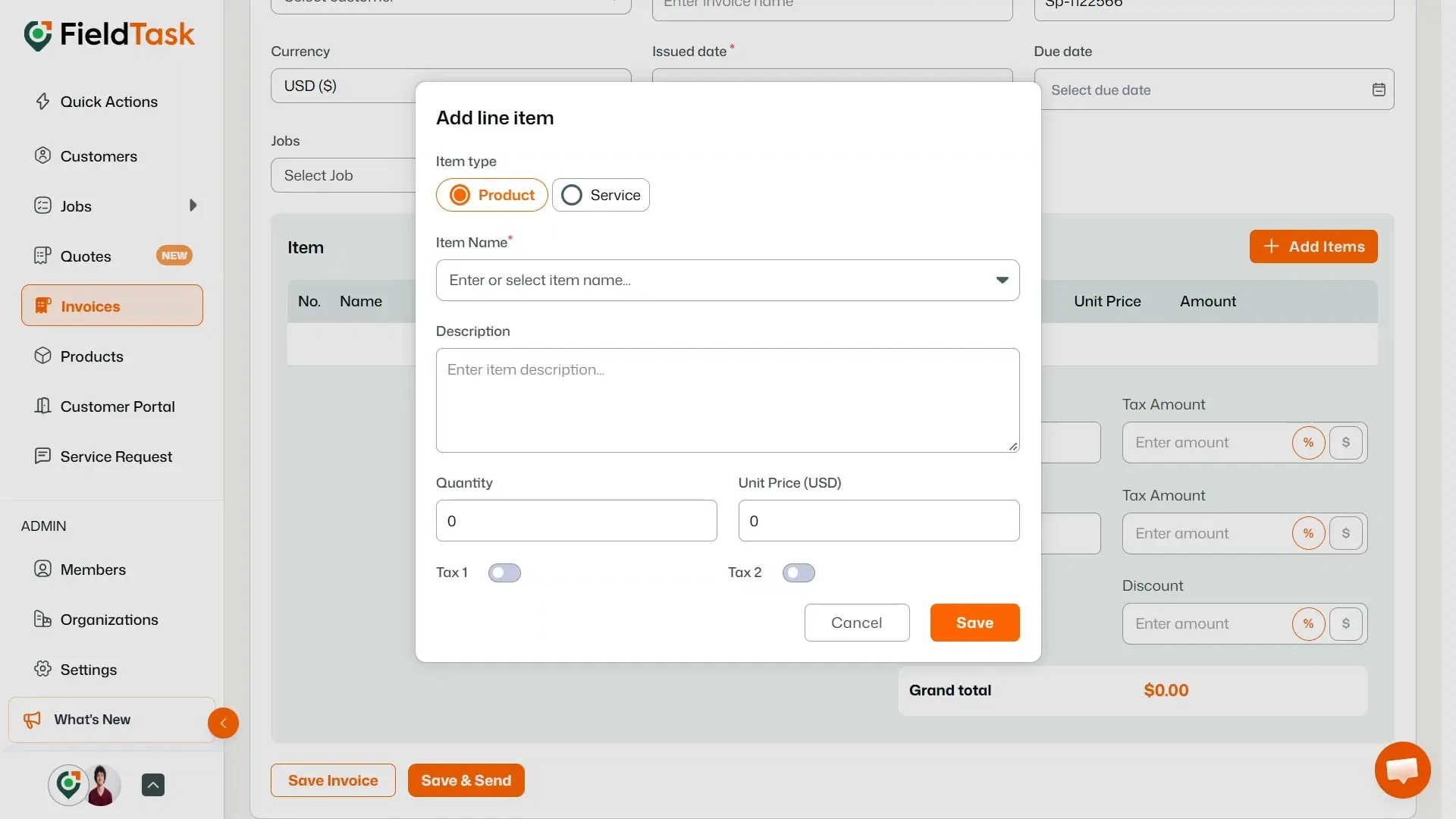
Add as many items as needed to complete the invoice.
Once you have finished entering the invoice details, you can:
Invoices created in FieldTask are automatically sent to the CRM Invoice module, and invoices created in the CRM are also sent to FieldTask. This means you do not need to enter the same invoice information twice.
From CRM Settings, you can choose whether invoices are sent from the CRM or directly from FieldTask.
Note: The invoice workflow is connected between FieldTask and the CRM, so changes and invoice data can be managed across both systems.
If you want to learn how to send invoices from the mobile app, click here.
Manage dispatch, route plan, techs, quotes, invoices, and more in GHL, the only dedicated field service app for HighLevel home service businesses and contractors.
The complete FieldTask sitemap: quick links to all pages.
Learn how FieldTask supports HIPAA compliance for home health and field service teams—encryption, BAAs, access controls, and audit logging.