The HighLevel Home Service Business Management Software
Manage dispatch, route plan, techs, quotes, invoices, and more in GHL, the only dedicated field service app for HighLevel home service businesses and contractors.
No image available
Learn how to use the FieldTask Mobile App and understand what you can access based on your role in the Organization.
FieldTask comes with its own Mobile App, so you can use FieldTask directly without relying on a third-party application. The app is available on both iOS and Android.
Once you have downloaded the app, log in using the same credentials you use for the FieldTask web app.
The features and information available in the Mobile App depend on your Organization role.
As a Member, you can access:
As a Member, the information shown to you is limited to your own data.
Your Dashboard provides an overview of your own activity, including:
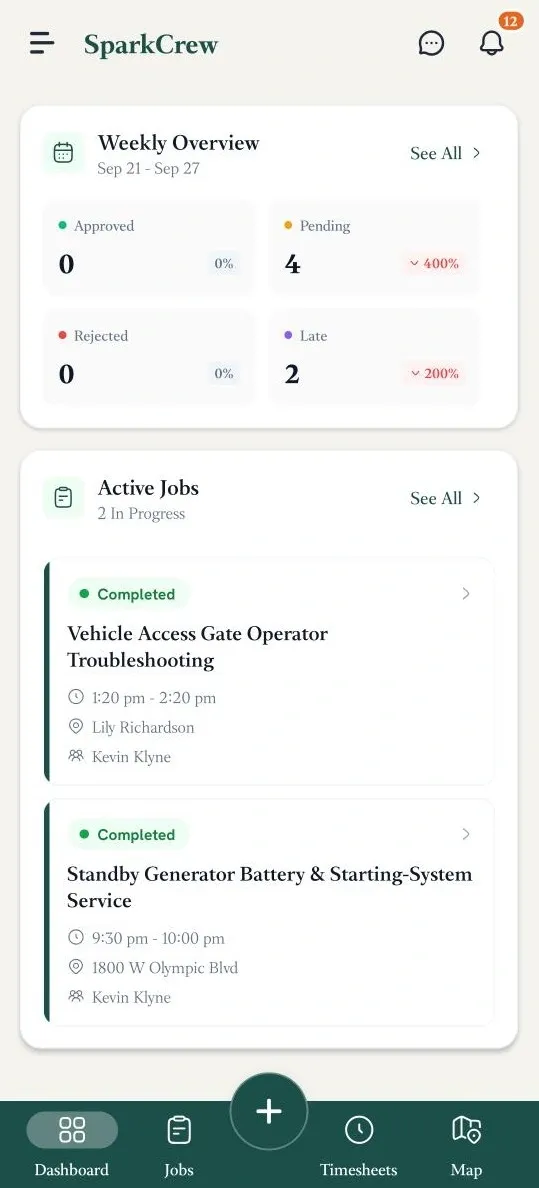
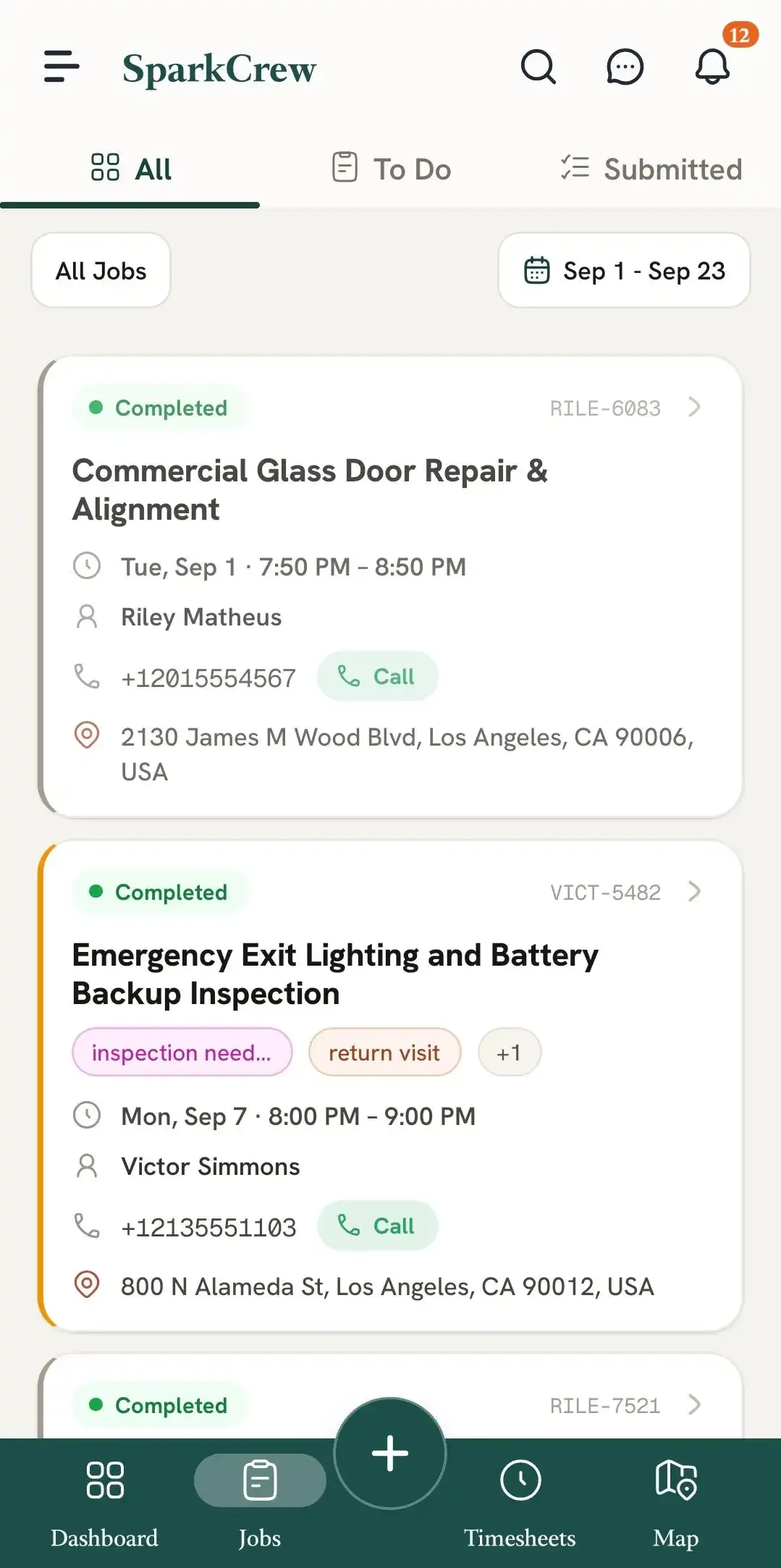
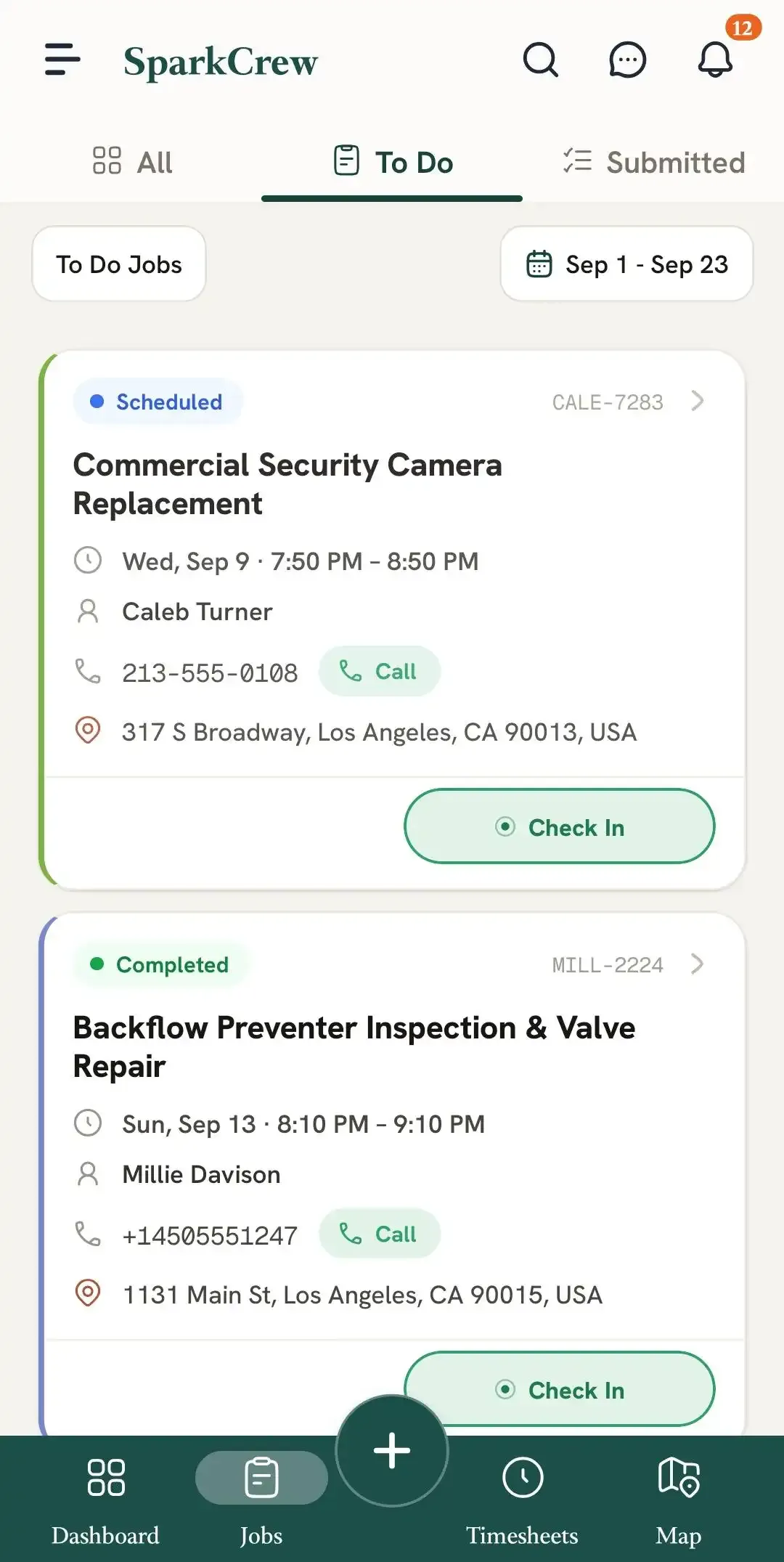
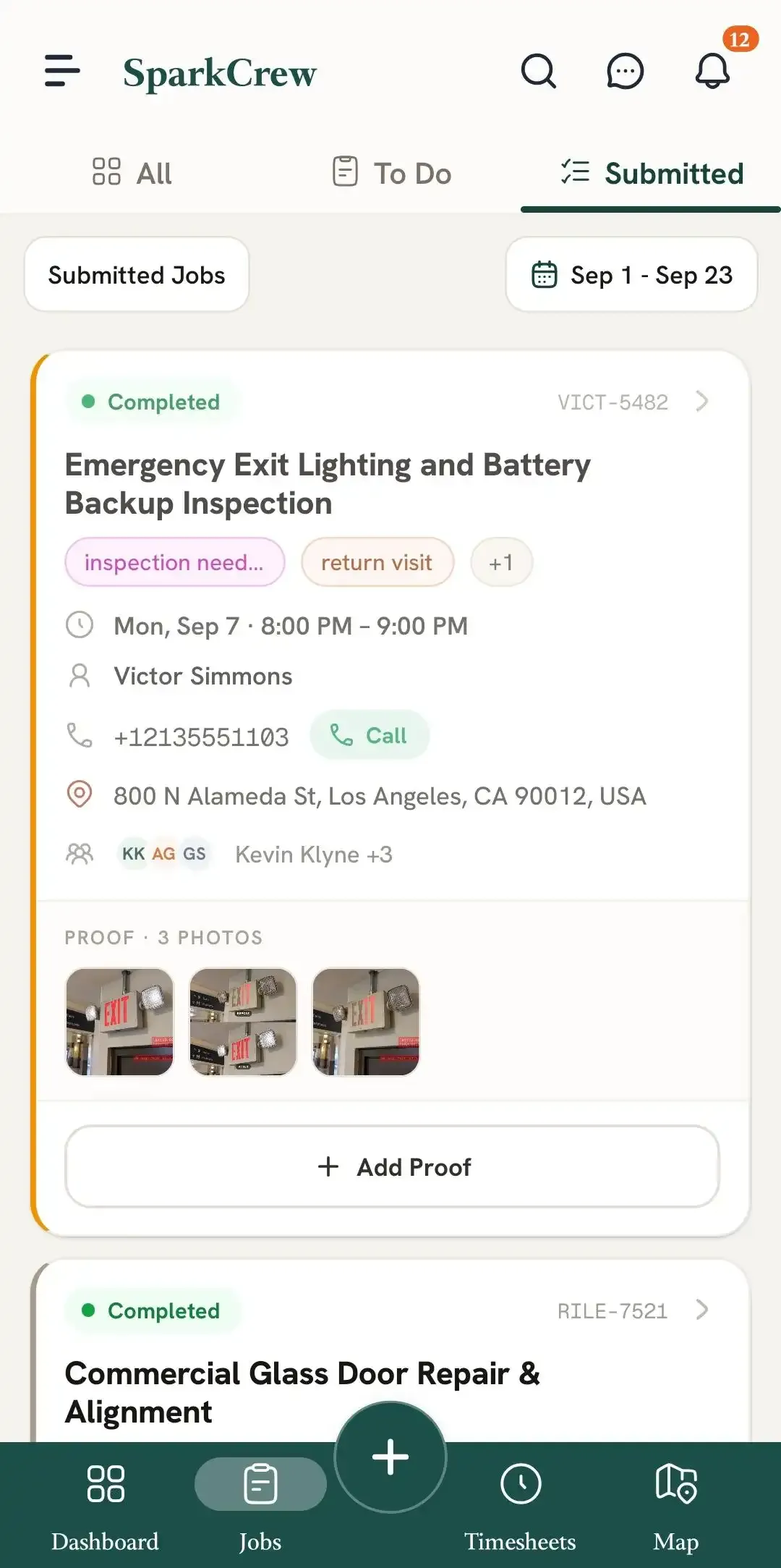
The Jobs section allows you to view your assigned jobs across different statuses.
You can access:
From Timesheets, you can:
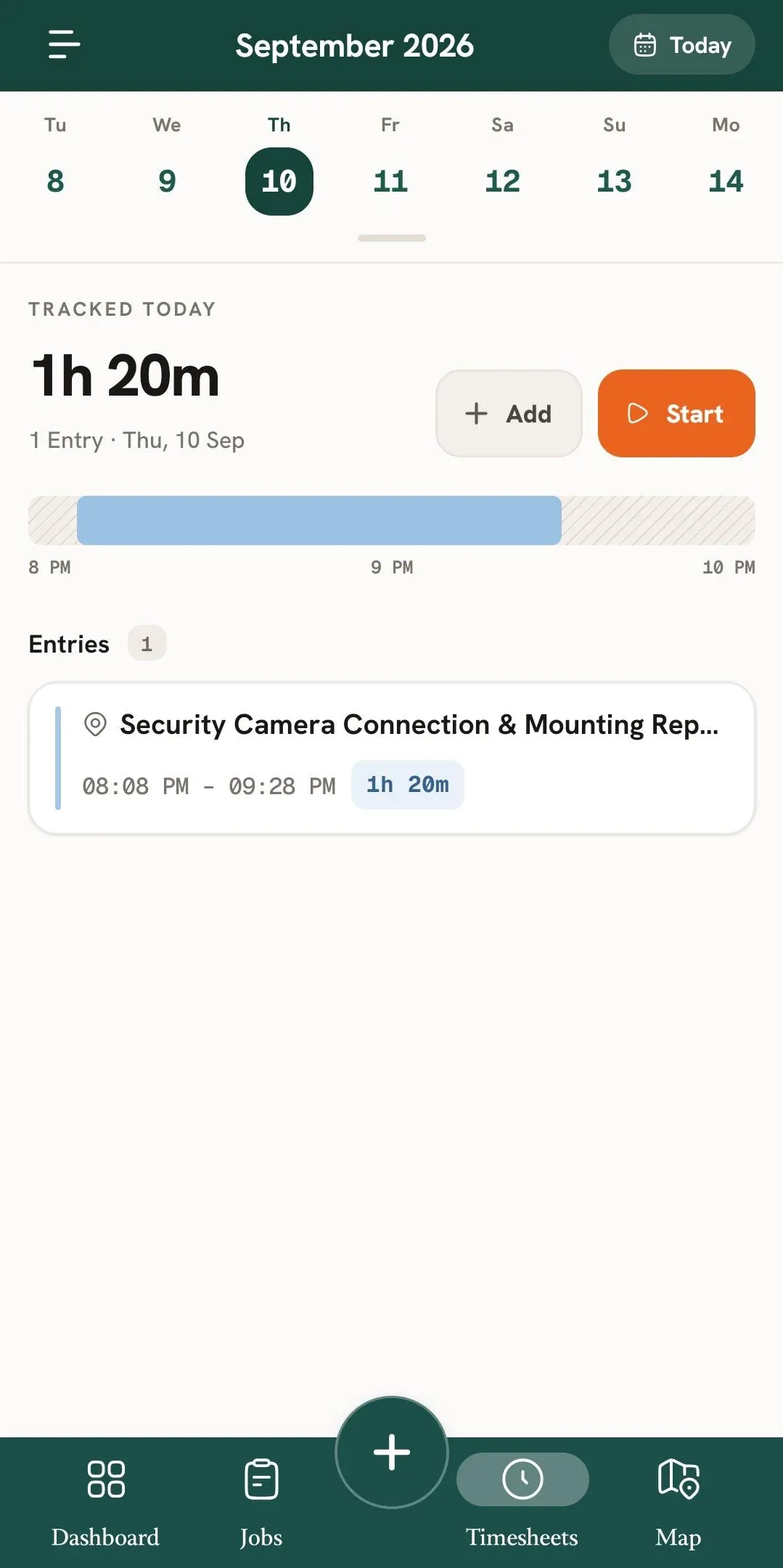
The Maps section shows your assigned jobs plotted on a map.
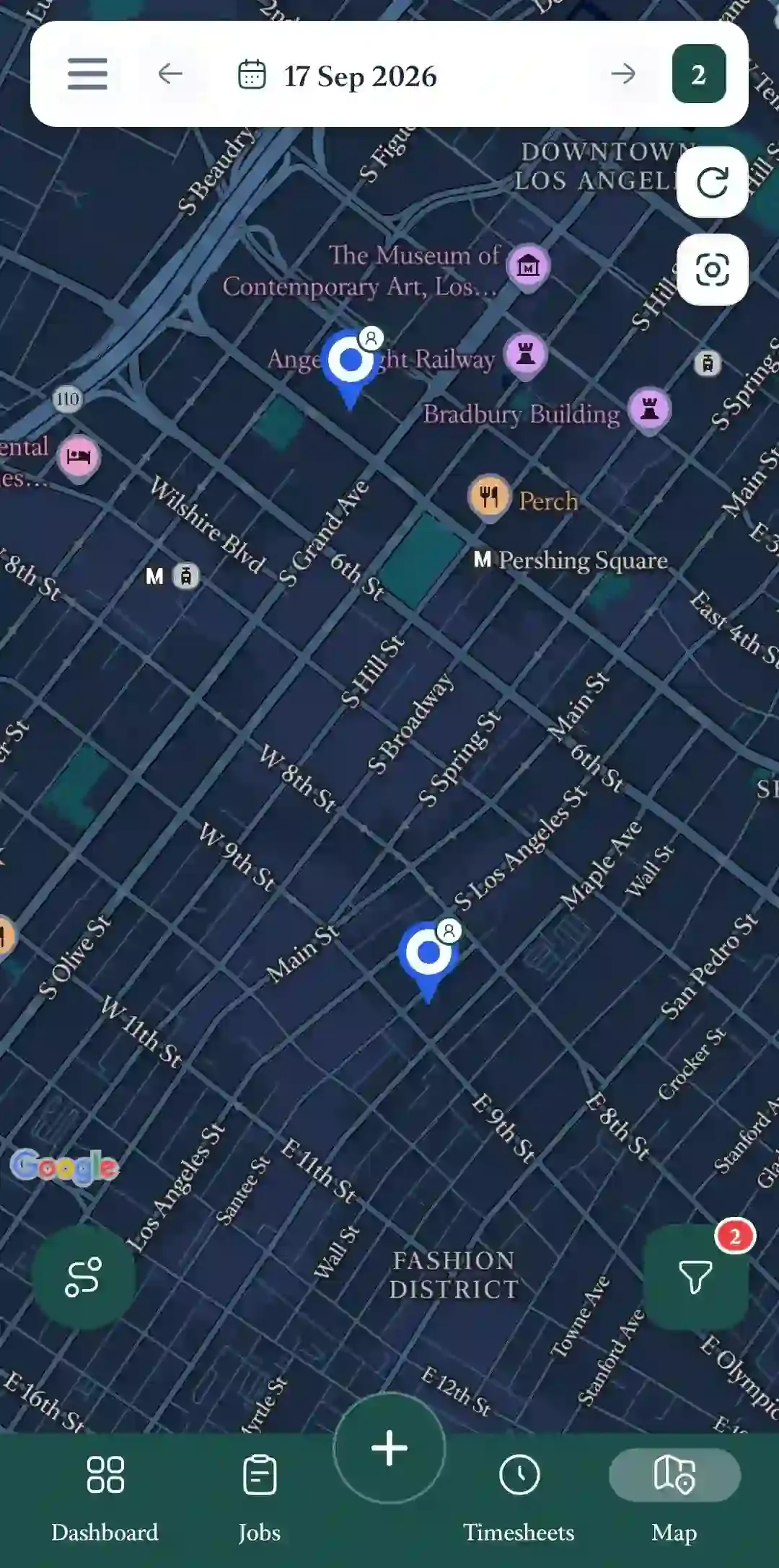
You can also view your own Route Map.
As a Member, you cannot optimize your own route. However, you can view your optimized route in the Mobile App after an Admin has optimized it for you.
If your Organization allows self-assignment, you can also assign jobs to yourself from the Mobile App.
Admins can access their own information as well as information belonging to other Members in the Organization.
The Admin Dashboard provides an overview of the team's activity, including:
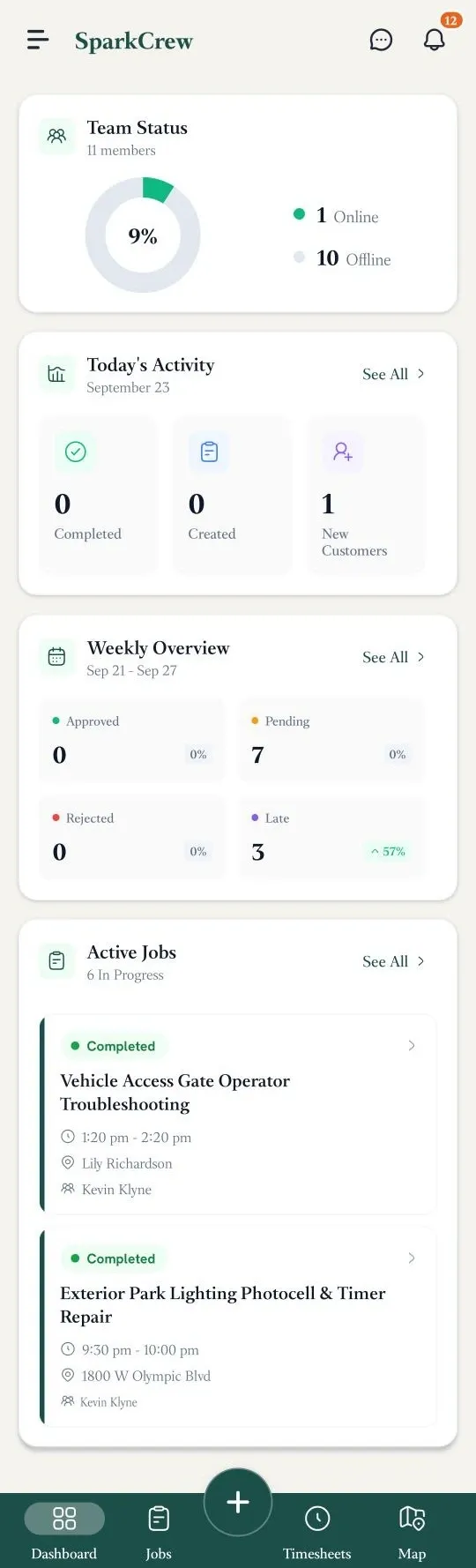
The Jobs section contains the same main tabs available to Members, but Admins can view jobs belonging to other Members as well as their own.
A toggle is available to switch between:
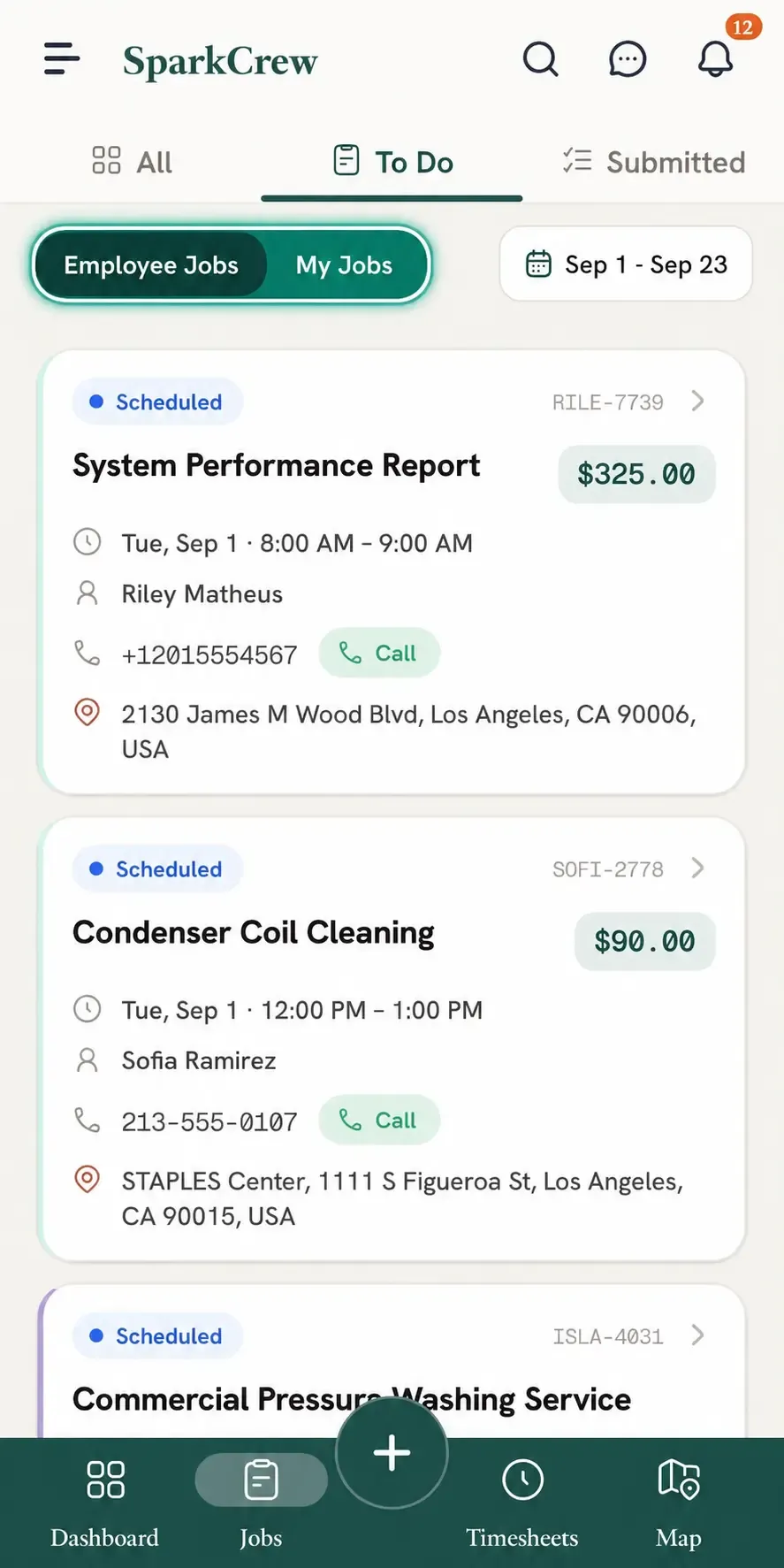
This makes it easier to separate your own jobs from those assigned to other Members.
Admins can use the Timesheets section to view Timesheets belonging to different Members.
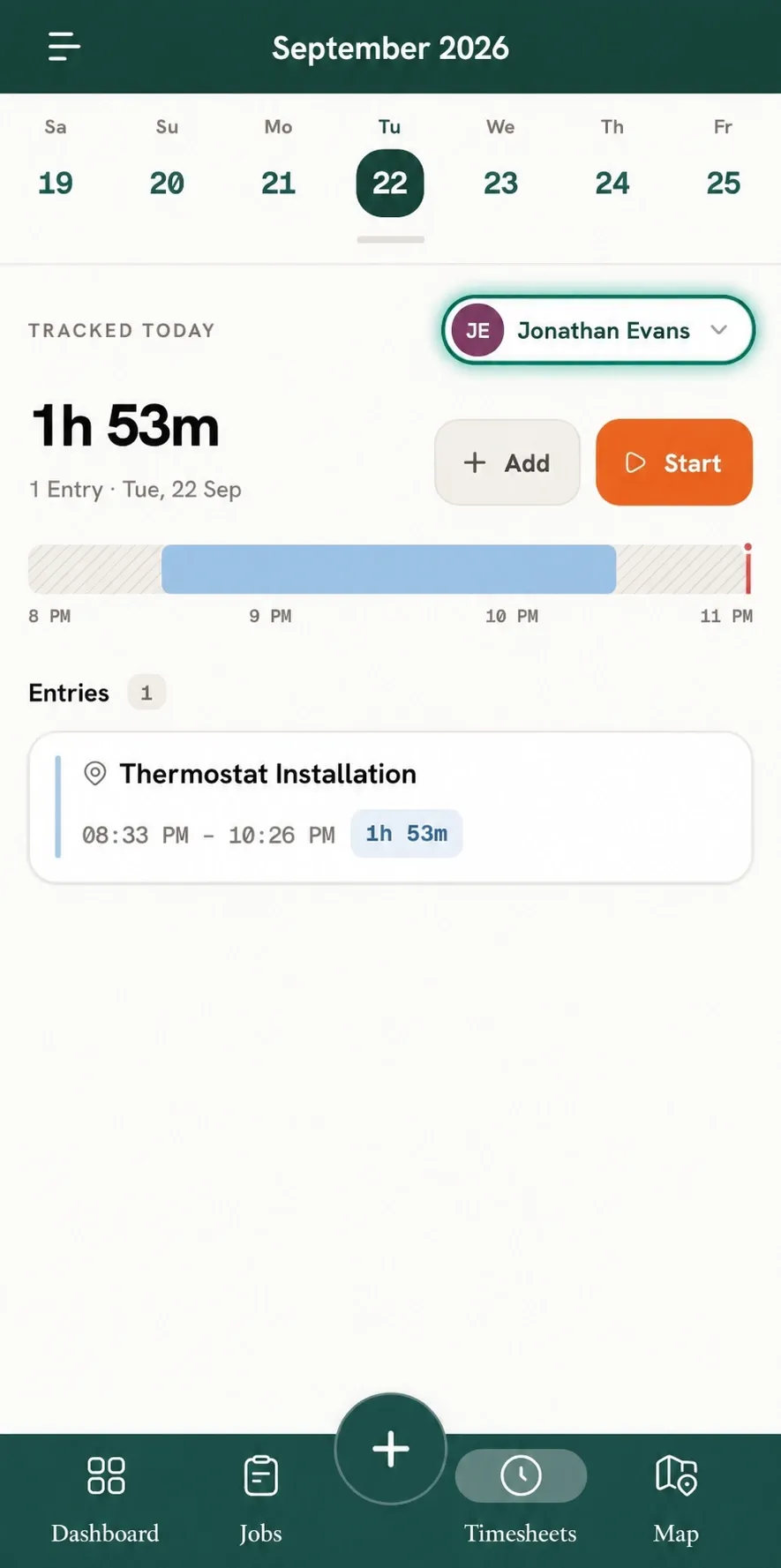
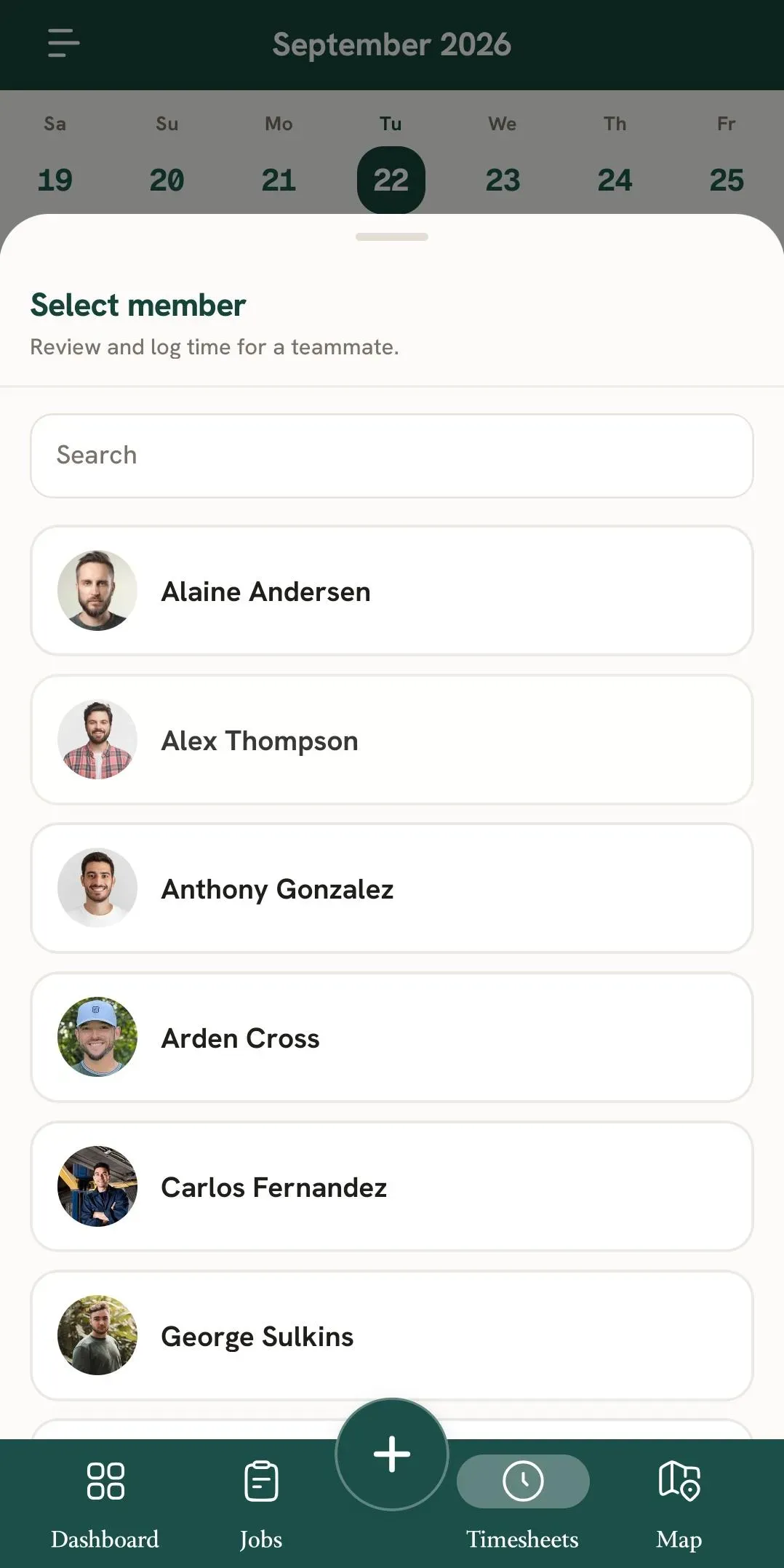
A drop-down allows you to select whose Timesheets you want to view.
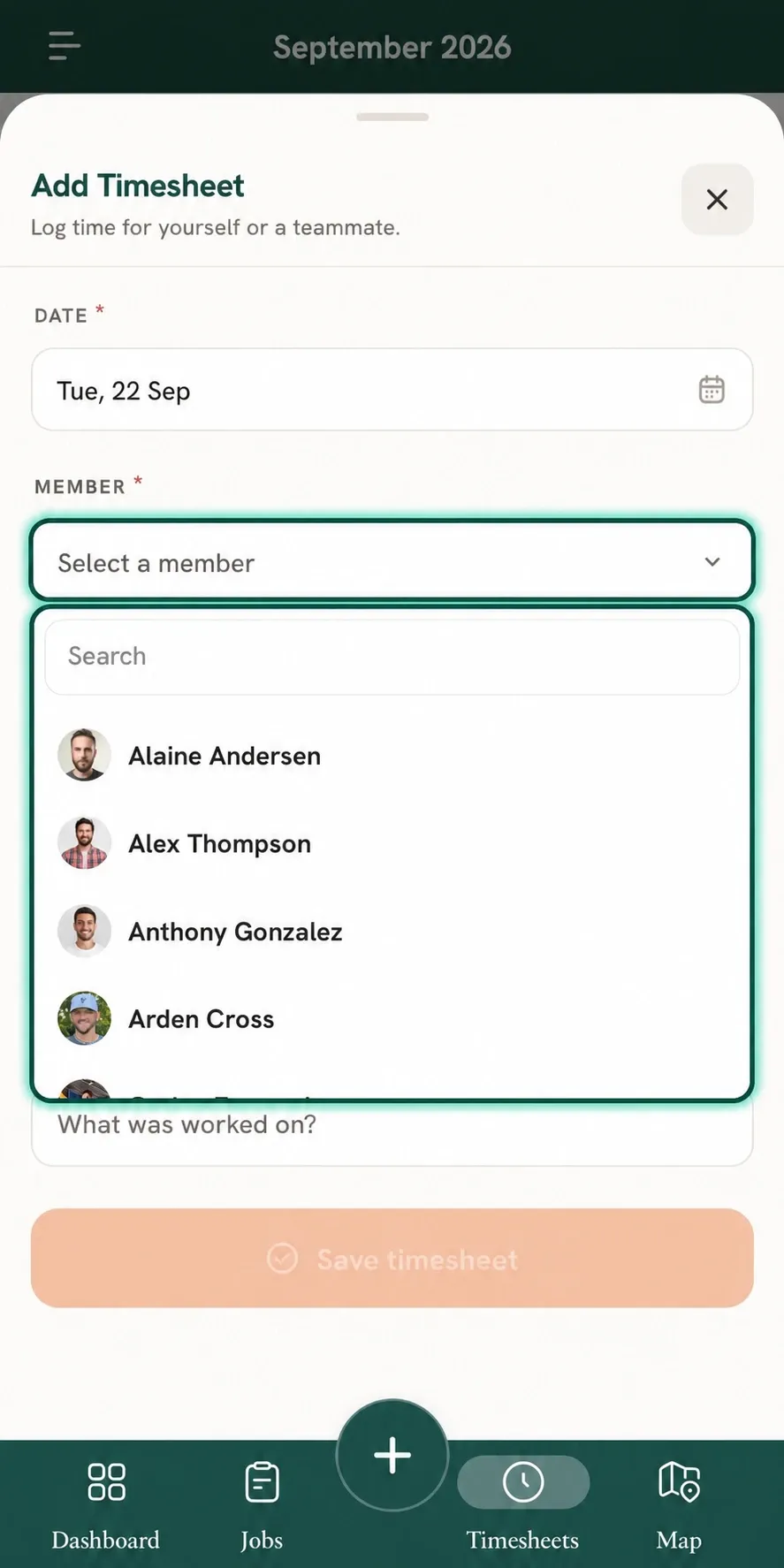
Admins can also add Manual Timesheets for other Members.
The Maps section allows Admins to view all assigned jobs on the map rather than only their own.
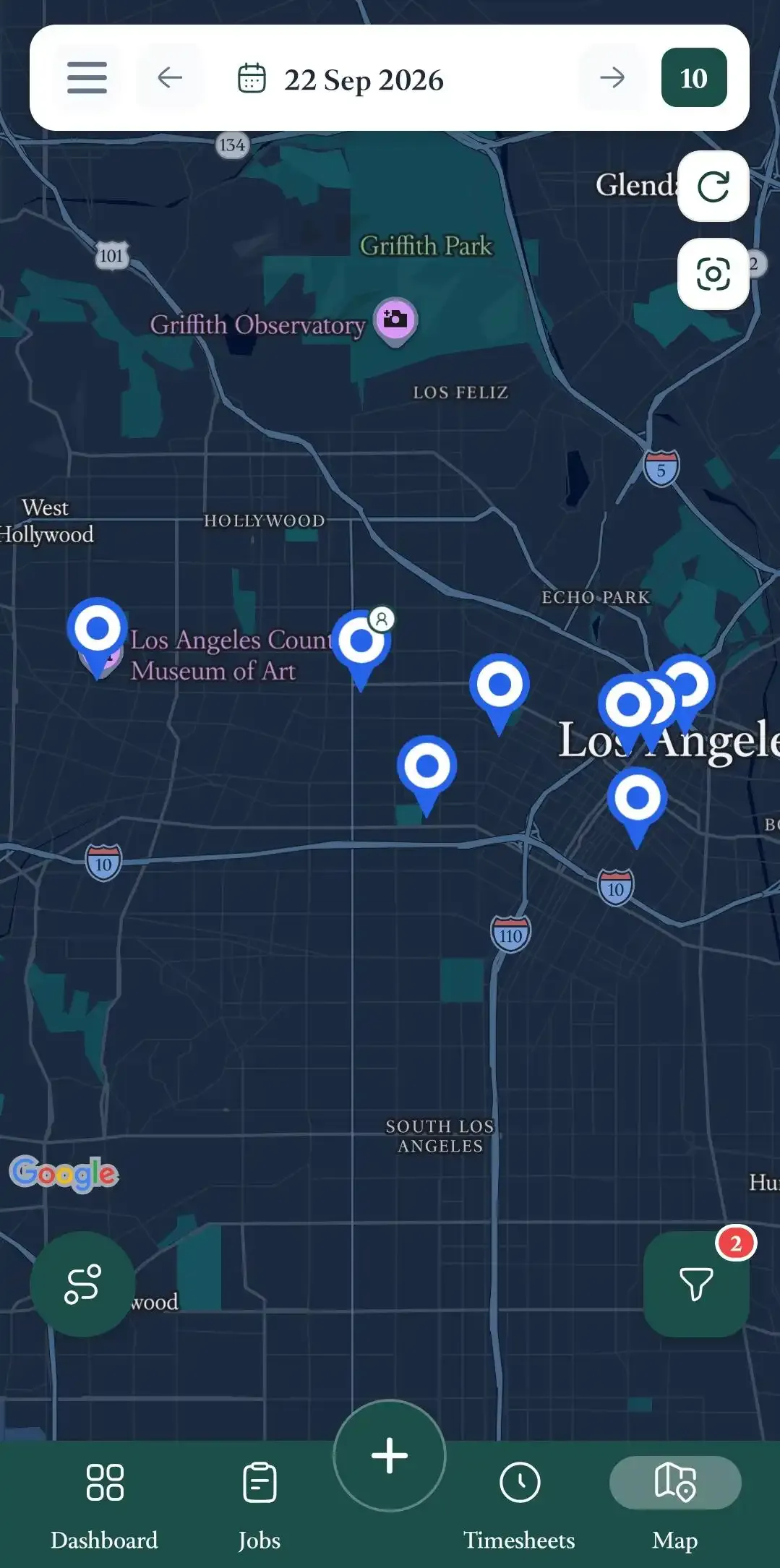
Admins can also:
The Mobile App therefore provides different levels of access depending on whether you are a Member or an Admin, while keeping each user's available information and actions aligned with their Organization permissions.
Manage dispatch, route plan, techs, quotes, invoices, and more in GHL, the only dedicated field service app for HighLevel home service businesses and contractors.
The complete FieldTask sitemap: quick links to all pages.
Learn how FieldTask supports HIPAA compliance for home health and field service teams—encryption, BAAs, access controls, and audit logging.