The HighLevel Home Service Business Management Software
Manage dispatch, route plan, techs, quotes, invoices, and more in GHL, the only dedicated field service app for HighLevel home service businesses and contractors.
No image available
Jump to
Learn how Organization Owners and Admins can create optimized routes for themselves or their Field Technicians from the FieldTask Mobile App.
Like the FieldTask Web App, the Mobile App includes Route Optimization to help organize jobs into a more efficient route.
Only Organization Owners and Admins can create optimized routes. As a Field Technician, or Member in FieldTask, you can only view routes that have been optimized for you.
As an Organization Owner or Admin, you can optimize routes for:
To create an optimized route from the FieldTask Mobile App:
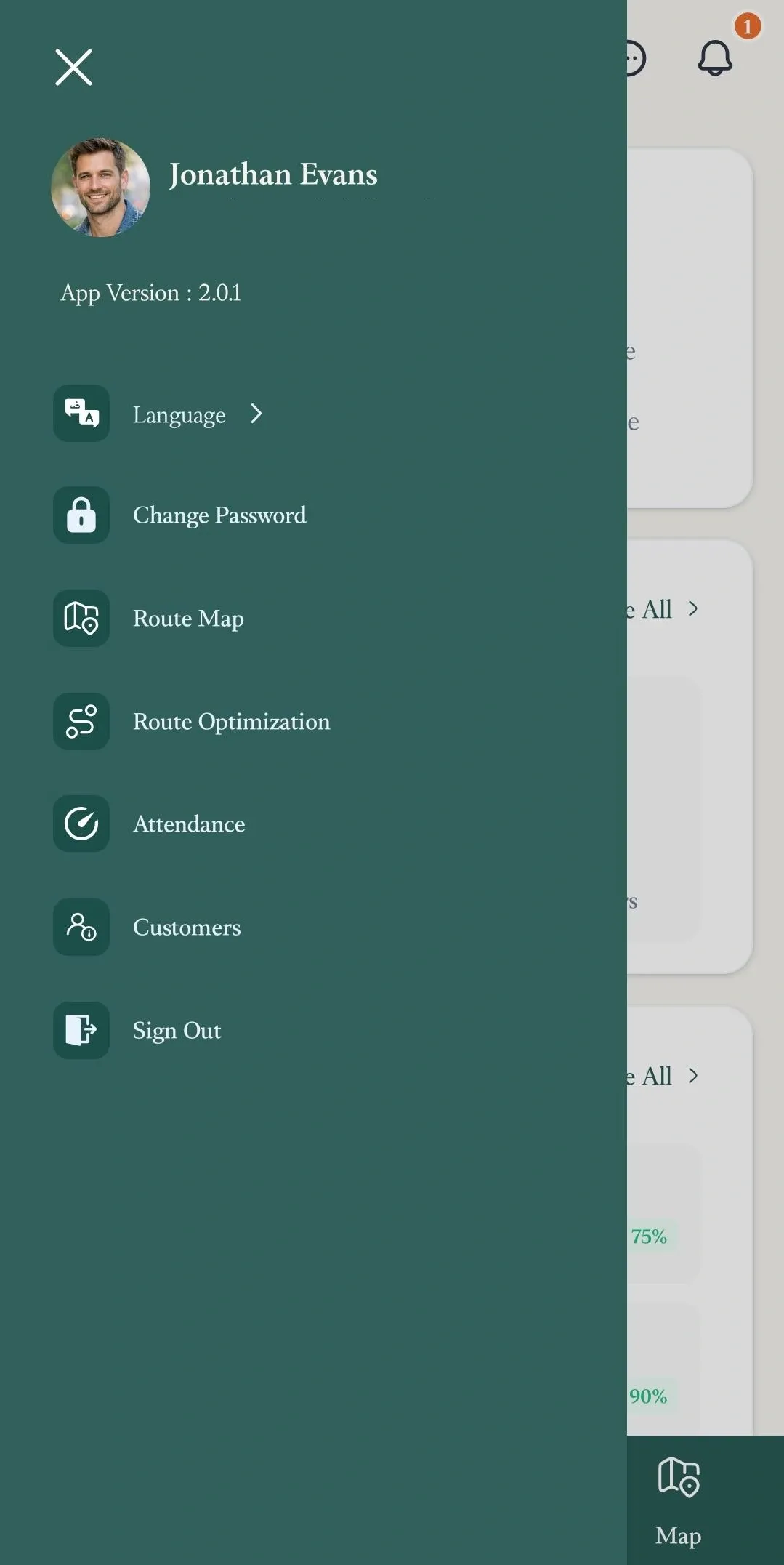
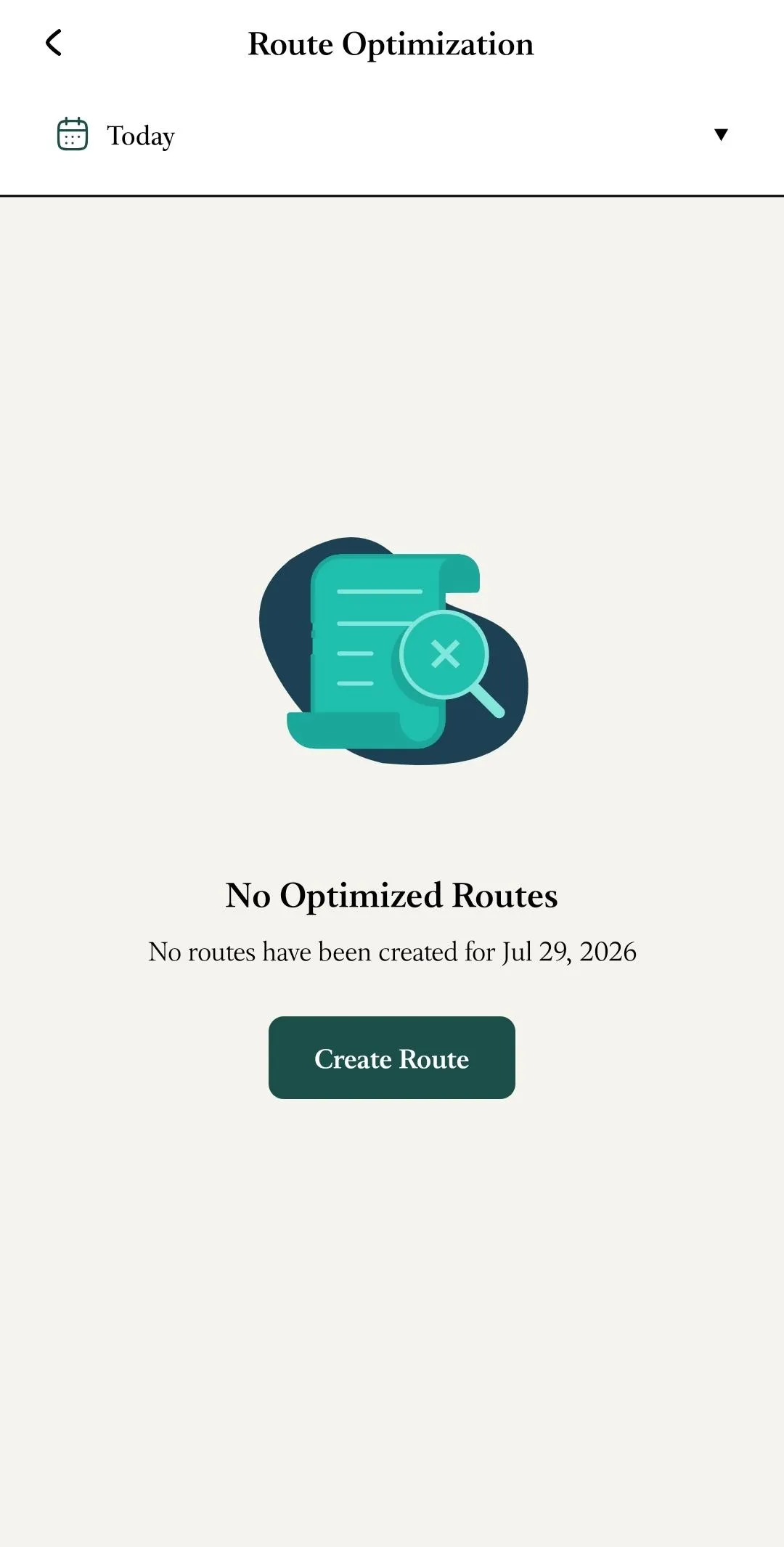
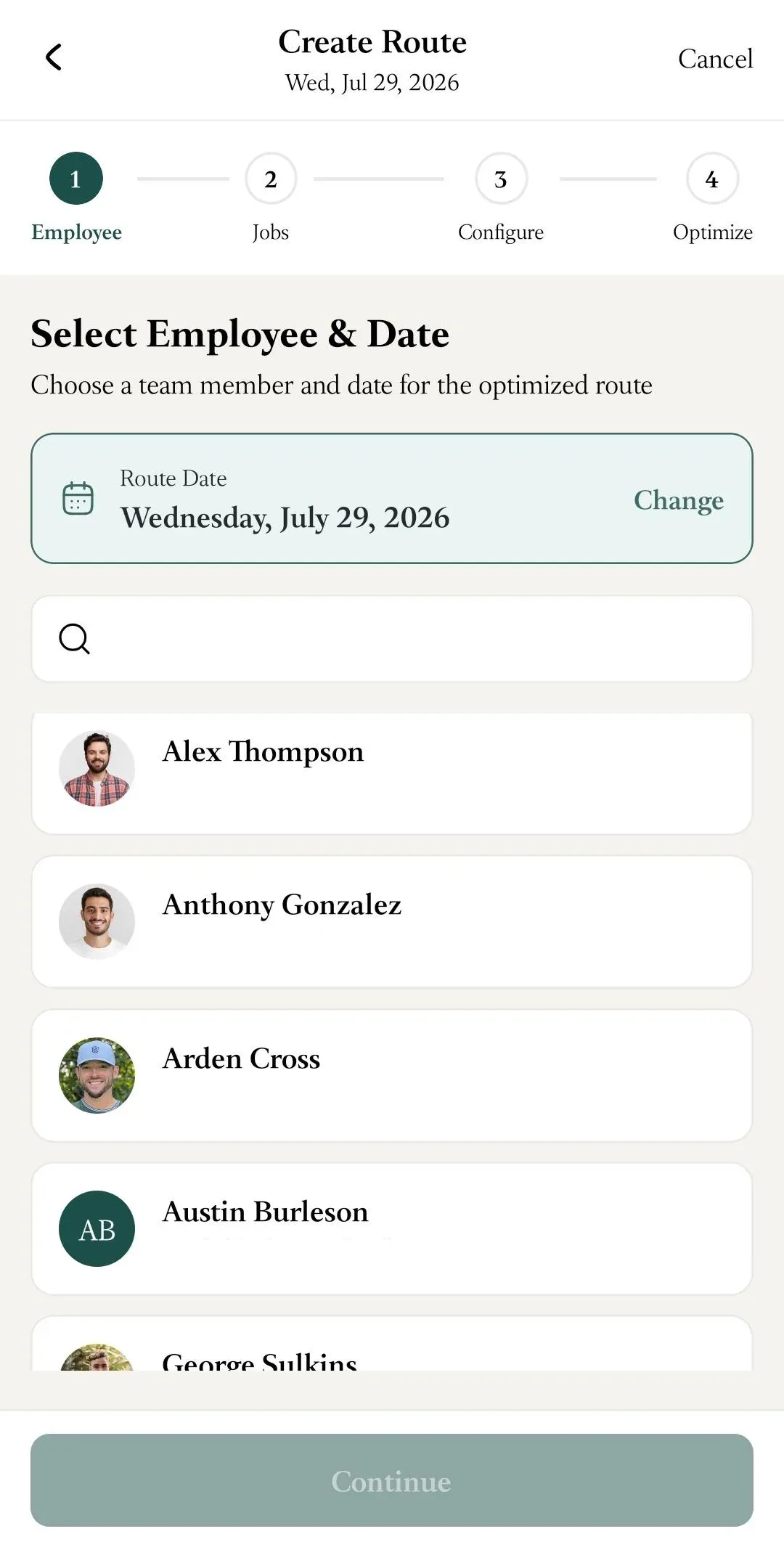
The Route Optimization process is divided into four sections:
In the Employee section:
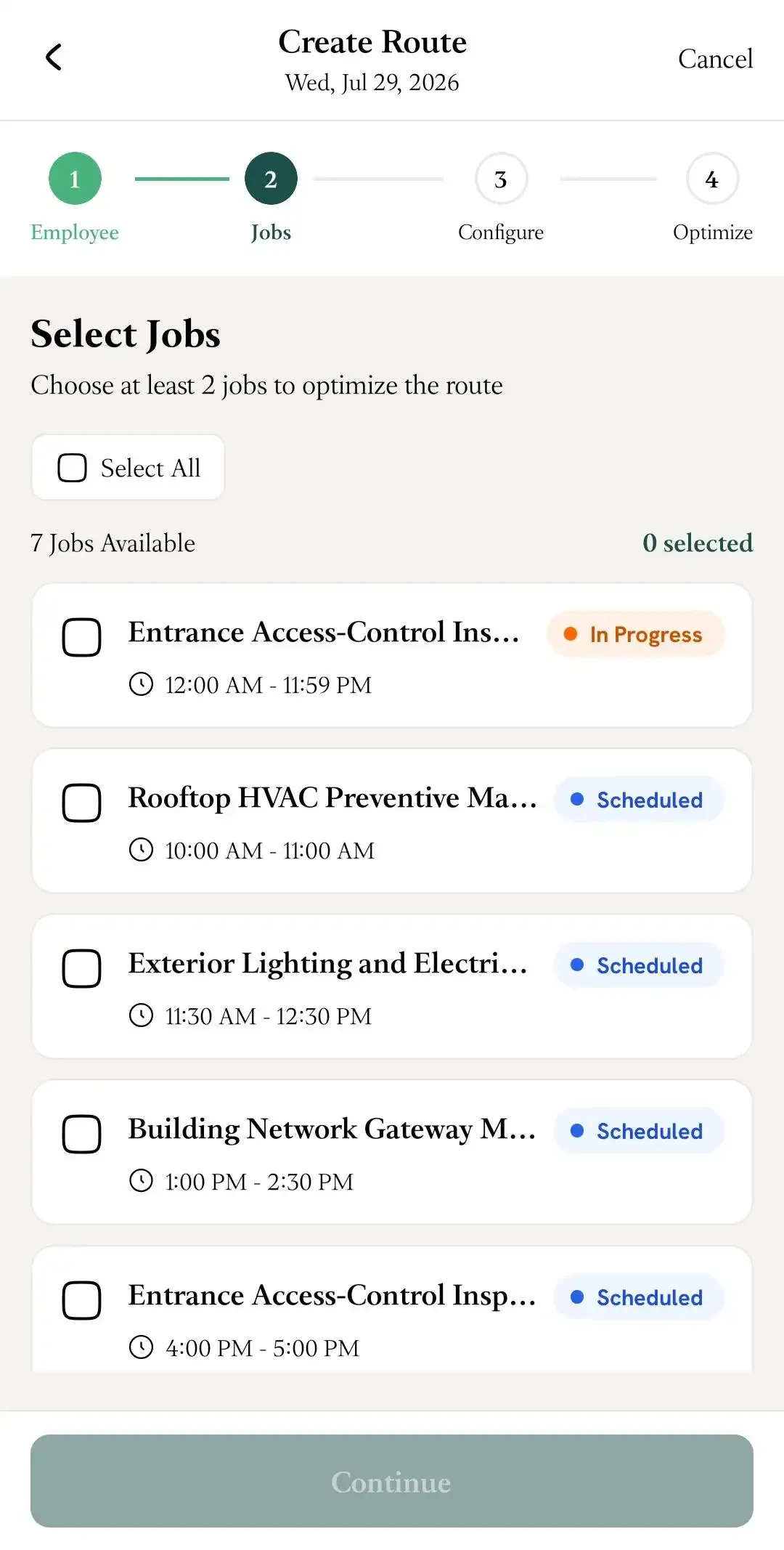
In the Jobs section, select the jobs you want to include in the optimized route.
You can choose:
In the Configure section, you can choose:
Selecting a Start Point and End Point is optional, so this section can be skipped if you do not need to specify them.
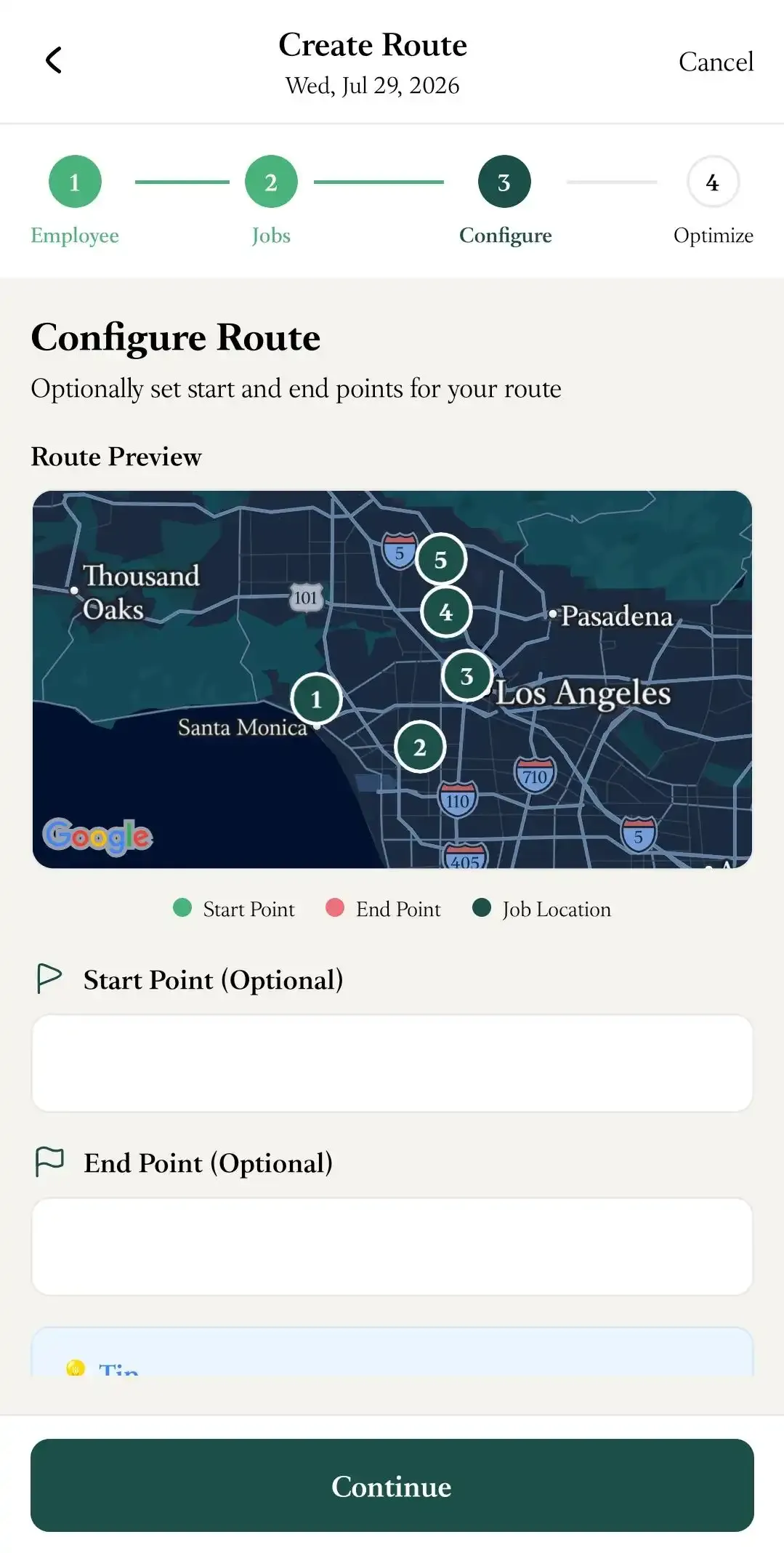
❗ Please Note: If one of the selected jobs is already In Progress, it is recommended that you select that job as the Start Point.
The Ready to Optimize section allows you to review the route information before creating it.
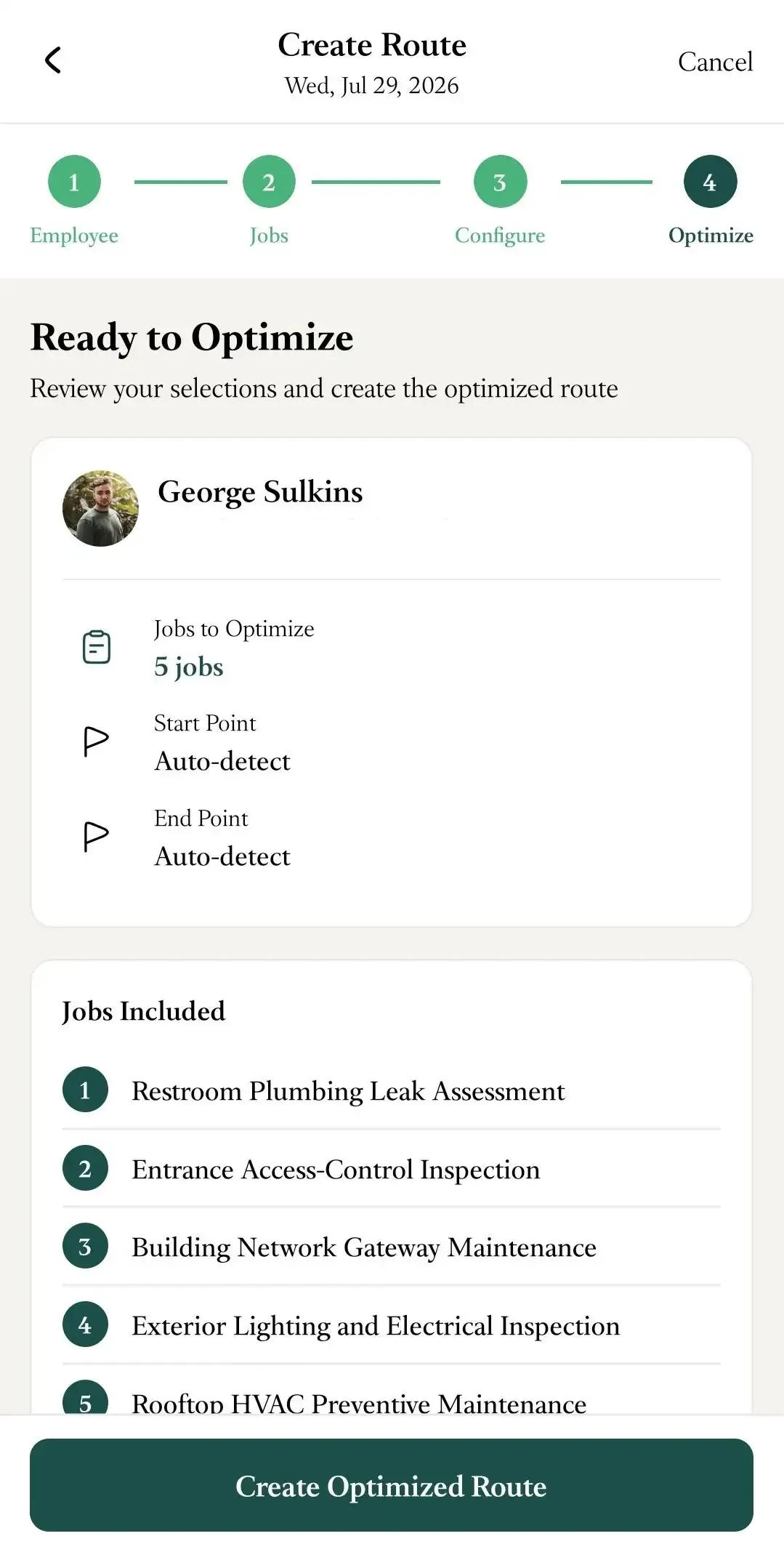
As a Field Technician, you cannot create your own optimized routes, but you can view routes that have been created for you.
To view your optimized route:
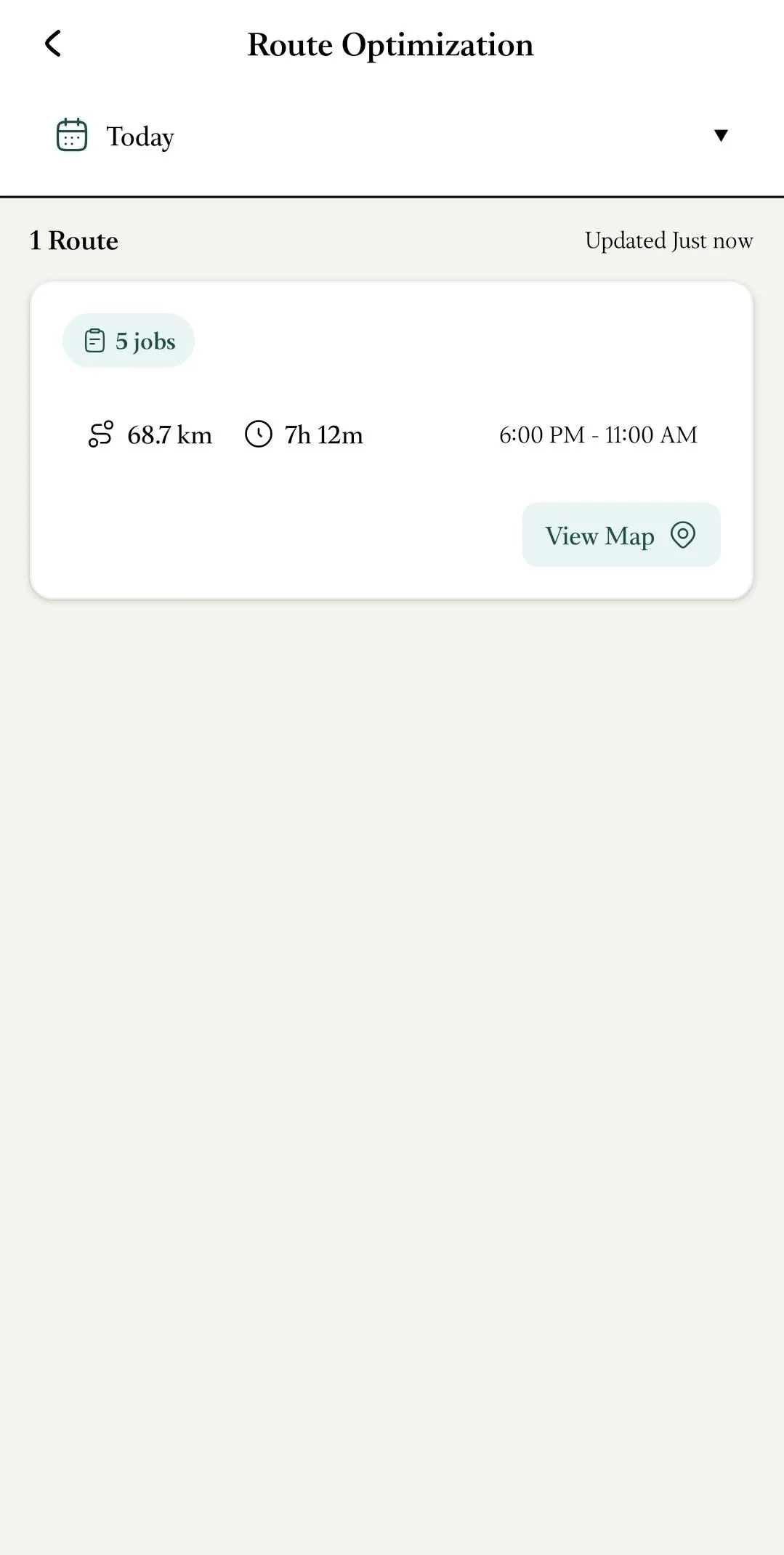
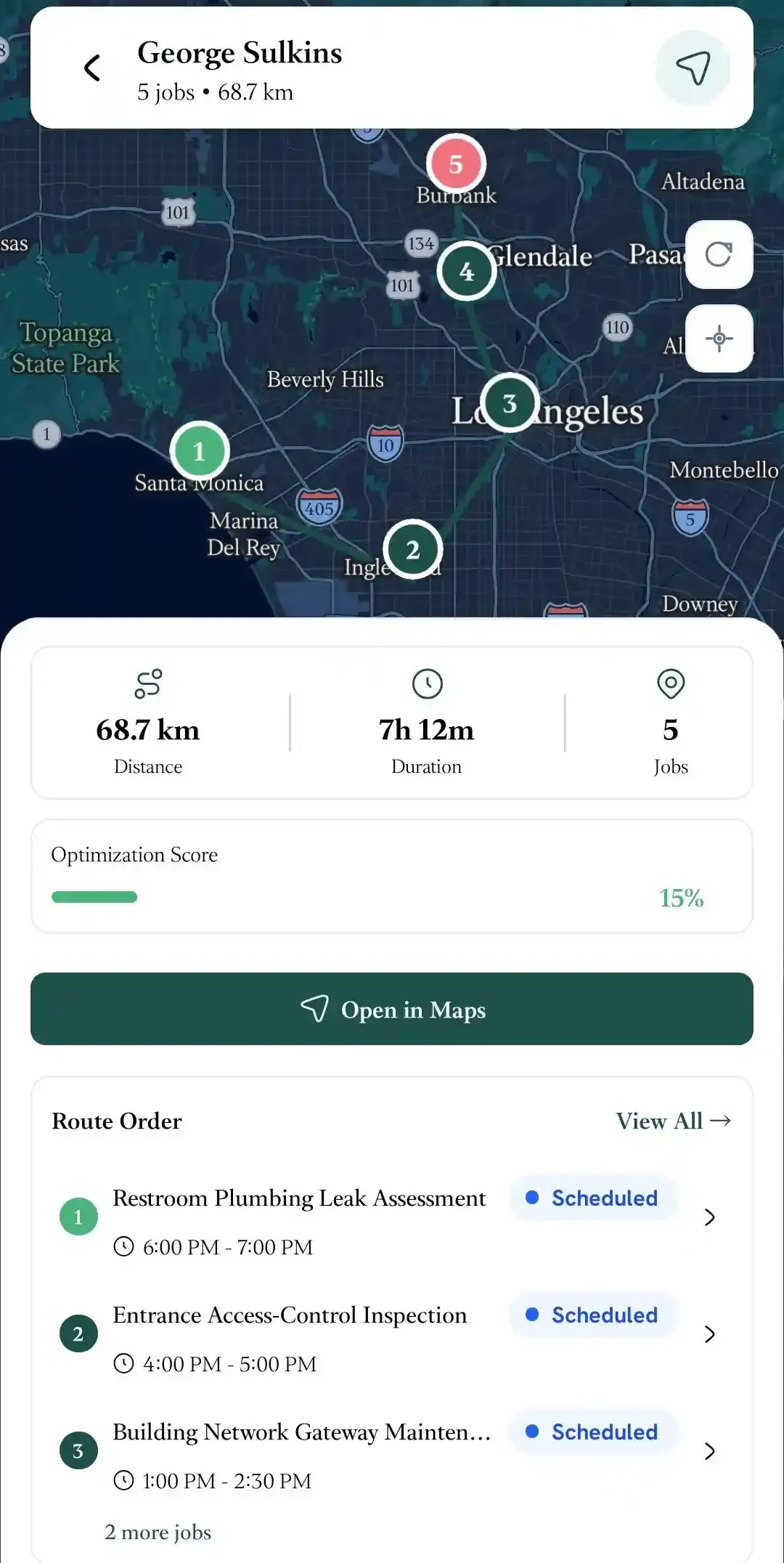
The Route Details page will show you:
You will also have the option to view the route in Google Maps.
📌 Note: If you want to learn how to optimize routes for yourself or your Field Technicians from the FieldTask Web App, follow this article.
Manage dispatch, route plan, techs, quotes, invoices, and more in GHL, the only dedicated field service app for HighLevel home service businesses and contractors.
The complete FieldTask sitemap: quick links to all pages.
Learn how FieldTask supports HIPAA compliance for home health and field service teams—encryption, BAAs, access controls, and audit logging.