The HighLevel Home Service Business Management Software
Manage dispatch, route plan, techs, quotes, invoices, and more in GHL, the only dedicated field service app for HighLevel home service businesses and contractors.
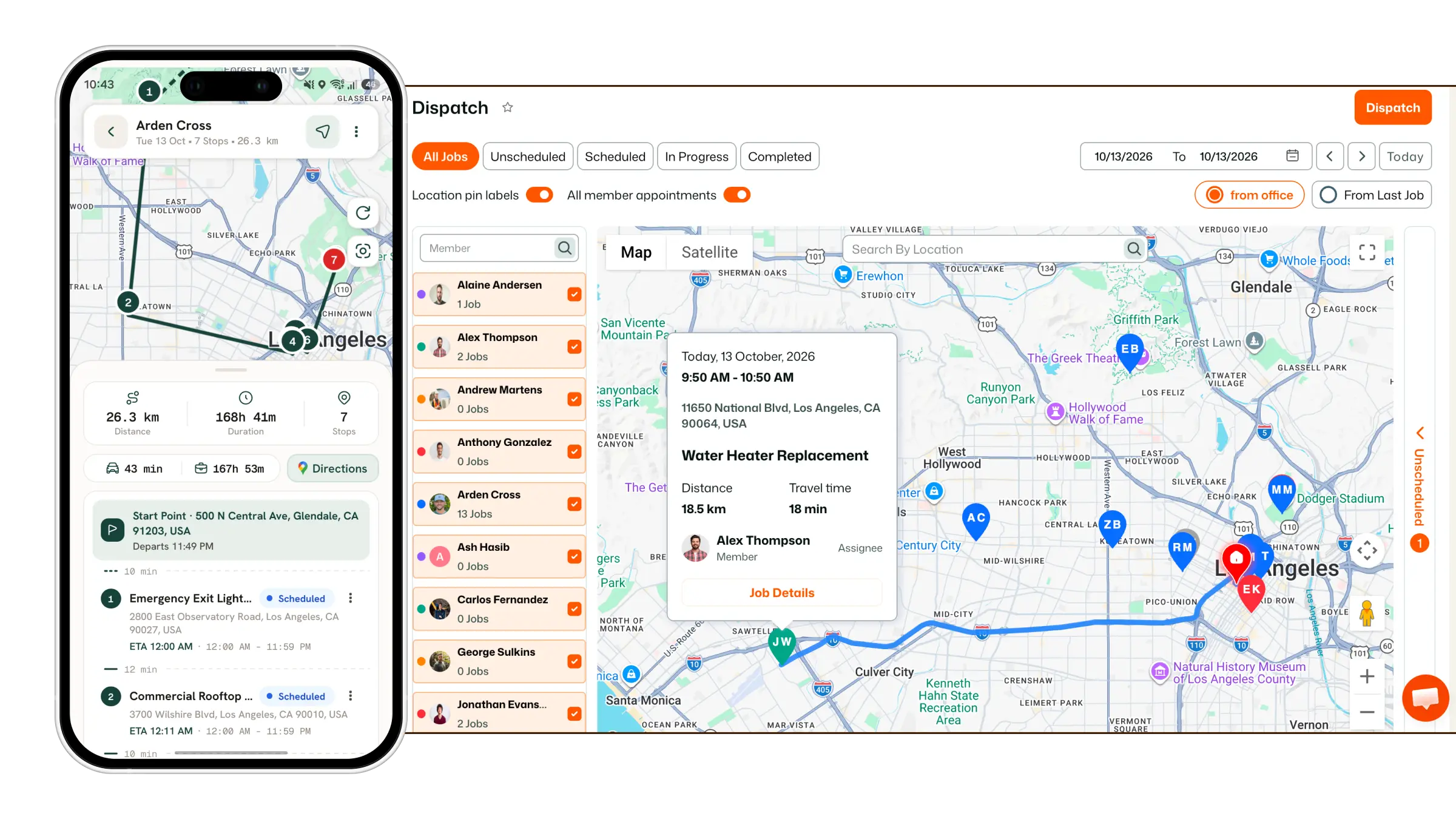
Learn how to set a custom service location radius when creating or editing a job or customer location.
You can set a custom radius while creating a new job. Job creation can be started from
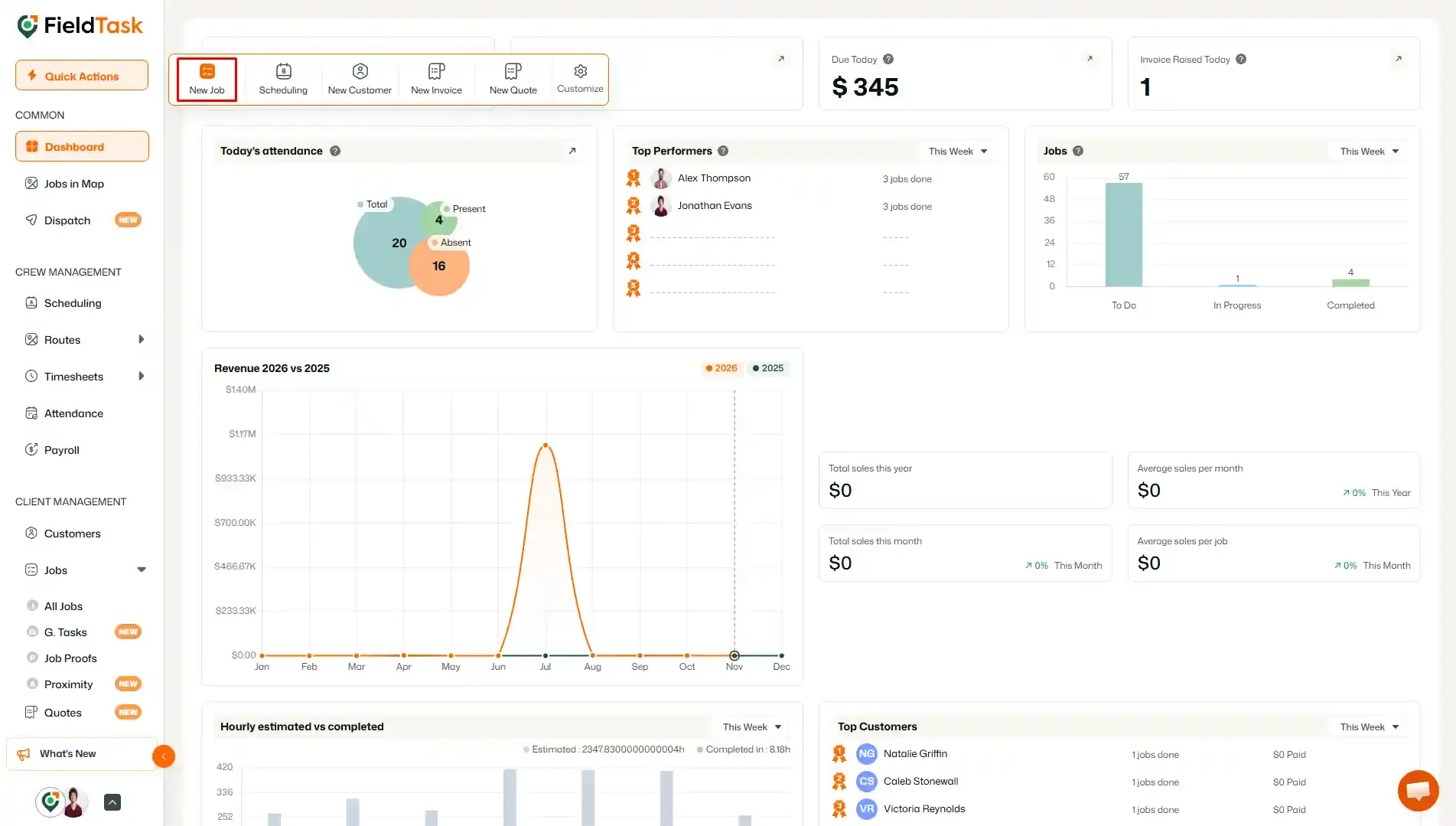
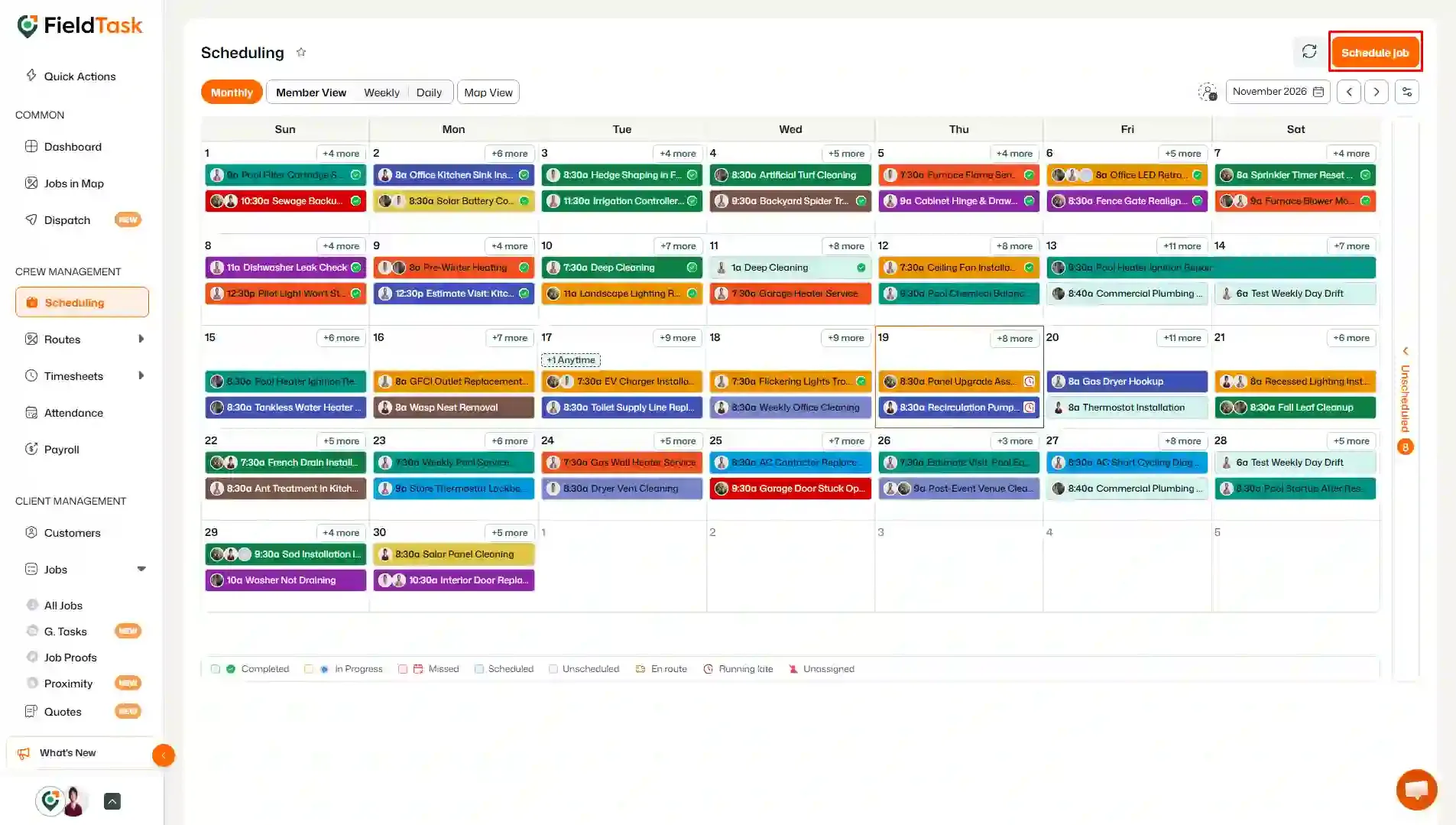
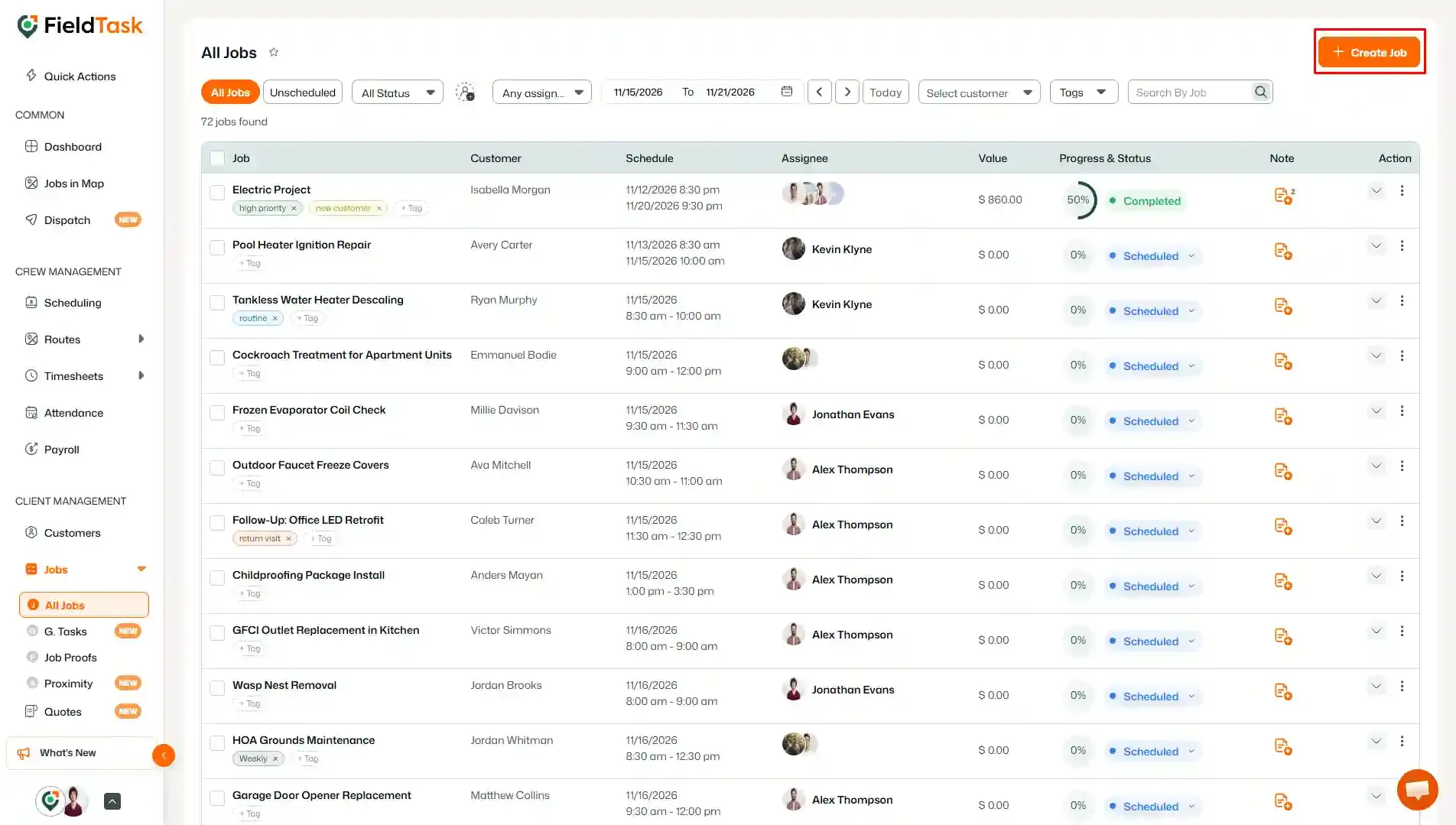
To add a custom radius:
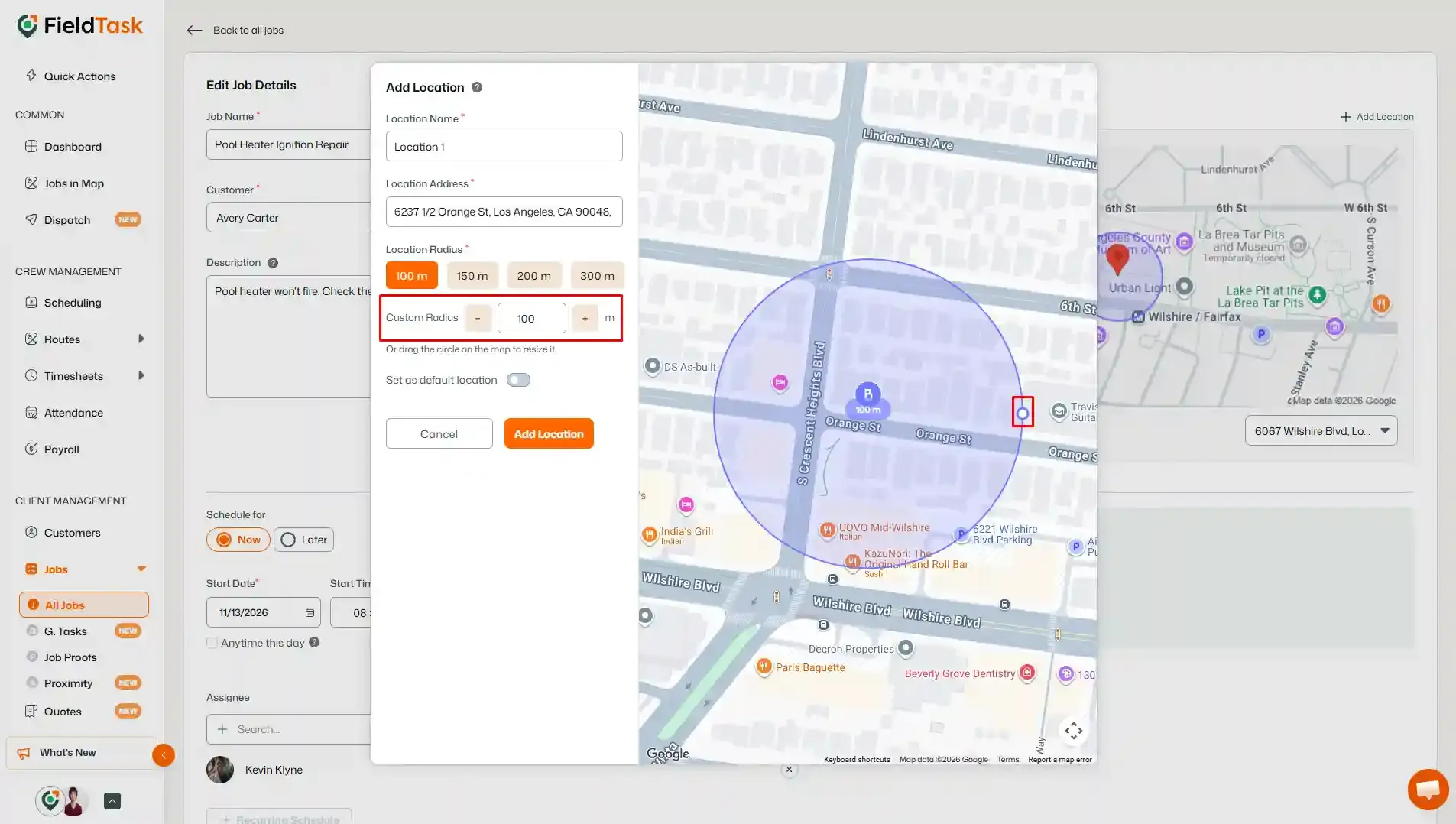
The selected radius determines the area around the service location that can be used for the job.
You can also set or update the radius directly from the customer's location settings.
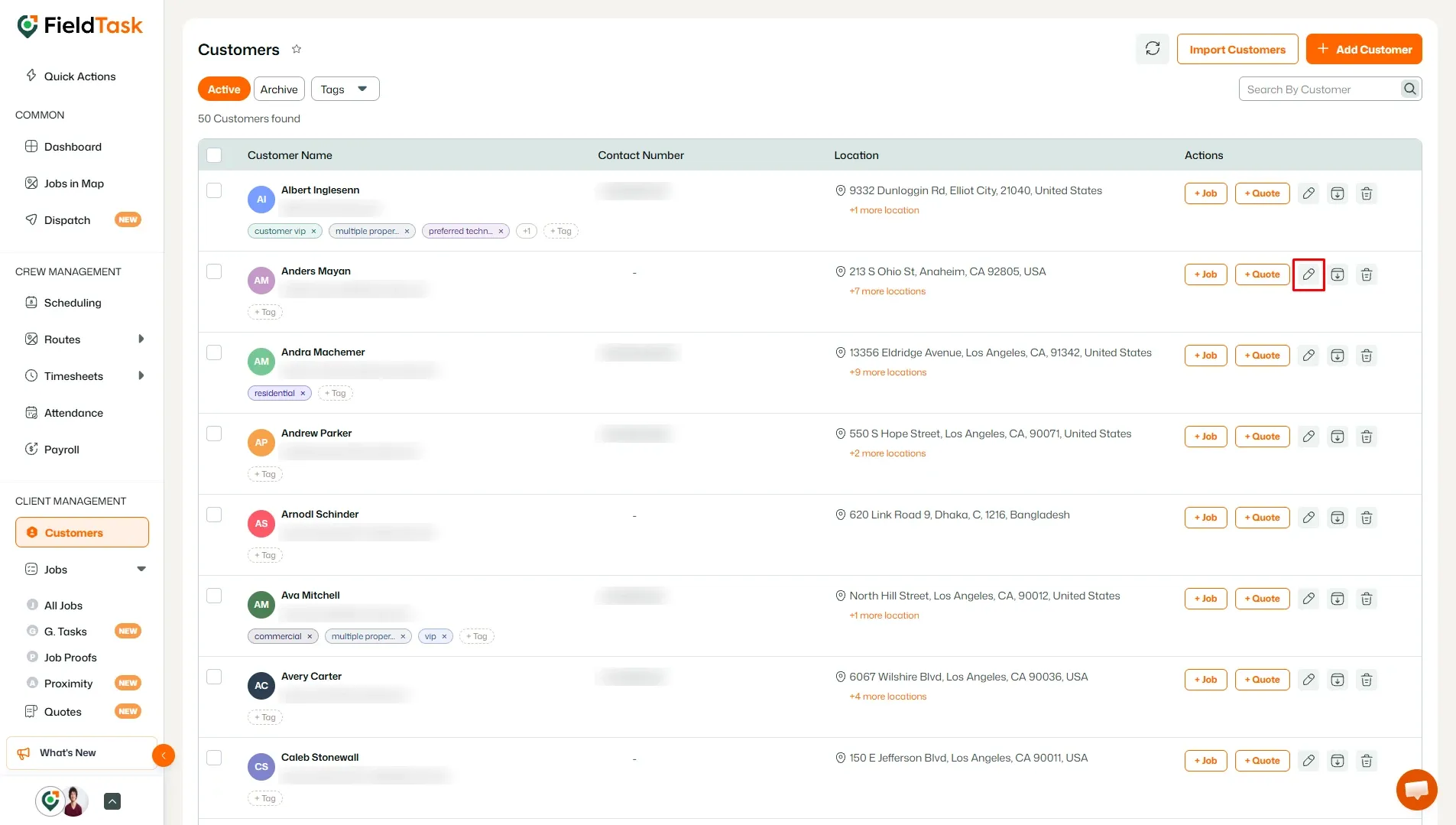
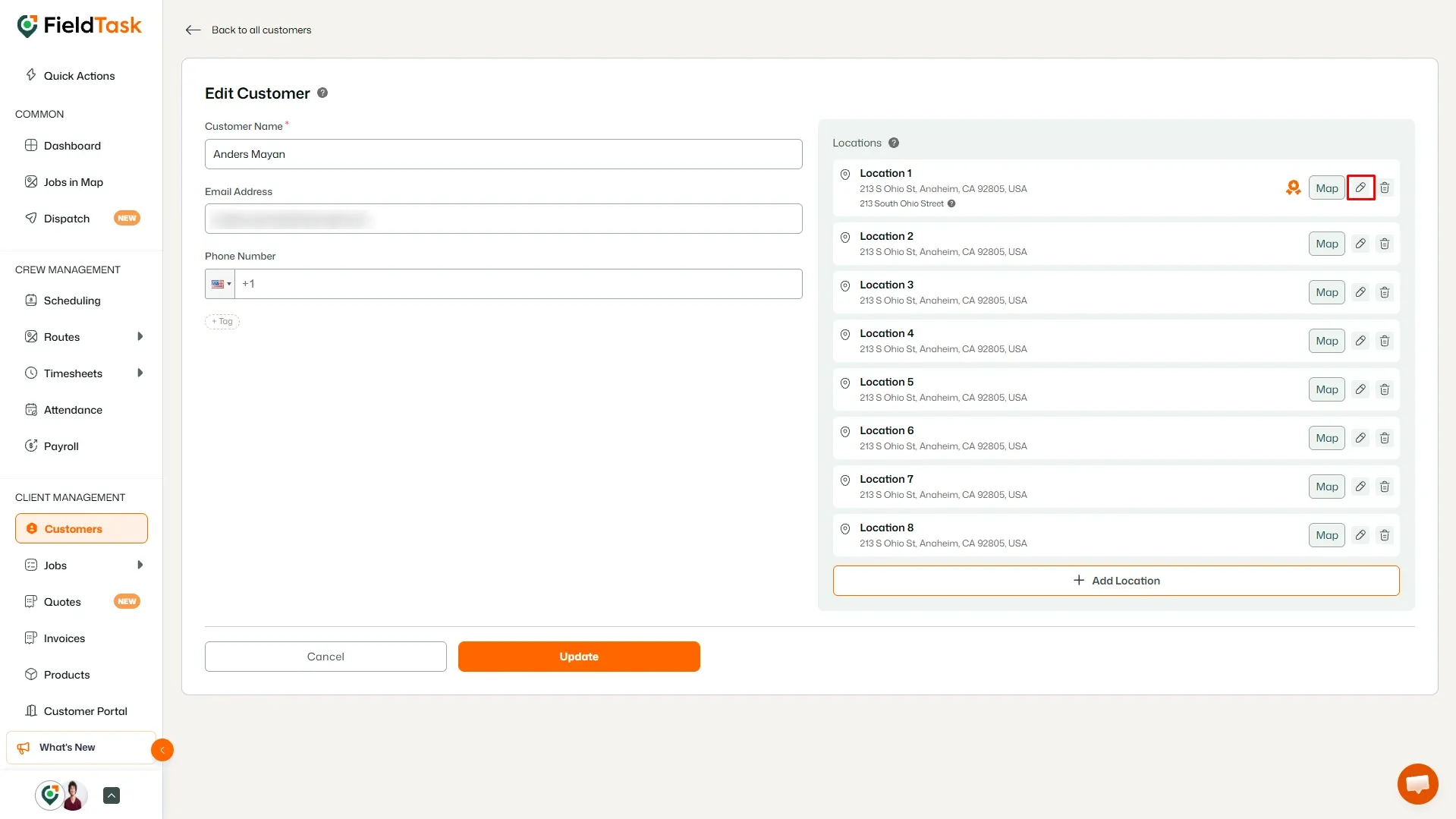
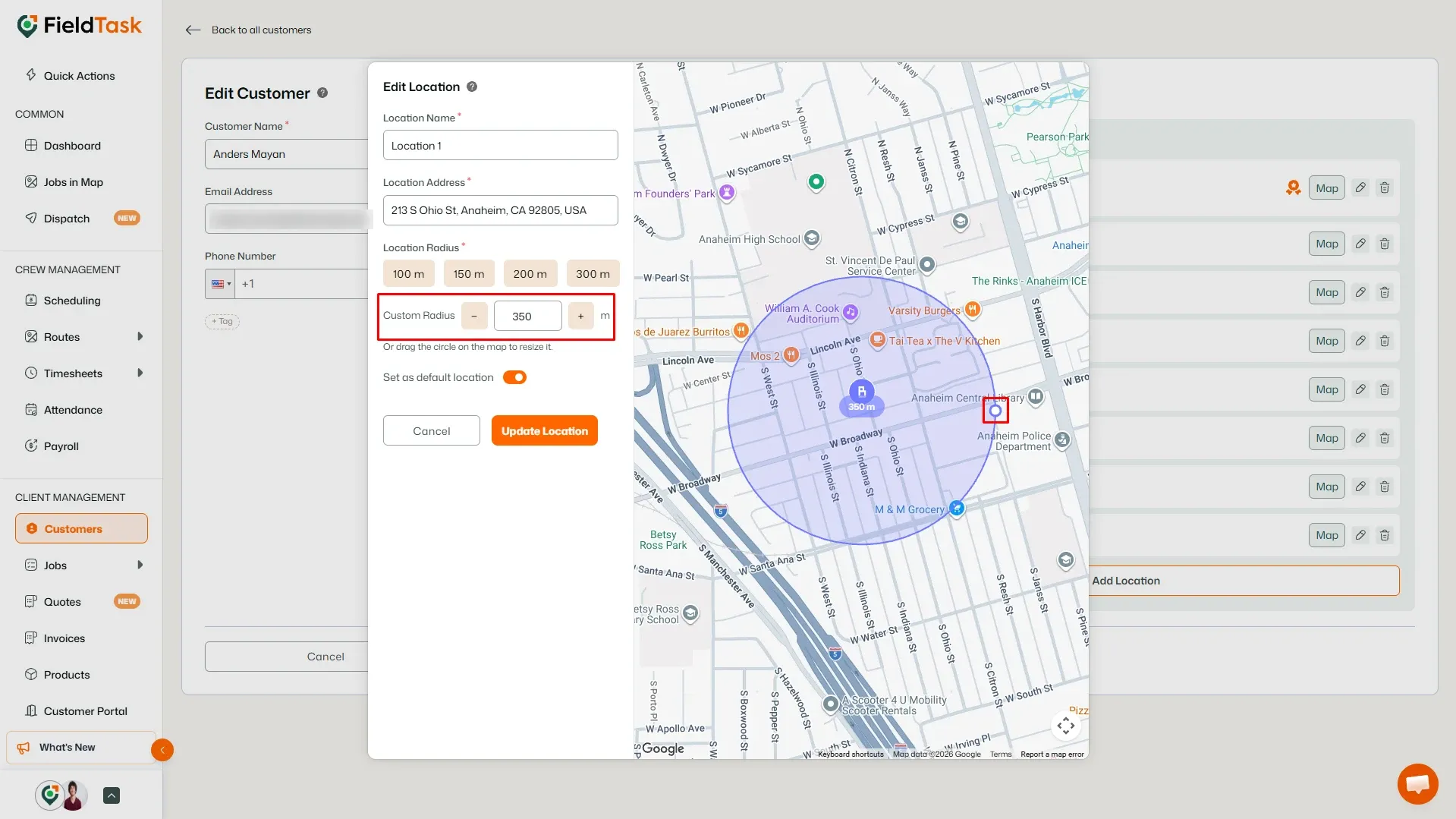
The radius can therefore be configured from Job Creation, Job Edit, or Customer Location Edit, depending on where you need to make the change.
Manage dispatch, route plan, techs, quotes, invoices, and more in GHL, the only dedicated field service app for HighLevel home service businesses and contractors.
The complete FieldTask sitemap: quick links to all pages.
Learn how FieldTask supports HIPAA compliance for home health and field service teams—encryption, BAAs, access controls, and audit logging.