The HighLevel Home Service Business Management Software
Manage dispatch, route plan, techs, quotes, invoices, and more in GHL, the only dedicated field service app for HighLevel home service businesses and contractors.
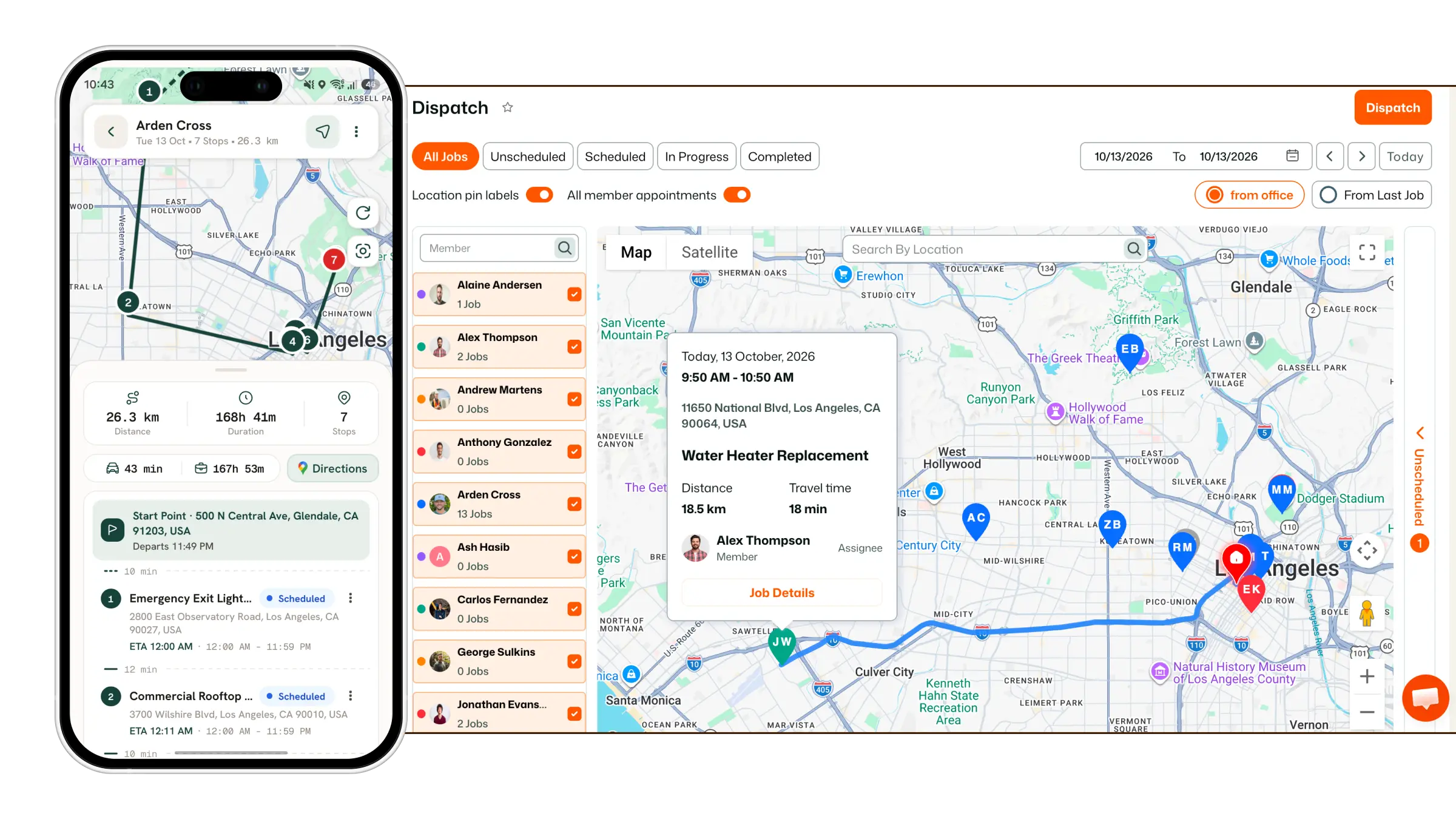
Learn how customers can use the FieldTask Customer Portal to review jobs, quotes, invoices, and request services.
The FieldTask Customer Portal gives customers a dedicated place to view information and interact with the services provided by your organization.
From the portal, customers can access:
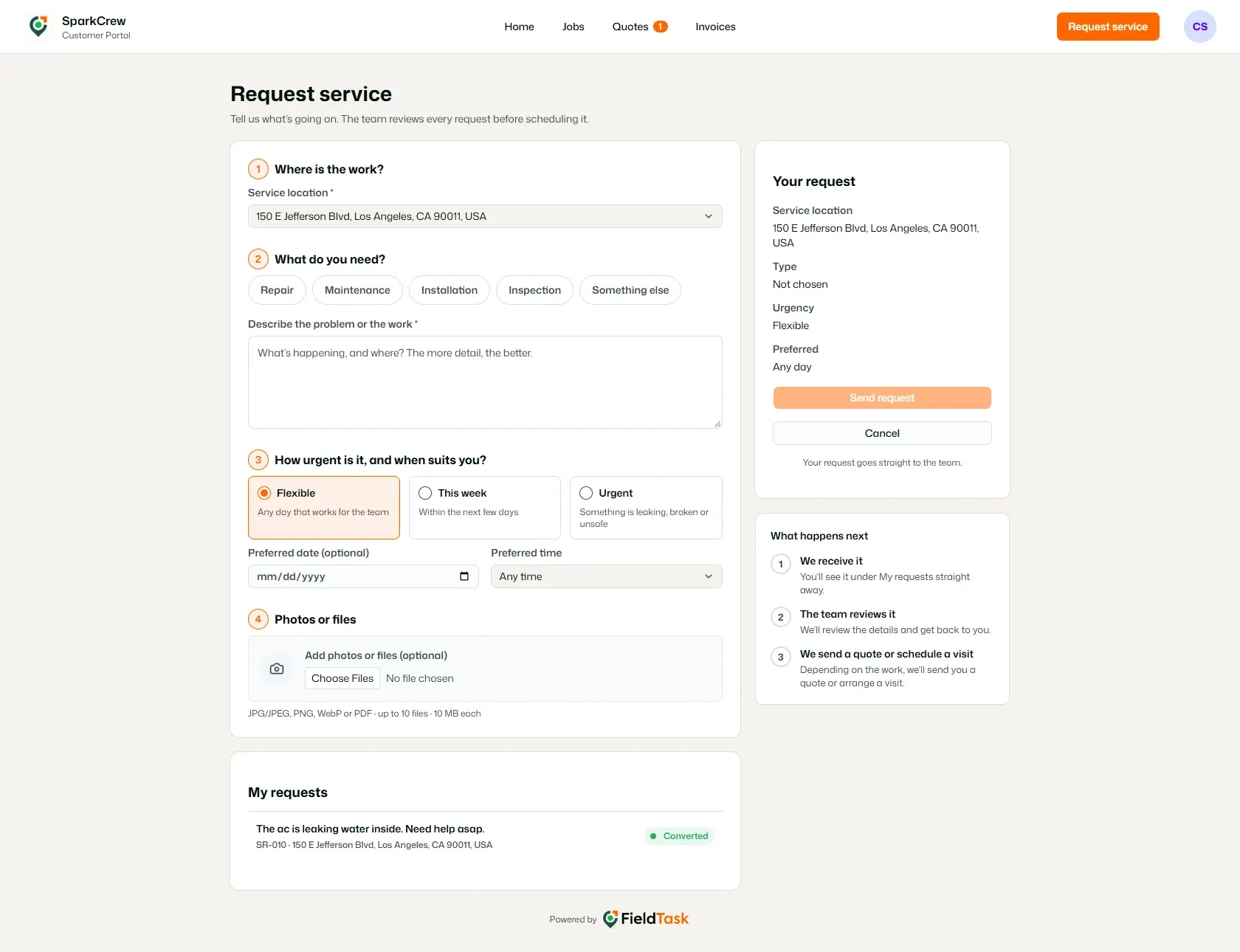
Customers can also submit a Request service request directly from the portal.
The Home page provides customers with an overview of items that may require their attention.
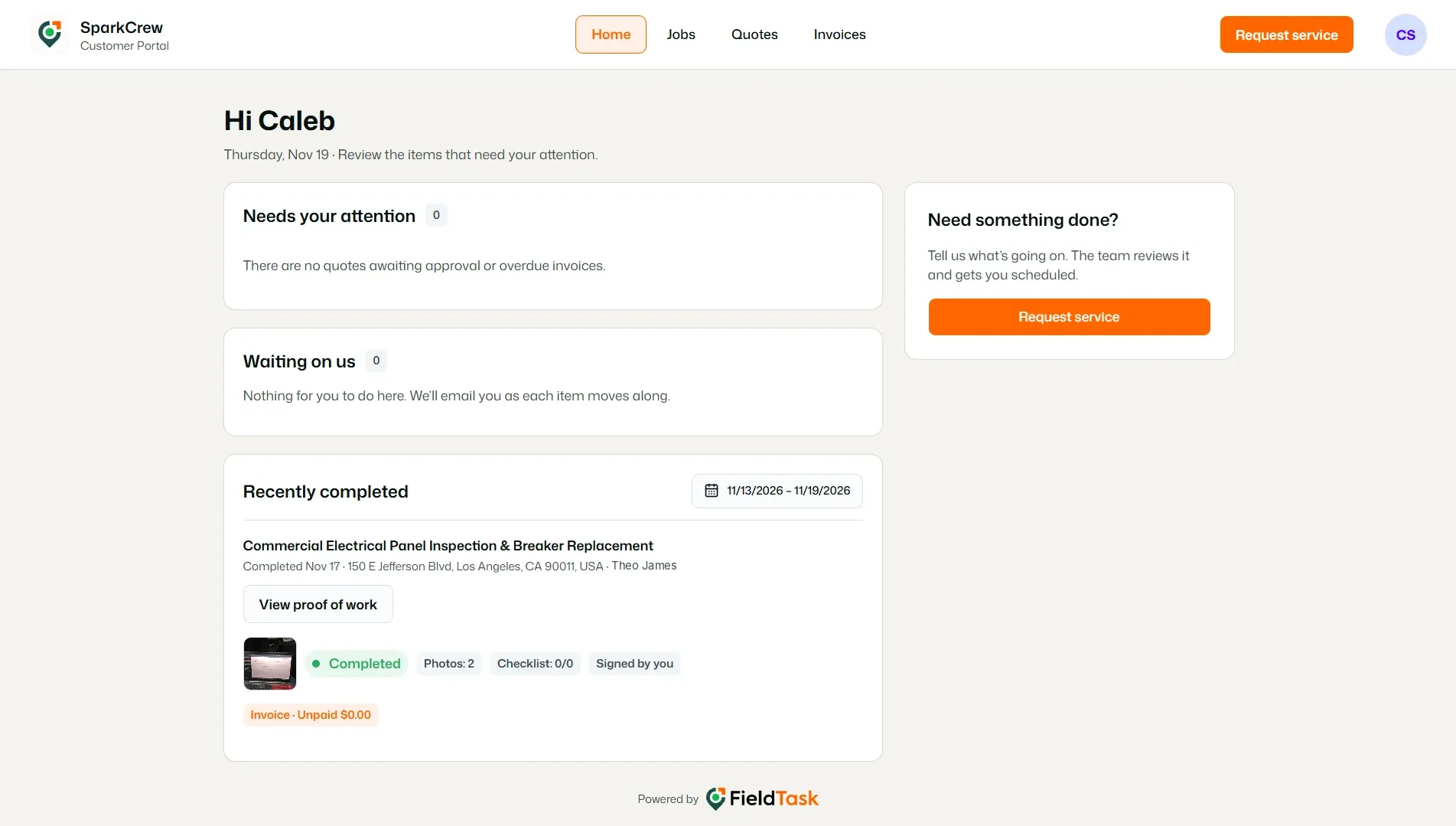
The Needs your attention section highlights items that require action from the customer.
For example, this section can show Quotes awaiting approval or overdue invoices.
If there are no items requiring attention, the portal will indicate that there is nothing currently awaiting the customer's action.
The Waiting on us section shows items that are currently waiting for the service provider to take action.
When there is nothing requiring customer action, the portal indicates that there is nothing for the customer to do and that they will be notified as items progress.
The Recently completed section provides a view of recently completed work.
Customers can use the date range selector to choose the period they want to review.
The Need something done? section allows customers to request a new service.
Click Request service to submit a service request to the organization.
The Jobs page allows customers to view jobs associated with their account.
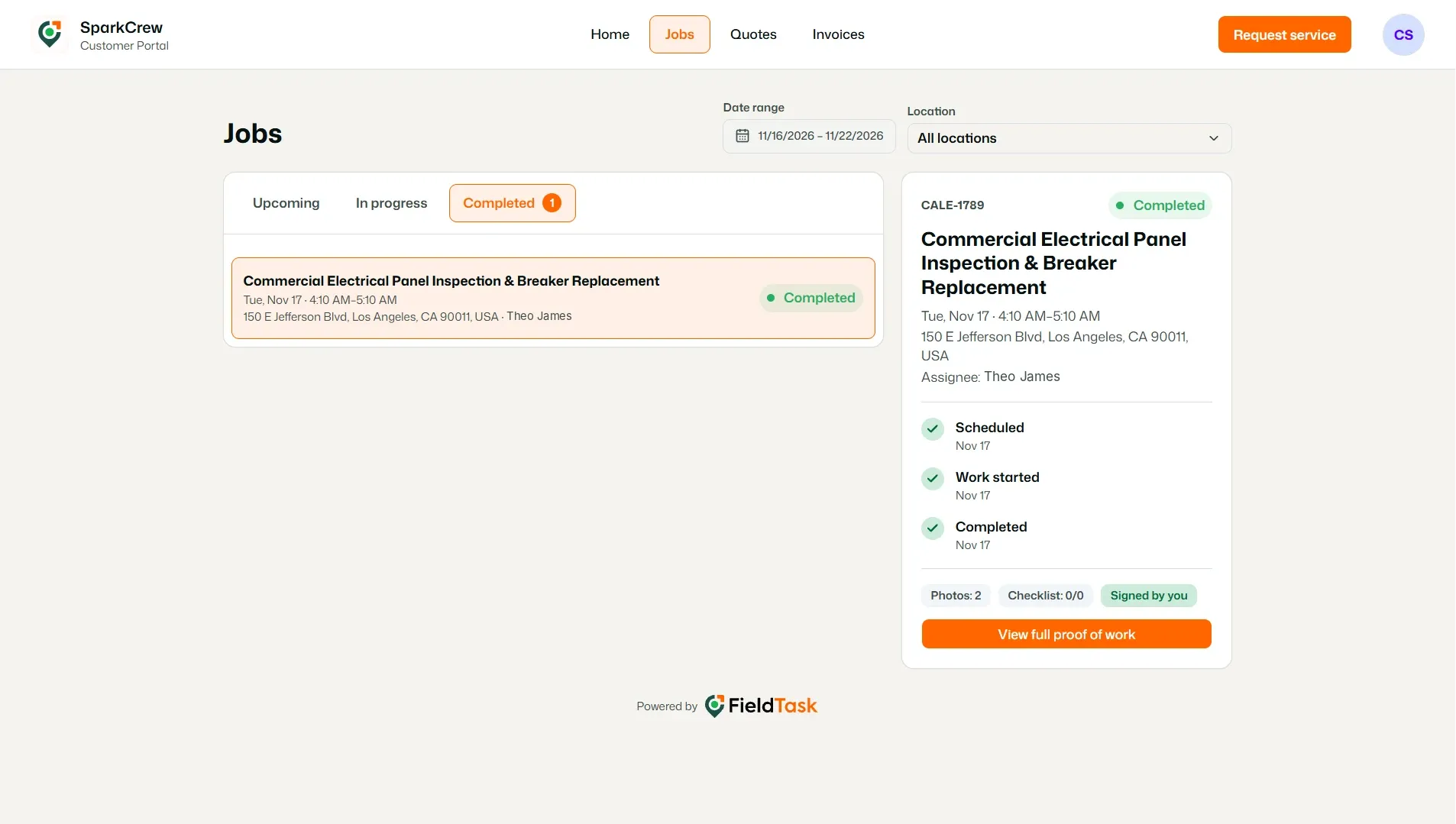
Customers can switch between different job statuses:
Customers can also use the available filters to narrow down the jobs they want to view.
The Date range filter allows customers to select the period they want to see jobs for.
The Location filter allows customers to filter jobs by their service location.
When a customer selects a job, its details can be viewed in the panel on the right.
The Quotes page allows customers to review Quotes sent to them.
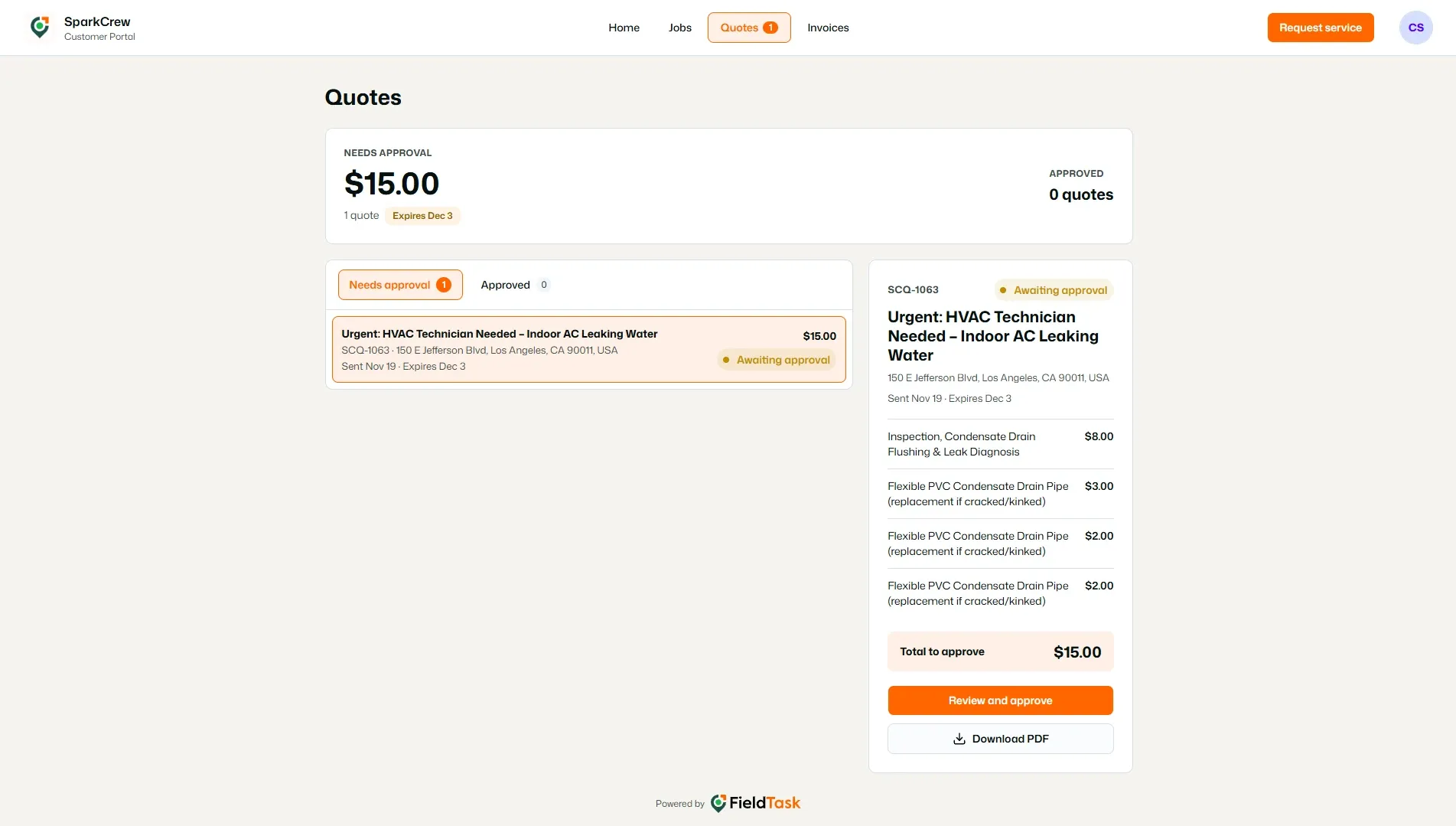
Quotes are separated into:
The page also displays the number of Quotes in each section.
Customers can select a Quote to view its details.
The Invoices page allows customers to view their invoices and payment status.
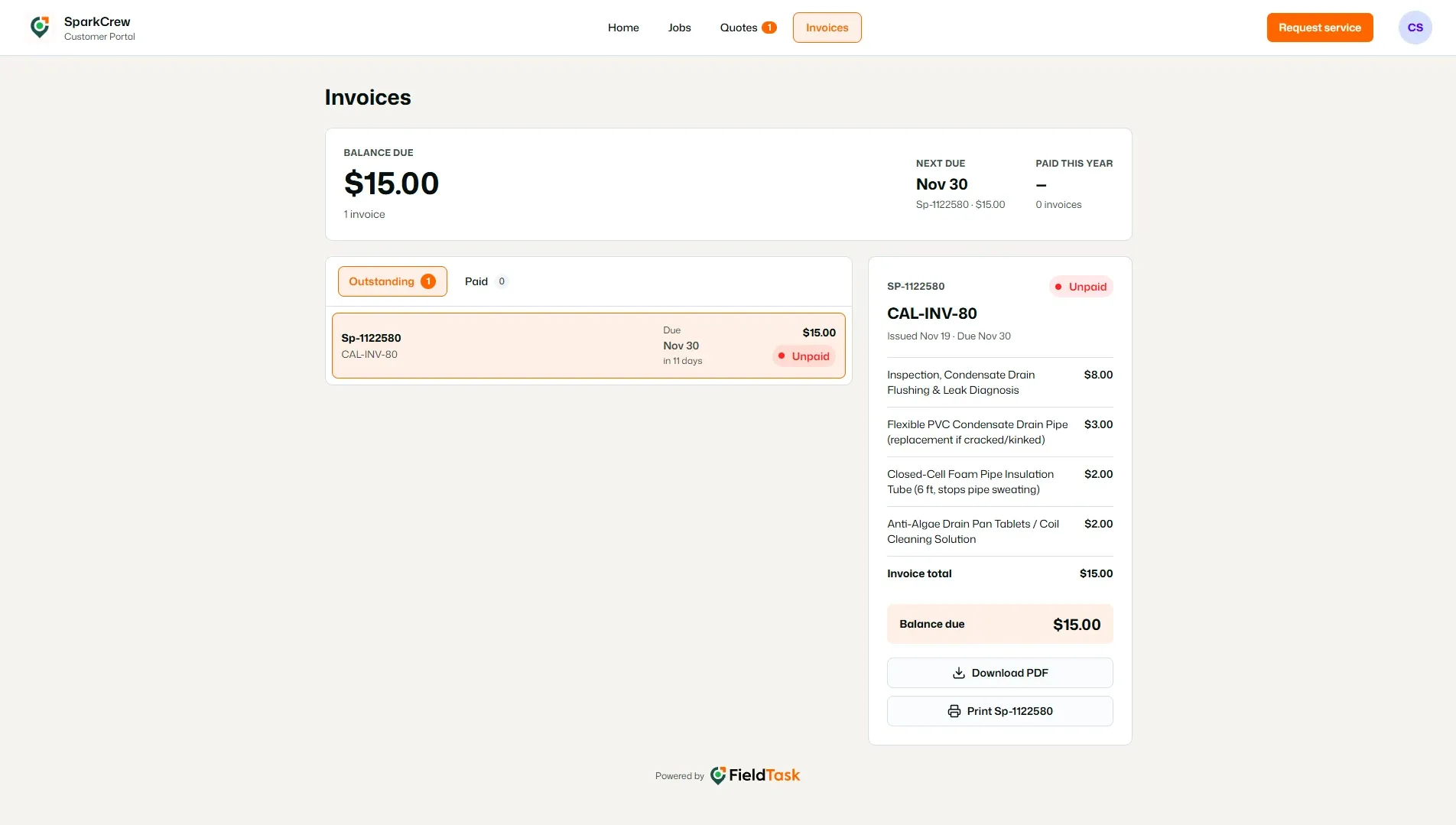
Invoices are separated into:
The page also provides an overview of:
Customers can select the appropriate invoice section to review their outstanding or paid invoices.
Customers can request a new service directly from the Customer Portal.
The Request service button is available in the top navigation and from the Need something done? section on the Home page.
This gives customers a direct way to tell the service provider what they need without having to contact them through a separate channel.
Manage dispatch, route plan, techs, quotes, invoices, and more in GHL, the only dedicated field service app for HighLevel home service businesses and contractors.
The complete FieldTask sitemap: quick links to all pages.
Learn how FieldTask supports HIPAA compliance for home health and field service teams—encryption, BAAs, access controls, and audit logging.