The HighLevel Home Service Business Management Software
Manage dispatch, route plan, techs, quotes, invoices, and more in GHL, the only dedicated field service app for HighLevel home service businesses and contractors.
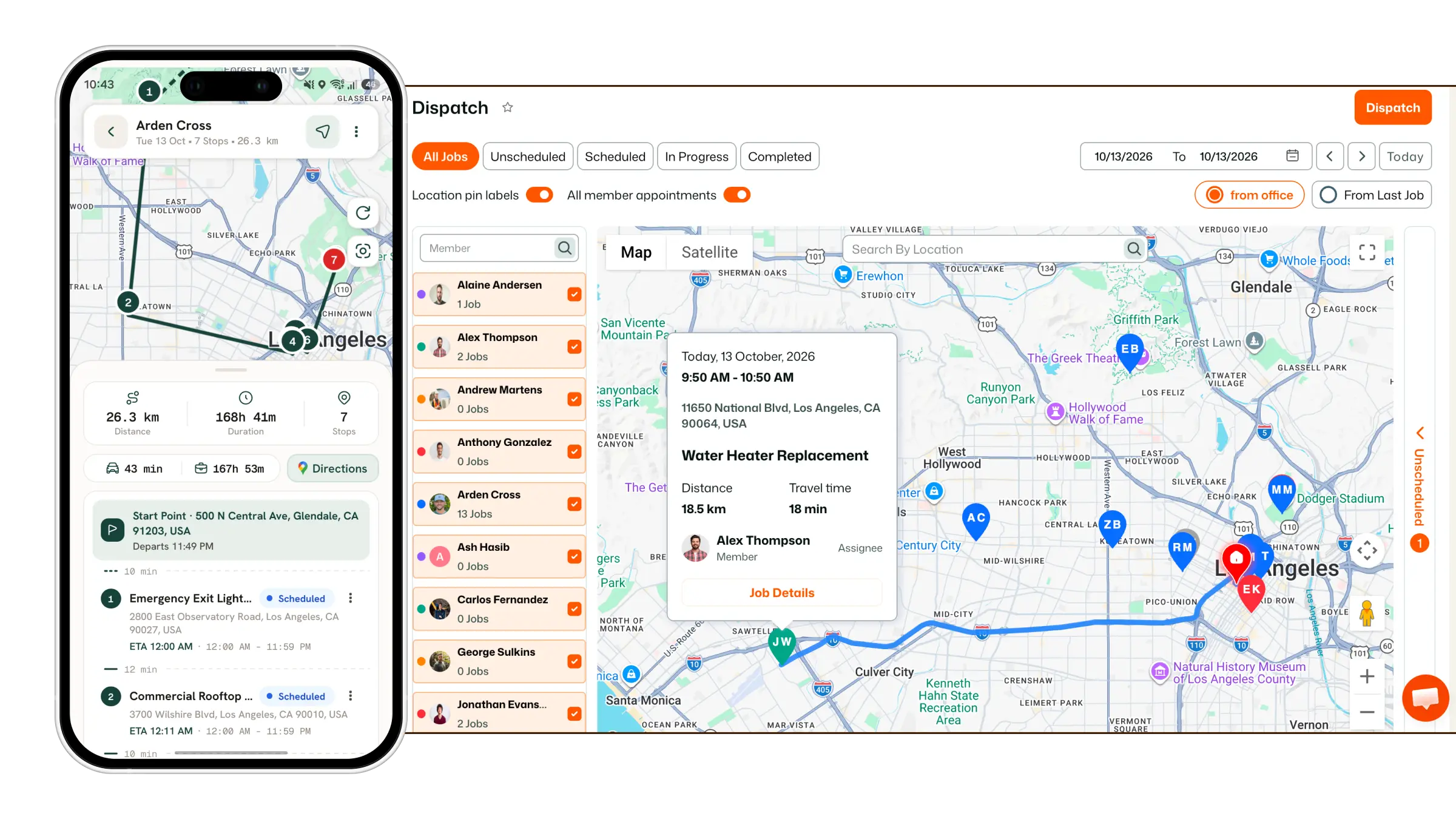
Learn how to invite your customers to access their dedicated Customer Portal.
From the left sidebar, go to Customer Portal.
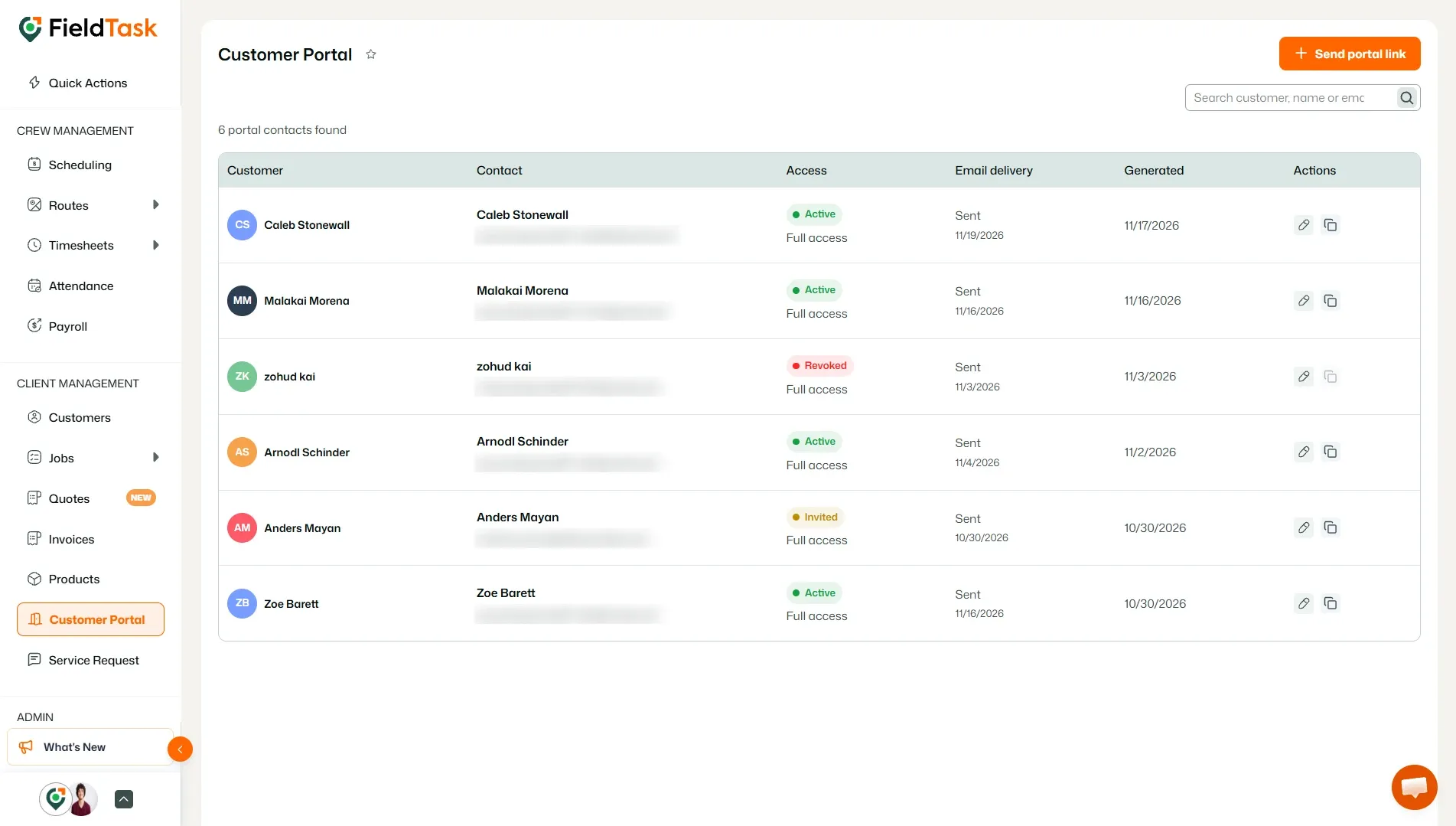
The Customer Portal page displays the customers who have been invited to access the portal, along with their portal contact, access status, email delivery status, and other information.
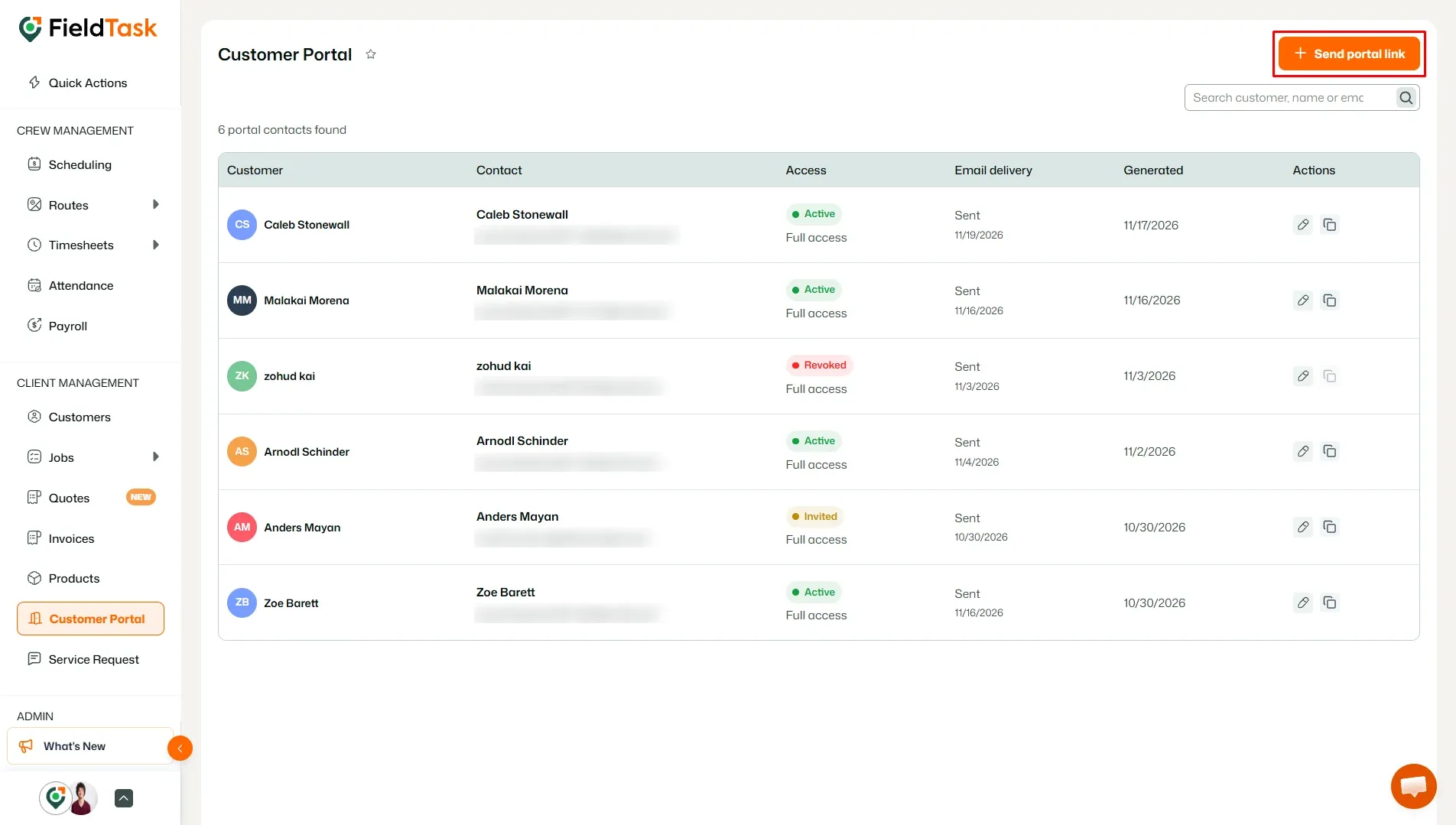
To invite a customer to the Customer Portal, click the Send portal link button in the top-right corner.
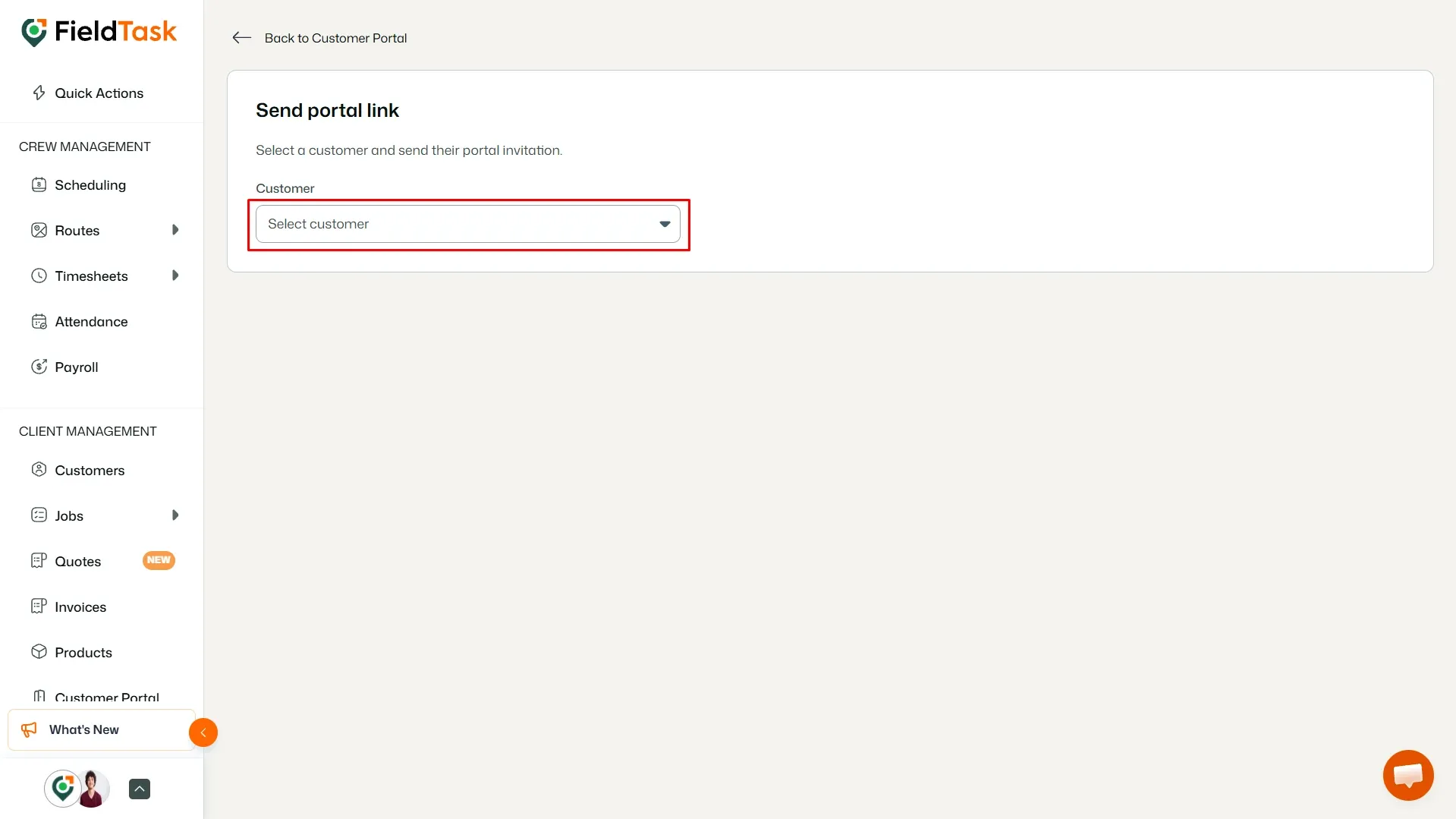
You will be taken to the Send portal link page, where you can select the customer you want to invite.
Click the Customer drop-down and select the customer you want to give portal access to.
Once you select a customer, their portal invitation details will be displayed.
Review the information shown for the selected customer and provide any missing details.
You may need to provide:
The customer's location is also displayed on the page for reference.
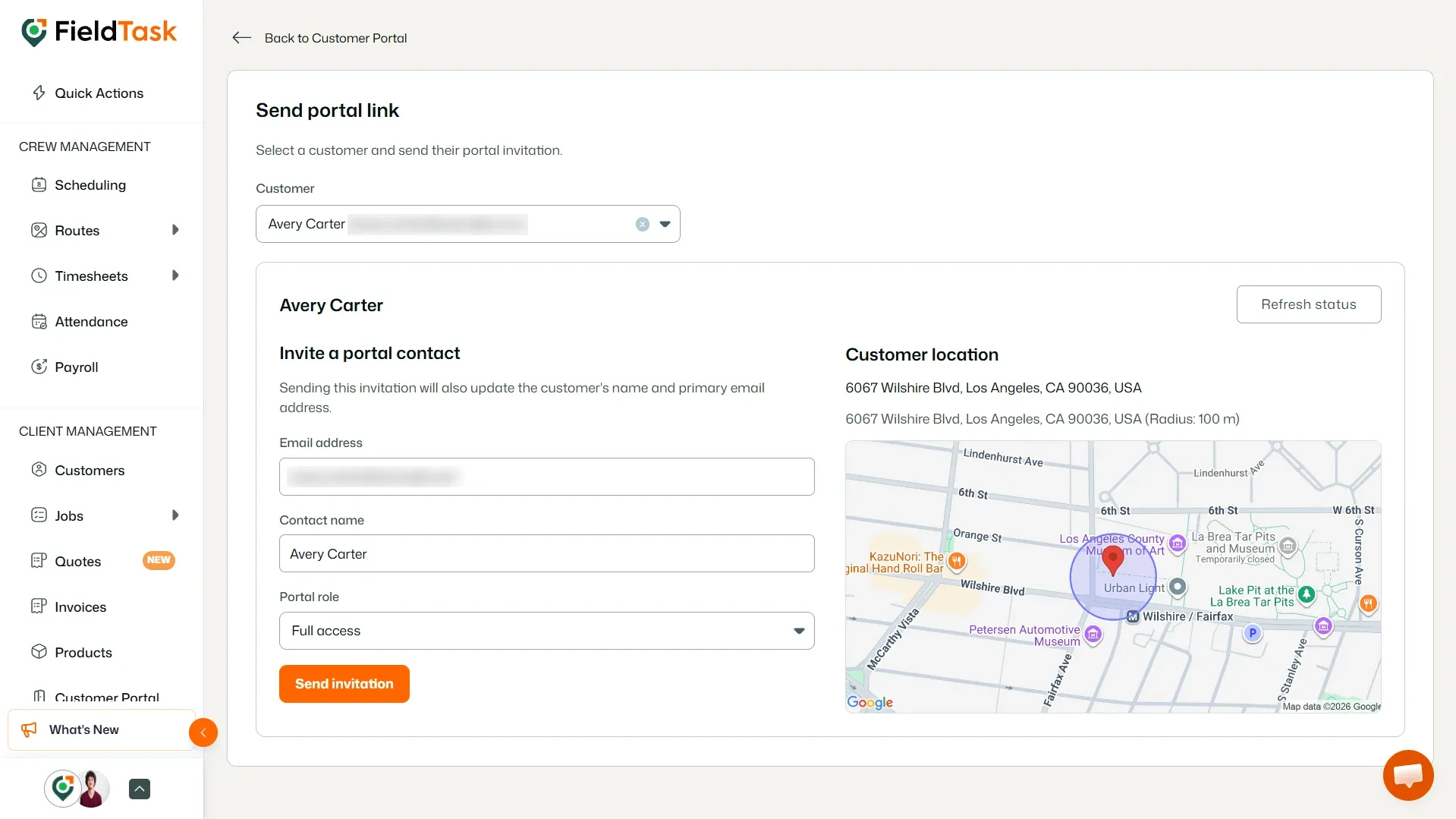
Once all the required information has been provided, click Send invitation.
After you send the invitation, the customer will receive an email containing a link to access their Customer Portal.
They can use the link in the email to log in and access the portal based on the permissions assigned to them.
Manage dispatch, route plan, techs, quotes, invoices, and more in GHL, the only dedicated field service app for HighLevel home service businesses and contractors.
The complete FieldTask sitemap: quick links to all pages.
Learn how FieldTask supports HIPAA compliance for home health and field service teams—encryption, BAAs, access controls, and audit logging.