The HighLevel Home Service Business Management Software
Manage dispatch, route plan, techs, quotes, invoices, and more in GHL, the only dedicated field service app for HighLevel home service businesses and contractors.
No image available
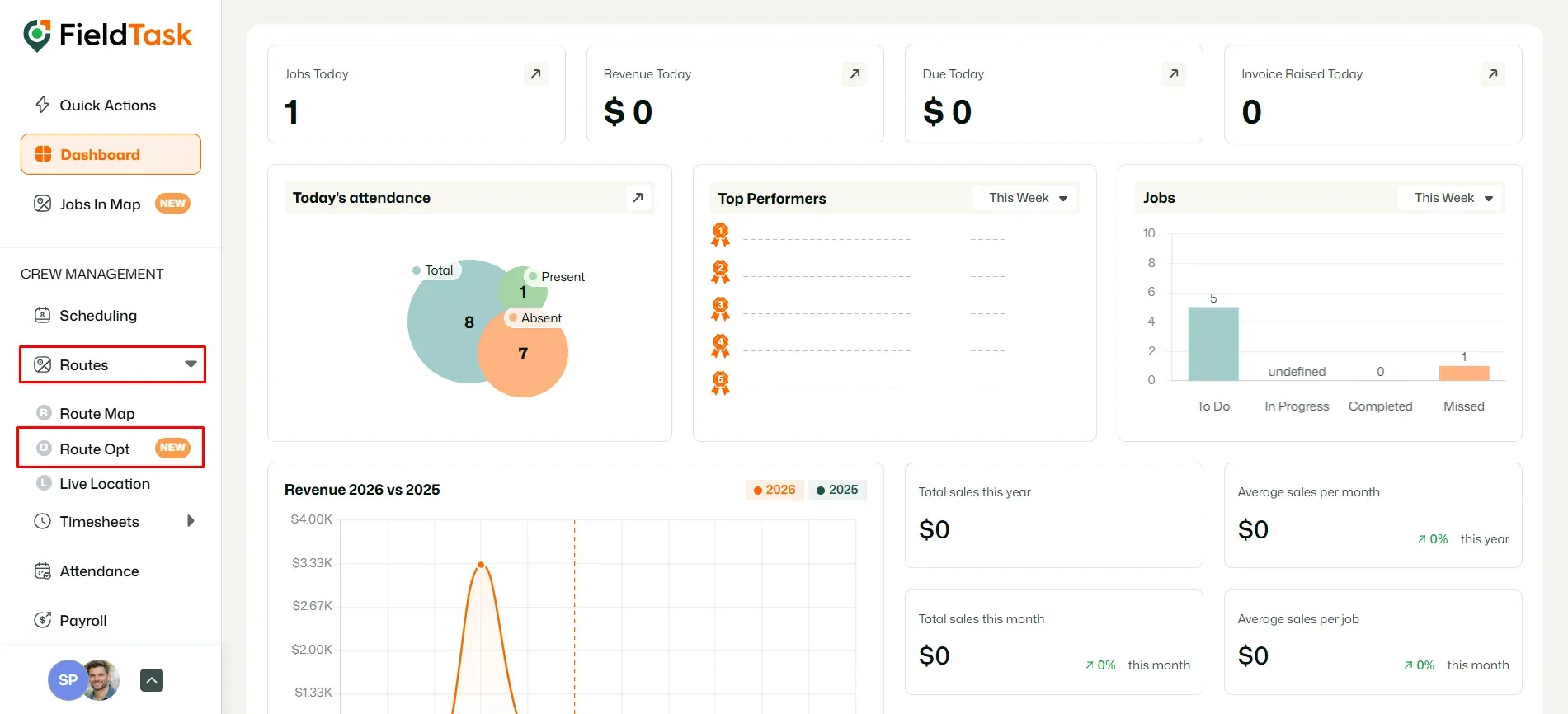
To optimize your route on Fieldtask, go to Route Opt under Routes on the Left Sidebar.
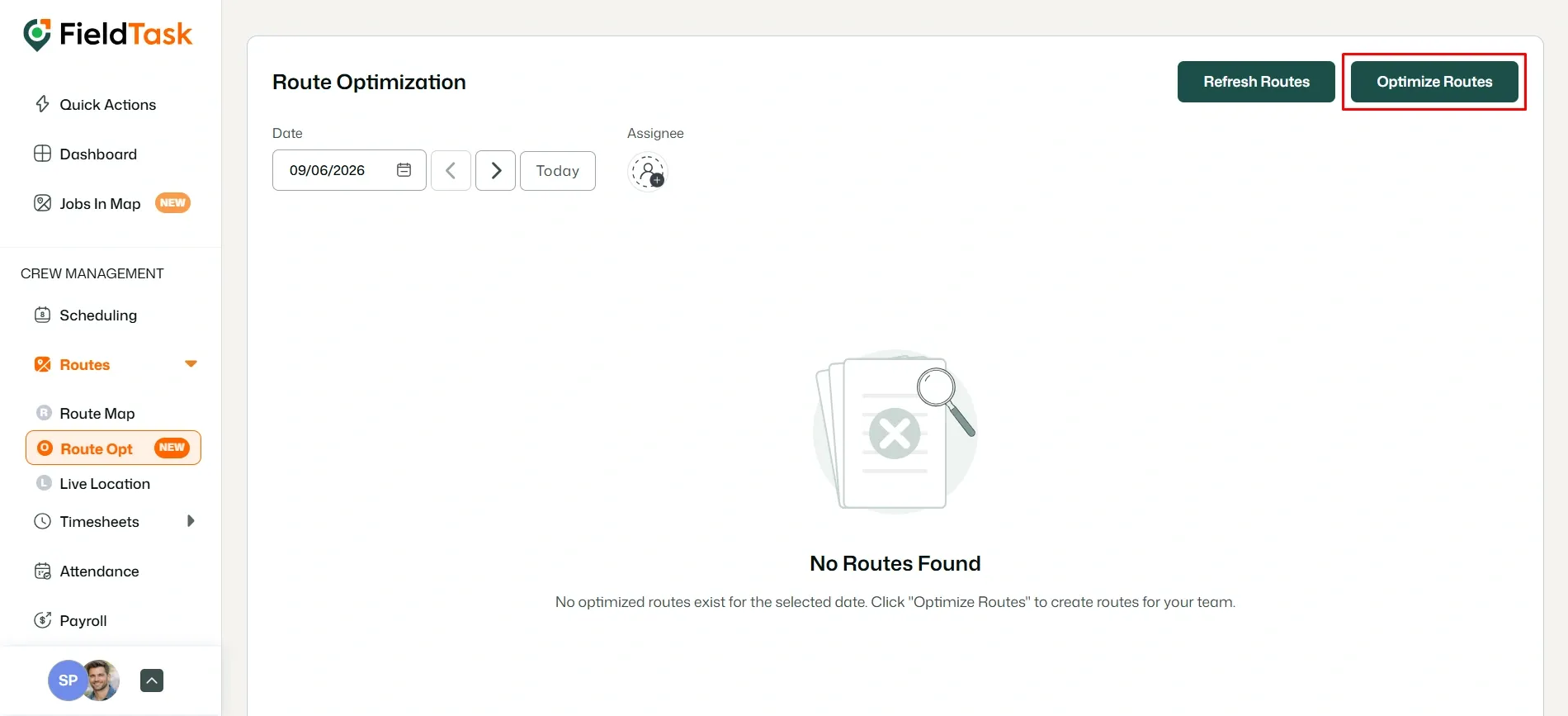
Click on the Optimize Routes button on the top right.
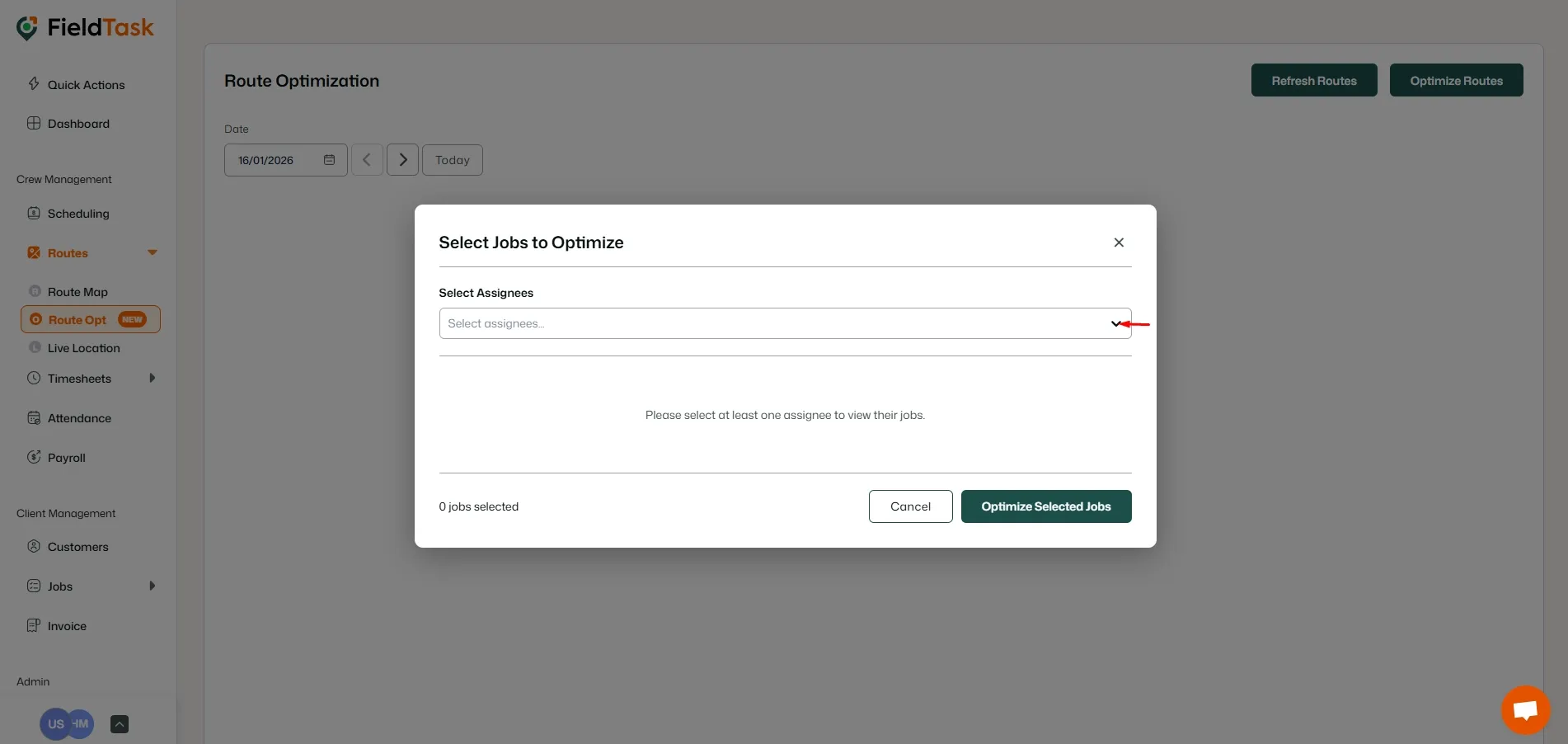
On the form that pops up, choose the assignee you want to optimize the route for.
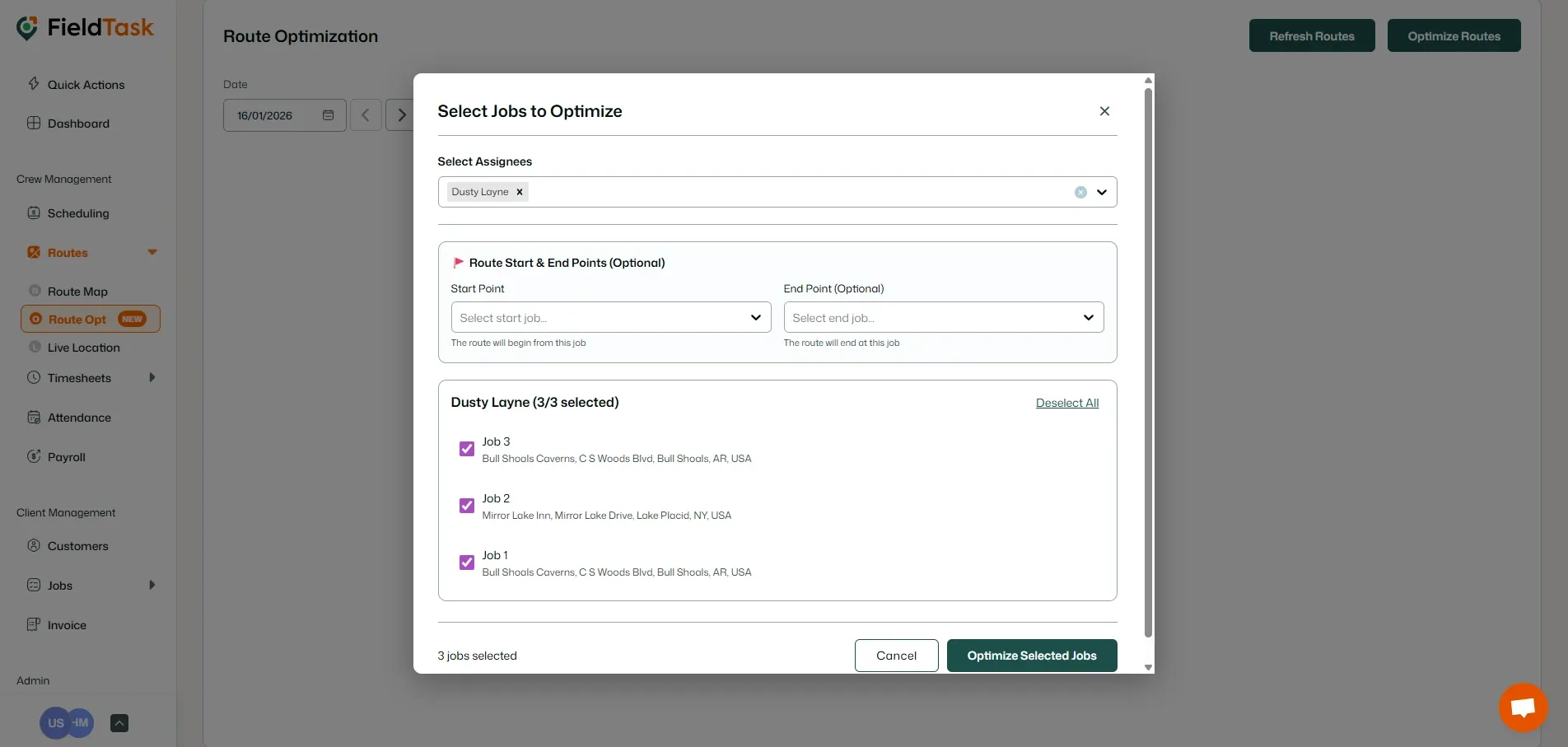
Now, choose
And click the Optimize Selected Jobs button.
Your route has been created.
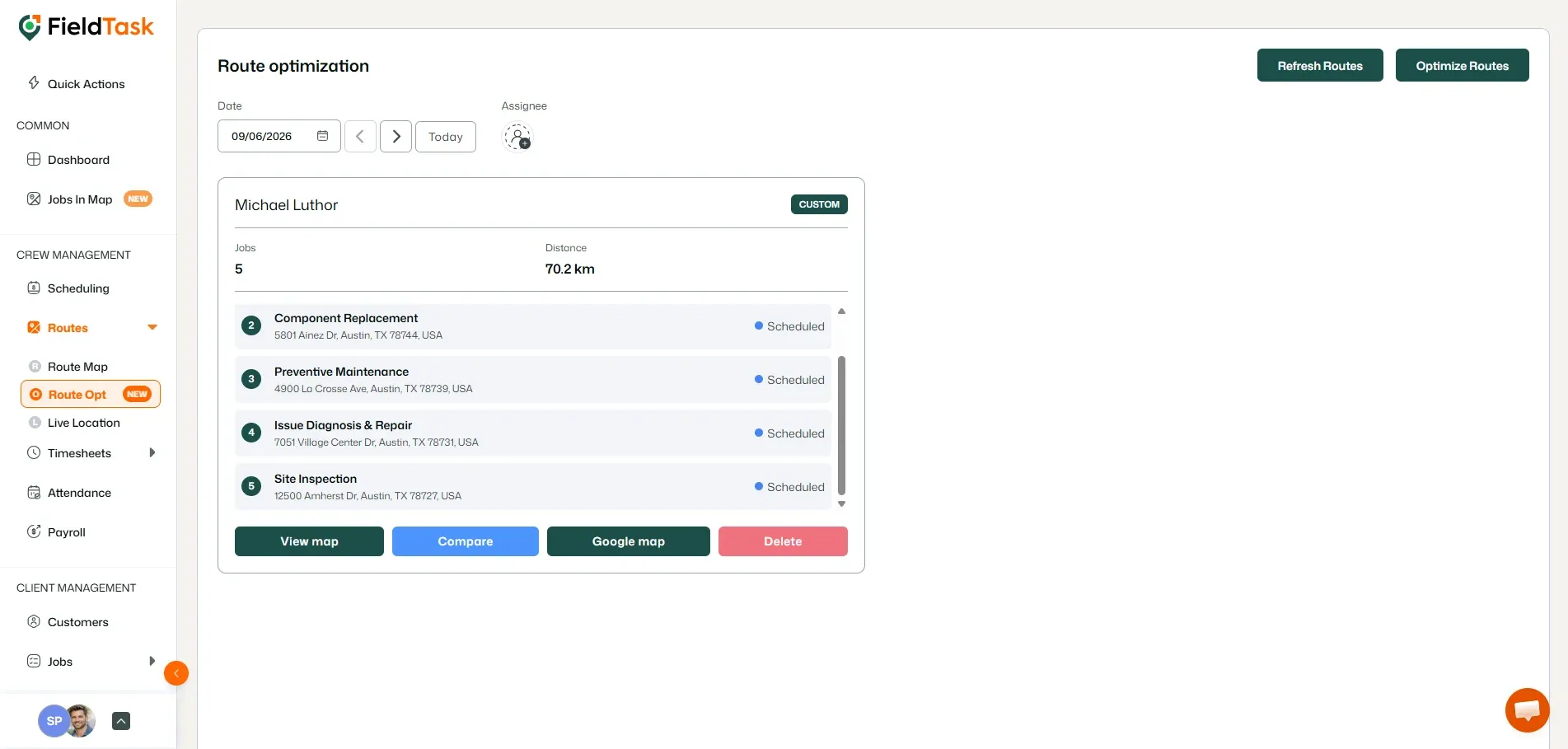
Clicking on the Map will show you your route.
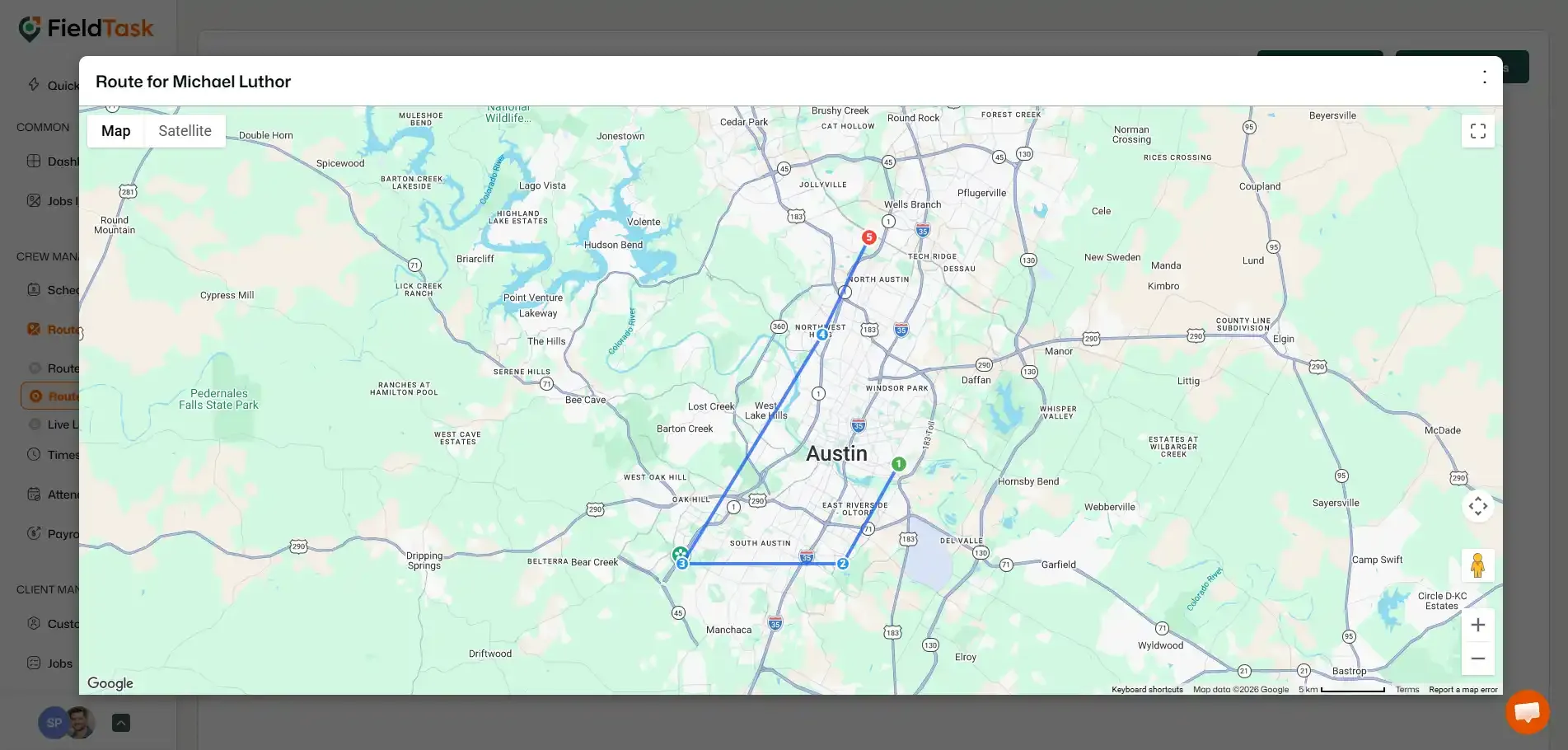
We also give you the option to view the map over on Google Maps, so you have the data about traffic and such.
Manage dispatch, route plan, techs, quotes, invoices, and more in GHL, the only dedicated field service app for HighLevel home service businesses and contractors.
The complete FieldTask sitemap: quick links to all pages.
Learn how FieldTask supports HIPAA compliance for home health and field service teams—encryption, BAAs, access controls, and audit logging.