The HighLevel Home Service Business Management Software
Manage dispatch, route plan, techs, quotes, invoices, and more in GHL, the only dedicated field service app for HighLevel home service businesses and contractors.
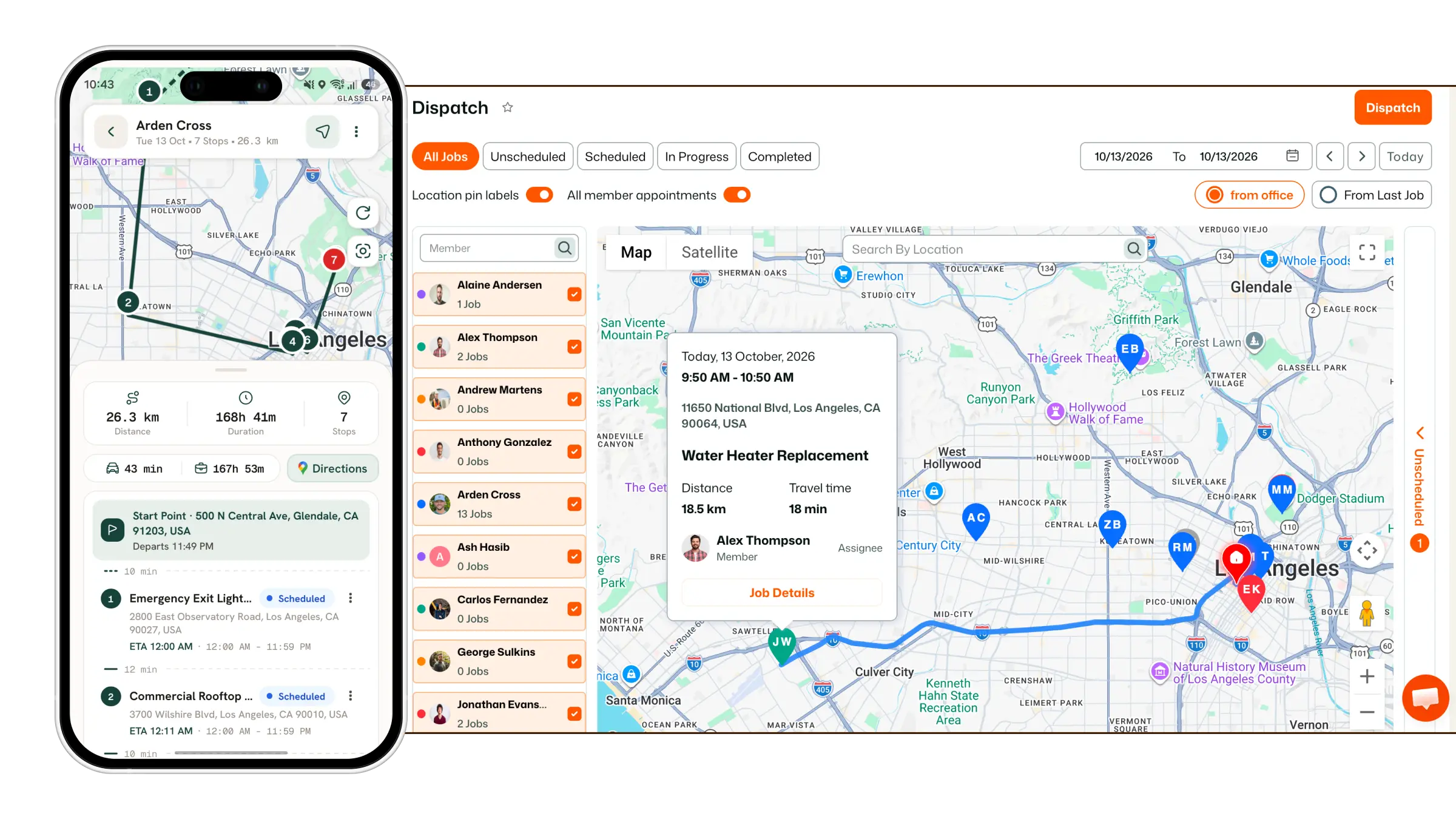
Learn how to submit a service request directly to your service provider through the FieldTask Customer Portal.
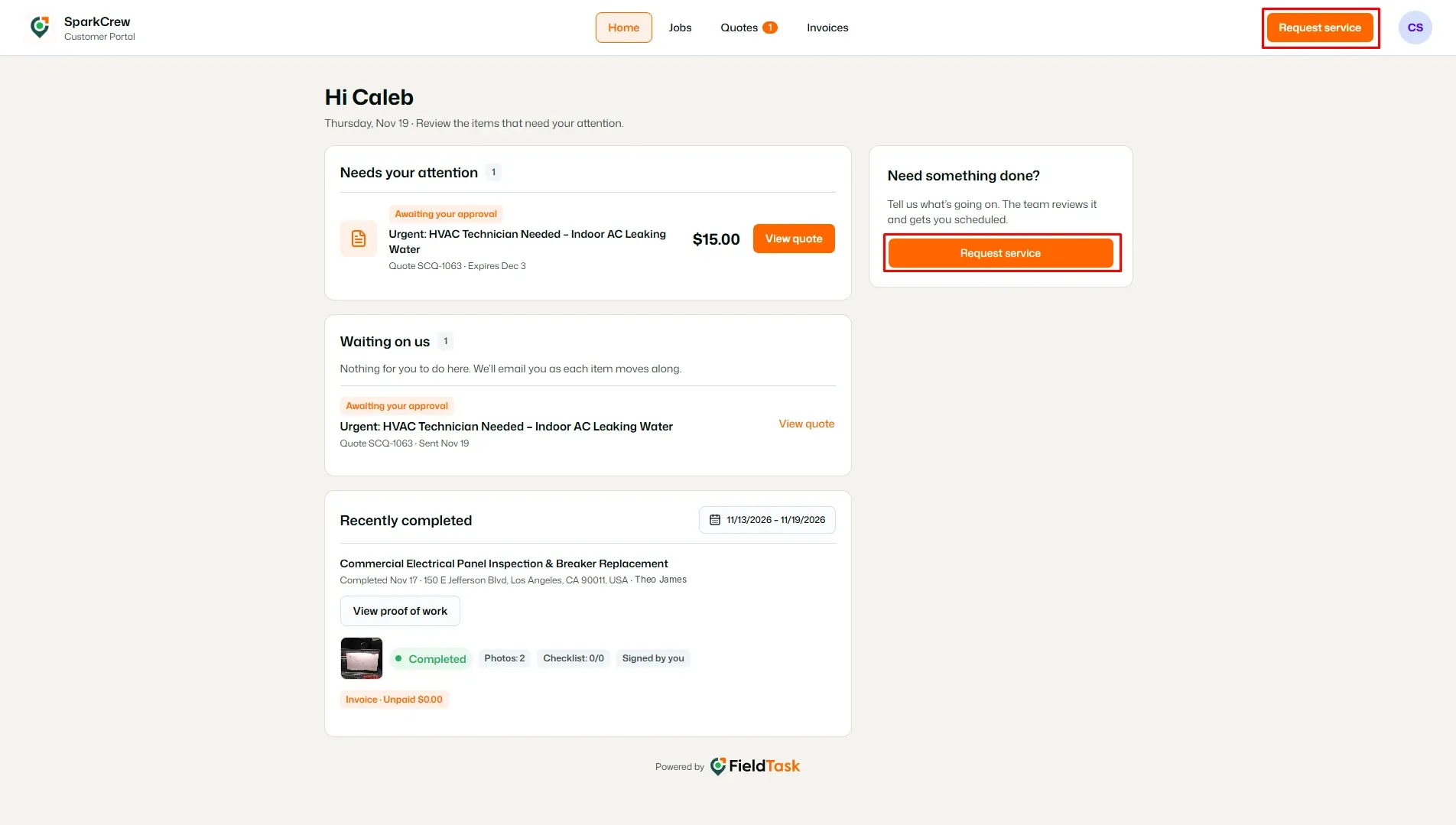
From the Home page of the Customer Portal, click the Request service button on the right side of the page.
The Service Request Form will open.
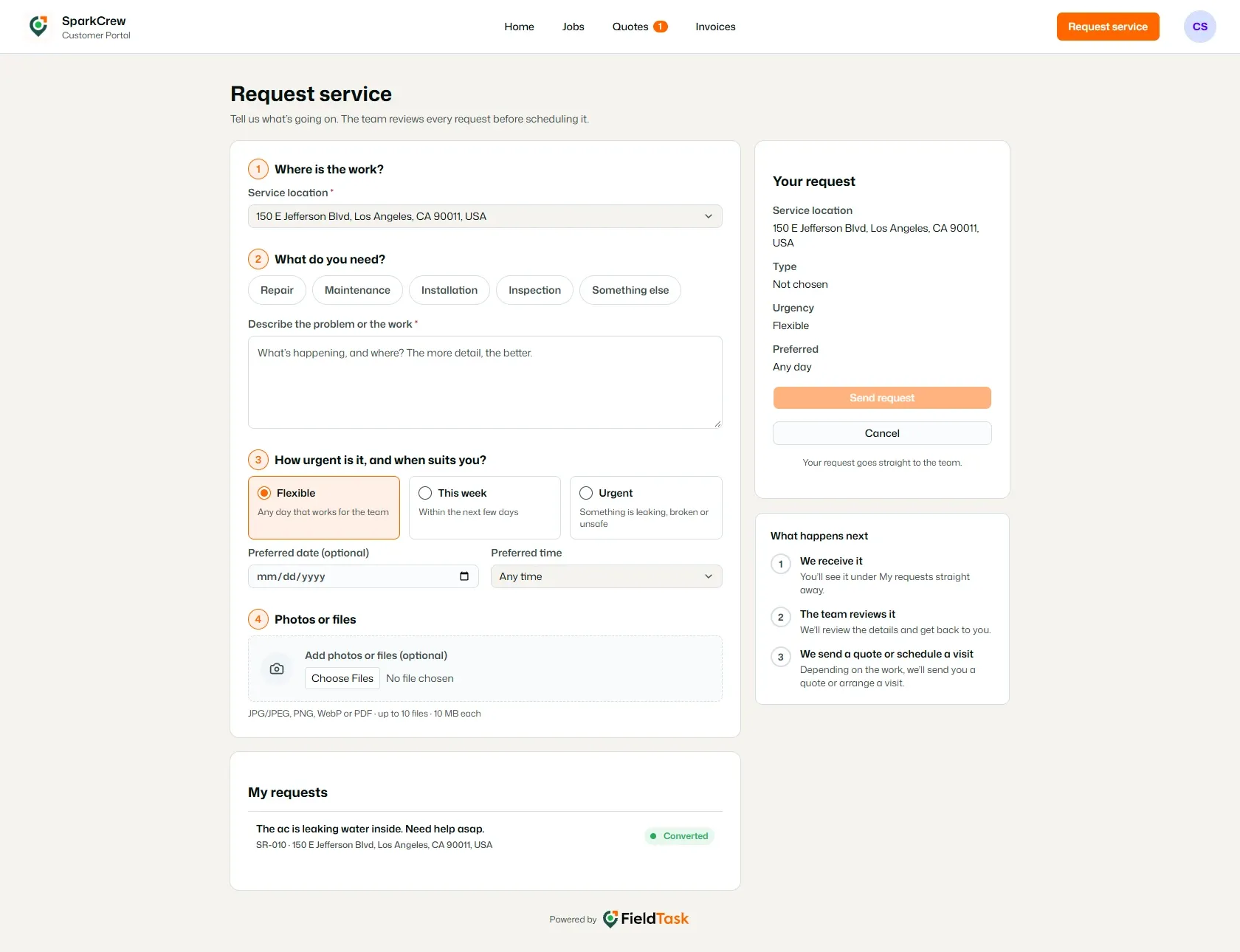
Under Where is the work?, select the Service location where you need the work to be carried out.
If you have multiple service locations, choose the location that applies to your request.
Under What do you need?, select the type of service you are requesting:
Then, describe the problem or work in the Describe the problem or the work field.
Provide as much detail as possible, including what is happening and where the issue is located.
Under How urgent is it, and when suits you?, choose the option that best describes when you need the service:
You can also provide:
The preferred date is optional.
Under Photos or files, you can attach supporting files to your request.
Click Choose files and select the photos or documents you want to send.
You can upload up to 10 files, with each file being up to 10 MB.
Supported file types include:
Adding photos or files is optional, but they can help the service team understand the work you are requesting.
As you fill out the form, the Your request panel on the right will provide a summary of the information you have entered.
You can review:
If you decide not to submit the request, click Cancel.
Once you have entered all the required information, click Send request.
Your request will be sent directly to the service team for review.
After submitting your request, the service team will review the information you provided.
The portal outlines the process as:
You can also see your submitted requests in the My requests section of the Service Request page, along with their current status.
Manage dispatch, route plan, techs, quotes, invoices, and more in GHL, the only dedicated field service app for HighLevel home service businesses and contractors.
The complete FieldTask sitemap: quick links to all pages.
Learn how FieldTask supports HIPAA compliance for home health and field service teams—encryption, BAAs, access controls, and audit logging.